Cravin POS — how to run your restaurant on it
Every screen, button and report, with numbered screenshots. Numbers in red on a picture match the numbered list right under it.
About Cravin POS
Cravin POS is a billing and restaurant management app for Windows that works completely offline. Orders, bills, stock, customers and reports are all saved on this PC, so the restaurant keeps running when the internet is down, and nothing is ever uploaded anywhere.
What you can do with it
| Area | What it covers | Section |
|---|---|---|
| Billing | Dine-in, takeaway, delivery, counter tokens and Swiggy/Zomato orders; kitchen tickets (KOTs) per station; discounts, coupons, split bills, all payment modes | Billing, Settle |
| Floor | Live table map, reservations, waitlist, moving and merging tables | Tables |
| Kitchen | Kitchen display with timers, token screen for counter orders | Kitchen & token screens |
| Closing | Shifts with cash counts, day-end checklist, Z report, automatic backup | Day-end close |
| Numbers | Live dashboard, 25 reports, GST/VAT summaries, exports for your accountant | Dashboard, Reports |
| Menu & stock | Items, variations, add-ons, combos, area prices, schedules; recipes, purchase orders, suppliers, wastage, stock counts | Menu, Stock |
| People | Customers, loyalty points, credit accounts, feedback; staff PINs, roles, attendance, audit log | Customers, Staff |
| Setup | Outlet details, India GST or UAE VAT, bill layout, printers, backups | Settings |
How a normal day runs
- Open. The cashier logs in with their PIN and enters the opening cash in the drawer. This opens the shift and the business day.
- Take orders. Captains and cashiers open tables or counter orders on the Billing screen and press F8 to send KOTs. Each kitchen station gets its own ticket.
- Cook. The kitchen works from printed KOTs or the Kitchen display and marks orders ready.
- Bill and settle. Print the bill (F9), take payment on the Settle screen (F10), split it if needed. Stock is deducted from recipes automatically and loyalty points are added.
- Close. Count the cash and close the shift, then run Day-end close: the Z report prints and a backup is made.
Who does what
Everyone logs in with their own 4–6 digit PIN, and what they see depends on their role. When someone needs to do something their role does not allow, the app asks for a manager's PIN on the spot, and the approval is written to the audit log. The full table is in Shortcuts & permissions.
| Role | Typical tasks |
|---|---|
| Owner | Everything: settings, taxes, prices, staff, reports, exports, backups, reopening a closed day |
| Manager | Approves voids and larger discounts, menu and stock, reports, day-end close |
| Cashier | Takes orders, prints and settles bills, small discounts, one free reprint per bill |
| Captain | Takes table orders and sends KOTs, moves tables |
| Kitchen | Uses the kitchen display, marks items out of stock |
| Store | Stock in, wastage, purchase orders, stock counts |
Reading this manual
Each screen has one or more pictures with numbered red markers. The numbered list right under a picture explains each marked control, in the same order. Click any picture to see it full size. Steps marked How to walk through common tasks.
1Getting started
How to open Cravin POS for the first time, set up your restaurant with the 11-step setup, log in with your PIN and find your way around. Read this once before your first day of billing.
Install and open the app
- Double-click
CravinPOS-Setup-1.0.0.exe(from a USB drive or your reseller). Windows 10 or 11, 64-bit, is needed. - Choose Install for all users if you have an administrator account (recommended on the billing PC), or Install for me only, which needs no administrator password.
- Tick Create a desktop shortcut, click Install, then Finish with Start Cravin POS now ticked.
- Later, open it from the desktop shortcut or the Start menu. The Start menu also has Cravin POS manual (this page) and Uninstall Cravin POS.
- The first time, the Cravin POS setup screen opens. After setup, the app always opens on the login screen.
The setup wizard
The setup screen has 11 steps (0 to 10). Every answer is saved on this PC the moment you enter it, so you can close the app and continue later from the same step. Steps marked OPTIONAL can be skipped. Nothing you choose here is locked: it can all be changed later in Settings.
Step 0 · Welcome
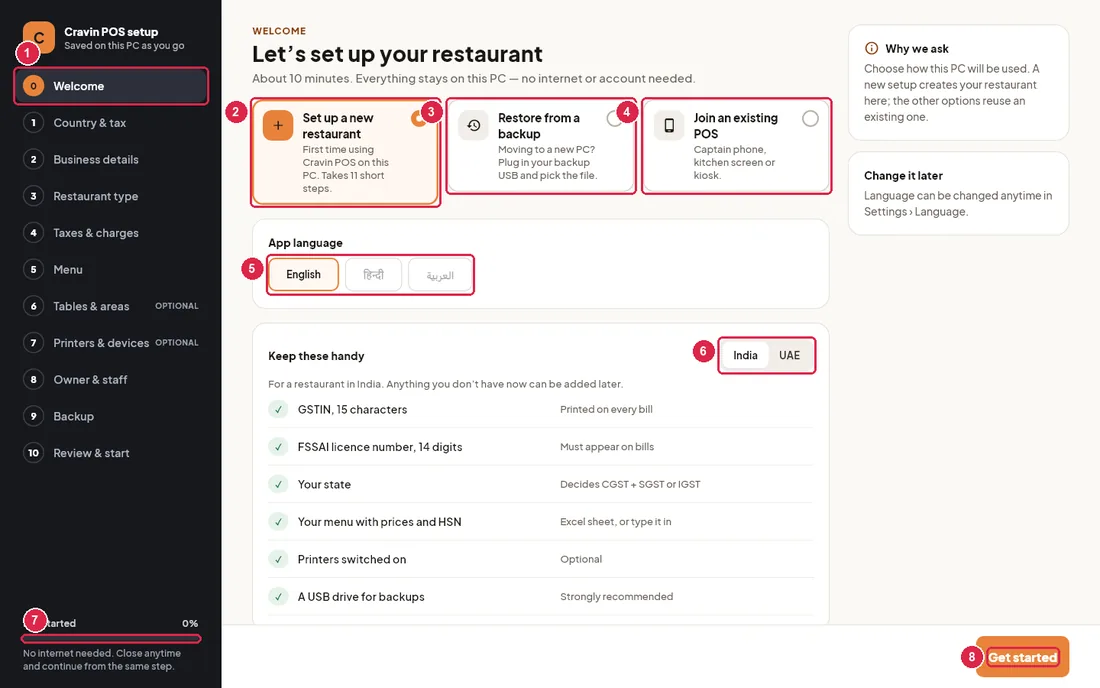
- Step list — all 11 steps. The current step is highlighted, finished steps get a green tick. Click any step to jump to it.
- Set up a new restaurant — the normal choice for a first install. Continue with Get started.
- Restore from a backup — for moving to a new PC. The button changes to Choose backup file: pick a backup found in your backup folders or on a plugged-in USB drive (folder
CravinBackups), or choose Another file… and type its full path. The file is checked before anything is restored. After restoring, the app goes straight to the login screen with your old staff and PINs. - Join an existing POS — for captain phones and kitchen screens joining another billing PC. Not available in this build: set this PC up as its own POS, or restore a backup from the other PC.
- App language — only English screens are available in this build. Hindi and Arabic are shown but cannot be picked yet.
- India / UAE — switches the “Keep these handy” checklist (and the country) between India and the UAE.
- Progress — how far you are (Step 4 of 10 = 40%).
- Get started — goes to step 1.
Step 1 · Country & tax
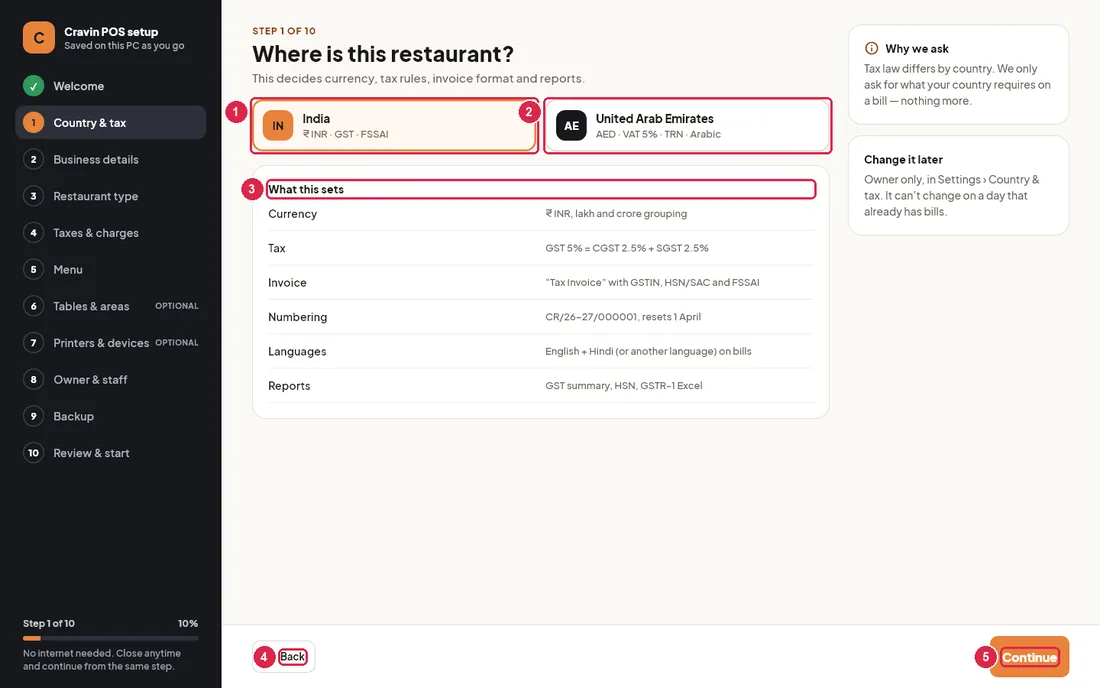
- India — ₹ with lakh grouping (₹12,34,567.89), GST split into CGST + SGST, FSSAI number on bills, bill numbers like
CR/26-27/000001that restart every 1 April. - United Arab Emirates — AED with 2 decimals, VAT 5% included in menu prices, bilingual “Tax Invoice / فاتورة ضريبية”, numbers like
INV-2026-000001that restart every 1 January, Arabic as the second bill language. - What this sets — a summary of everything the country decides.
- Back — the previous step (available on every step after Welcome).
- Continue — saves and goes to the next step.
Step 2 · Business details
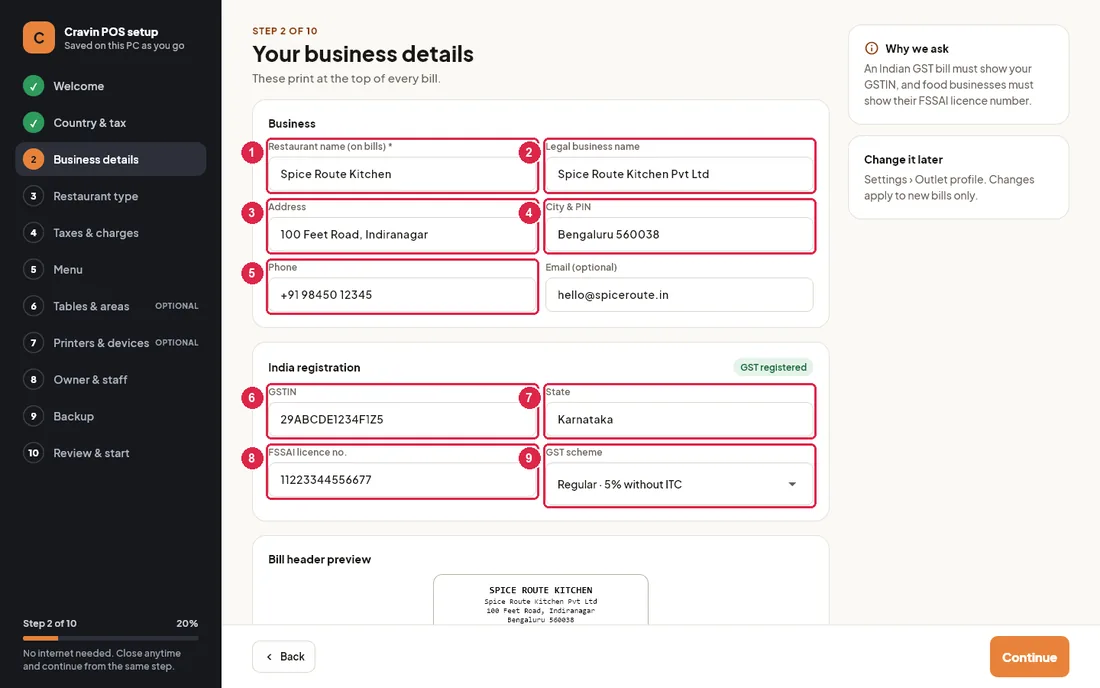
- Restaurant name (on bills) — required. Printed large at the top of every bill and shown on the login screen.
- Legal business name — printed under the name (for UAE: as on the trade licence).
- Address — street and area.
- City & PIN (UAE: City / emirate) — also shown on the login screen.
- Phone — printed as “Ph:” (UAE: “Tel:”). Email next to it is optional and does not print.
- GSTIN (UAE: TRN) — 15 characters, printed on every bill.
- State (UAE: Emirate) — your state for GST.
- FSSAI licence no. — 14 digits, printed on Indian bills. UAE shows Trade licence no. and Name in Arabic here instead.
- GST scheme — for your records (Regular 5% without ITC, Regular 18% with ITC, Composition 5%). The tax charged on each item comes from the item's tax rate in Menu.
Below the fields, Bill header preview shows exactly how the top of your bill will print.
Step 3 · Restaurant type
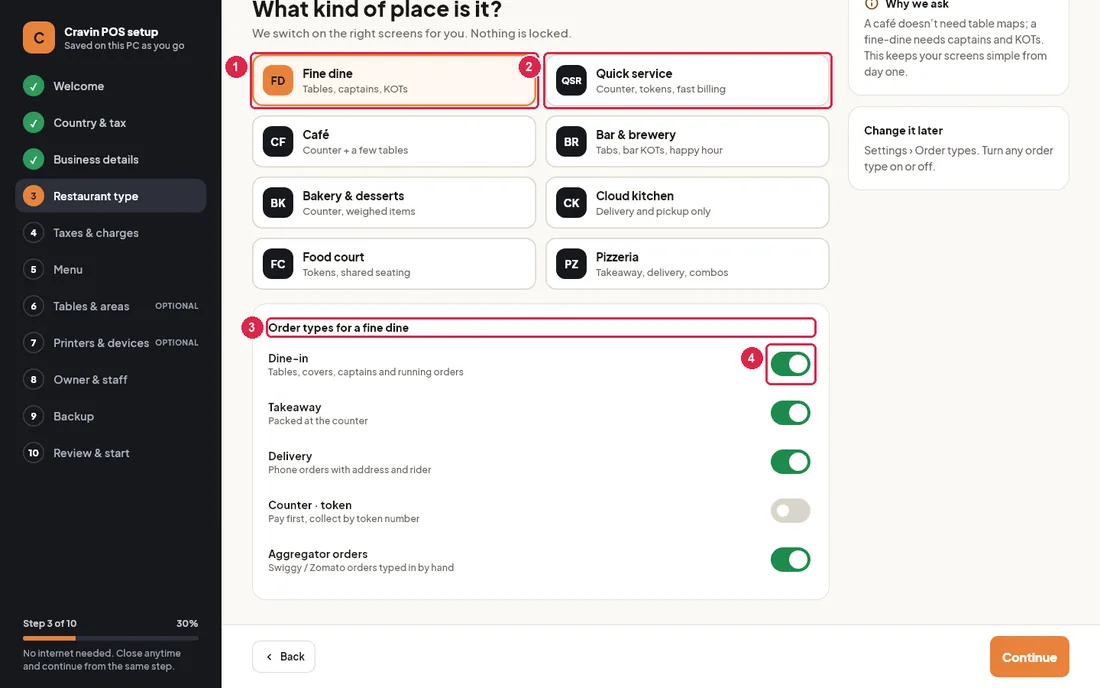
- Selected type — Fine dine, Quick service, Café, Bar & brewery, Bakery & desserts, Cloud kitchen, Food court or Pizzeria.
- Other types — click one to switch; the order types below change to suit it.
- Order types — the billing tabs this restaurant will use.
- On / off switch — turn any order type on or off yourself. At least one must stay on.
Step 4 · Taxes & charges
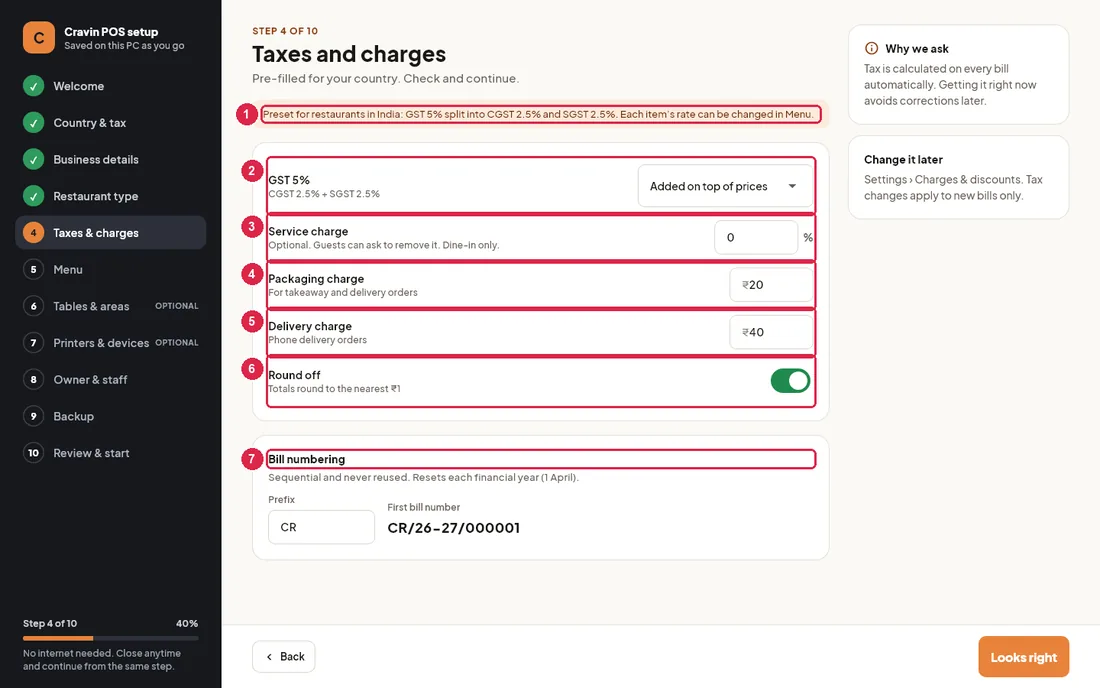
- Preset note — what the country preset does.
- GST 5% — choose whether menu prices are Added on top of prices (tax added at billing) or Included in prices. This is the default for new menu items. In the UAE, VAT is always included.
- Service charge — a percentage added to dine-in bills only. Leave 0 for none.
- Packaging charge — a fixed amount added to takeaway and delivery bills.
- Delivery charge — a fixed amount added to phone delivery orders.
- Round off — rounds bill totals to the nearest ₹1 (UAE: off keeps fils).
- Bill numbering — India: type a short Prefix (for example your initials); the first bill number is shown next to it. UAE numbering is fixed.
Press Looks right to continue.
Step 5 · Menu
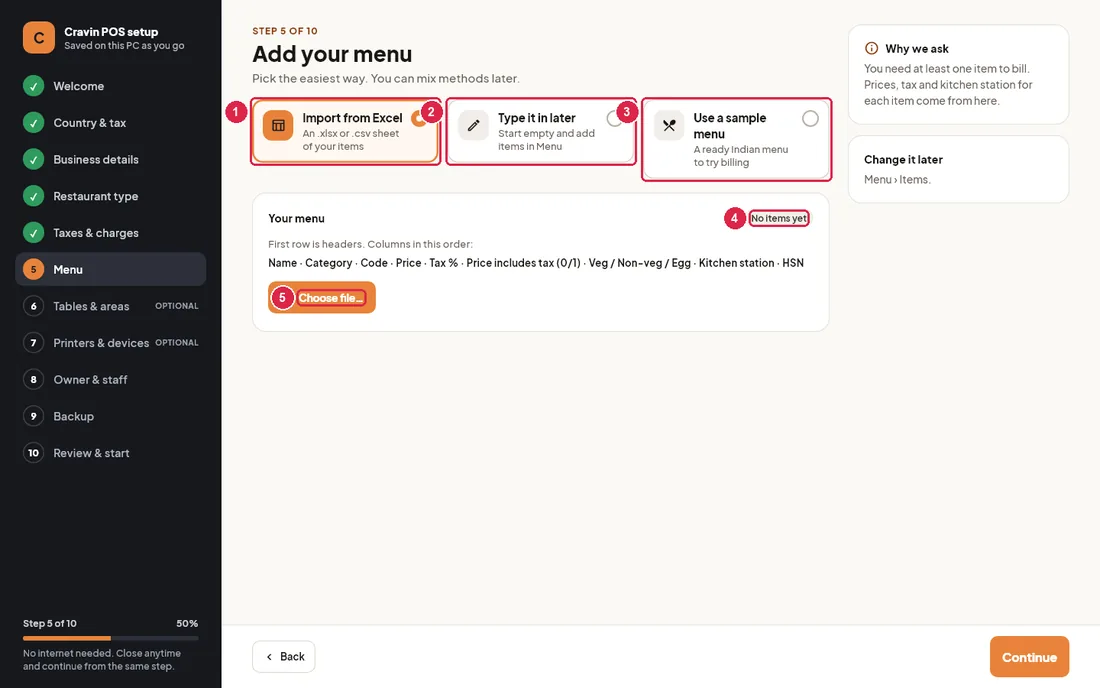
- Import from Excel — an .xlsx or .csv sheet. First row is headers, then columns in this order: Name, Category, Code, Price, Tax %, Price includes tax (0/1), Veg / Non-veg / Egg, Kitchen station, HSN. New categories and kitchen stations are created for you.
- Type it in later — start empty and add items in Menu after setup.
- Use a sample menu — adds a ready Indian menu (with variations, add-ons, price lists, tables, stock items, suppliers and coupons) so you can practise. Only possible while the menu is empty.
- Your menu — how many items and categories are in so far.
- Choose file… — type the full path of the sheet (for example
E:\menu.xlsx) and press OK.
Step 6 · Tables & areas (optional)
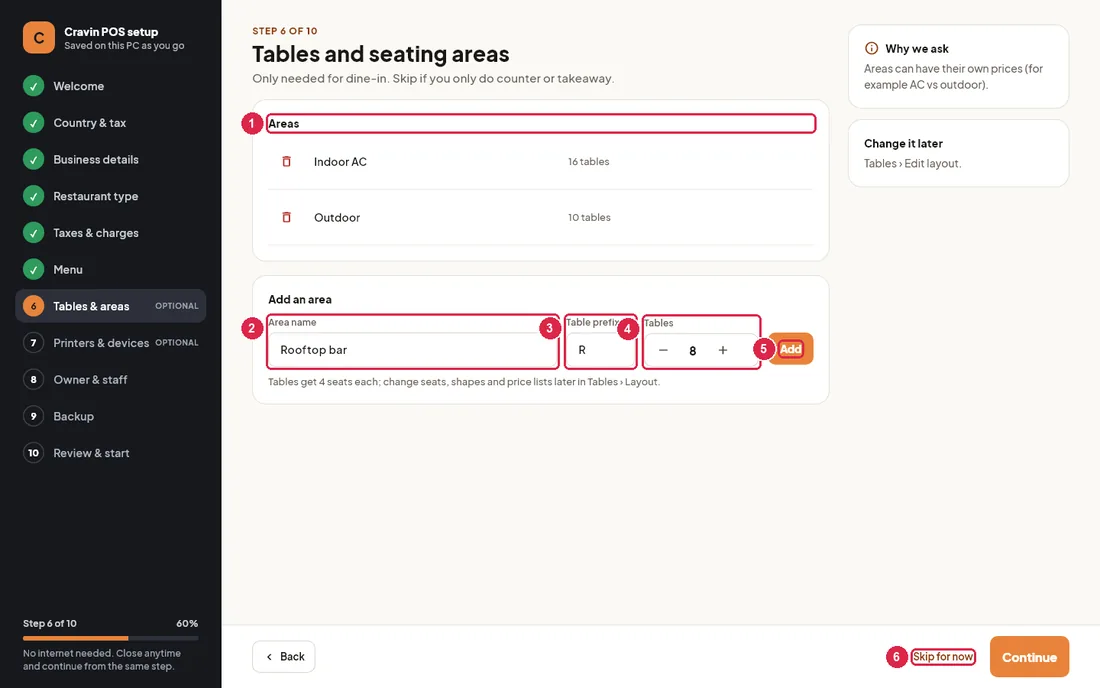
- Areas — areas already created with their table count. The red bin removes an area (only while it has no orders).
- Area name — for example Indoor AC, Outdoor, Rooftop bar.
- Table prefix — letters in front of the table numbers (T gives T1, T2…).
- Tables — how many tables, with − and +. Each gets 4 seats; change seats later in Tables.
- Add — creates the area and its tables.
- Skip for now — on optional steps; for counter-only and takeaway places.
Step 7 · Printers & devices (optional)
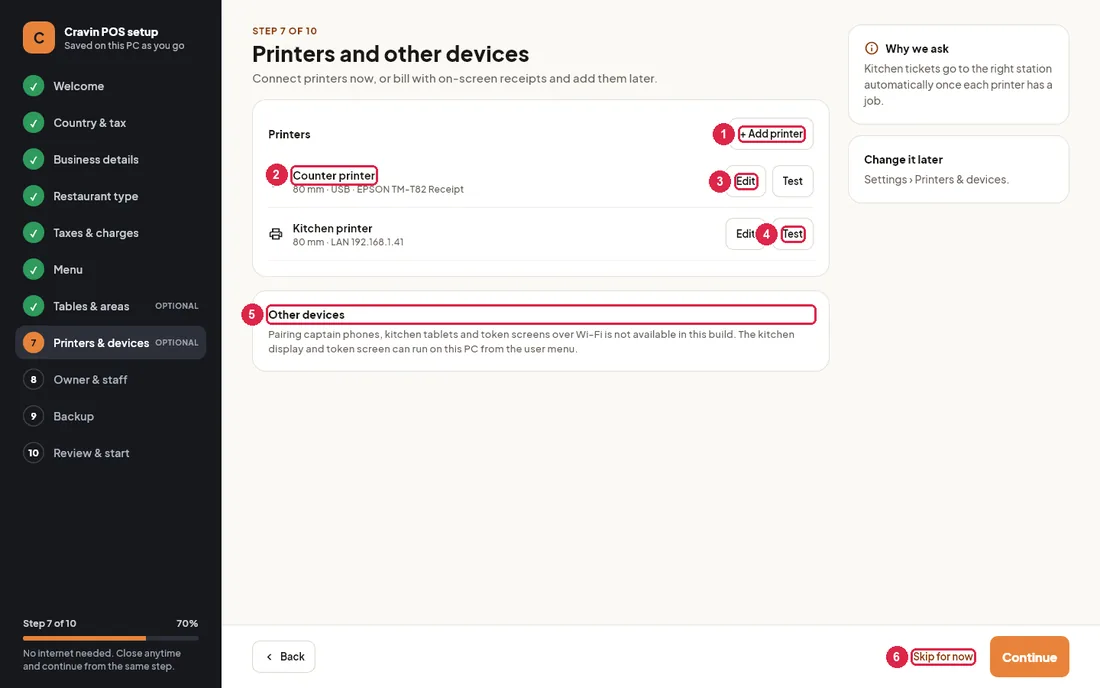
- + Add printer — opens the printer form (name, LAN/USB, address, paper). See Settings › Printers & devices for details. The first printer you add prints bills and is the fallback for kitchen tickets.
- Printer — name, paper width and connection.
- Edit — change the printer.
- Test — prints a small test slip and says whether the printer answered.
- Other devices — pairing captain phones, kitchen tablets and token screens over Wi-Fi is not available in this build. The kitchen display and token screen can run on this PC from the user menu.
- Skip for now — without printers, bills still work; they wait in the print queue.
Step 8 · Owner & staff
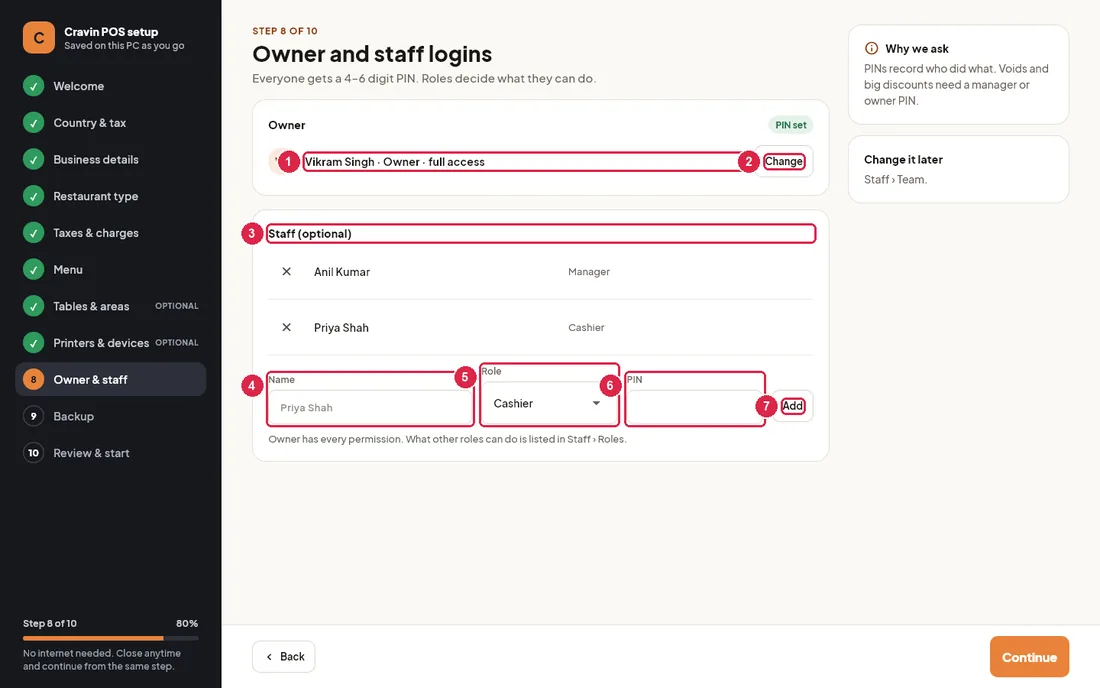
- Owner — enter the owner's name and a 4–6 digit PIN twice, then Save owner. Required: you cannot continue without it. The owner can do everything.
- Change — enter a different owner name or PIN.
- Staff (optional) — staff added so far; the ✕ removes one.
- Name — the staff member's name as it should show on the login screen and bills.
- Role — Manager, Cashier, Captain, Kitchen or Store. The role decides what they may do (see Staff).
- PIN — 4–6 digits. Every person needs a different PIN.
- Add — adds the person to the list.
Step 9 · Backup
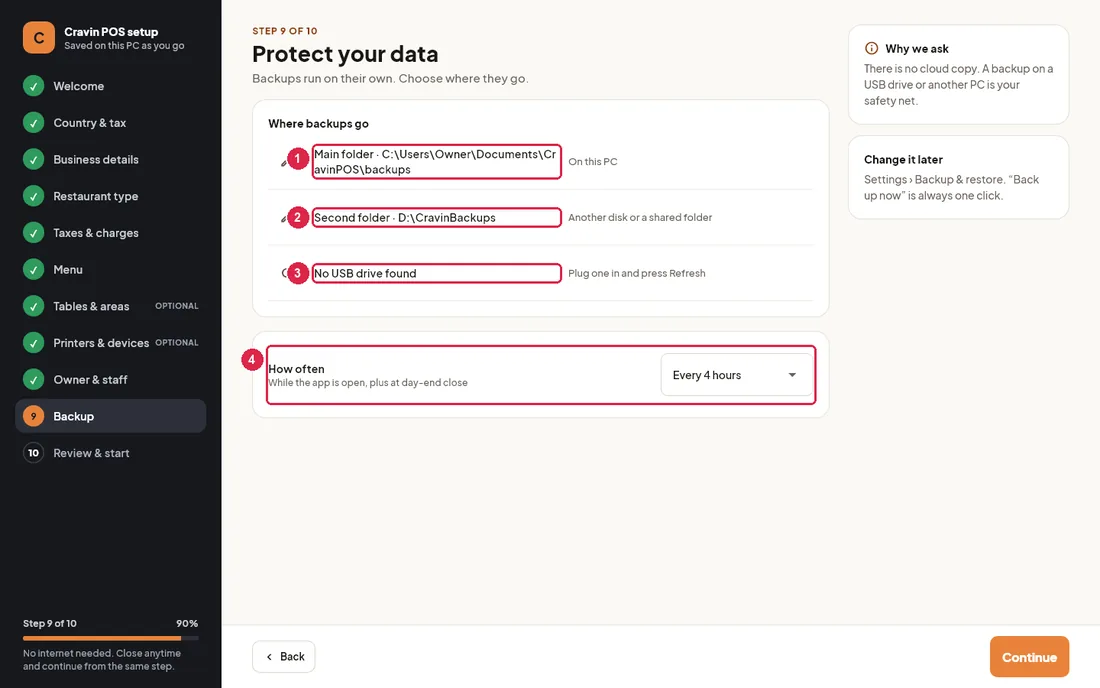
- Main folder — on this PC (Documents\CravinPOS\backups unless you change it with the pencil).
- Second folder — strongly recommended: another disk or a shared folder on another PC.
- USB drive — any plugged-in USB drive gets a copy in its
CravinBackupsfolder automatically. Plug one in and press Refresh. - How often — every 1–24 hours while the app is open, plus a backup at day-end close.
Step 10 · Review & start
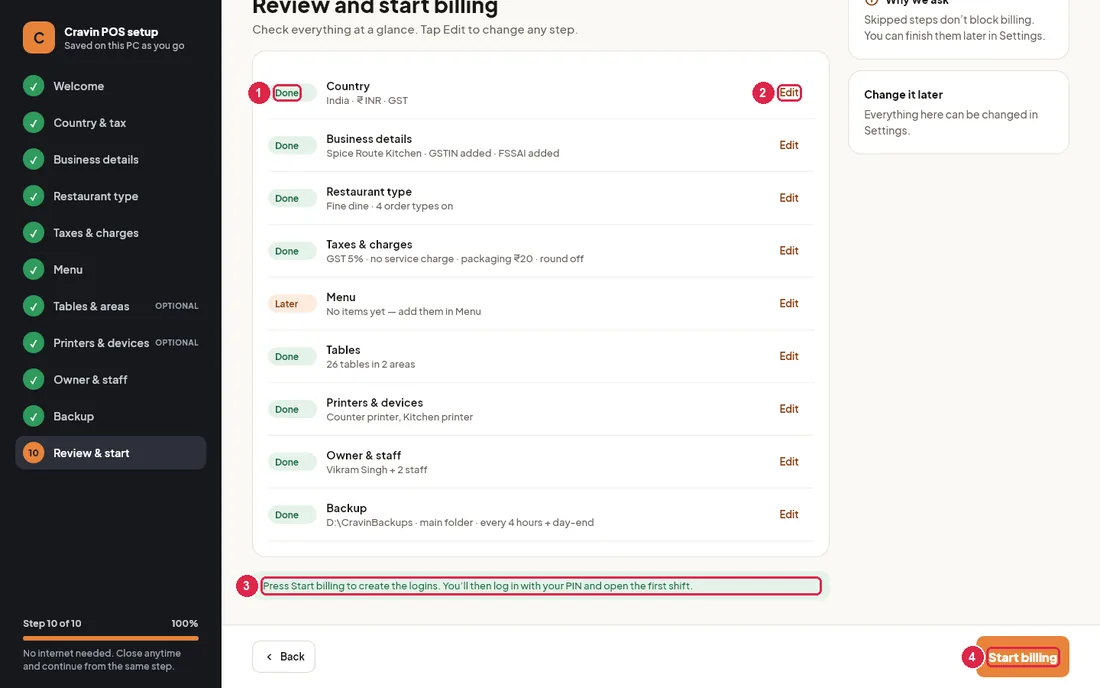
- Done / Later — Later means a step is not complete. Skipped steps do not block billing.
- Edit — jumps back to that step.
- Message — what happens when you start (or what is still missing).
- Start billing — creates the owner and staff logins and opens the login screen. The restaurant name and the owner PIN must be filled in.
Log in and open a shift
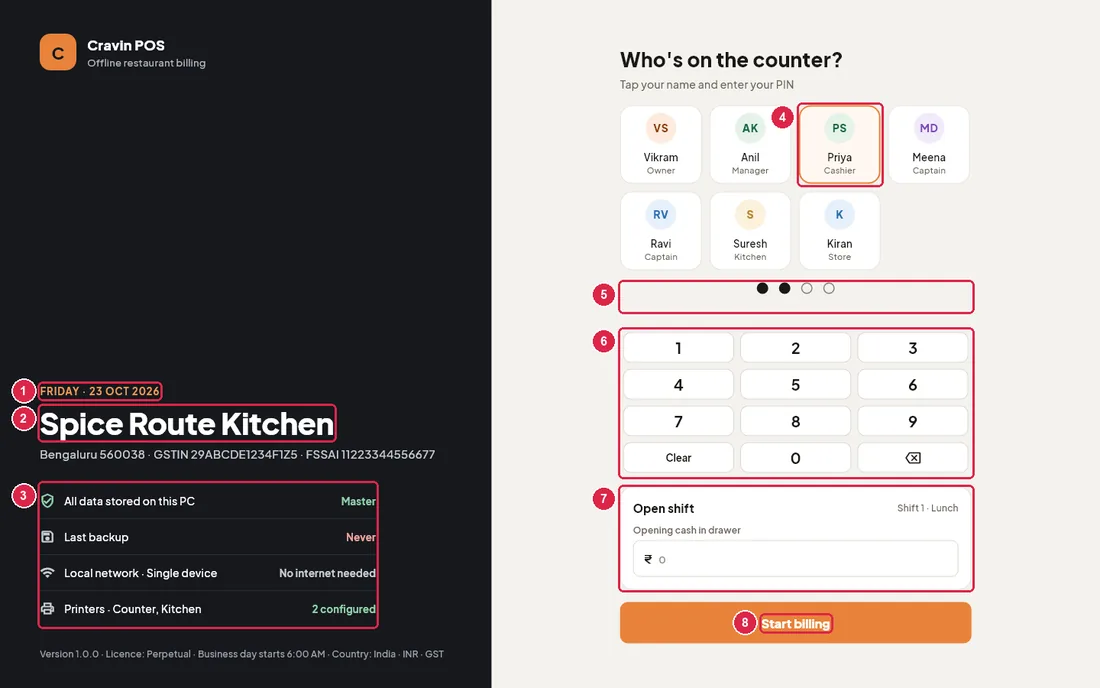
- Today's date.
- Restaurant name — with city, GSTIN/TRN and FSSAI below it.
- Status — data stored on this PC, when and where the last backup went, the network (single device in this build) and how many printers are set up.
- Staff tiles — one tile per active staff member with name and role. Tap your own name first; the tile turns orange. If only one person exists, their tile is picked for you.
- PIN dots — fill as you type. A wrong PIN shows “Wrong PIN” and clears.
- Keypad — tap digits, Clear or ⌫. The number keys on the keyboard work too, and Enter = Start billing.
- Open shift — appears for owners, managers and cashiers when no shift is open. Count the cash in the drawer and type it as Opening cash in drawer. The shift name (for example Shift 1 · Lunch) is chosen from the time of day.
- Start billing — logs you in (and opens the shift and the business day if the card is shown).
- Tap your name.
- Type your PIN. If no shift needs opening, you go straight in.
- If Open shift shows, type the opening cash (for example 5000) and press Start billing.
The main screen
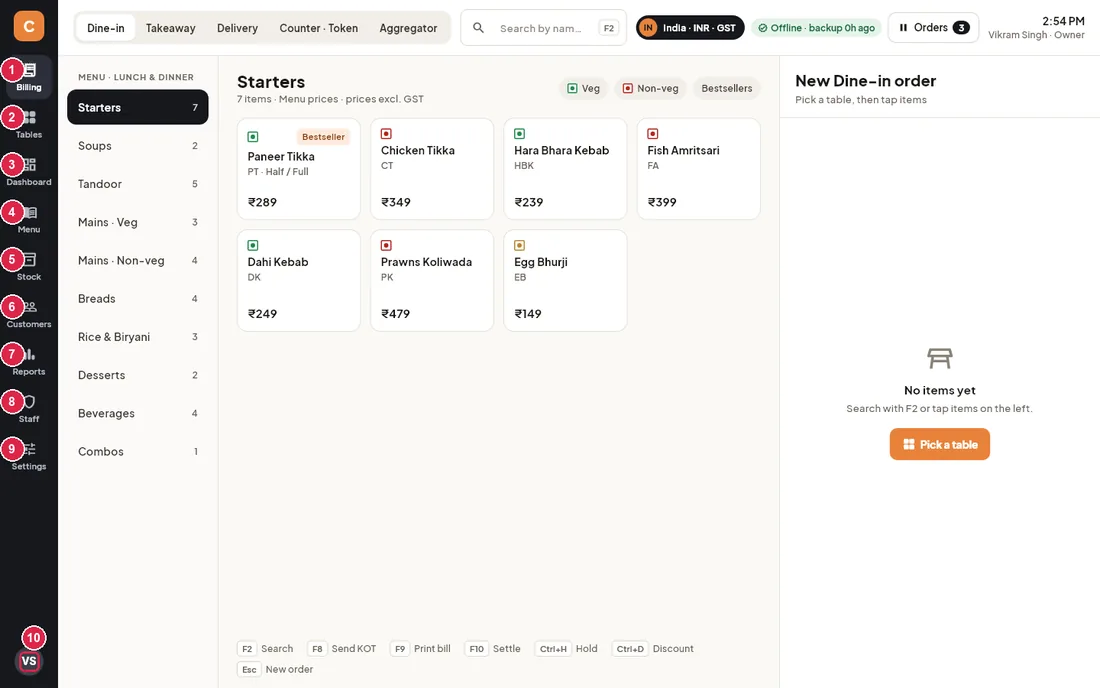
- Billing — take orders, send KOTs, print and settle bills. Owners, managers, cashiers and captains.
- Tables — floor plan, reservations and waitlist.
- Dashboard — today's sales at a glance and day-end close. Owners and managers.
- Menu — items, prices and stock availability. Kitchen staff can only mark items out of stock.
- Stock — inventory, recipes and purchases. Owners, managers and store staff.
- Customers — customer list, loyalty points and credit.
- Reports — all reports and exports for your accountant. Owners and managers.
- Staff — team, attendance, shifts and the audit log.
- Settings — everything in the Settings chapter. Owner only.
- Your initials — opens the user menu (below).
You only see the rail items your role allows. Coloured bars may appear at the top: No shift is open (with Open shift), print job(s) failed (with Retry) and No successful backup in the last 24 hours (with Back up now).
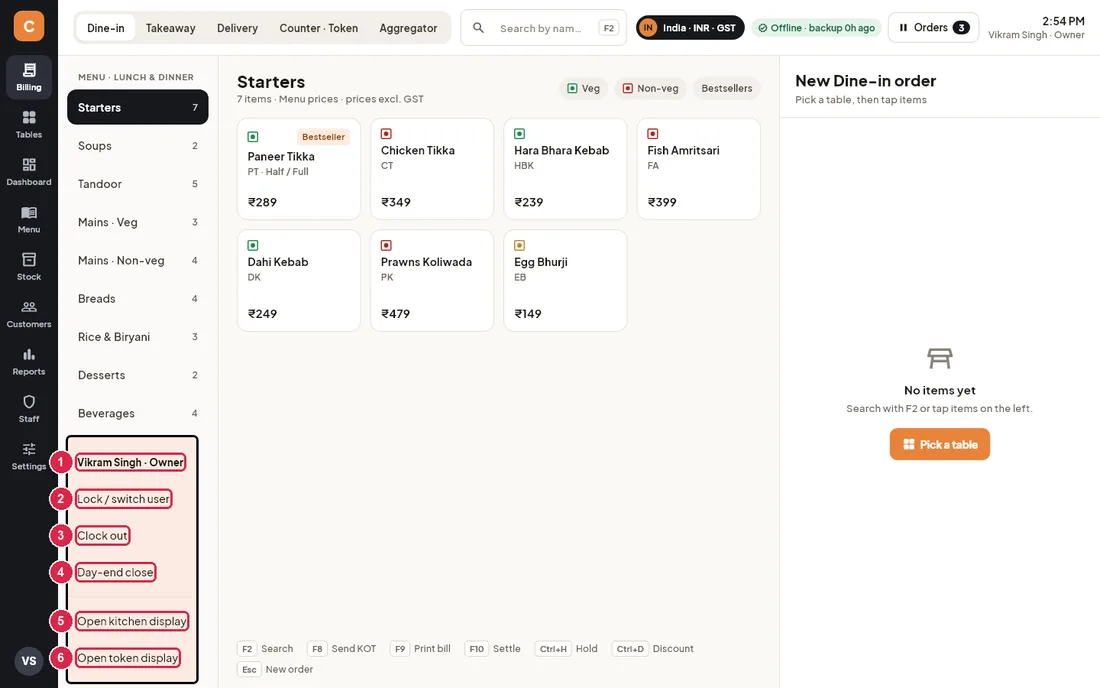
- Who is logged in — name and role.
- Lock / switch user — back to the login screen; the next person logs in with their PIN. Use it every time you leave the counter.
- Clock out — ends your attendance for the day and locks the screen.
- Day-end close — owners and managers: the checklist to close the business day.
- Open kitchen display — shows the kitchen display (KDS) on this PC.
- Open token display — shows the customer token screen on this PC.
Your first day checklist
- Owner: open Settings and check Outlet profile, Country & tax and Bill format — look at the live preview of the bill.
- Check the menu prices and tax rates in Menu.
- In Settings › Printers & devices, press Test on every printer and check the routing (bills to the counter printer, KOTs to the kitchen).
- Plug in a USB drive and press Back up now in Settings › Backup & restore.
- Cashier: log in, open the shift with the counted opening cash.
- Take a test order, send the KOT, print and settle the bill. Check the printed bill.
- At night: settle every table, then Day-end close from the user menu. The Z report prints and a backup runs.
2Billing
The billing screen is where cashiers and captains take every order — dine-in, takeaway, delivery, counter and online-platform orders — send it to the kitchen, print the bill and move on to payment.
The screen at a glance
The screen has three parts: the menu on the left and in the middle, and the current order (the "cart") on the right. The top bar is shared by all order types.
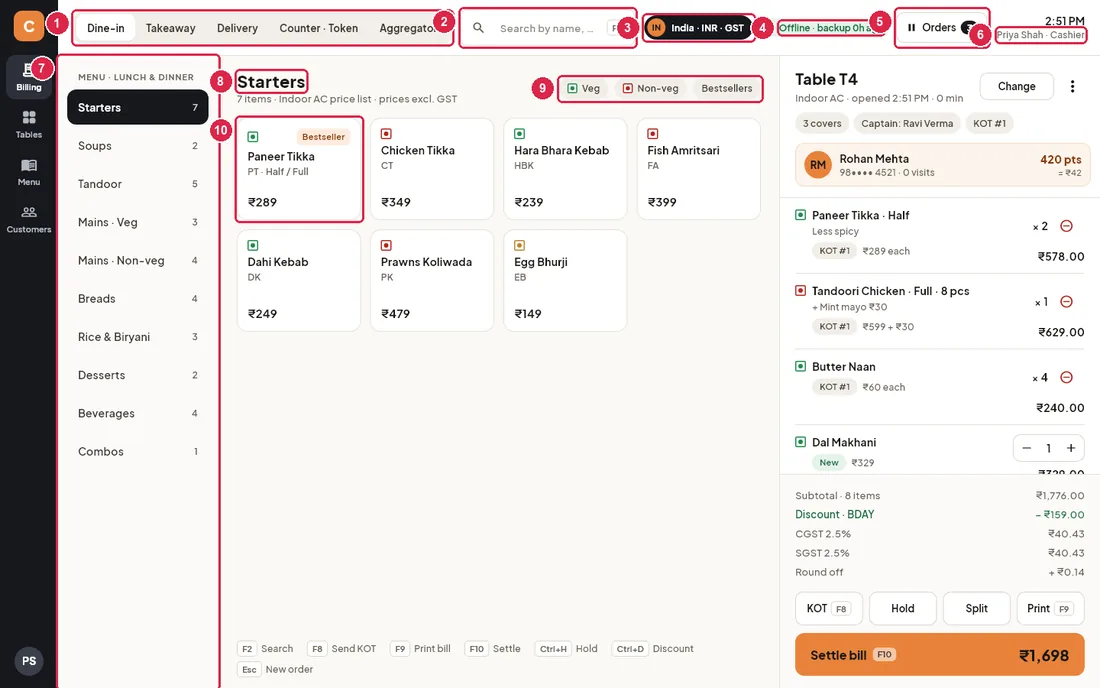
- Order type — Dine-in, Takeaway, Delivery, Counter · Token and Aggregator (Swiggy, Zomato and similar). Pick the type before you tap the first item. Switching type while an order is open starts a new order of that type; the open one stays saved and can be found under Orders. Which types appear is set by the owner in Settings.
- Search — type an item name, its short code (for example
PT) or scan its barcode. Press F2 to jump here from anywhere on the screen. Press Enter to add the item whose code or barcode matches exactly, or else the first item in the results. - Country — shows whether the outlet bills in India (₹, GST) or UAE (AED, VAT). It only changes in Settings; tapping it opens Settings if you are allowed.
- Backup status — the app works fully offline. Green means a backup was made recently; it turns red when the last backup is more than 24 hours old.
- Orders — the number of orders still open, on hold or printed but not paid today. Tap it to open the Orders list, where you can also recall held orders.
- Clock and user — who is logged in on this counter and their role. Everything you do is recorded under this name.
- Categories — the heading shows which menu is running now (for example MENU · LUNCH & DINNER). The number next to each category is how many items it has.
- Category heading — the category you are looking at, the number of items, which price list applies (for example Indoor AC price list) and whether prices include tax.
- Filters — Veg, Non-veg and Bestsellers. Tap again to switch a filter off.
- Item card — the green or red square shows veg or non-veg, then the name, short code, portions (for example Half / Full) and price for this order. Badges: Bestseller, the portion names, Out of stock (greyed, cannot be added) and Not now (outside the menu timing, cannot be added). Tap a card to add it.
The current order (cart)
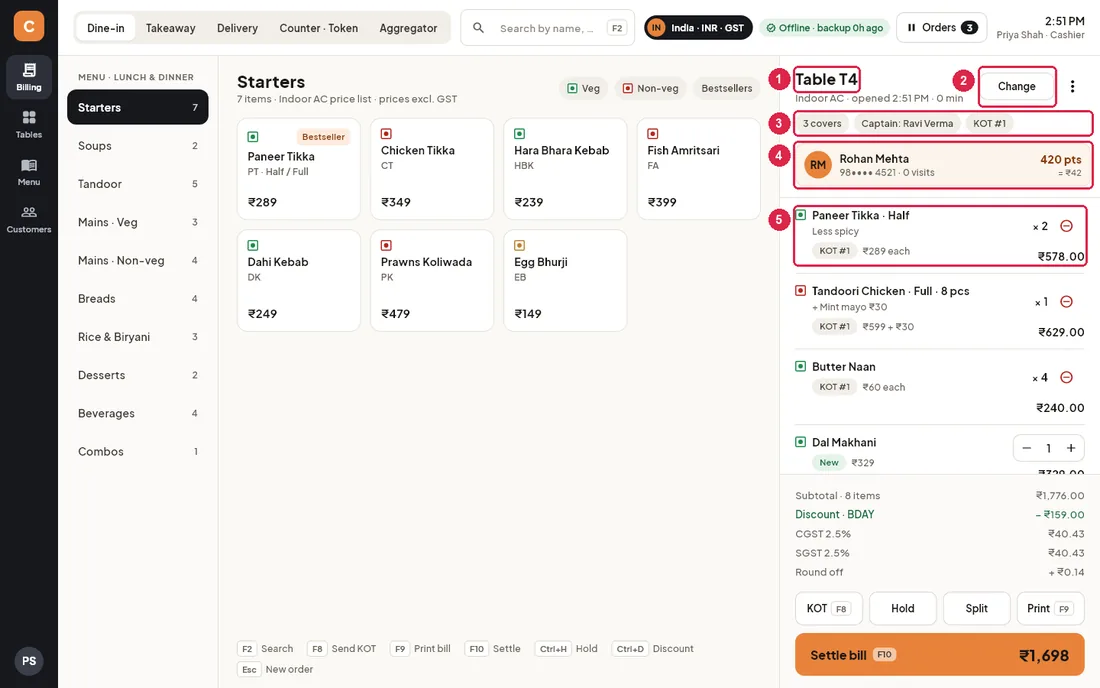
- Order name — Table T4 for dine-in, or the type and token / number for other orders (for example Takeaway · Token 4, Delivery · D-7). Below it: the area, when the order was opened and how long ago. The ⋮ button next to it opens more actions (see below).
- Change — dine-in only: move the order to another table, or merge it into a running table. See "Move or merge tables" below.
- Chips — tap 3 covers to change the number of guests, Captain: … to change the captain who serves the table, and KOT #… to see every kitchen ticket of this order. Other orders show their token, the rider (delivery) or the platform order number (aggregator). A bill that is printed shows its bill number in blue; a held order shows On hold.
- Customer card — the guest's name, masked phone number, visits, tier (Silver / Gold) and loyalty points with their value. Tap it to change or remove the customer. With no customer you see Add customer (phone); a customer is needed for loyalty points, credit (due) bills and a GST invoice with the guest's GSTIN.
- Item line — veg mark, name and portion, the kitchen note (for example Less spicy), add-ons, the KOT it went on (KOT #1), the price per piece and the line total. Items already sent to the kitchen show × quantity and a red ⊖ button to void them.
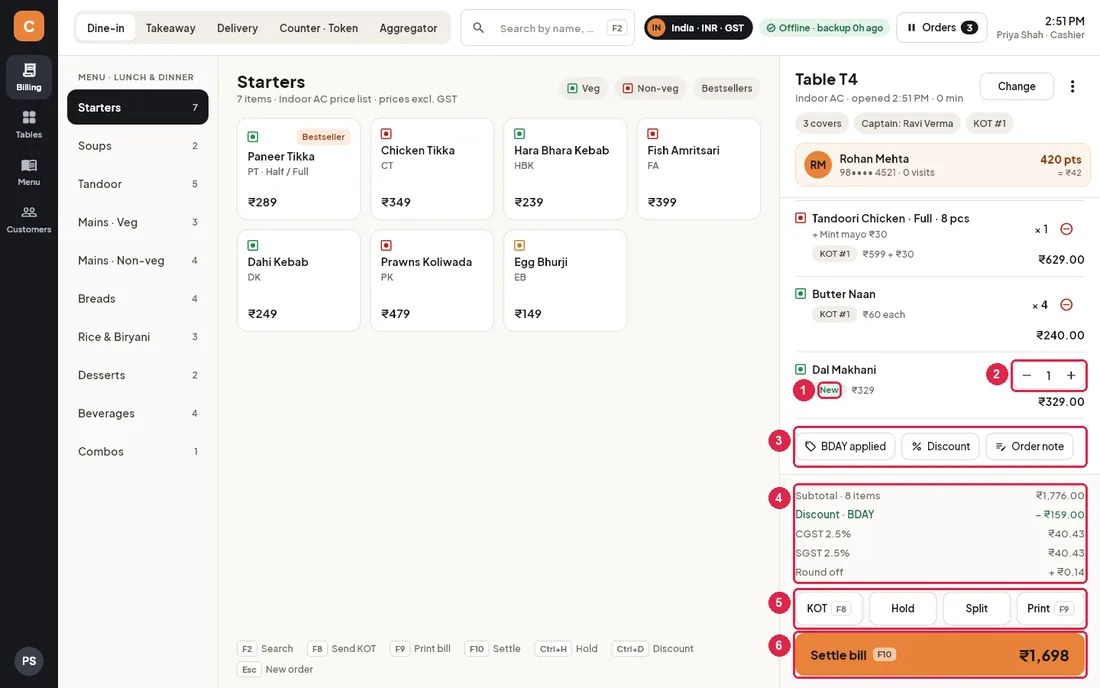
- New — this item has not gone to the kitchen yet. It goes on the next KOT.
- Quantity — − and + change the quantity of a new item; going below 1 removes it. Items already sent cannot be changed here — void them instead.
- Coupon / Discount / Order note — Coupon asks for a coupon code (it shows WEEKEND10 applied once accepted; tap again to remove it). Discount opens the discount list (also Ctrl+D). Order note is a note for the whole order.
- Totals — Subtotal with the number of items, Discount, Service charge (dine-in, when the outlet charges one), Packaging (takeaway and delivery), Delivery charge, the tax lines (CGST and SGST per rate in India, VAT in the UAE) and Round off. With prices that already include tax, the tax is shown in brackets as "included in prices" and is not added again.
- KOT · Hold · Split · Print — KOT (F8) sends new items to the kitchen. Hold (Ctrl+H) parks a takeaway, counter or delivery order; on a held order the button reads Resume. Split opens payment with "Split by items" selected. Print (F9) prints the bill; on a printed bill it reads Reprint.
- Settle bill — (F10) shows the amount to pay and opens the payment screen. Any new items are sent to the kitchen first.
More actions (⋮)
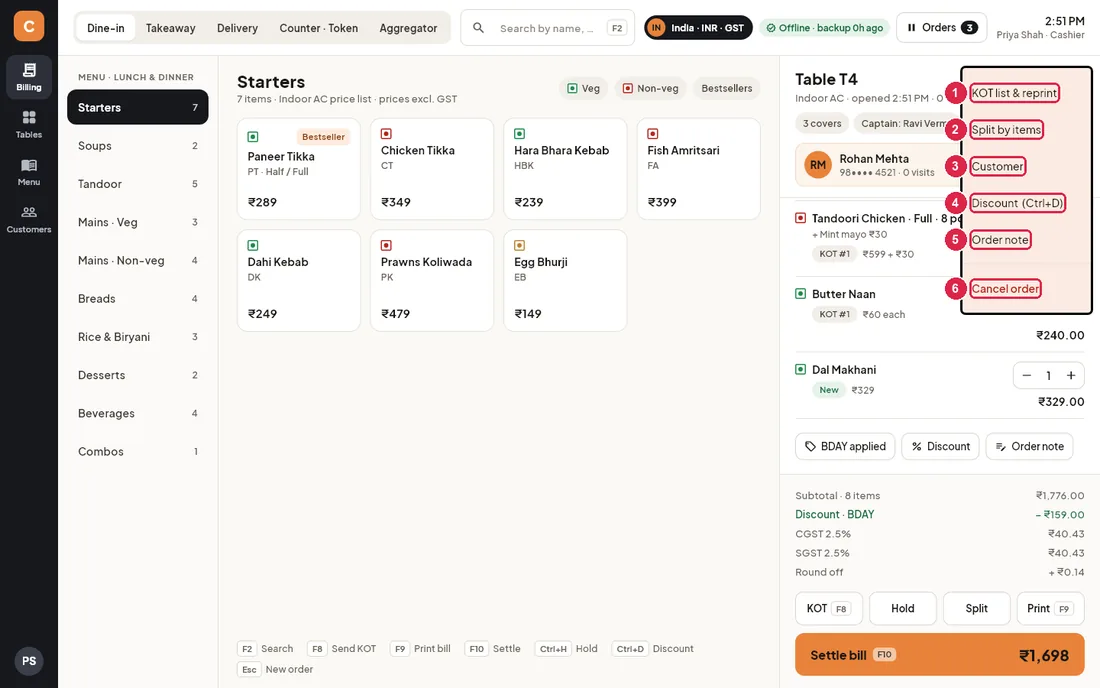
- KOT list & reprint — every kitchen ticket of this order, with a Reprint button.
- Split by items — move some items to a separate bill (not shown once the bill is printed).
- Customer — attach, change or remove the customer.
- Discount (Ctrl+D) — the same discount list as the Discount button.
- Order note — a note for the whole order.
- Cancel order — cancels an order that has not been billed (needs a manager PIN for cashiers). On a printed bill this item is replaced by Void bill.
Take a dine-in order
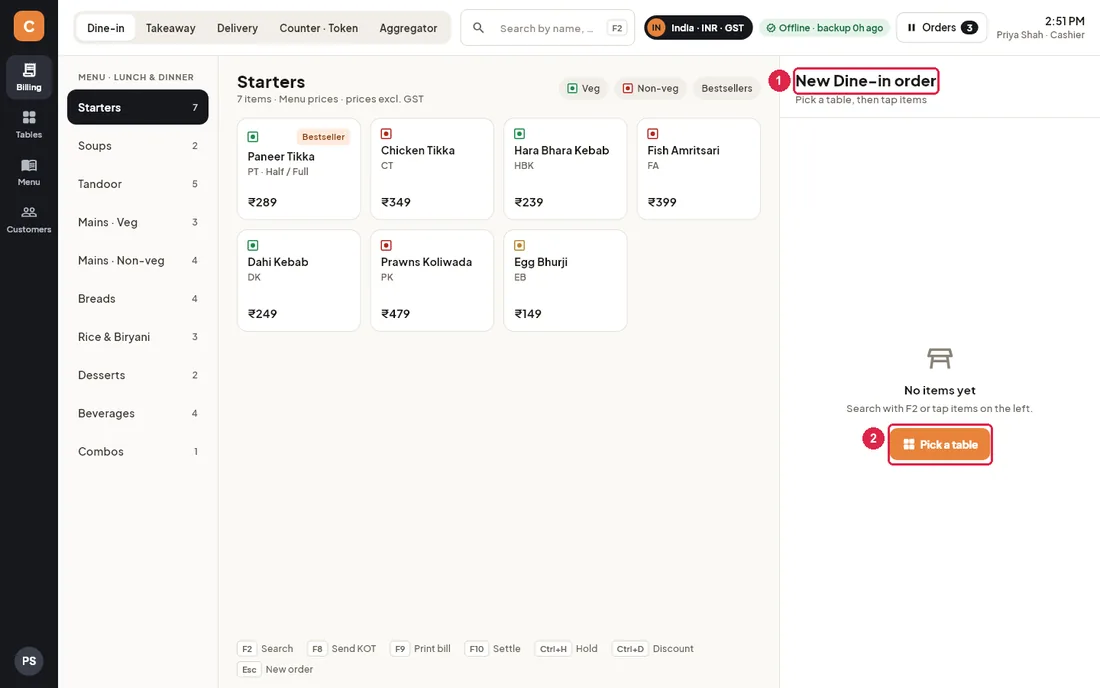
- New Dine-in order — nothing is saved until you pick a table or tap the first item.
- Pick a table — opens the floor so you can pick a table first. Tapping an item does the same.
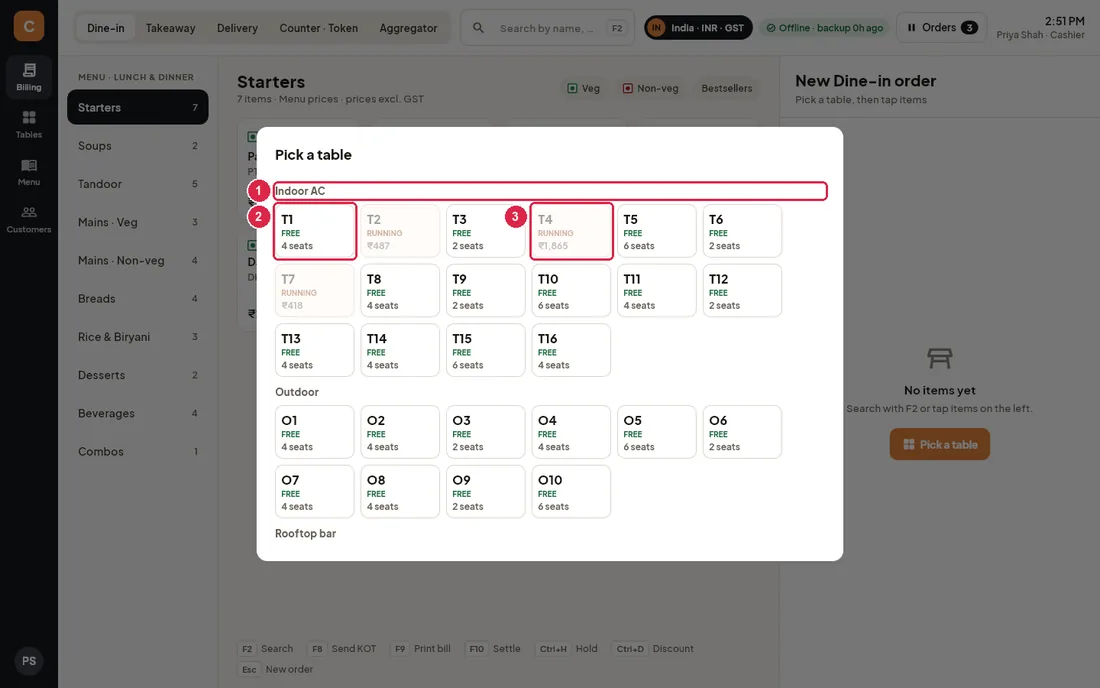
- Area — tables are grouped by area (Indoor AC, Outdoor, …).
- Free table — white tiles are free and show their seats. Tap one to start the order.
- Running table — greyed tiles already have an order and its amount; they cannot be picked for a new order. Open them from Tables or Orders instead.
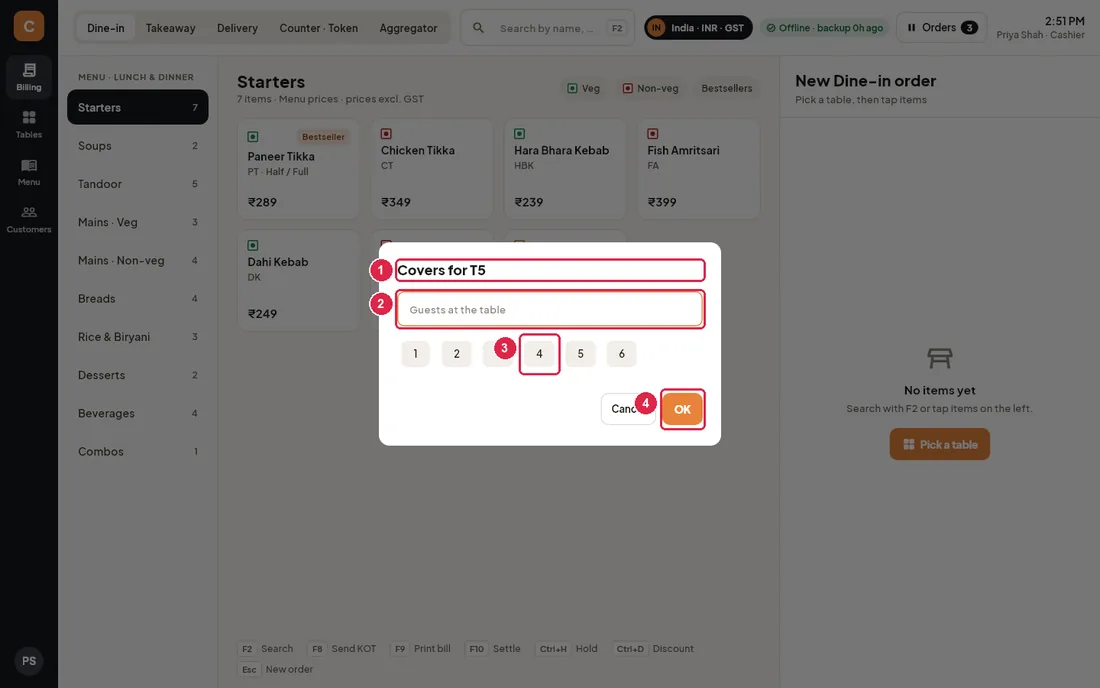
- Covers for T5 — asked when the outlet requires the number of guests.
- Guests — type the number of guests and press OK…
- Quick numbers — …or tap a number to answer in one tap.
- OK — creates the order on the table.
- Make sure Dine-in is selected at the top.
- Tap Pick a table (or just tap the first item) and choose a free table.
- Enter the number of guests if asked.
- Tap items to add them. Items with portions or add-ons open the customise window (below).
- Press KOT (F8) to send the items to the kitchen. Each kitchen station (Kitchen, Tandoor, Bar…) gets its own ticket.
- Add more items any time and press KOT again — only the new items are sent.
- When the guests ask for the bill, press Print (F9), then Settle bill (F10) when they pay.
Add notes, portions and add-ons
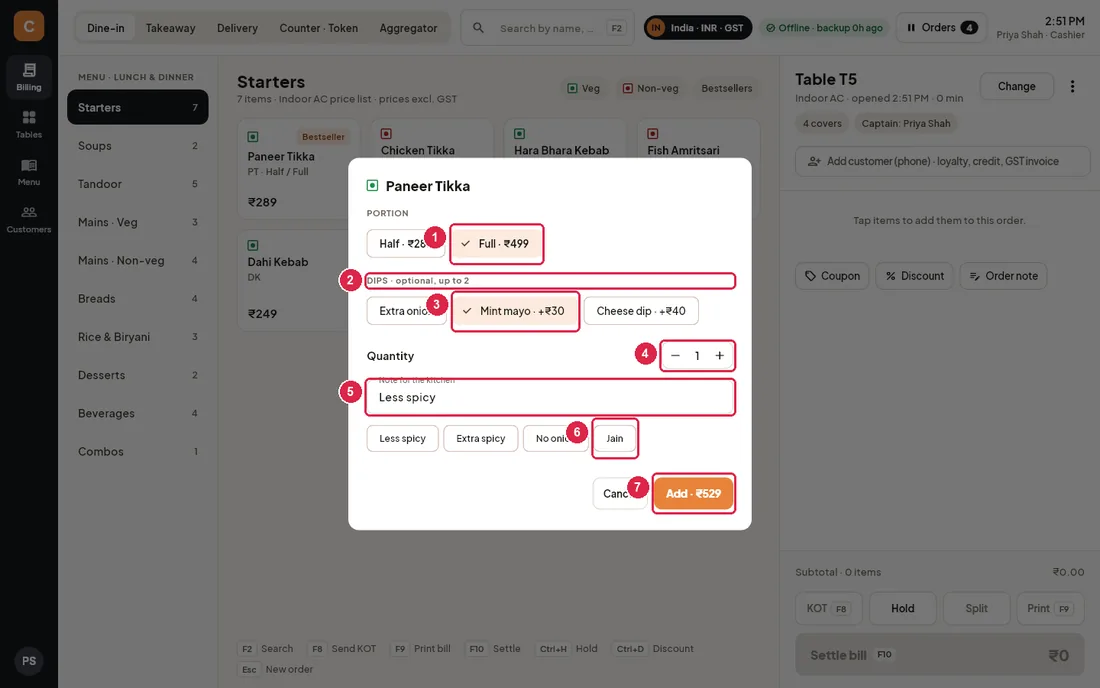
- Portion — pick one, for example Half or Full. Each shows its price for this order.
- Add-on group — the group name and the rule: "optional, up to 2", or "pick 1–1" when a choice is required.
- Add-on — tap to add or remove; extra price is shown. Once the maximum is reached the others are greyed; for "pick 1" groups a new tap replaces the old choice.
- Quantity — how many to add.
- Note for the kitchen — free text printed on the KOT.
- Quick notes — tap to add common notes like Less spicy or Jain.
- Add — shows the total for this line and adds it. If a required group is not picked, a red message tells you what is missing and nothing is added.
Take a takeaway or counter (token) order
- Tap Takeaway or Counter · Token at the top.
- Tap the first item — the order is created and gets the next token number of the day (shown as Token 4).
- Add the rest, press KOT, then Settle bill.
- Press Esc to start the next order of the same type.
Take a delivery (phone) order
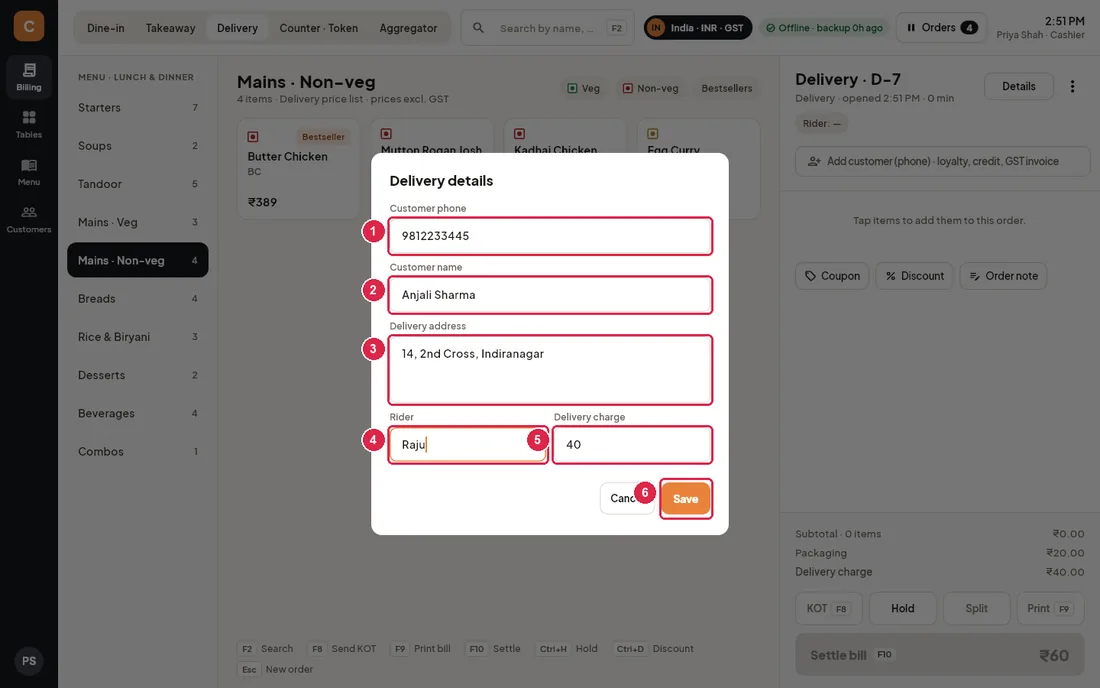
- Customer phone — a known number brings up the customer; a new number creates the customer.
- Customer name — saved with the phone number.
- Delivery address — printed on the bill and remembered for the customer's next order.
- Rider — who takes the order out.
- Delivery charge — starts at the outlet's standard charge; change it for this order if needed.
- Save — saves the details and adds the item.
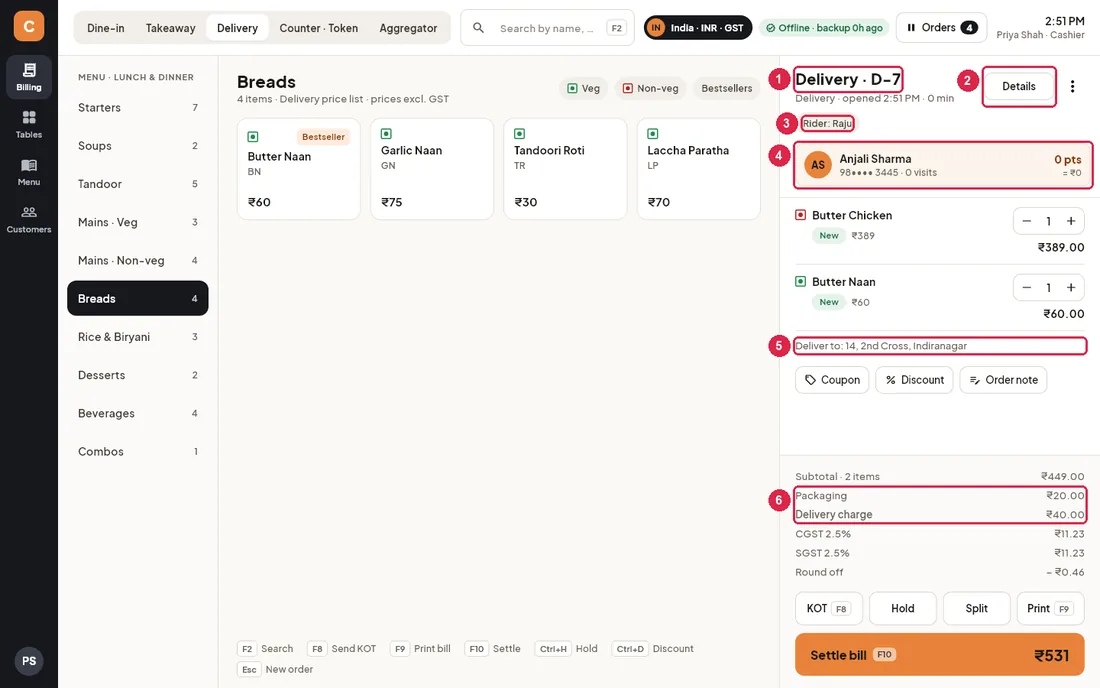
- Delivery · D-7 — delivery orders are numbered D-…
- Details — reopen the delivery details to change the address, rider or charge.
- Rider — tap to change the rider.
- Customer card — the customer from the phone number.
- Deliver to — the address as it prints on the bill.
- Packaging and delivery charge — added to the bill automatically.
- Tap Delivery, then tap the first item.
- Fill in the phone, name, address and rider, and check the charge. Tap Save.
- Add the remaining items and press KOT.
- Print the bill (F9) to send with the rider. Settle when the rider brings the money back, or at once if paid online.
Enter a Swiggy / Zomato order
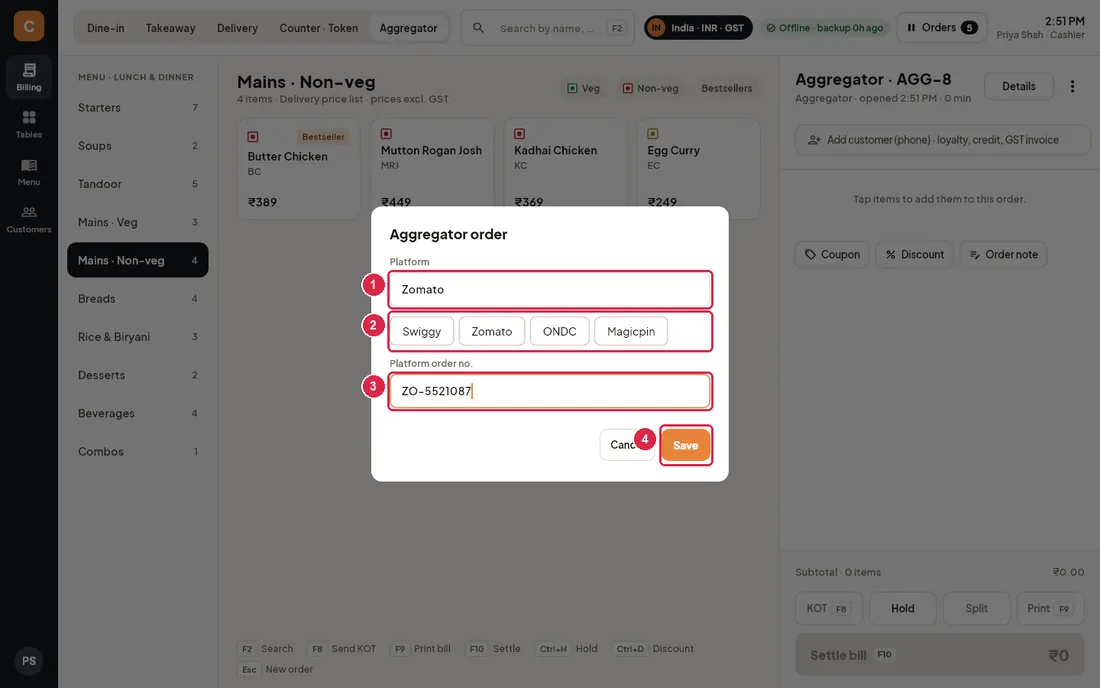
- Platform — the name of the app the order came from.
- Platform buttons — tap Swiggy, Zomato, ONDC or Magicpin (Talabat, Deliveroo, Noon Food or Careem in the UAE) to fill it in.
- Platform order no. — the order number from the platform's tablet, so you can match it later.
- Save — saves and adds the item.
- Tap Aggregator, then the first item of the platform order.
- Pick the platform and type its order number. Tap Save.
- Add the other items, press KOT.
- Settle it with the payment mode you use for platform orders (for example Wallet).
Attach a customer
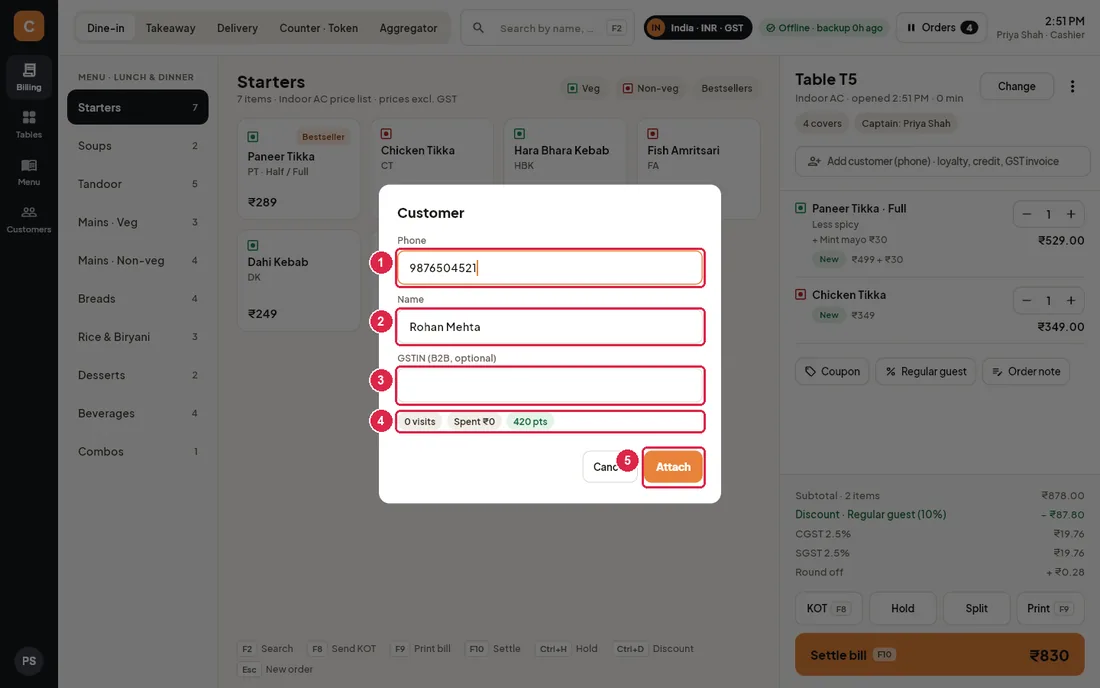
- Phone — type the guest's number. A known guest fills in the name automatically.
- Name — the guest's name.
- GSTIN — for business guests who need a GST invoice (TRN in the UAE). Optional.
- History — visits, total spent, tier, loyalty points and any amount due.
- Attach — links the guest to the order. On an order that already has a customer, Remove takes them off.
Send a KOT
- Add the items. New items show a green New badge.
- Press KOT or F8. One ticket prints per kitchen station, and the items now show KOT #….
- If nothing is new, the app says "Nothing new to send to the kitchen".
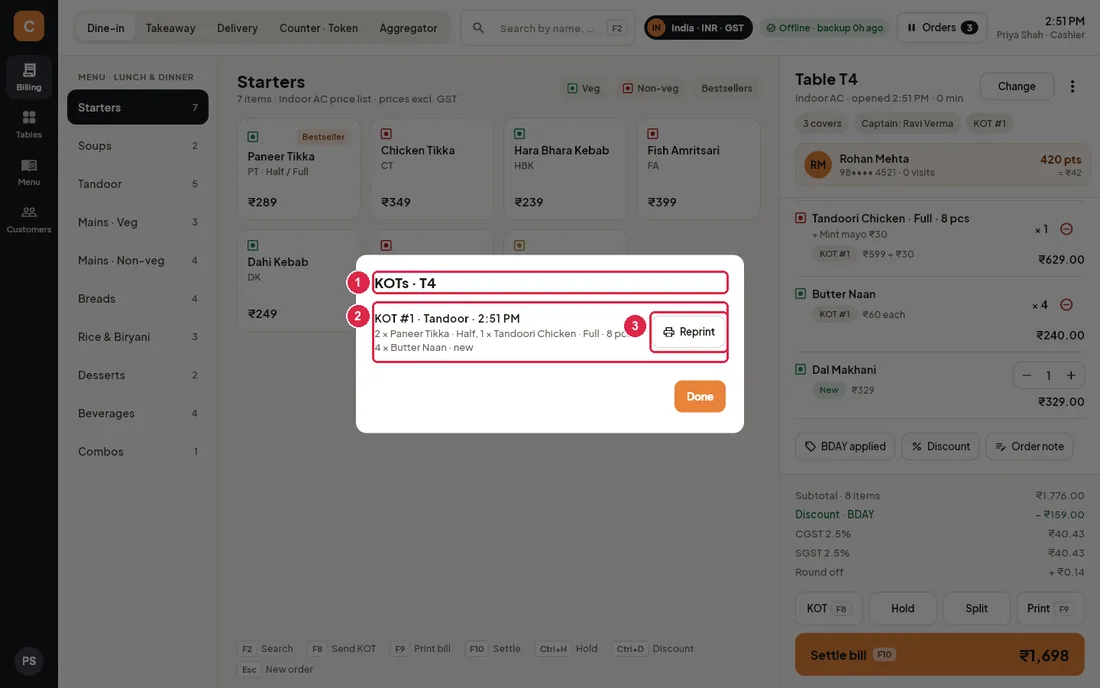
- KOTs · T4 — all tickets of this order, including cancel tickets (shown in red).
- Ticket — number, kitchen station, time, the items on it and its kitchen status.
- Reprint — prints the ticket again, marked DUPLICATE, for example when the kitchen printer jammed.
Void an item that was already sent
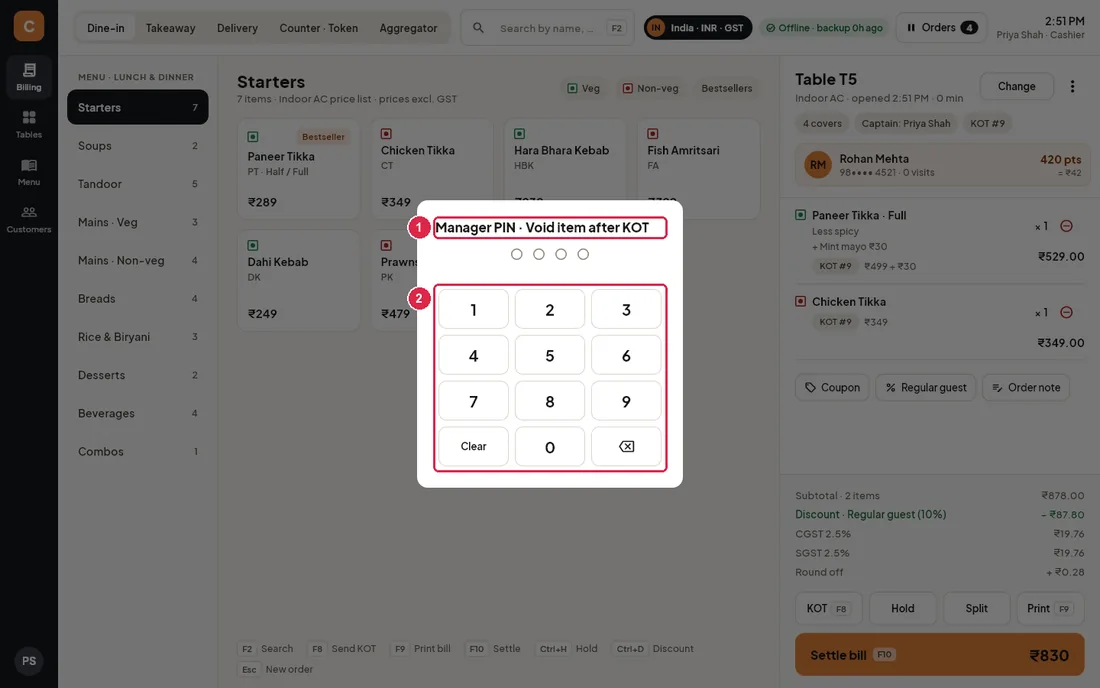
- Manager PIN · Void item after KOT — shown when you are not allowed to void on your own.
- Keypad — the manager types their PIN here. A wrong PIN shows "Wrong PIN"; a PIN of someone without the right shows "… is not allowed to do this".
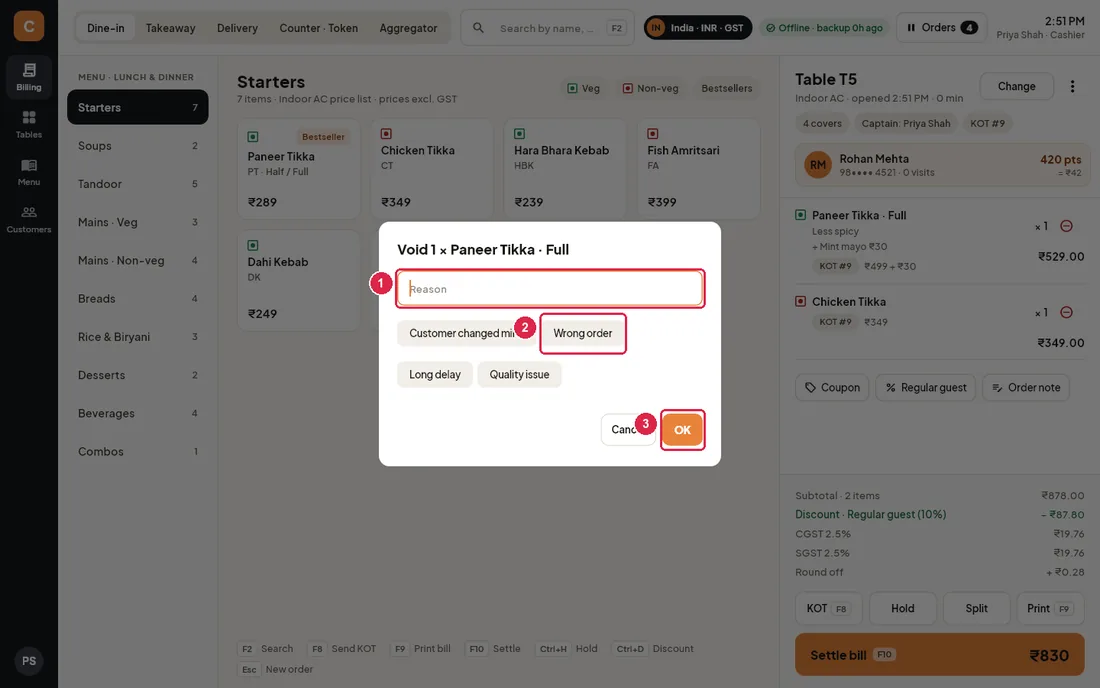
- Reason — type why the item is being voided…
- Quick reasons — …or tap one of the common reasons, which voids it at once.
- OK — voids the whole line.
- Tap the red ⊖ on the item line.
- If asked, let a manager enter their PIN.
- Pick or type the reason. The item disappears from the bill and a CANCEL KOT prints at its kitchen station.
Hold and recall an order
- On a takeaway, counter, delivery or aggregator order press Hold or Ctrl+H. The screen clears for the next guest.
- To continue it, open Orders and pick the held order. It shows an On hold chip.
- Tap Resume to make it a normal open order again (adding items works on held orders too).
Discounts and coupons
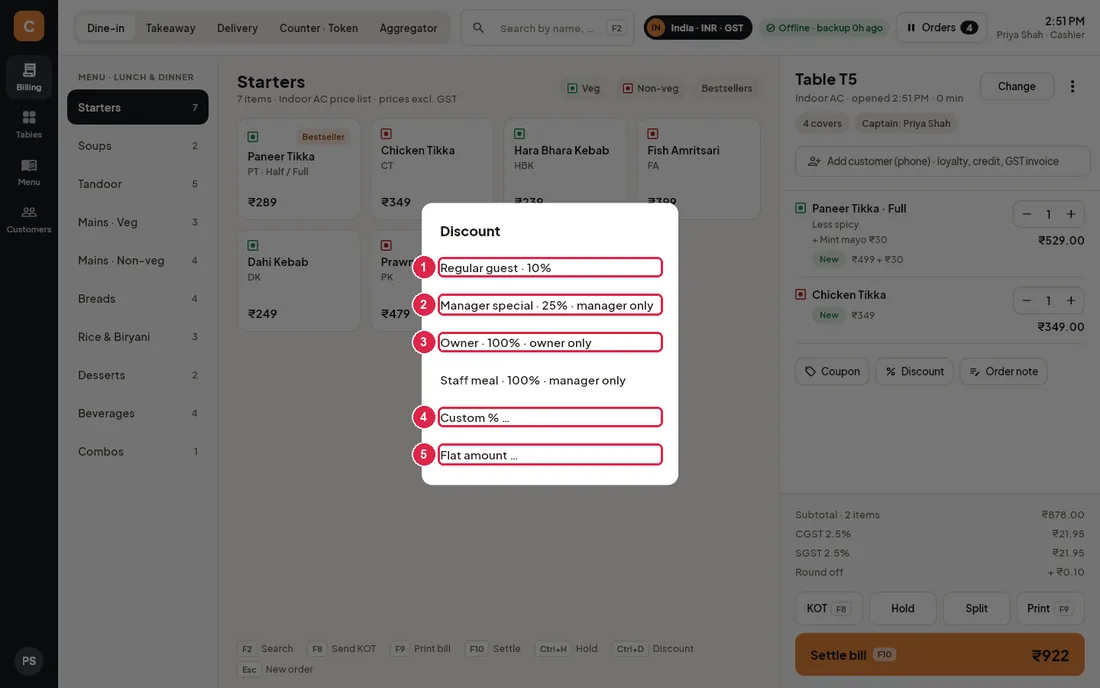
- Cashier preset — presets without a note can be given by any cashier.
- Manager preset — "manager only": a cashier needs a manager PIN.
- Owner preset — "owner only": needs the owner's PIN (a manager's PIN is refused).
- Custom % — type any percentage, then pick or type a reason.
- Flat amount — type an amount off the bill, then a reason. When a discount is already on the order, Remove discount appears at the bottom.
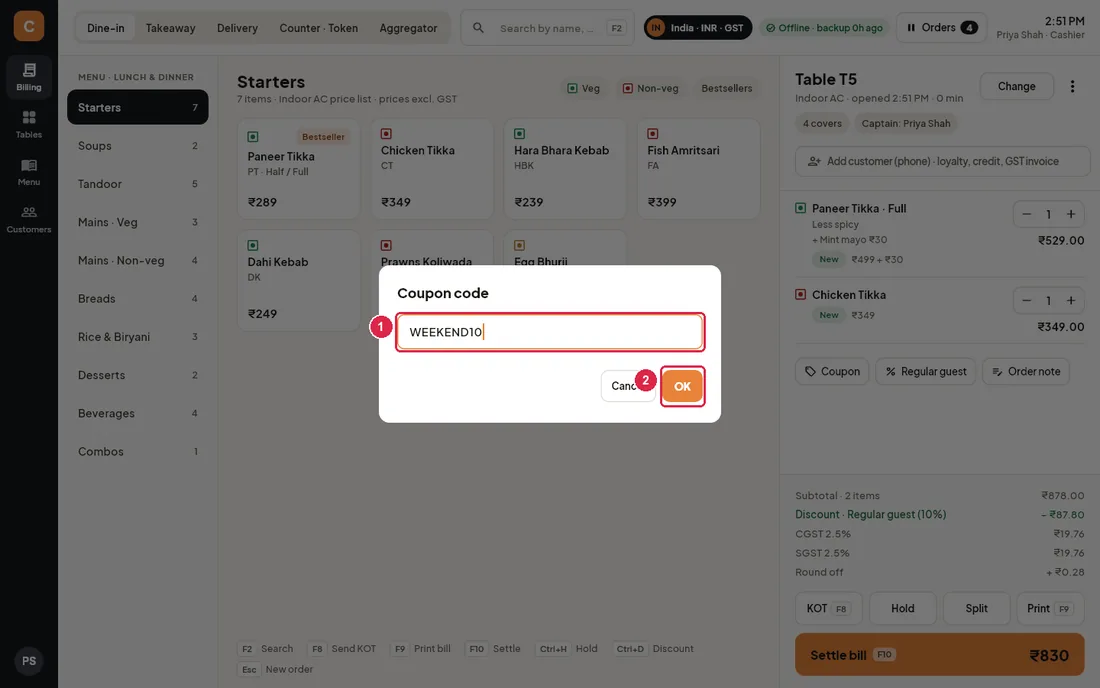
- Coupon code — type the code exactly as printed; capitals do not matter.
- OK — checks the coupon. If it is not valid (wrong code, expired, wrong day or time, bill too small), the reason is shown and nothing changes.
| Discount | Cashier | Manager | Owner |
|---|---|---|---|
| Cashier presets, custom or flat up to the cashier limit (10% unless the owner changed it) | Yes | Yes | Yes |
| Above the cashier limit, or a "manager only" preset | Manager PIN | Yes | Yes |
| "Owner only" preset | Owner PIN | Owner PIN | Yes |
| Coupon code | Yes | Yes | Yes |
| Remove service charge | Manager PIN | Yes | Yes |
- Only one discount applies at a time: a new discount replaces a coupon and the other way round.
- A flat amount counts against the limit as the percentage of the bill it represents.
- To remove a coupon, tap … applied and confirm Remove.
- To waive the service charge on a dine-in order, tap the Service charge line in the totals. Tap it again to put it back.
- Coupons are checked again when the bill is printed.
Move or merge tables
- Open the table's order and tap Change.
- Pick the new table. A free table moves the order there; the old table is marked for cleaning.
- Pick a running table to merge: confirm Merge into T7?. All items and KOTs move to that table's order, the guests are added together, and the screen switches to the merged order.
Print the bill and reprint rules
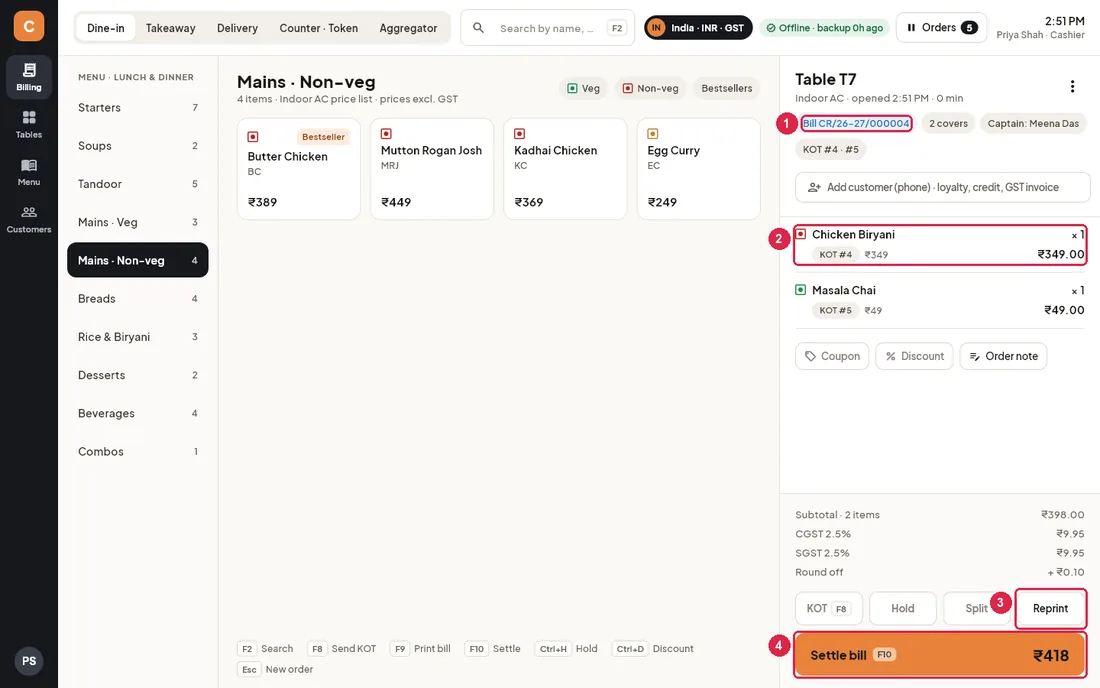
- Bill number — the bill now has its number for the financial year (for example CR/26-27/000004).
- Locked lines — no more items, quantity changes, discounts or coupons. Trying to add an item shows "Bill already printed. Void it to make changes."
- Reprint — prints a copy marked DUPLICATE BILL.
- Settle bill — take payment.
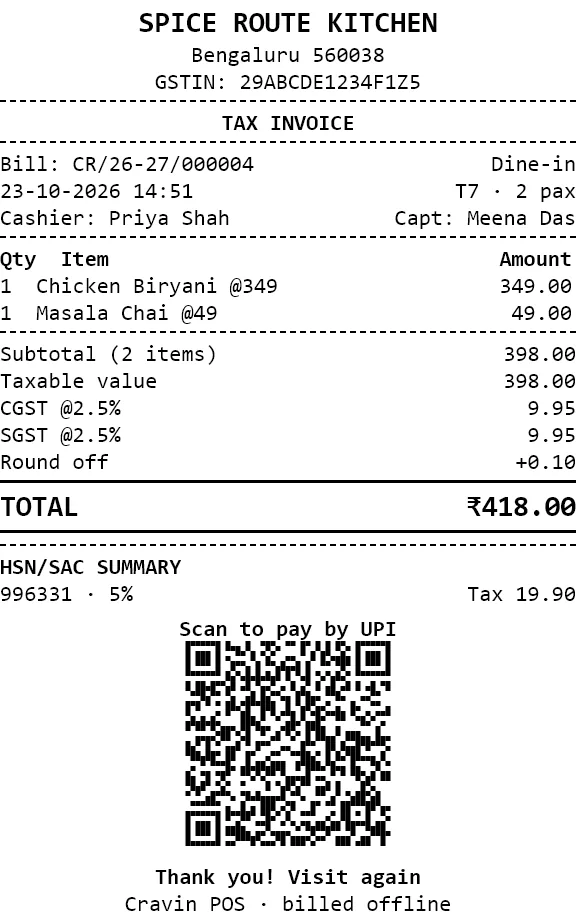
- Print (F9) first sends any new items to the kitchen, then gives the bill its number and prints it.
- Managers and owners can reprint any time. A cashier may reprint each bill once; after that a manager PIN is needed. Captains always need a manager PIN. Every reprint is counted in the reports.
Cancel an order or void a bill
- Open the order and tap ⋮.
- Choose Cancel order (not printed yet) or Void bill (printed).
- A cashier needs a manager PIN. Pick or type the reason.
- For a cancelled order, every item already sent to the kitchen gets a CANCEL KOT. The screen clears for a new order.
Keyboard shortcuts
| Key | What it does |
|---|---|
| F2 | Jump to the search box |
| Enter (in search) | Add the item with that exact code or barcode, or the first result |
| F8 | Send new items to the kitchen (KOT) |
| F9 | Print the bill, or reprint a printed bill |
| F10 | Settle bill (go to payment) |
| Ctrl+H | Hold the order / resume a held order |
| Ctrl+D | Discount |
| Esc | Clear the search; if it is empty, start a new order |
3Settle & payments
The settle screen takes payment for a bill — in one go or split between payment modes, guests or separate bills — redeems loyalty points, works out the change, and closes the bill. Cashiers, managers and owners can settle; captains need a manager PIN.
Open it with Settle bill (F10) on the billing screen. Split on the billing screen opens it with Split by items already selected.
The screen at a glance
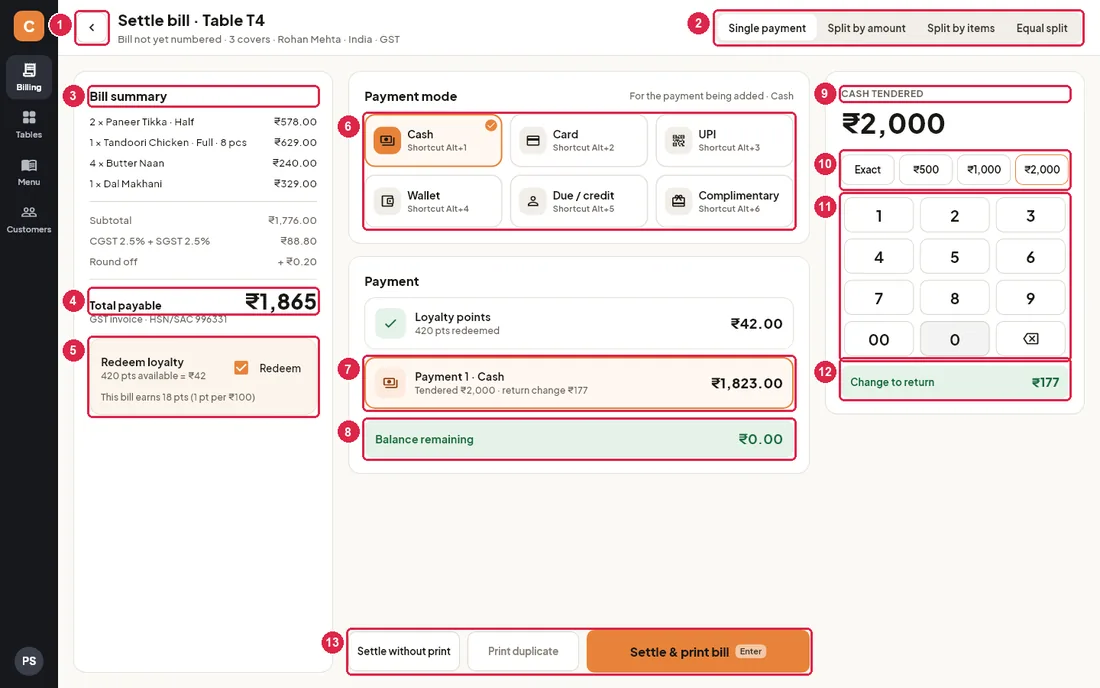
- Back — returns to the billing screen with the same order (Esc does the same). Nothing is paid until you settle.
- How to pay — Single payment, Split by amount, Split by items or Equal split. Switching tab clears the payments entered so far. The title above shows the order, and the line under it the bill number (or "not yet numbered"), covers, customer and country.
- Bill summary — every item with quantity and amount.
- Total payable — after discount, charges, tax and round off. Under it: the type of invoice and the HSN/SAC codes (India) or the TRN (UAE).
- Redeem loyalty — shown when a customer is attached. Shows the points and their value and how many points this bill will earn. Tick Redeem to use them (rules below).
- Payment mode — Cash, Card, UPI, Wallet, Due / credit and Complimentary, with their shortcuts Alt+1 to Alt+6. The note above the tiles says which payment the mode is for.
- Payment — the payment being entered (orange border). For cash it shows what was tendered and the change.
- Balance remaining — green when the payments cover the bill exactly, amber while money is still due.
- Cash tendered / Amount — the amount for the payment being entered. It starts at the full balance.
- Quick amounts — Exact (the balance), ₹500, ₹1,000, ₹2,000 (AED 50, 100, 200 in the UAE).
- Keypad — type the amount in rupees; 00 adds two zeros and ⌫ deletes a digit. The number keys and Backspace on the keyboard work too.
- Change to return — appears when more cash is tendered than due.
- Footer buttons — Settle without print closes the bill without printing. Print duplicate prints a copy of an already printed bill (same reprint rules as on the billing screen). Settle & print bill (Enter) closes the bill, prints it and opens the cash drawer when cash was taken.
Payment modes and who may use them
| Mode | Key | Notes |
|---|---|---|
| Cash | Alt+1 | Enter what the guest hands over; the change is worked out. Counted in the cash drawer for the shift. |
| Card | Alt+2 | Run the card on your card machine, then settle. |
| UPI | Alt+3 | Shows a QR code with the amount (India, when the outlet's UPI ID is set in Settings). |
| Wallet | Alt+4 | Paytm, platform wallets and similar. |
| Due / credit | Alt+5 | The guest pays later. Needs a customer on the order — otherwise the tile says "Needs a customer". The amount shows as due on the customer. |
| Complimentary | Alt+6 | On the house. A cashier needs a manager PIN when settling. Recorded in the reports. |
Take a single payment (cash with change)
- Press F10 on the order. Single payment and Cash are selected.
- Type the amount the guest gives (for example 2000) or tap ₹2,000. Change to return shows the change.
- Press Enter or tap Settle & print bill. The bill prints with the payment and change, and the drawer opens.
- Dine-in orders return to the Tables screen (the table is marked for cleaning); other orders return to an empty billing screen.
Take a UPI payment
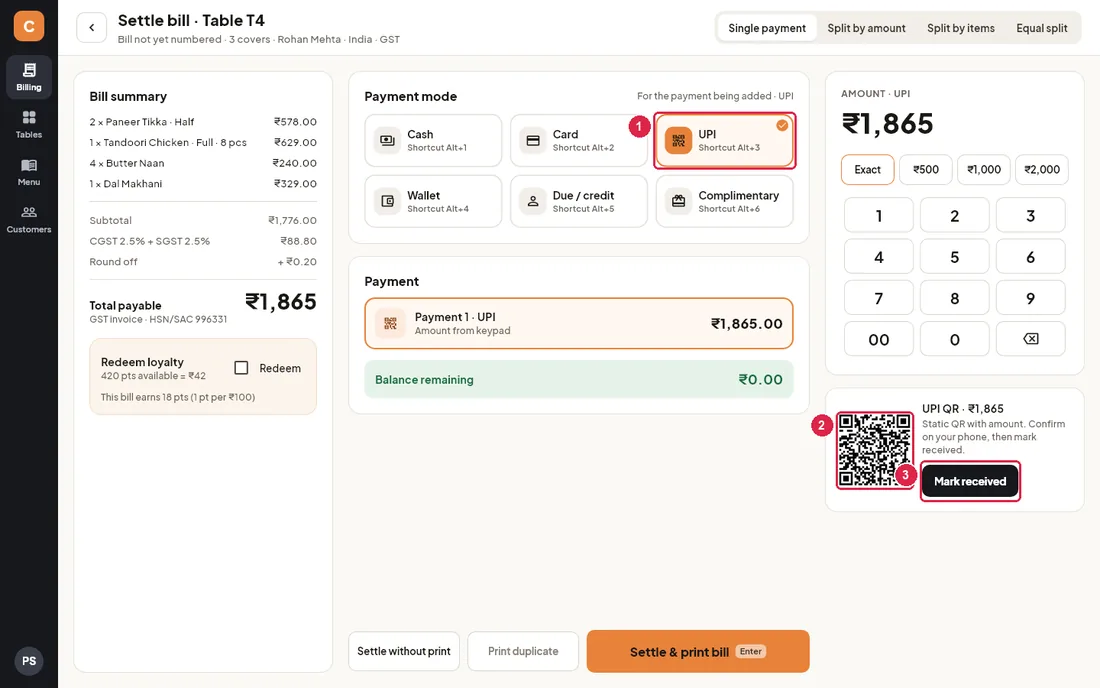
- UPI — select it with a tap or Alt+3.
- QR code — the guest scans it; the amount is filled in on their phone.
- Mark received — tap once the money shows on your phone or sound box. The payment is recorded with your name and the time, and the balance becomes ₹0.
- Select UPI. Change the amount on the keypad if the guest pays only part by UPI.
- Let the guest scan the QR code and wait for the confirmation on your phone.
- Tap Mark received, then Settle & print bill.
Split by amount (several payment modes)
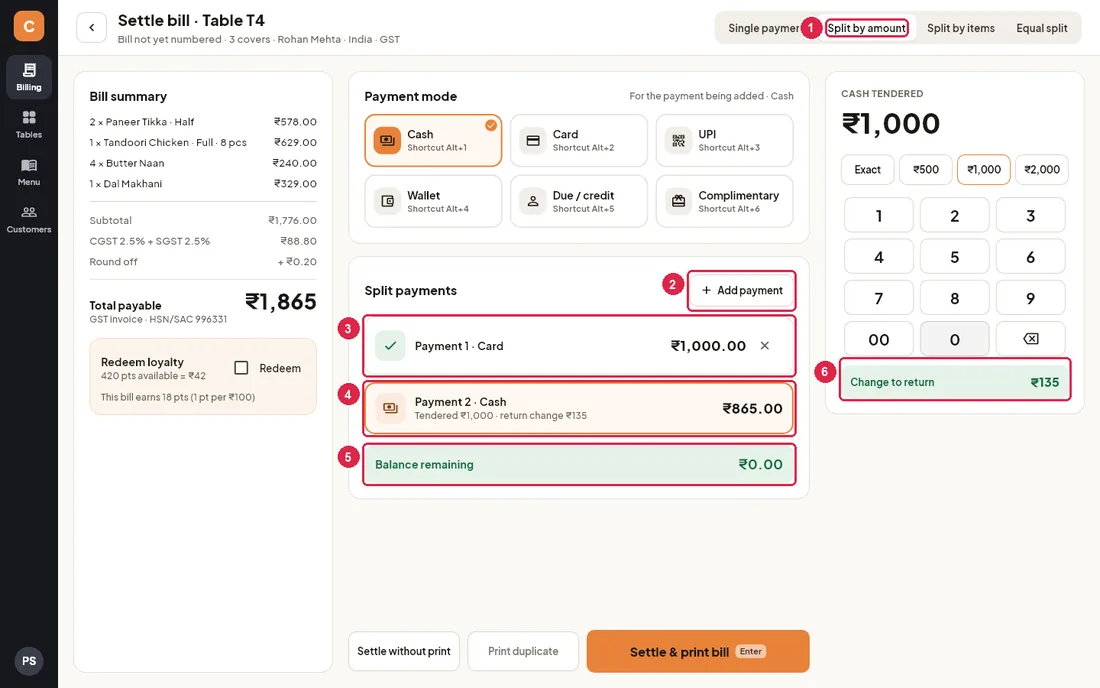
- Split by amount — for one bill paid in parts.
- Add payment — adds the payment being entered (mode and amount from the keypad) to the list and starts the next one for the balance.
- Added payment — tap it, then a mode tile, to change its mode; the × removes it.
- Payment being entered — the next payment, for the remaining balance unless you type another amount.
- Balance remaining — must be ₹0 to settle.
- Change to return — change on the cash part.
- Tap Split by amount.
- Pick the first mode (for example Alt+2 Card), type its amount and tap Add payment.
- Pick the next mode. The amount is the balance; for cash type what the guest hands over.
- Repeat if needed, then settle. The bill lists each payment mode.
Equal split
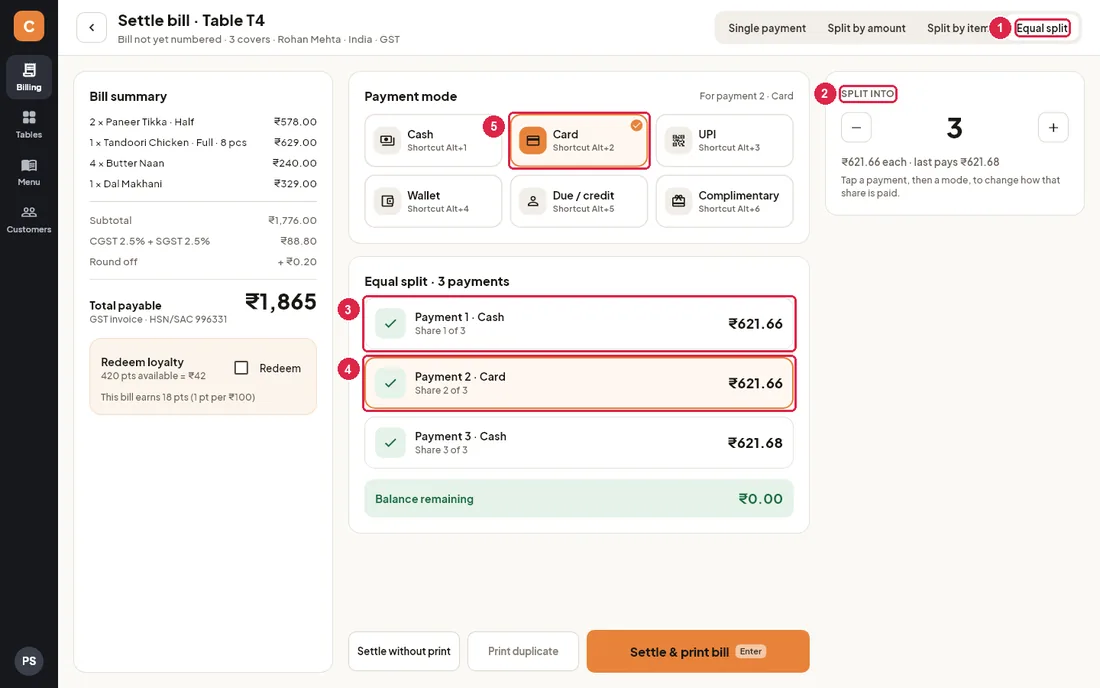
- Equal split — divides the bill into equal shares.
- Split into — use − and + to set 2 to 20 shares. The amount per share is shown; the last share takes the extra paise so the total is exact.
- Share — each share is one payment, cash by default.
- Selected share — tap a share to select it…
- Mode for that share — …then tap a mode (or use Alt+number) to change how that guest pays.
Split by items (separate bills)
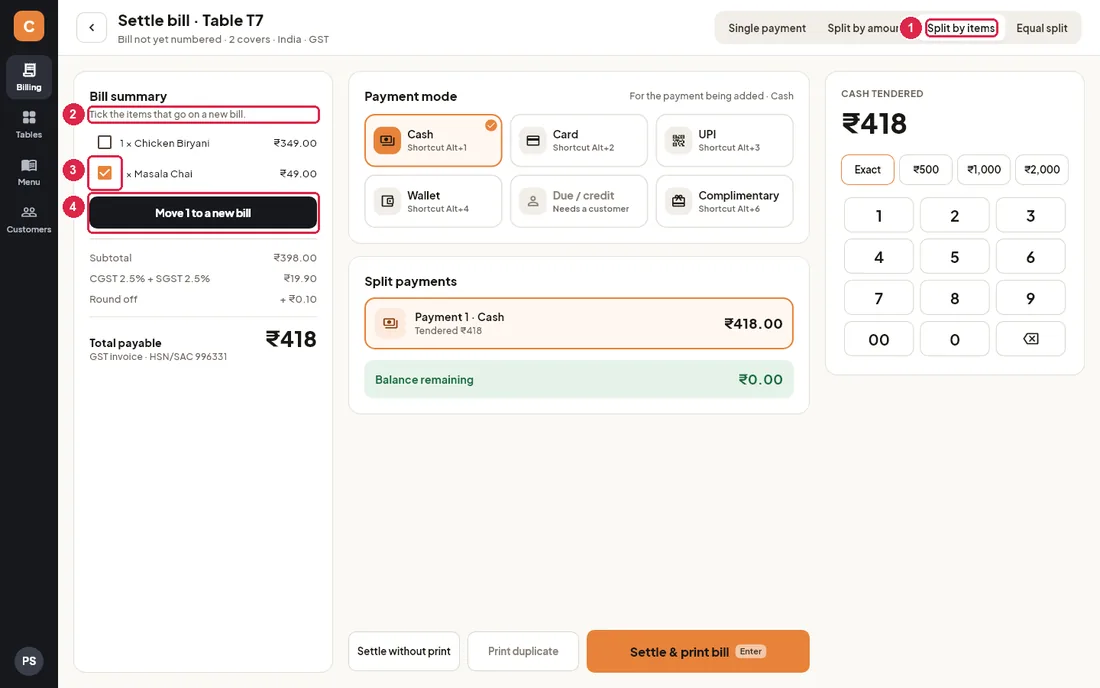
- Split by items — each guest pays for what they ordered, on their own bill.
- Instruction — tick the items that go on the new bill.
- Ticked item — this item will move to the new bill.
- Move to a new bill — creates the second bill. Keep at least one item on this bill.
- Tap Split by items (or Split on the billing screen).
- Tick the items for the second guest and tap Move … to a new bill.
- Settle this bill as usual. The new bill opens on its own — settle it too.
- For a dine-in table you return to Tables after the last bill.
Redeem loyalty points
- Points can be used only when a customer is attached to the order (add them on the billing screen).
- Each point is worth a fixed amount set by the owner (by default 10 points = ₹1).
- At most part of the bill can be paid with points — 50% unless the owner changed it. The box then says "max … on this bill".
- Tick Redeem: a Loyalty points line appears in the payments and the guest pays the rest.
- The guest earns new points on the amount paid after redemption (by default 1 point per ₹100). The bill prints the points earned and the new balance.
Bill on credit (due)
- Make sure the customer is attached on the billing screen.
- On the settle screen choose Due / credit (Alt+5) for all or part of the bill.
- Settle. The amount is added to what the customer owes; collect it later from the Customers screen.
Complimentary bill
- Choose Complimentary (Alt+6).
- Tap Settle & print bill. A cashier is asked for a manager PIN; the bill is not settled without it.
Keyboard shortcuts
| Key | What it does |
|---|---|
| Alt+1 … Alt+6 | Cash, Card, UPI, Wallet, Due / credit, Complimentary |
| 0–9, Backspace | Type or correct the amount |
| Enter | Settle & print bill |
| Esc | Back to the billing screen |
4Tables & reservations
The Tables screen is the live floor: which tables are free, eating, waiting for the bill, booked or being cleaned. Captains, cashiers, managers and owners use it to seat guests, open orders, move or merge tables, and look after reservations and the waitlist.
The floor plan
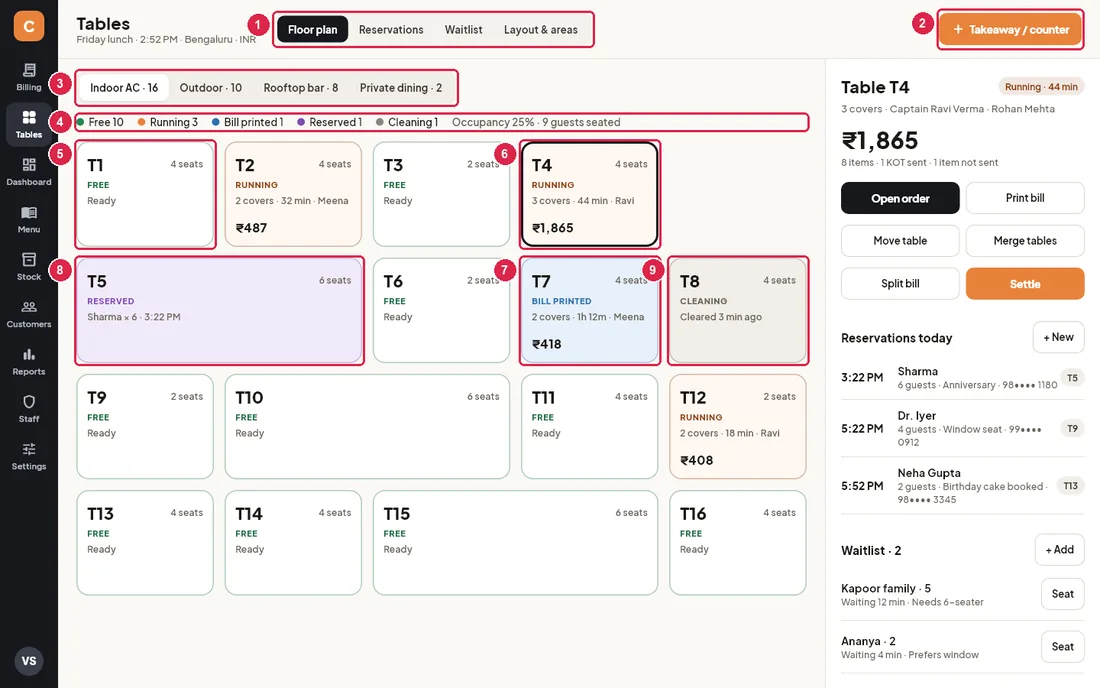
- View tabs — Floor plan (this view), Reservations, Waitlist and Layout & areas.
- Takeaway / counter — jumps to Billing with a fresh order that is not tied to a table. Use it for parcels and counter sales.
- Area tabs — one tab per area (for example Indoor AC · 16), with the number of tables in it. Tap a tab to see that area's tables.
- Legend — how many tables in this area are in each status, plus Occupancy (share of tables with guests) and the number of guests seated.
- Free (white, green border) — ready for guests. The card shows Ready and the number of seats.
- Running (orange) — guests are eating. The card shows covers, how long they have been seated, the captain's first name and the running amount. A dark border marks the table that is selected.
- Bill printed (blue) — the bill has been printed and the table is waiting to pay.
- Reserved (purple) — a booking for this table is due soon: from an hour before the booked time until an hour after it. The card shows the guest name, party size and time.
- Cleaning (grey) — guests have just left (the bill was settled, or they were moved to another table). The card shows how long ago. Tap the card when the table is clean to mark it free.
The table panel
Tap any table card to select it. The panel on the right shows that table and what you can do with it.
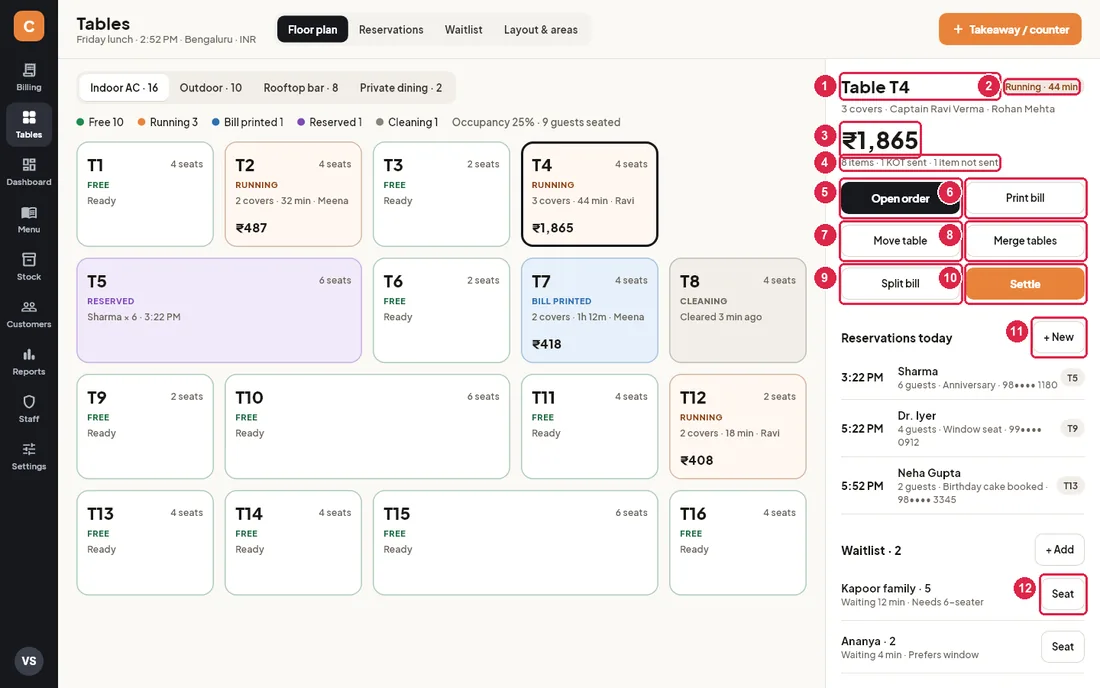
- Table name — the selected table.
- Status pill — the status and, for an occupied table, how long the guests have been seated.
- Amount — the order total so far. The line above it shows the covers, the captain who opened the order and the customer attached to it (if any); on a free table it shows the seats and any booking instead.
- Item summary — how many items are on it, how many KOTs went to the kitchen and how many items are not sent yet.
- Open order — opens the table's order in Billing. On a free table it asks for the covers and starts a new dine-in order.
- Print bill — sends any unsent items to the kitchen, then prints the bill. After that the order is locked. If the bill is already printed, this prints a DUPLICATE copy.
- Move table — moves the whole order to a free table.
- Merge tables — brings another table's order into this one.
- Split bill — opens the Settle screen in Split by items mode. Not available once the bill is printed.
- Settle — opens the Settle screen to take payment.
- Reservations today · + New — today's upcoming bookings (time, name, guests, notes, phone and table). Tap a booking to edit it, or + New to add one.
- Waitlist · Seat — guests waiting for a table, with how long they have waited. Seat gives them a table (see below). + Add puts a new party on the list.
Seat walk-in guests
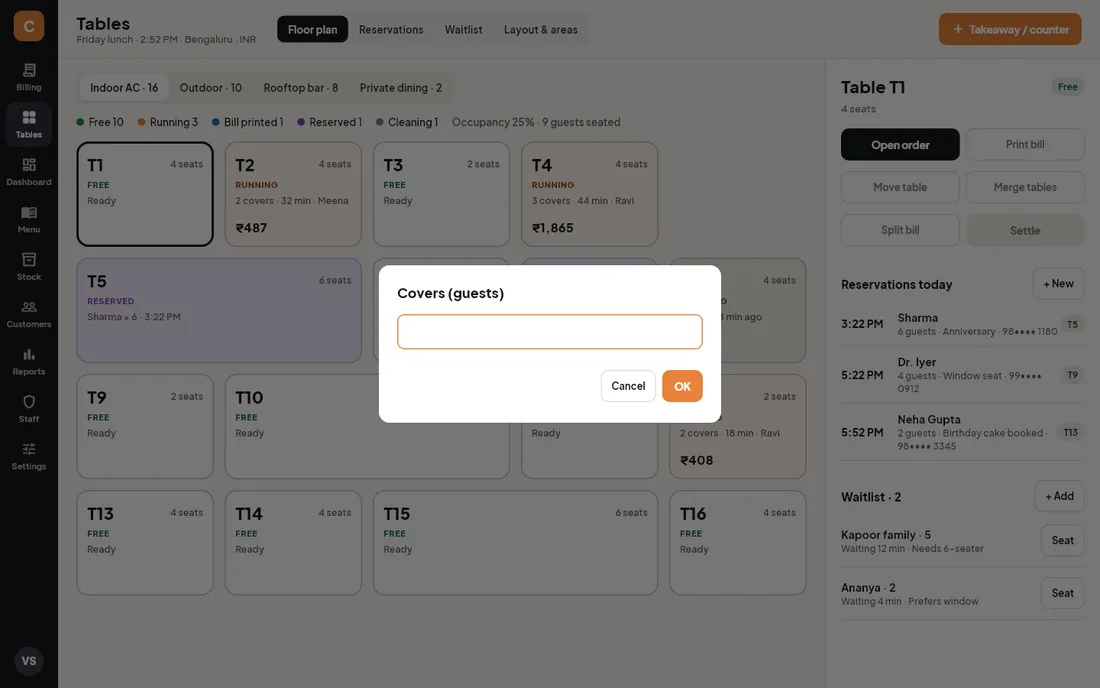
- Tap a Free table, then Open order.
- Type the number of guests and press OK. (If Covers required for dine-in is off in Settings, the order opens straight away.)
- The Billing screen opens with a new dine-in order for that table. Add items and send the KOT as usual.
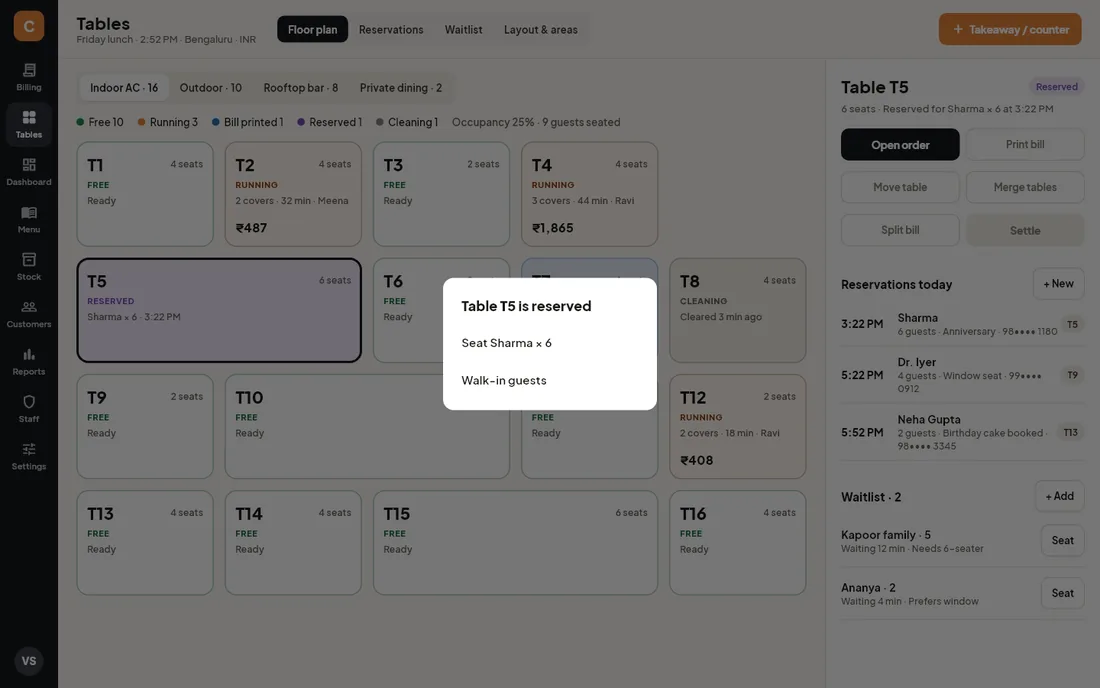
Seat a reservation
- When the guests arrive, tap their table (it shows Reserved) and press Open order.
- Choose Seat Sharma × 6 (their name and party size). Choose Walk-in guests instead if other people are sitting there.
- Check the covers (the party size is already filled in) and press OK. The booking is marked Arrived, and the guest is attached to the order by phone number.
You can also press Seat on the booking in the Reservations view. If the booking has a free table it is used straight away; otherwise you pick one.
Move or merge tables
- Select the table whose guests are moving and press Move table.
- Pick the new table. Only free tables can be picked; occupied ones are greyed out.
- The order, its KOTs and its amount move across. The old table goes to Cleaning.
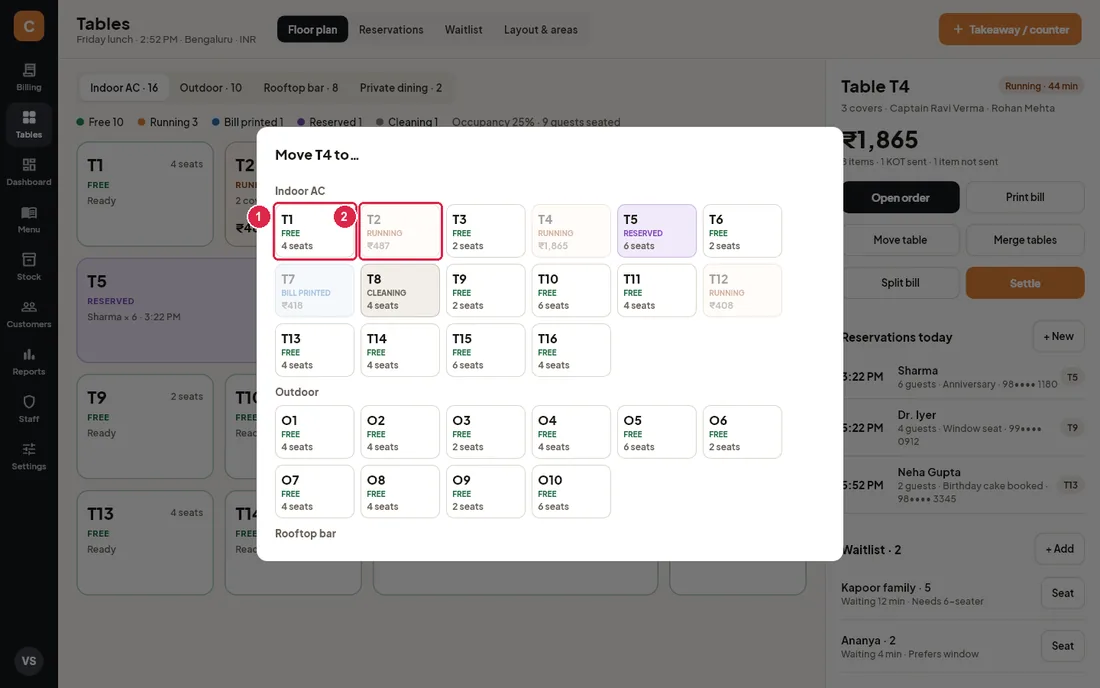
- Free table — tap it to move the order here.
- Occupied table — greyed out; to join two parties use Merge tables instead.
To join two parties, select the table that should keep the order, press Merge tables and pick the other table. Its items and KOTs are added to this order, the covers are added together, and the other table goes to Cleaning.
Split a bill
Select the table and press Split bill. The Settle screen opens on Split by items, where you tick the items that go on a separate bill. See the Settle section for the details.
Clean a table
After a bill is settled the table shows Cleaning with “Cleared 3 min ago”. When it is clean, tap the card once and it turns Free. Opening a new order on it also clears the cleaning status.
Reservations
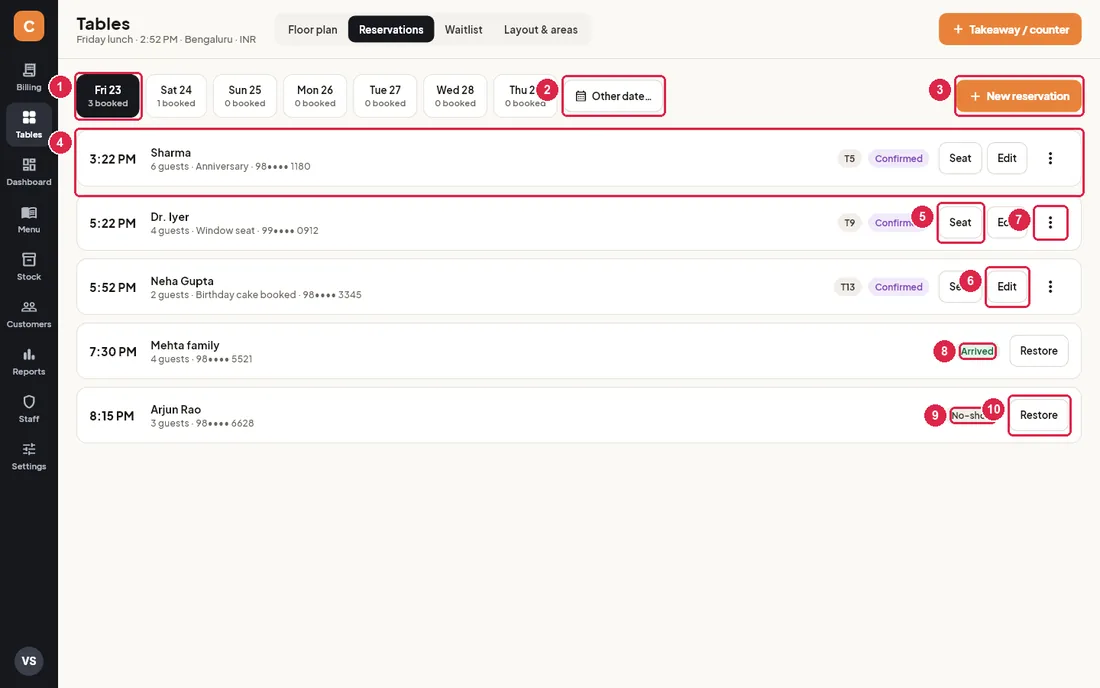
- Date strip — the next seven days with the number of open bookings on each. Tap a day to see its bookings.
- Other date… — opens a calendar to look further ahead or back.
- New reservation — adds a booking for the day you are looking at.
- Booking — time, name, guests, notes and phone (partly hidden for privacy), then the table and the status: Confirmed, Arrived, No-show or Cancelled.
- Seat — the guests have arrived: gives them their table (or lets you pick one), starts the order and marks the booking Arrived.
- Edit — change the name, phone, date, time, guests, table or notes.
- More (⋮) — Mark no-show or Cancel booking.
- Arrived — the guests were seated.
- No-show — the guests did not come.
- Restore — puts an arrived, no-show or cancelled booking back to Confirmed if it was marked by mistake.
Add a reservation
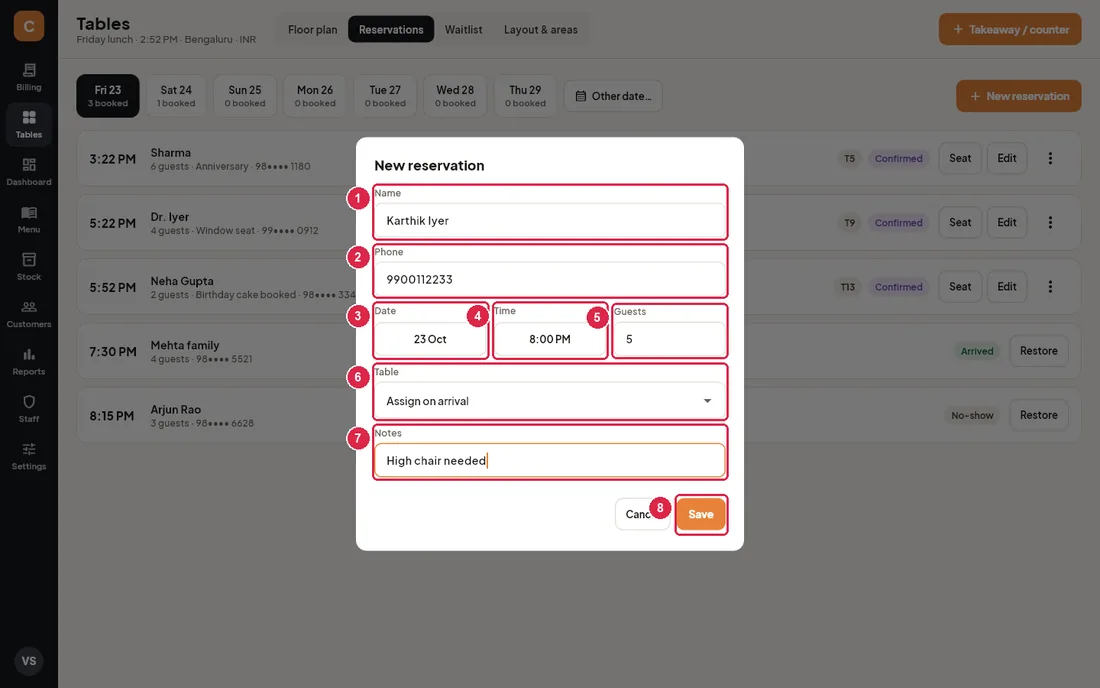
- Name — required.
- Phone — optional. When the guests are seated, the customer is attached to the order with this number (a new customer is created if needed).
- Date — tap to pick a day.
- Time — tap to pick the time (8:00 PM by default).
- Guests — party size; must be at least 1.
- Table — a specific table, or Assign on arrival. Only a booking with a table makes that table show Reserved on the floor.
- Notes — anniversary, window seat, cake booked…
- Save — saves the booking.
Waitlist
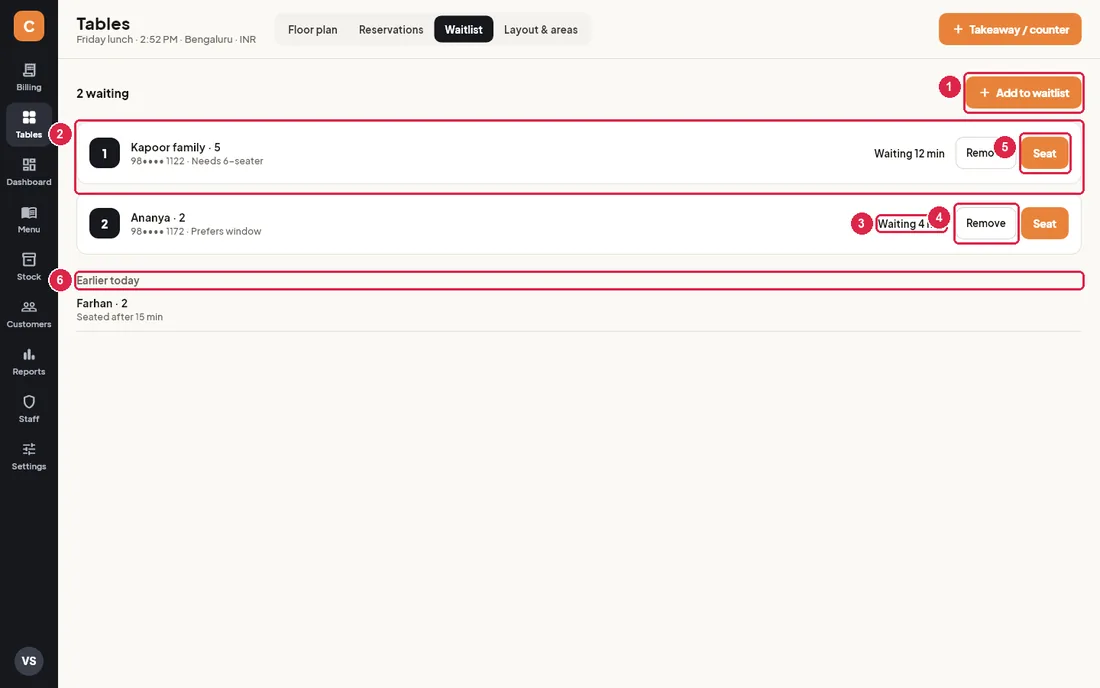
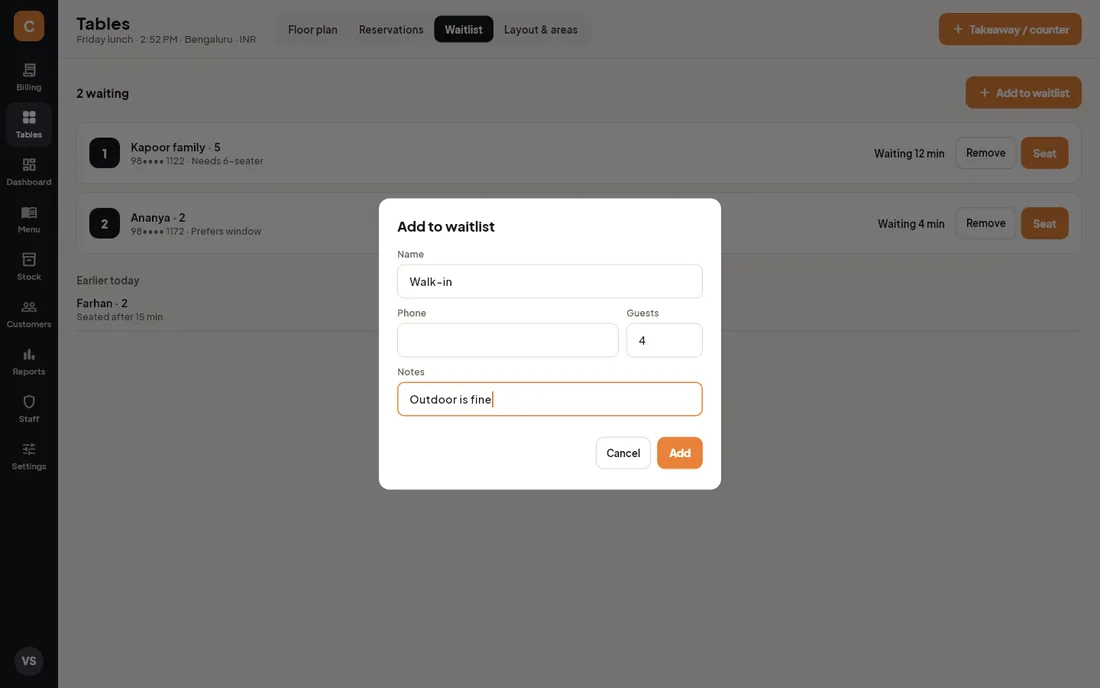
- Add to waitlist — adds a party: name, phone (optional), guests and a note such as “needs 6-seater”.
- Waiting party — position in the queue, name, party size, phone and notes.
- Waiting time — how long they have been waiting. It updates every 30 seconds.
- Remove — the party left without being seated.
- Seat — pick a free table. A dine-in order starts with the party size as covers and the guest attached by phone.
- Earlier today — parties already seated (with how long they waited) or who left the queue.
Layout & areas
Set up your dining areas and tables here. Only managers and owners can change the layout; other staff see “Managers only”.
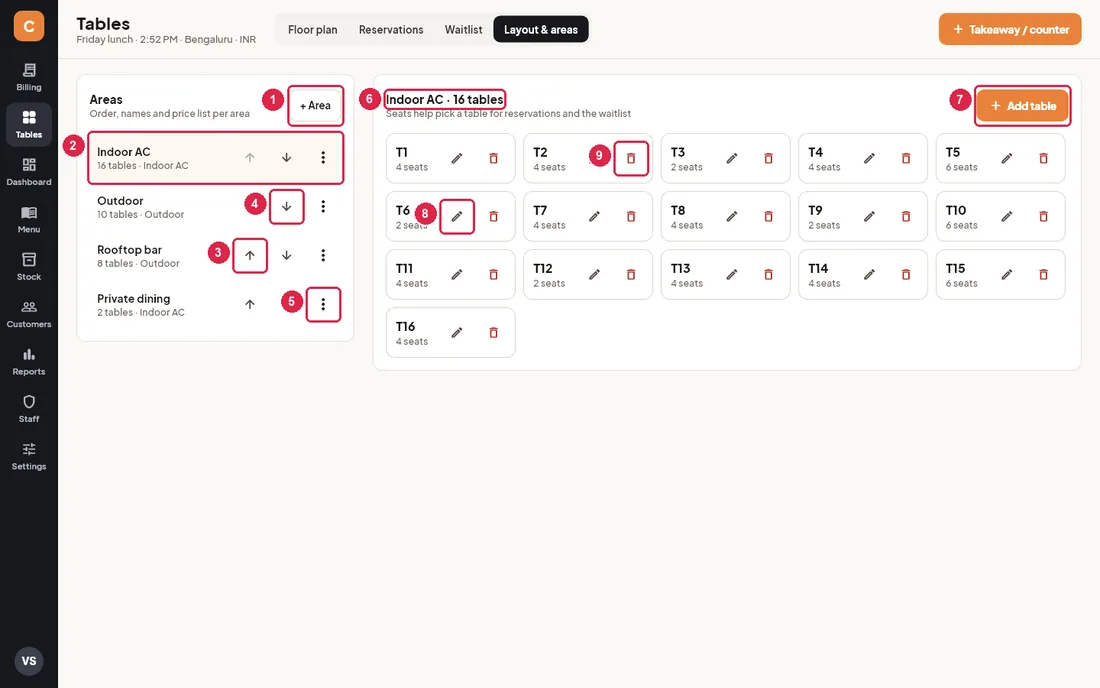
- + Area — adds a new area (for example Rooftop bar). It is added at the end of the list.
- Area — the area name, its table count and its price list. Tap it to edit its tables on the right.
- Move up — moves the area one place up. The order here is the order of the area tabs on the floor plan.
- Move down — moves the area one place down.
- More (⋮) — Rename, Price list… or Delete area.
- Selected area — the area whose tables are listed below.
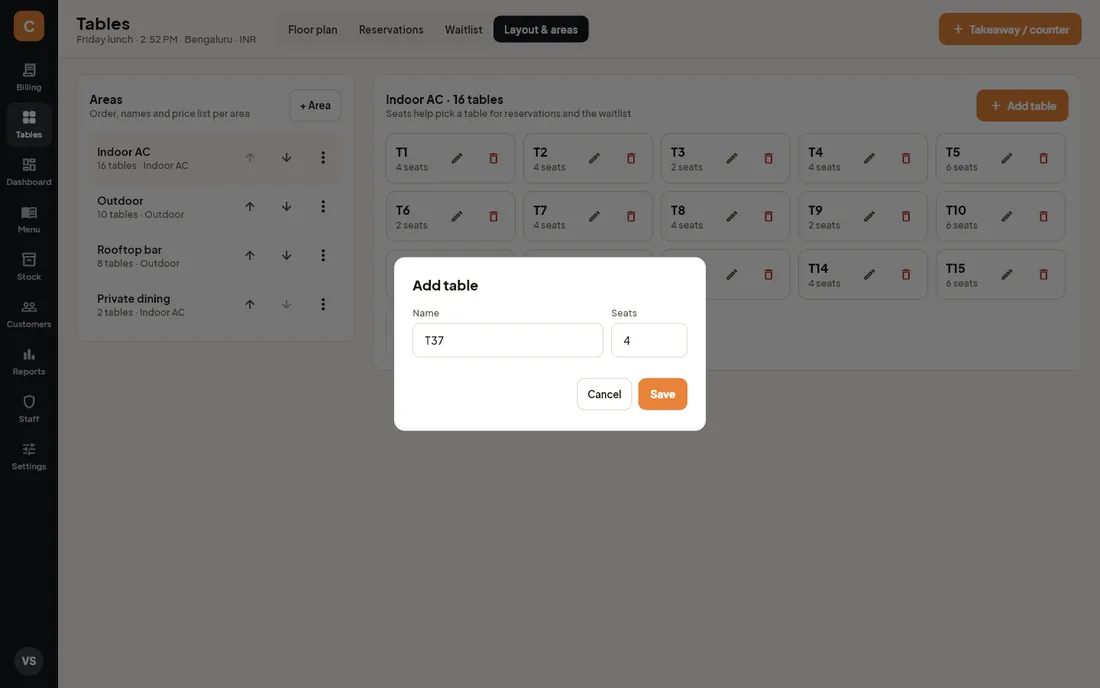
- Add table — adds a table to this area with a name (for example T17) and the number of seats.
- Edit — rename the table or change its seats.
- Remove — takes the table off the floor. Past bills keep the table name.
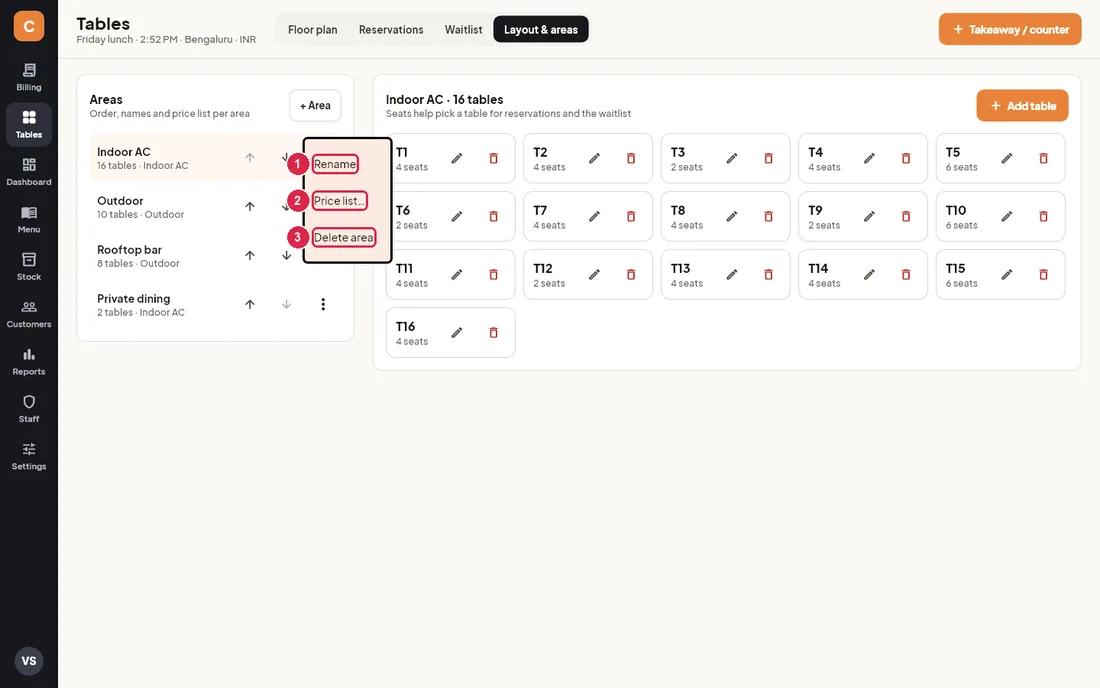
- Rename — changes the area name everywhere.
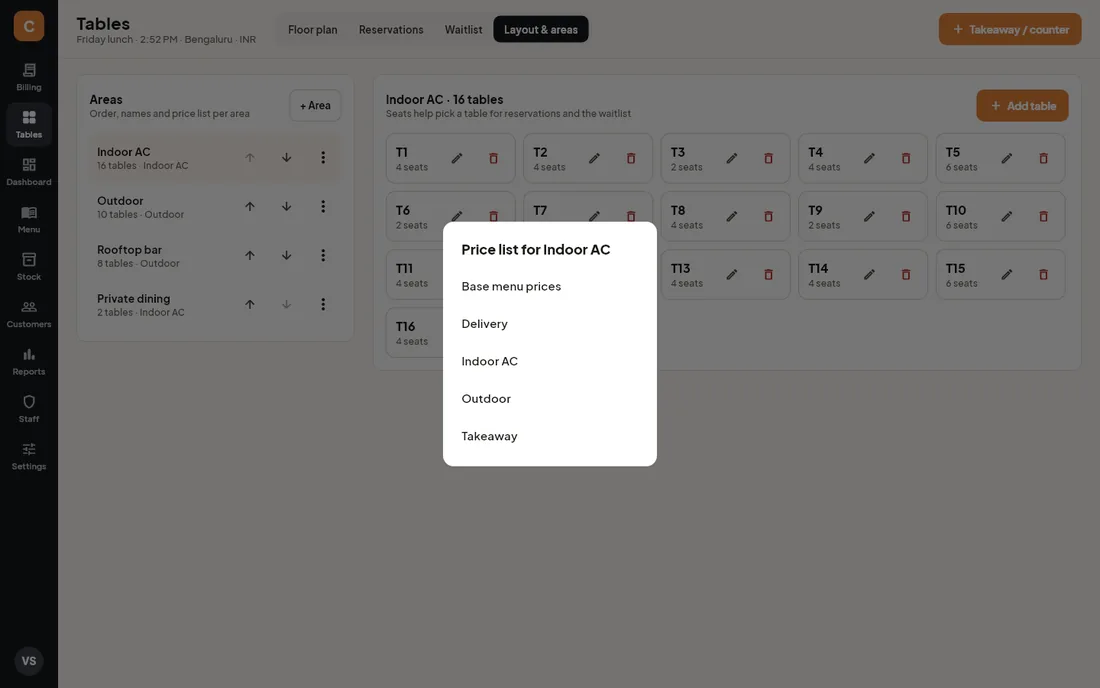
- Price list… — chooses the price list for dine-in orders on this area's tables.
- Delete area — only possible for an area that never had tables. An area that has had tables is kept so old bills stay correct.
Set up areas and tables
- Open Tables › Layout & areas.
- Press + Area, type the name (for example Rooftop bar) and press OK.
- Use the arrows to put the areas in the order you want on the floor plan.
- Open ⋮ › Price list… and choose the price list for this area, or Base menu prices to use the normal menu prices.
- With the area selected, press Add table, enter a name and the seats, and press Save. Repeat for every table.
- Go back to Floor plan: the new area has its own tab.
5Orders & bill history
The Orders screen lists every order that is still open today: dine-in tables, tokens, takeaways and deliveries. Its Bill history tab lists the bills printed this business day, where you can reprint, void or settle them. Open it from the Orders button on the Billing screen.
Running orders
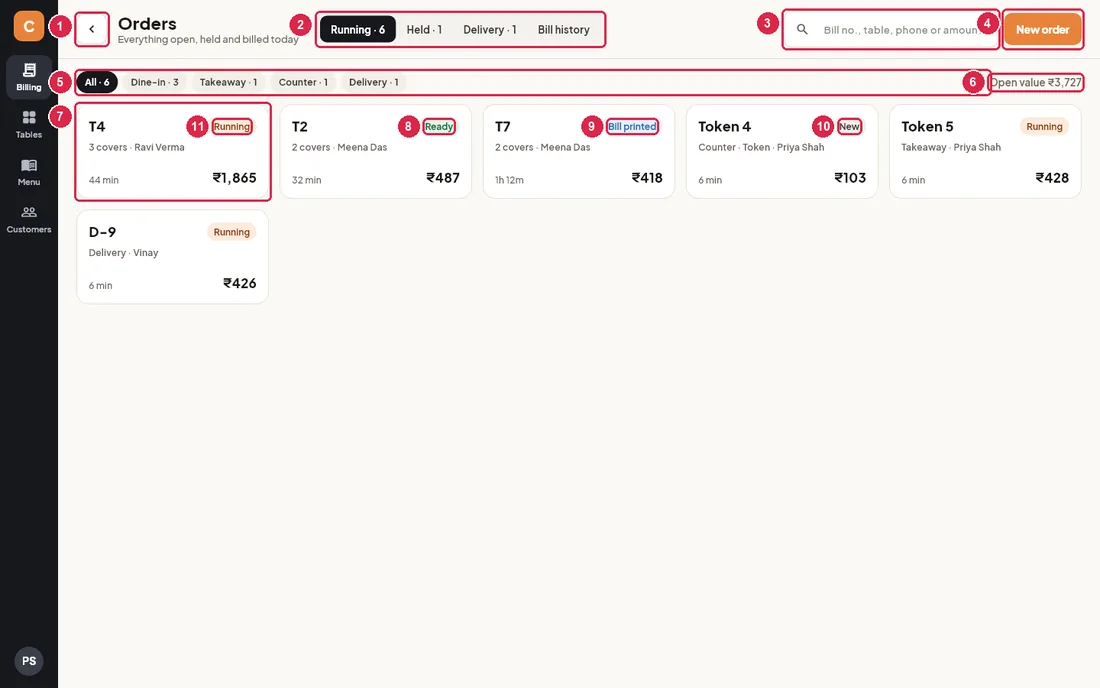
- Back — returns to Billing.
- Tabs — Running (open and bill-printed orders), Held (orders put on hold from Billing), Delivery (delivery and aggregator orders still running) and Bill history. The numbers are live counts.
- Search — type a table (T7), a token, a bill number, a customer name or phone number, or an amount (418) to find an order.
- New order — goes to Billing with a fresh order.
- Filter chips — show All orders or only Dine-in, Takeaway, Counter or Delivery, each with its count.
- Open value — the total of all running orders: money still to be collected.
- Order card — the table or token (T4, Token 4, D-9 for deliveries), covers and captain (or the order type and who took it), how long ago it started, and the amount. Tap it to open the order in Billing.
- Ready (green) — the kitchen has marked every KOT ready: food can go out.
- Bill printed (blue) — the bill is printed and waiting for payment.
- New (grey) — items are on the order but nothing has been sent to the kitchen yet. Send the KOT!
- Running (orange) — the kitchen is still preparing.
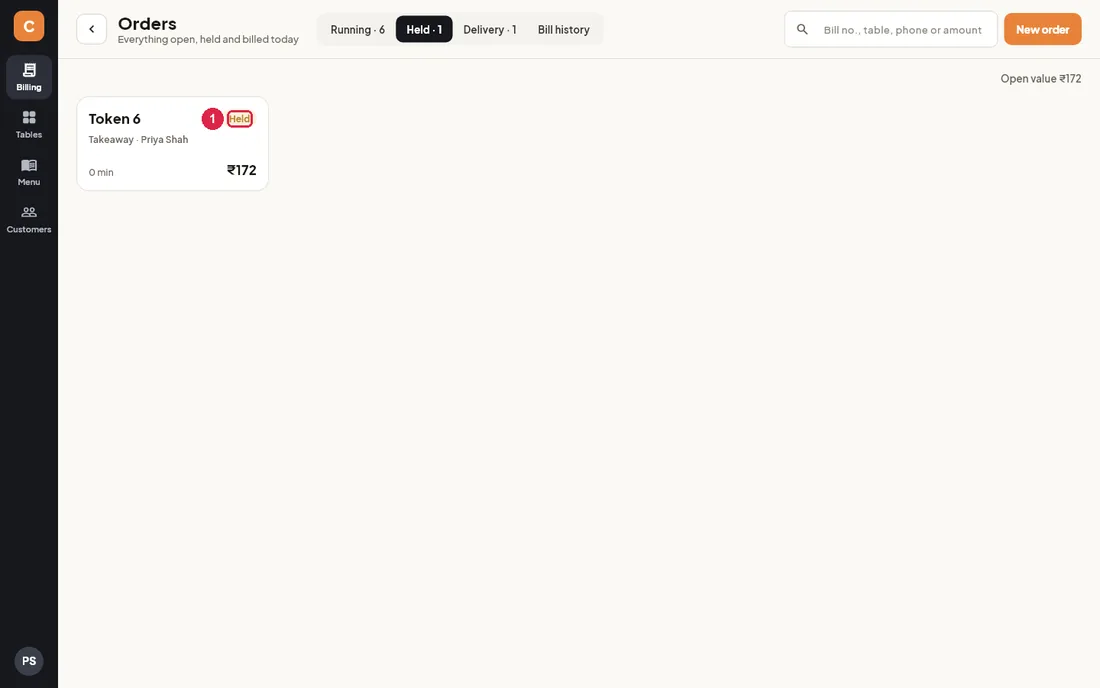
- Held (amber) — an order parked with Hold on the Billing screen. Tap the card to open it and carry on.
Find and open an order
- On Billing press Orders.
- Pick a tab, or a chip such as Delivery, or type in the search box.
- Tap the card. The order opens on the Billing screen where you can add items, send KOTs, print the bill or settle.
Bill history
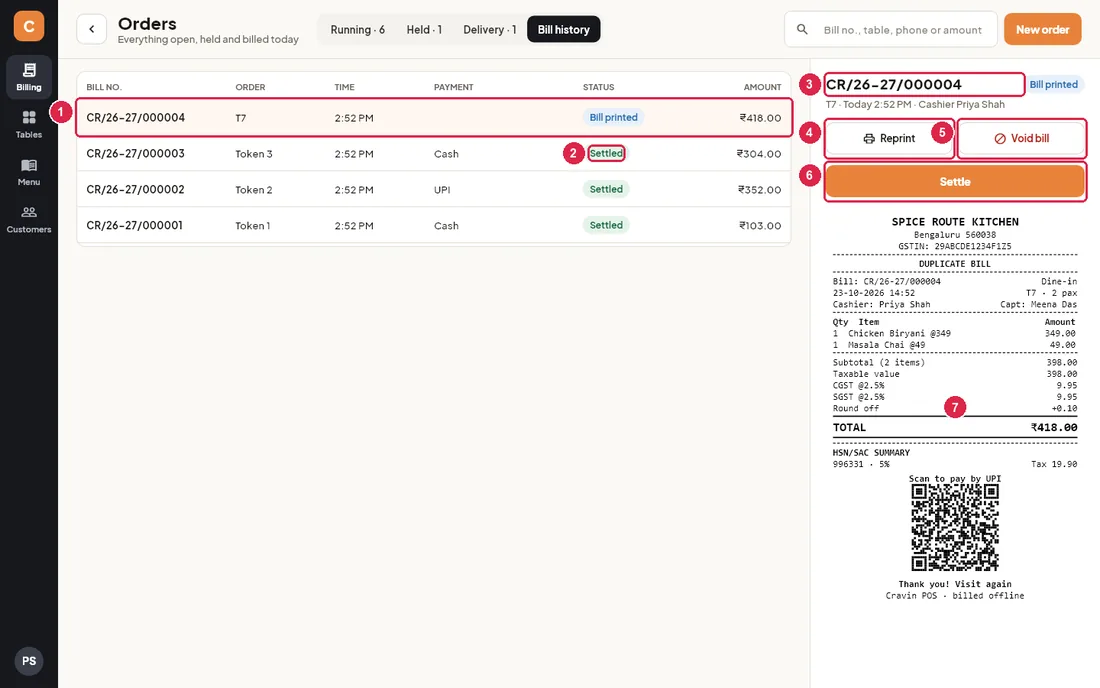
- Bill row — bill number, table or token, time, how it was paid, status and amount. Tap a row to see the bill on the right.
- Status — Settled (paid), Bill printed (printed, not paid yet) or Void (cancelled after printing).
- Bill number — with the table, time, cashier and how many times it was reprinted. A voided bill also shows who voided it and why.
- Reprint — prints a copy marked DUPLICATE BILL.
- Void bill — cancels a printed bill.
- Settle — shown only for bills that are printed but not paid. Opens the Settle screen.
- Bill preview — exactly what the duplicate copy will look like.
Bill history shows the bills of the current business day, newest first. The search box works here too (for example the last digits of a bill number).
Reprint a bill
- Open Orders › Bill history and tap the bill.
- Press Reprint. The copy prints on the bill printer marked DUPLICATE BILL.
Void a bill
- Open Orders › Bill history and tap the bill.
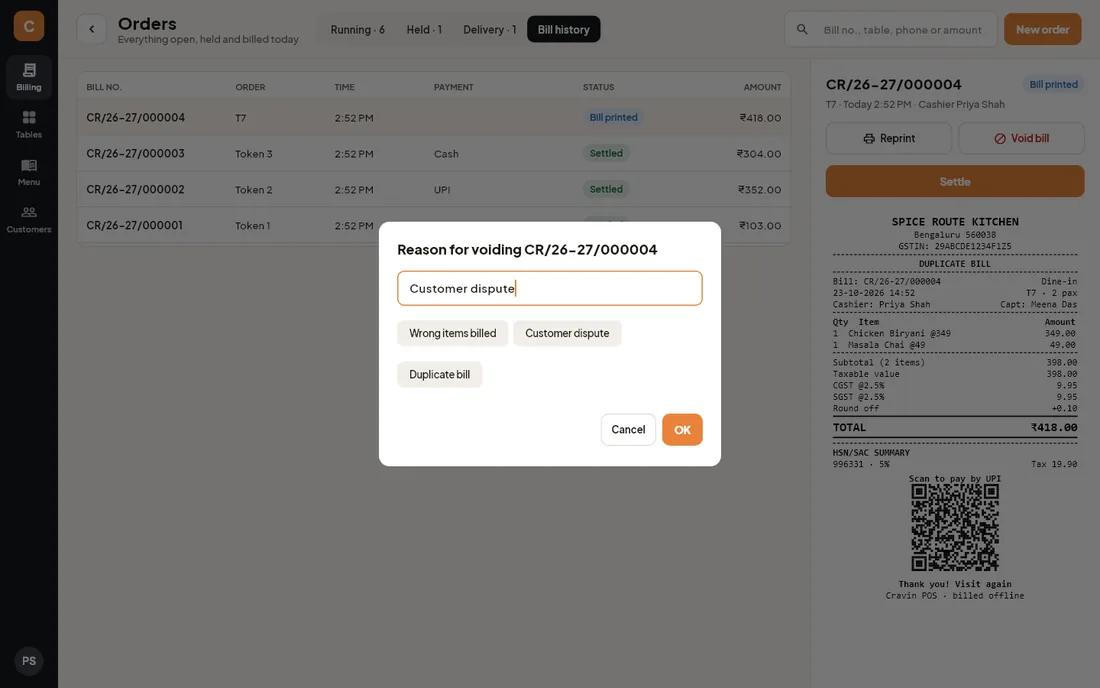
- Press Void bill. Cashiers and captains are asked for a manager PIN.
- Type the reason or tap a suggestion (Wrong items billed, Customer dispute, Duplicate bill), then press OK.
Settle a bill that was printed but not paid
- Open Orders › Bill history, or find the order on the Running tab (it shows Bill printed).
- Tap the bill and press Settle, then take payment on the Settle screen.
6Kitchen & token screens
The kitchen display shows every KOT that is still cooking as a large card, so the kitchen can see what to make, how long it has waited, and mark it ready. The token display is a customer-facing screen for counter and takeaway orders: it shows which token numbers are being prepared and which are ready to collect.
Opening the screens
Both screens fill the whole window, without the menu bar on the left. Open them from the user menu, which is your initials at the bottom-left of the screen. Anyone who is signed in can open them.
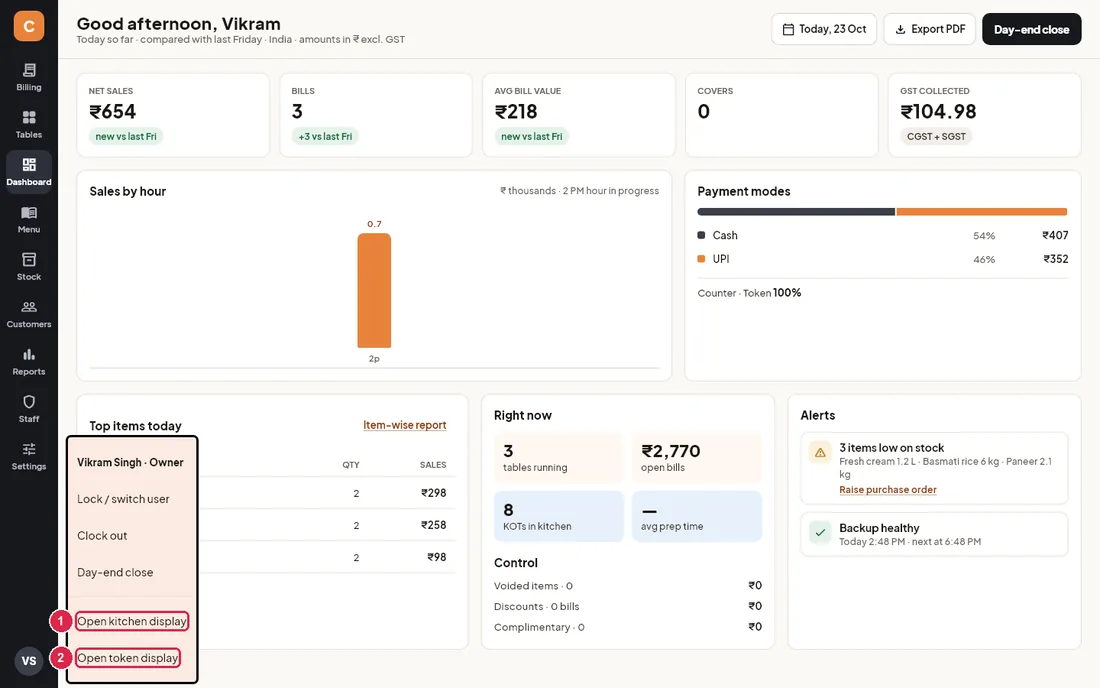
- Open kitchen display: shows the kitchen display on this PC.
- Open token display: shows the token board for customers on this PC.
Kitchen display
The title at the top-left shows which station you are looking at (All stations or, for example, Tandoor station). The big clock next to the Exit button shows the current time. Each KOT becomes a card as soon as it is sent from billing. Cards are in the order they were sent, oldest first. A KOT that went to two stations (for example Tandoor and Bar) makes two cards, one per station.
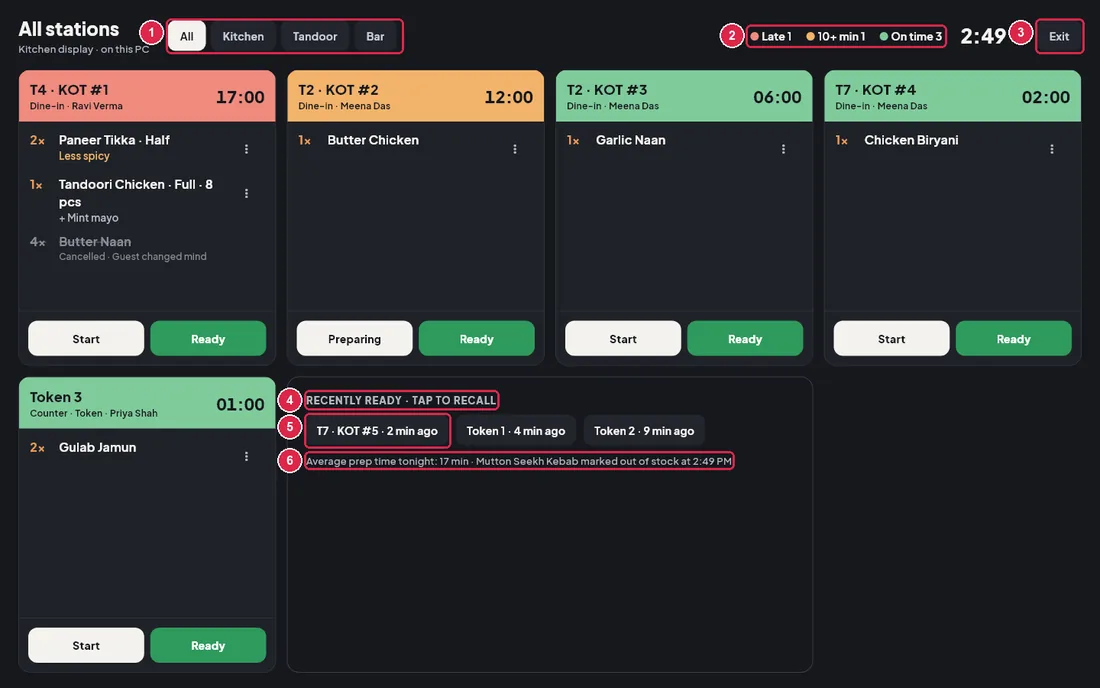
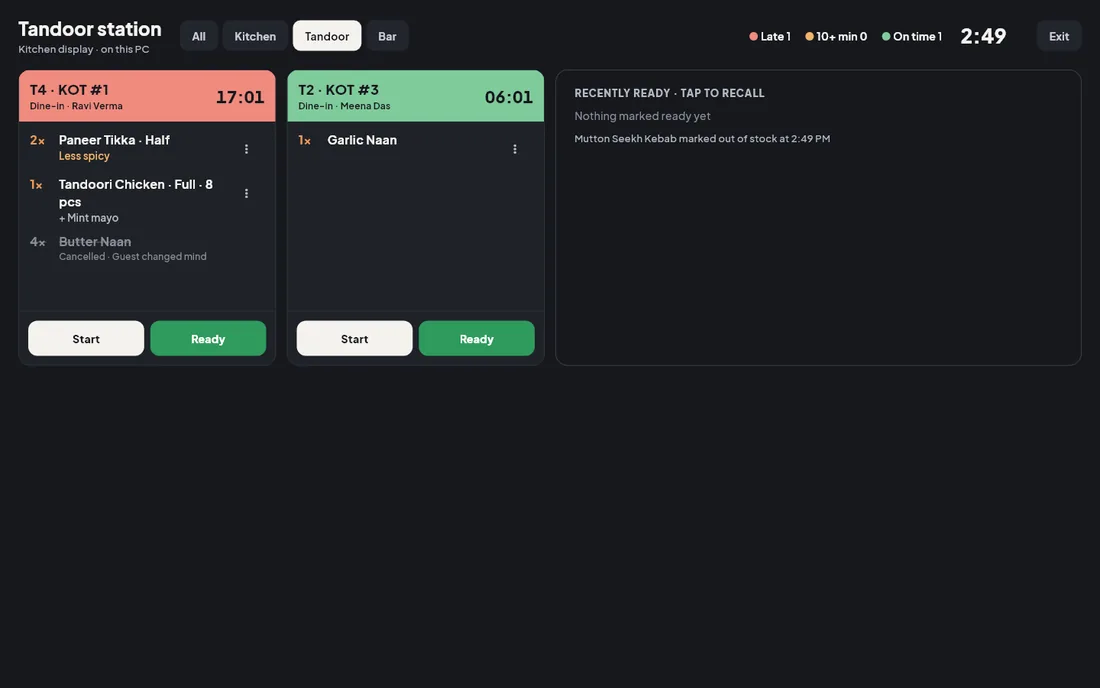
- Station tabs: All shows every KOT. Tap a station (for example Tandoor) to see only the tickets for that station. This PC remembers your choice, so a tandoor screen stays on Tandoor after a restart. The station list comes from Settings › Printers & devices › Kitchen stations.
- Legend: counts the cards on screen by waiting time. Late means waiting 15 minutes or more (red), 10+ min means 10 to 15 minutes (amber), and On time means under 10 minutes (green).
- Exit: leaves the kitchen display and goes back to Billing (or to Menu for staff who do not bill). Esc does the same. Kitchen staff see Lock here instead (see below).
- Recently ready · tap to recall: the last six tickets marked ready today for this station.
- Recall chip: shows the ticket and how long ago it was marked ready. Tap it if a ticket was marked ready by mistake. The card comes back on the board as Preparing.
- Average prep time tonight: the average time from Start to Ready for today's tickets at this station. If a ticket was never started, its time counts from when the KOT was sent. The latest item marked out of stock today is shown after it.
A KOT card
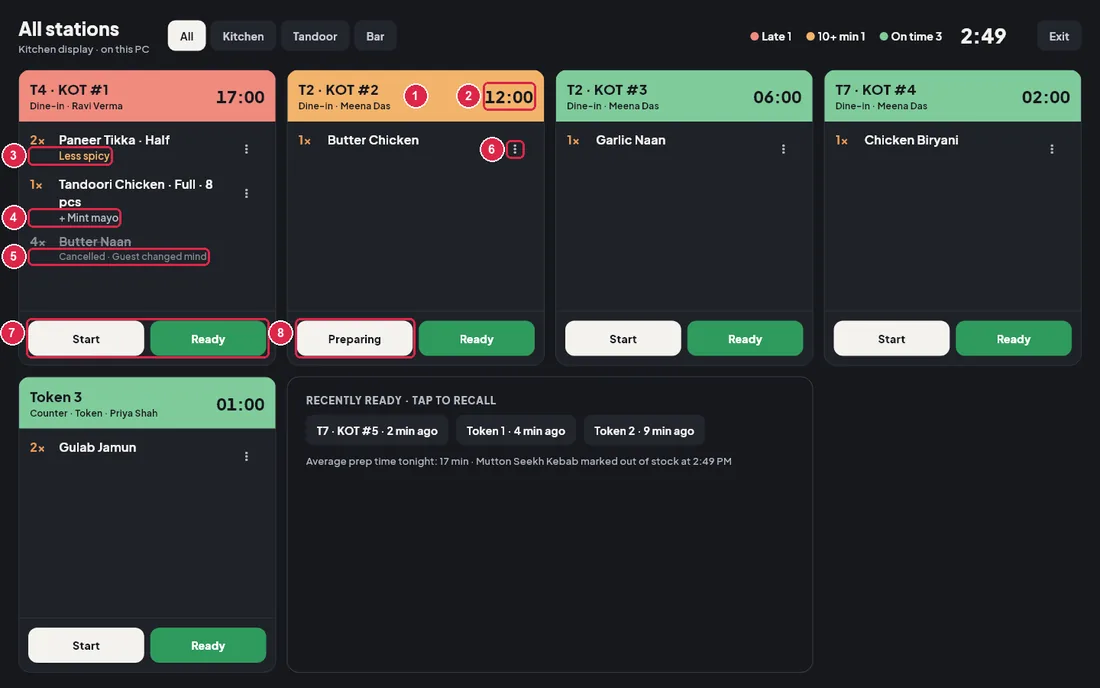
- Card header: the table and KOT number (T2 · KOT #2), the token (Token 3) or the delivery number (Delivery #D-88). Under it are the order type and the staff member who took the order. The colour shows how long the ticket has waited: green under 10 minutes, amber from 10 minutes, red from 15 minutes.
- Timer: minutes and seconds since the KOT was sent. It counts up every second.
- Note: the cashier's or captain's note for the line (for example Less spicy), in orange.
- Add-ons: extras chosen with the item, after a +.
- Cancelled line: when an item is cancelled after the KOT was sent, it stays on the card struck through and greyed, with the reason, so the cook knows to stop. A CANCEL KOT is also printed at the station.
- ⋮ menu: Mark out of stock for that item. You can also press and hold the line.
- Start and Ready: tap Start when you begin cooking. Tap Ready when the food is ready to go out; the card leaves the board and moves to Recently ready.
- Preparing: after Start, the button changes to Preparing. It only shows the status and does nothing when tapped.
Showing one station
Mark an item out of stock
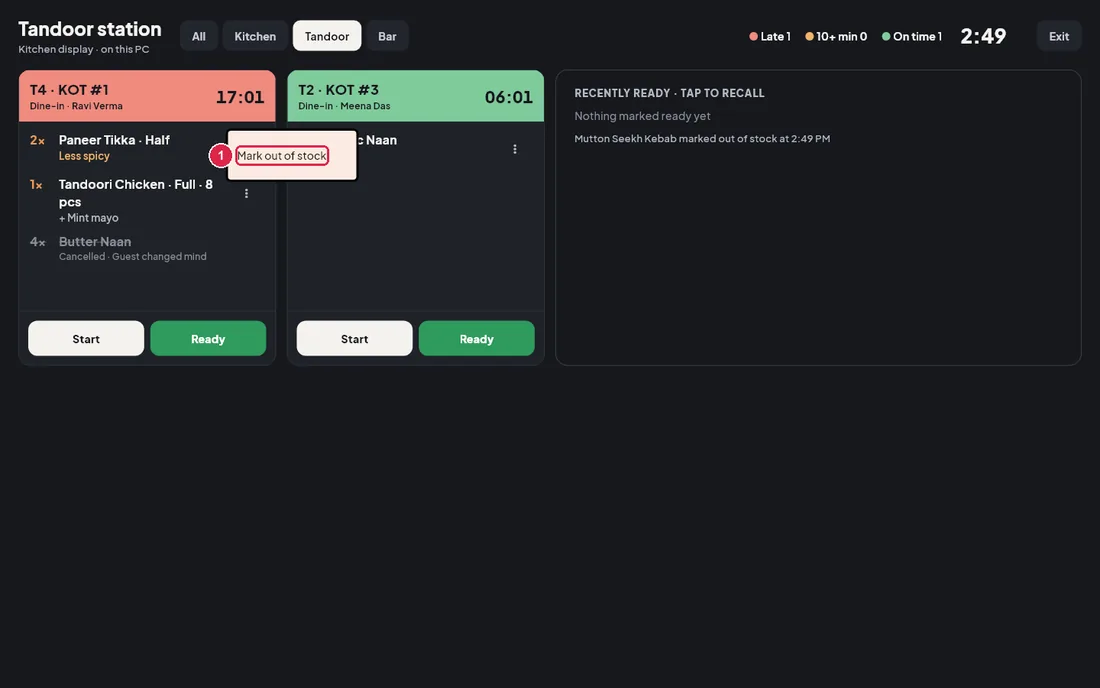
- Mark out of stock: starts marking this item out of stock.
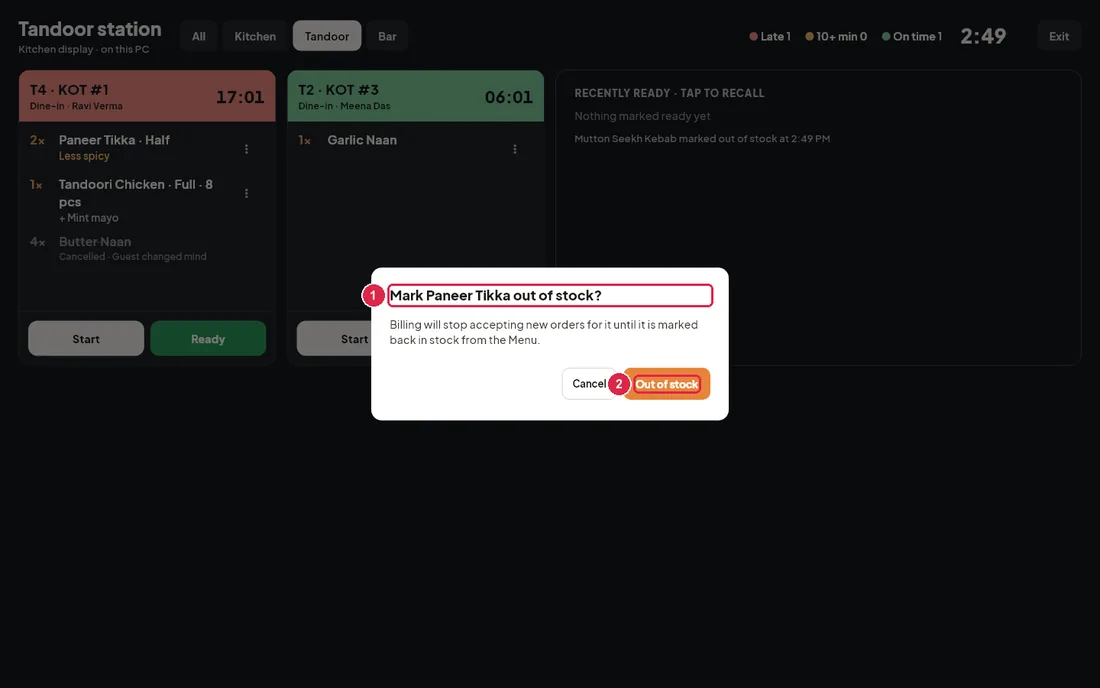
- Mark … out of stock?: names the item that will be stopped.
- Out of stock: confirms. Cancel leaves the item on sale.
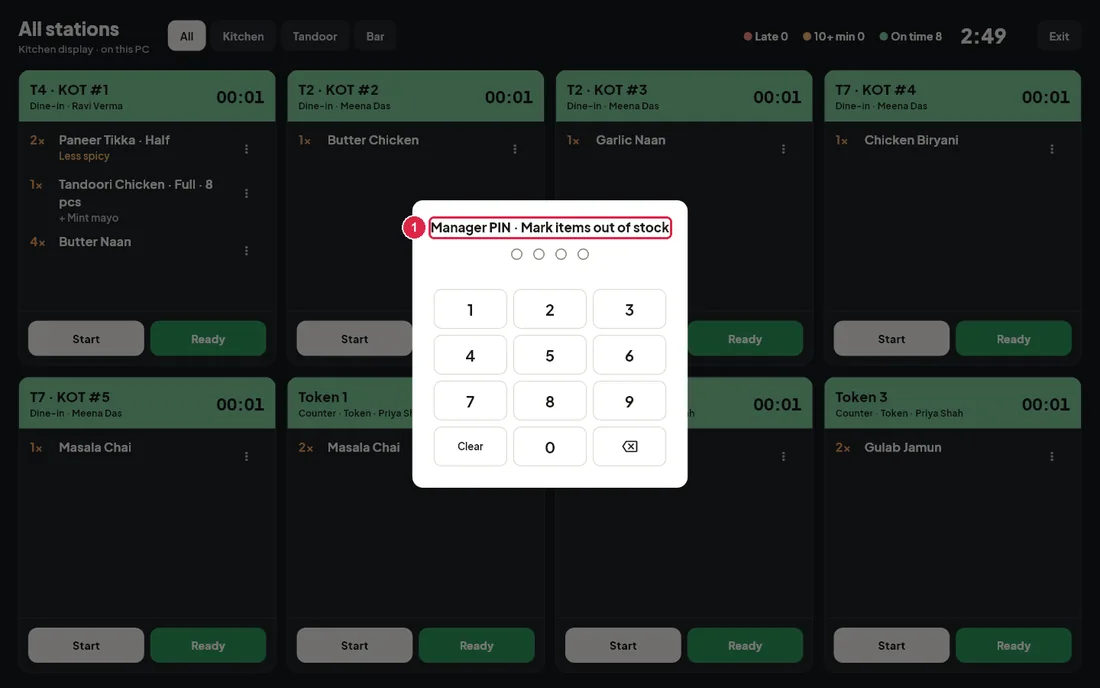
- Manager PIN · Mark items out of stock: captains and store staff need a manager or owner to enter their PIN here. Kitchen staff, cashiers, managers and owners are not asked. If the PIN belongs to someone who is not allowed either, the item is not changed.
Once confirmed, billing will not let anyone add the item to an order. The footer shows, for example, Paneer Tikka marked out of stock at 8:02 PM, and the change is recorded in the audit log. To sell the item again, switch it back on from the Menu screen.
Kitchen staff: Lock
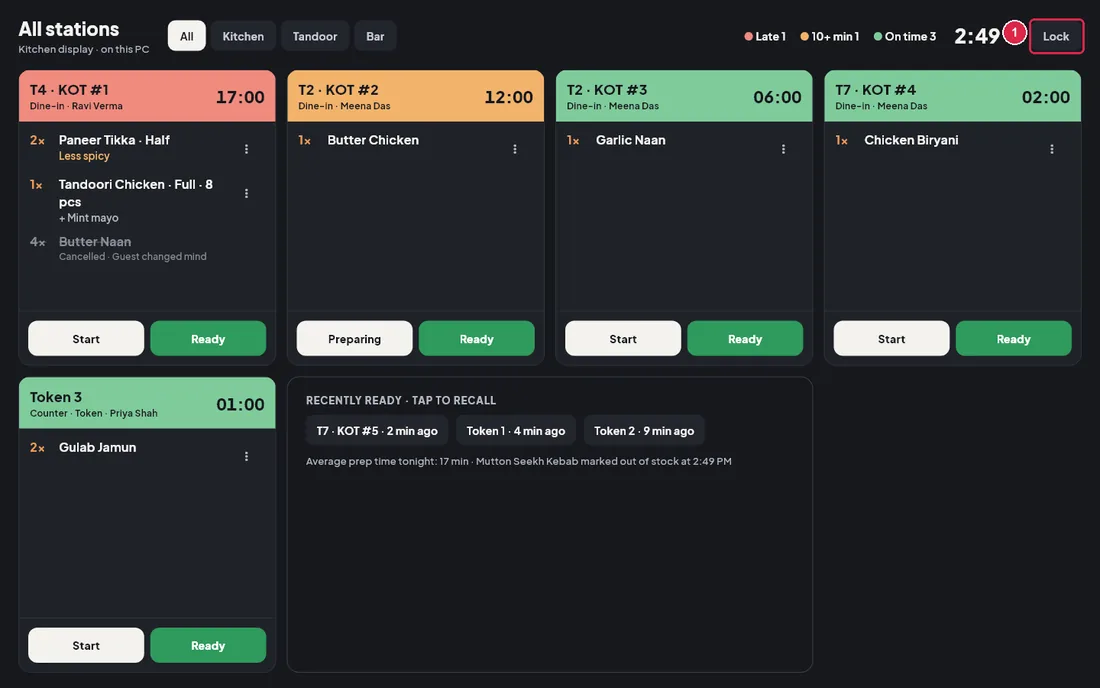
- Lock: kitchen staff cannot leave to other screens. Lock (or Esc) goes back to the PIN screen, so the next cook signs in with their own PIN.
What the kitchen printer prints
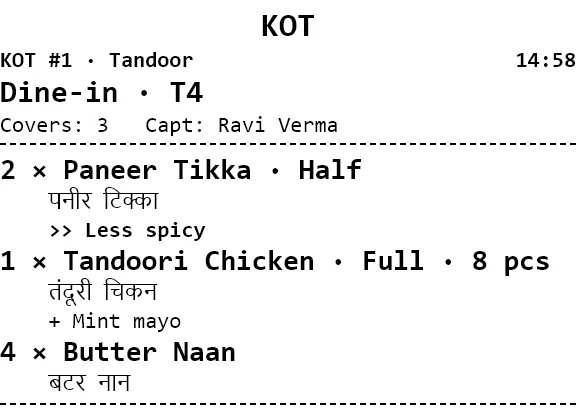
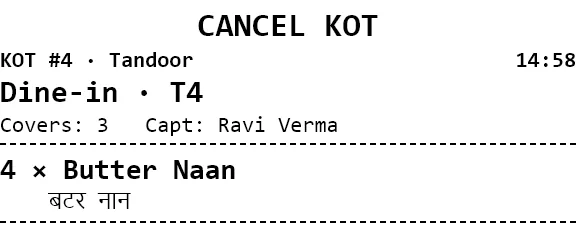
The screen and the printed slips always match. Notes are printed after >> and add-ons after +. A cancel KOT gets its own KOT number but no card on the screen. Instead, the line is struck through on the original card.
Run a kitchen shift with the display
- Enter your PIN on the kitchen PC. Kitchen staff land on the kitchen display.
- Tap your station tab (for example Tandoor). The PC remembers it.
- When a new KOT arrives, the PC plays an alert sound and a green card appears.
- Tap Start when you pick up the ticket.
- Watch the colours: amber cards have waited 10 minutes, red cards are late. Cook the red ones first.
- If an item runs out, press and hold the line (or use ⋮) and choose Mark out of stock, so billing stops taking it.
- Tap Ready when the food goes out. Tapped it too early? Tap the ticket under Recently ready to bring it back.
- At the end of the shift, tap Lock.
Token display
Use this for counter and takeaway orders, which get a token number when the order is created. Token numbers start again from 1 every business day.
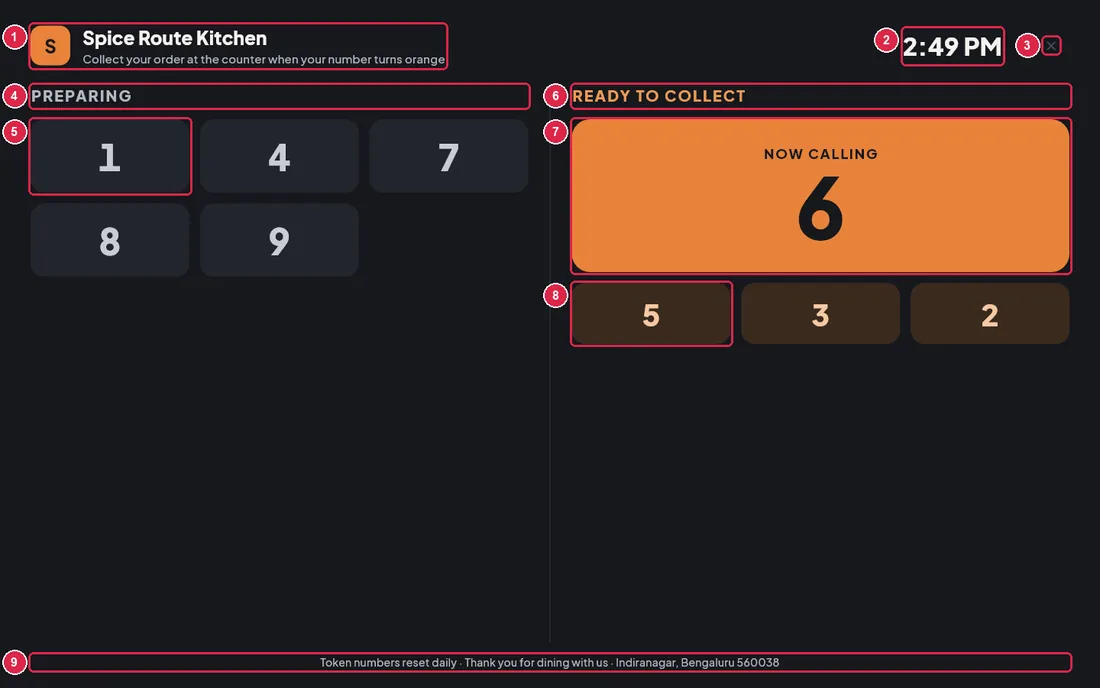
- Outlet name: your restaurant's name and initial, with the instruction Collect your order at the counter when your number turns orange.
- Clock: the current time.
- Close (×): a faint button for staff. It goes back to Billing (or to Menu for staff who do not bill); Esc does the same. Kitchen staff are locked out instead.
- Preparing: tokens with at least one KOT not yet marked Ready on the kitchen display, lowest number first.
- Preparing token: one tile per token. A bill that was split keeps its token and shows only once.
- Ready to collect: tokens whose KOTs have all been marked Ready in the last 20 minutes and have not been collected yet.
- Now calling: the token that became ready most recently, in large orange numbers. With nothing ready, it says Nothing ready yet. Staff tap it when the customer collects the order. That token is marked collected and the next one moves up.
- Ready token: the other ready tokens, newest first. Tap one to mark it collected.
- Footer: Token numbers reset daily · Thank you for dining with us, then your address and city from the outlet profile in Settings.
Show the token display on a TV or second monitor
- Connect the TV or monitor to the PC that will show the token display.
- In Windows display settings, set the screens to Duplicate so the TV shows the same picture as the PC.
- Open the user menu (your initials, bottom-left) and choose Open token display.
- Make the Cravin POS window full-screen.
- When customers collect their food, tap their number (on a touch screen, or with the mouse).
- Press Esc or tap × to go back to billing on that PC.
Common questions
- A ticket is missing from my station. Check the station tab. Items go to the station set for them in the Menu. Tap All to see every ticket.
- A customer's number never turned orange. One part of the order is still on the kitchen display. Every KOT for the token must be marked Ready, including drinks from the Bar.
- The number disappeared before the customer came. It was tapped as collected, or 20 minutes passed. The order itself is not affected.
7Day-end close
At the end of service a manager or owner closes the business day: every order settled, the cash drawer counted, the Z report printed and a backup taken. Managers and owners open it with the Day-end close button on the Dashboard; cashiers open it from the menu under their initials at the bottom of the left rail (Day-end close). Managers and owners can close the day; anyone else is asked for a manager PIN.
The day-end checklist
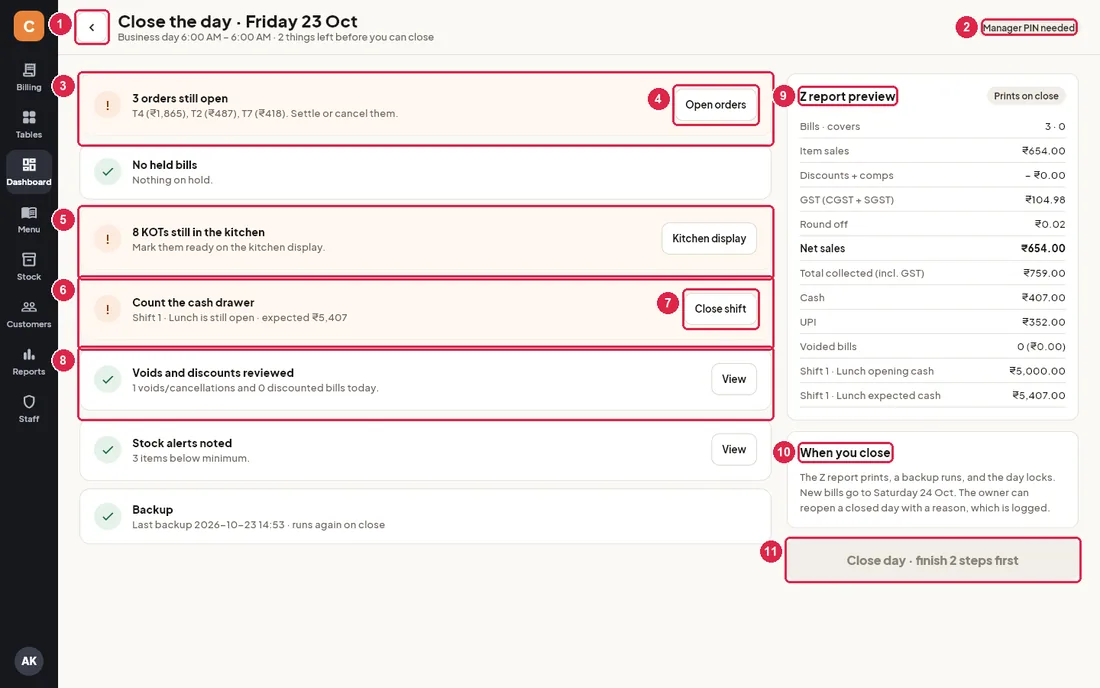
- Back — returns to the Dashboard. The title shows the business day being closed, and the line under it shows the business-day hours (for example 6:00 AM – 6:00 AM) and how many things are left.
- Manager PIN needed — closing the day is a manager job. If you are not a manager or owner, a manager types their PIN when you close.
- Open orders — tables and counter orders that are not settled yet, with their amounts. Must be cleared before closing: settle them, or cancel them from Billing.
- Open orders button — goes to the Orders screen so you can deal with them.
- Kitchen — KOTs not yet marked ready on the kitchen display. This is a reminder only; it does not stop you closing. Kitchen display opens the KDS.
- Count the cash drawer — the cash shift is still open, with the cash the drawer should hold. Must be closed before the day can close.
- Close shift — count the cash and close the shift (see below).
- Voids and discounts reviewed — how many bills were voided or cancelled and how many were discounted today. View opens the Voids & cancellations report. The Stock alerts noted row below shows items under their minimum level (View opens Stock), and Backup shows the last backup.
- Z report preview — the day's totals as they will print on the Z report.
- When you close — what happens when you press Close day.
- Close day — greyed out with “finish N steps first” until every blocking item has a green tick.
| Checklist item | Blocks closing? | What to do |
|---|---|---|
| Orders still open | Yes | Settle or cancel every table, token, takeaway and delivery order. |
| Held bills | Yes | Recall held orders (Orders › Held) and settle or cancel them. |
| KOTs still in the kitchen | No | Ask the kitchen to mark them ready or served on the kitchen display. |
| Count the cash drawer | Yes | Press Close shift and enter the counted cash. |
| Voids and discounts reviewed | No | Look through the report if the numbers seem high. |
| Stock alerts noted | No | Plan purchases for tomorrow. |
| Backup | No | A backup runs automatically when you close. |
Close the shift and count the cash
- Count the notes and coins in the drawer.
- Press Close shift on the Count the cash drawer row.
- Type the amount you counted and press OK. The dialog shows how much is expected (opening cash + cash payments + cash in/out).
- A message tells you if the cash matches, or by how much it is short or in excess. The count and the difference are printed on the Z report.
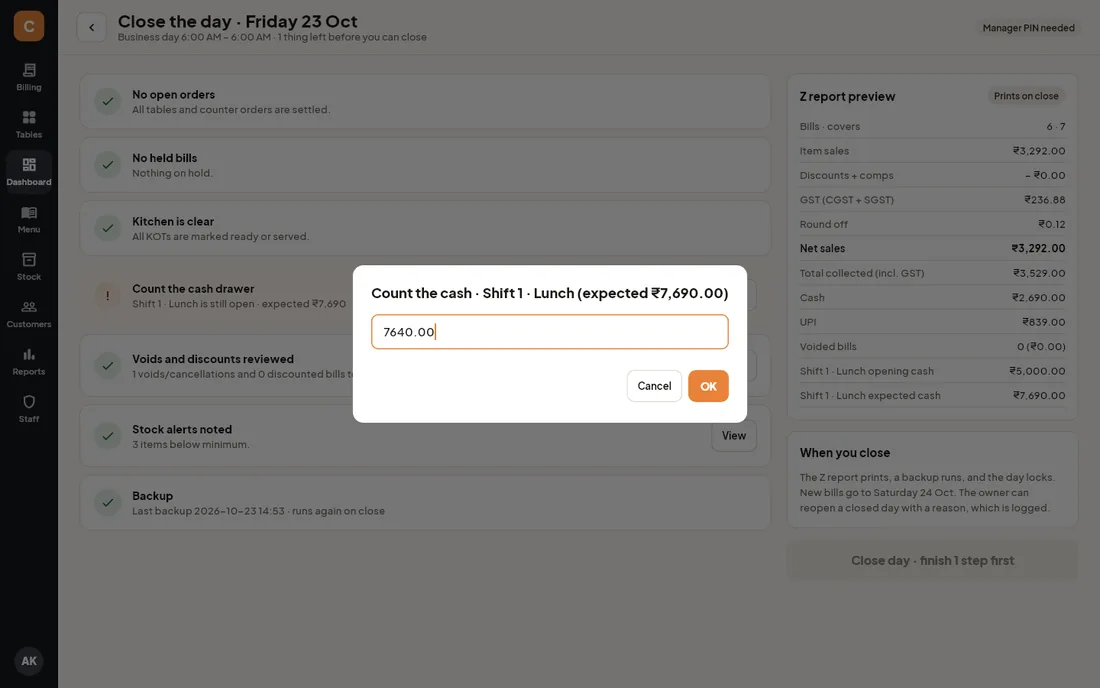
Close the day
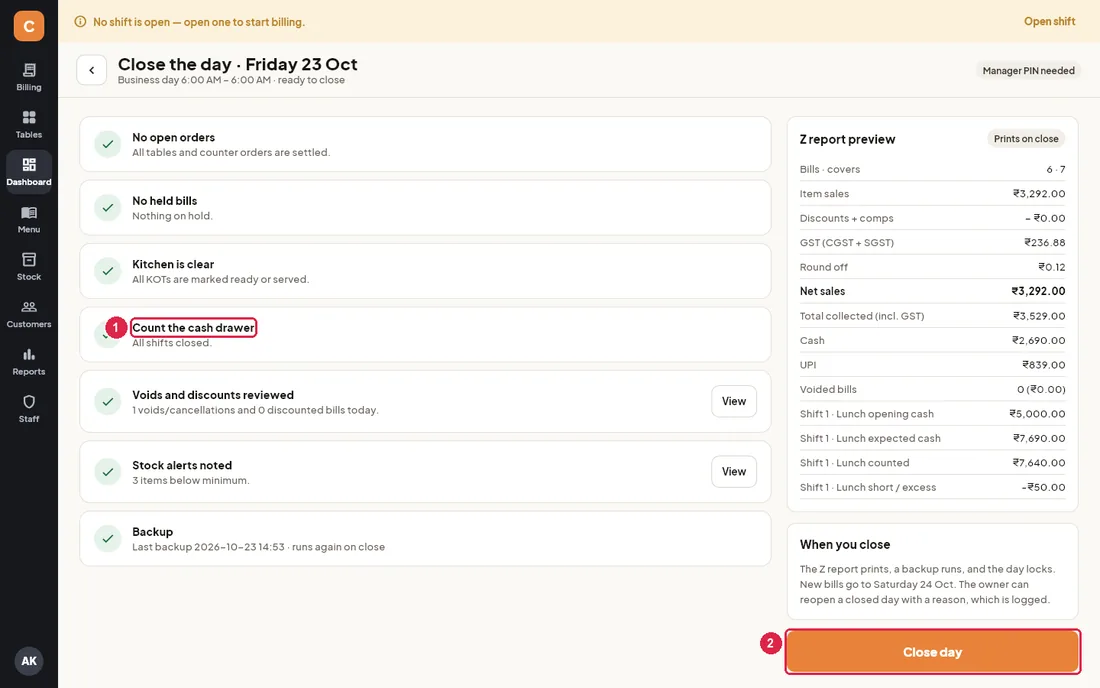
- Count the cash drawer — now ticked: all shifts are closed.
- Close day — press it to close the business day.
- Press Close day. If you are not a manager or owner, a manager types their PIN.
- Confirm with Close day in the dialog.
- The Z report prints on the bill printer, a backup is saved (when Back up automatically at day-end is on in Settings), and you return to the Dashboard.
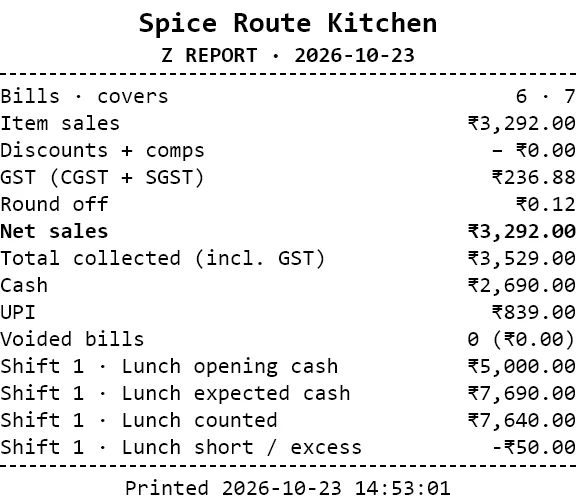
What is on the Z report
- Bills · covers — settled bills and guests served.
- Item sales, Discounts + comps, service charge, packaging and delivery charges (when used), GST (or VAT), Round off and Net sales.
- Total collected and one line per payment mode (Cash, UPI, Card…).
- Voided bills — count and amount.
- For each shift: opening cash, expected cash, counted cash and the short / excess amount.
After the day is closed
The closed day is locked: no more bills can be added to it. The Day-end screen now shows the closed day with its Z report.
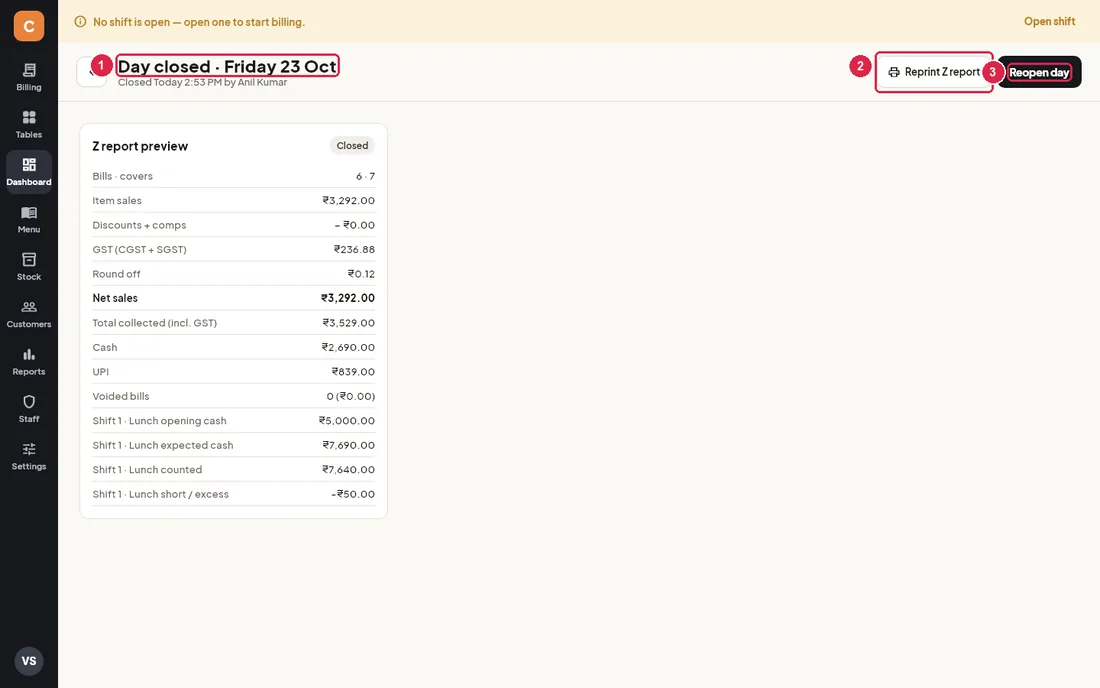
- Day closed — the date, when it was closed and by whom.
- Reprint Z report — prints the Z report again.
- Reopen day — owner only (see below).
Reopen a day
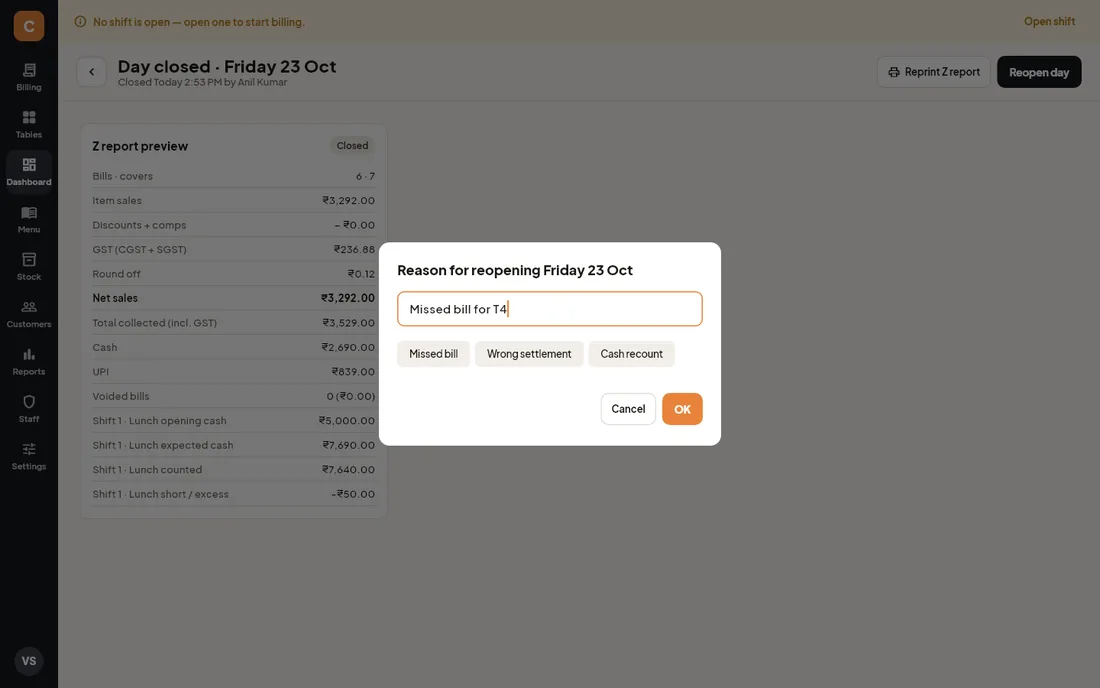
If a bill was missed or a payment was settled wrongly, the owner can reopen the last closed day.
- Log in as the owner and press Day-end close on the Dashboard.
- Press Reopen day.
- Type the reason (or tap Missed bill, Wrong settlement or Cash recount) and press OK.
- The day is open again. Fix what is needed, open a shift if you need to take payments, then close the day again.
8Dashboard
The dashboard shows how the business day is going: sales, bills, guests, tax, payments, best sellers, what is happening on the floor right now, and anything that needs your attention. Owners land here after logging in. Managers can open it from Dashboard in the left rail.
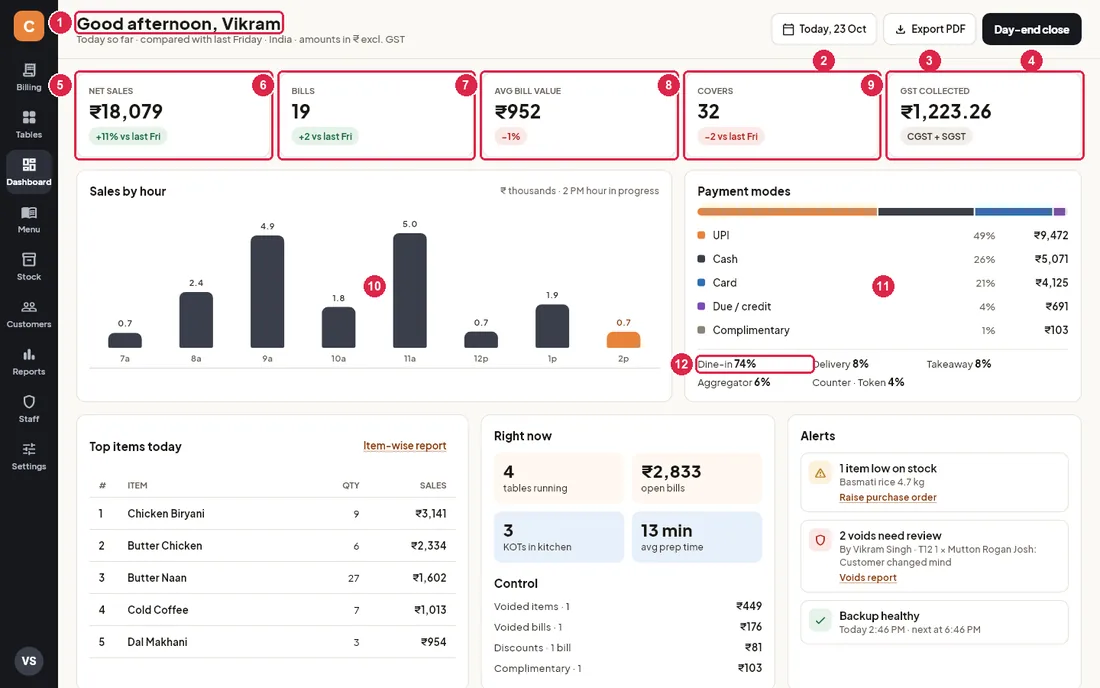
- Greeting and comparison line — says good morning, afternoon or evening to whoever is logged in. The line under it says which day you are looking at and which day it is compared with: the same weekday one week earlier (for example "compared with last Friday"). In India all amounts are in ₹ excluding GST.
- Date (for example Today, 23 Oct) — opens a calendar to look at an earlier business day. Every figure on the page, except the Right now tiles, changes to that day. Pick today again to come back. You cannot pick a future date.
- Export PDF — saves a one-page PDF of the dashboard figures for the chosen day. A message at the top of the window shows where it was saved (in
Documents\CravinPOS\exportson this PC). - Day-end close — opens the Day-end close screen, where you settle the last bills, count the cash drawer and close the day.
- Net sales — the total of all settled (paid) bills for the business day, after discounts and before GST. Open bills, unpaid printed bills and voided bills are not counted. The pill underneath compares it with the same weekday last week: green with a plus when you are ahead, red with a minus when you are behind.
- Bills — how many bills were settled, with the difference in number of bills against last week.
- Avg bill value — net sales divided by the number of bills, with the change in percent against last week.
- Covers — the number of guests entered on the settled bills (the covers typed when a table was opened), with the difference against last week.
- GST collected — the GST on the settled bills. It is always split equally into CGST and SGST.
- Sales by hour — one bar per hour, in ₹ thousands, by the time each bill was printed. The orange bar is the hour that is running now. On a past day the orange bar is the busiest hour. The note at the top right tells you which.
- Payment modes — the coloured strip and the list show how the day's money was paid: UPI, Cash, Card, Due / credit, Complimentary, Wallet or Loyalty points, each with its share and amount.
- Order-type split — the share of net sales from each order type: Dine-in, Takeaway, Counter · Token, Delivery and Aggregator.
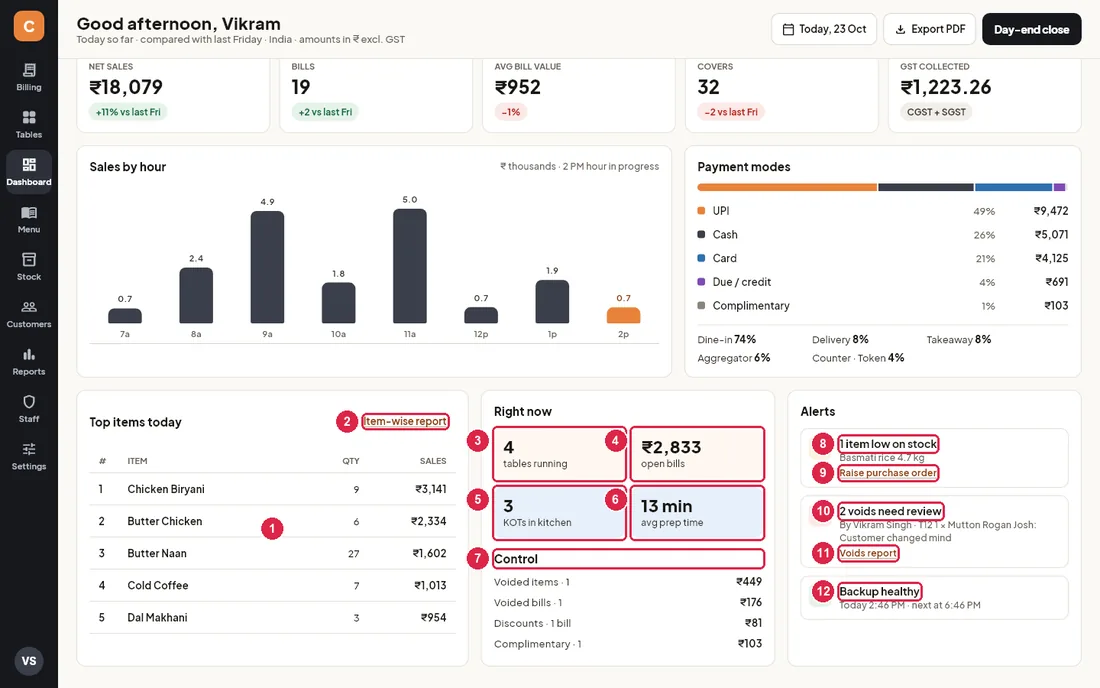
- Top items today — the five items that brought in the most money (before GST), with the quantity sold.
- Item-wise report — opens Reports on the Item-wise report with every item sold.
- tables running — dine-in tables that have an open order or a printed bill waiting for payment right now. Click the tile to open Tables.
- open bills — the value of every order that is not yet paid (open orders and printed bills). Click the tile to open Orders.
- KOTs in kitchen — kitchen tickets that are new or being prepared and not yet marked ready.
- avg prep time — the average time from when the kitchen started a KOT (or when it was sent, if nobody pressed Start) to when it was marked ready, for the chosen day. It shows "—" until a KOT has been marked ready.
- Control — money that did not turn into sales: Voided items (items cancelled after the KOT was sent), Voided bills (shown only when there are any), Discounts (number of bills and total discount) and Complimentary bills.
- Low stock alert — how many raw materials are below their minimum level, with the three lowest and how much is left.
- Raise purchase order — opens Stock, where you create a purchase order for the supplier.
- Voids need review — the number of voided bills plus cancelled items for the day, with the latest one: who did it, on which table, and the reason they typed.
- Voids report — opens Reports on Voids & cancellations with the full list.
- Backup — Backup healthy shows when the last backup ran and when the next one is due. If a backup failed or none has run for a long time, this turns red and shows a link to the backup settings.
Look at an earlier day
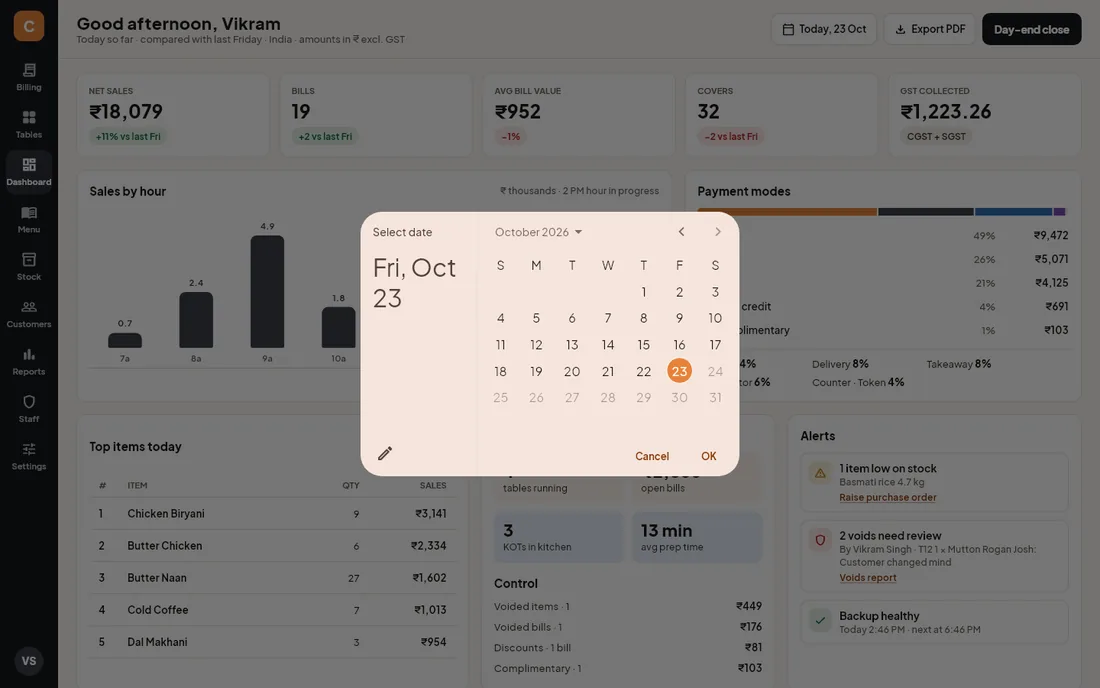
- Click the date button at the top (Today, 23 Oct).
- Click the day you want in the calendar, or click the pencil to type the date, then click OK.
- The button now shows that day (for example Fri, 16 Oct) and every figure is for that business day, compared with the same weekday a week before it.
- To return to today, open the calendar again and pick today.
Send today's figures to a partner
- Pick the day with the date button (it starts on today).
- Click Export PDF.
- Read the message at the top of the window: it shows the full path of the saved PDF in
Documents\CravinPOS\exports. - Copy that file to a USB drive or attach it to an email from another device. Nothing is uploaded by the POS.
What counts and what does not
- Only settled bills count in sales, bills, covers, GST, payments and top items. A bill that is printed but not yet paid shows only in open bills.
- Voided bills never count in sales. They show under Control and in the voids alert.
- Complimentary bills count as bills and in sales (the food was served). The money appears as Complimentary under Payment modes, so it is easy to see.
- The Right now tables, open bills and KOT counts are always live, whatever date you pick.
UAE outlets
When the outlet country is the United Arab Emirates, the first card is Sales incl. VAT, because menu prices include VAT. The tax card is VAT collected with the note "Included in sales". The hourly chart is in AED hundreds, and the comparison line says "UAE · amounts in AED incl. VAT".
9Reports & GST exports
Reports turns your bills, kitchen tickets, cash and stock into 25 ready-made reports: sales, tax, control, cash, inventory, customers and staff. Everything is worked out on this PC from your own bills, and any report can be saved as a PDF or an Excel file for your accountant.
The Reports screen
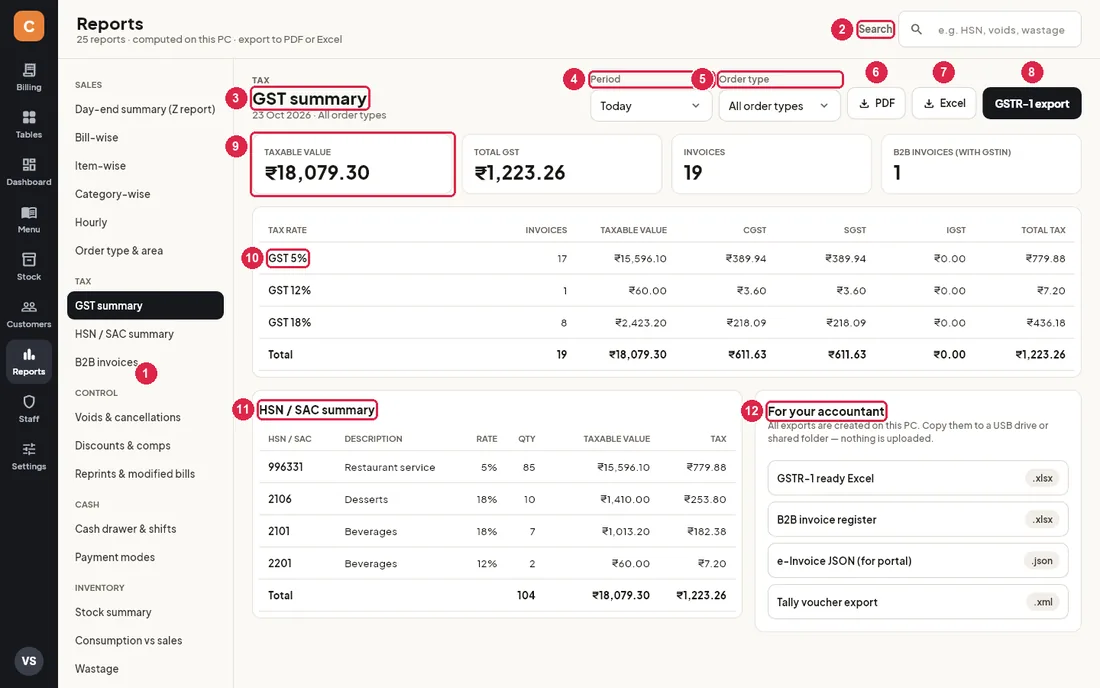
- Report list — every report, in groups: Sales, Tax, Control, Cash, Inventory and Customers & staff. Click a name to open it. The open report is shown in dark.
- Search — type part of a report name (for example HSN, voids or wastage) to shorten the list. Clear the box to see all reports again.
- Report title — the group (small capitals) and the report name. The line under it repeats the dates and order type you chose.
- Period — the business days to include: Today, Yesterday, This week (Monday to today), This month, Last month or Custom range….
- Order type — show only one kind of order (Dine-in, Takeaway, Counter · Token, Delivery, Aggregator, Catering), or All order types.
- PDF — saves the report you are looking at, with all its tables, as a PDF.
- Excel — saves the same tables as an Excel workbook, one sheet per table, with numbers you can add up.
- GSTR-1 export — only on the GST summary in India: saves the GSTR-1 ready Excel workbook for the chosen period.
- Summary cards — the key figures of the report. For the GST summary: taxable value (sales after discounts, before GST), total GST, number of invoices, and how many of them were B2B invoices (customer with a GSTIN).
- Tax-rate table — for each GST rate: number of invoices, taxable value, CGST, SGST, IGST and total tax, with a bold Total line. 0% items are shown as Exempt. IGST is always ₹0.00 because every bill is treated as a sale within your own state.
- HSN / SAC summary — the same sales grouped by HSN/SAC code and rate, with quantity, taxable value and tax. Code 996331 is restaurant service; the other codes show the menu categories they came from.
- For your accountant — four one-click exports: GSTR-1 ready Excel, B2B invoice register, e-Invoice JSON (for portal) and Tally voucher export. See "Hand over the month's GST" below.
Choose the period
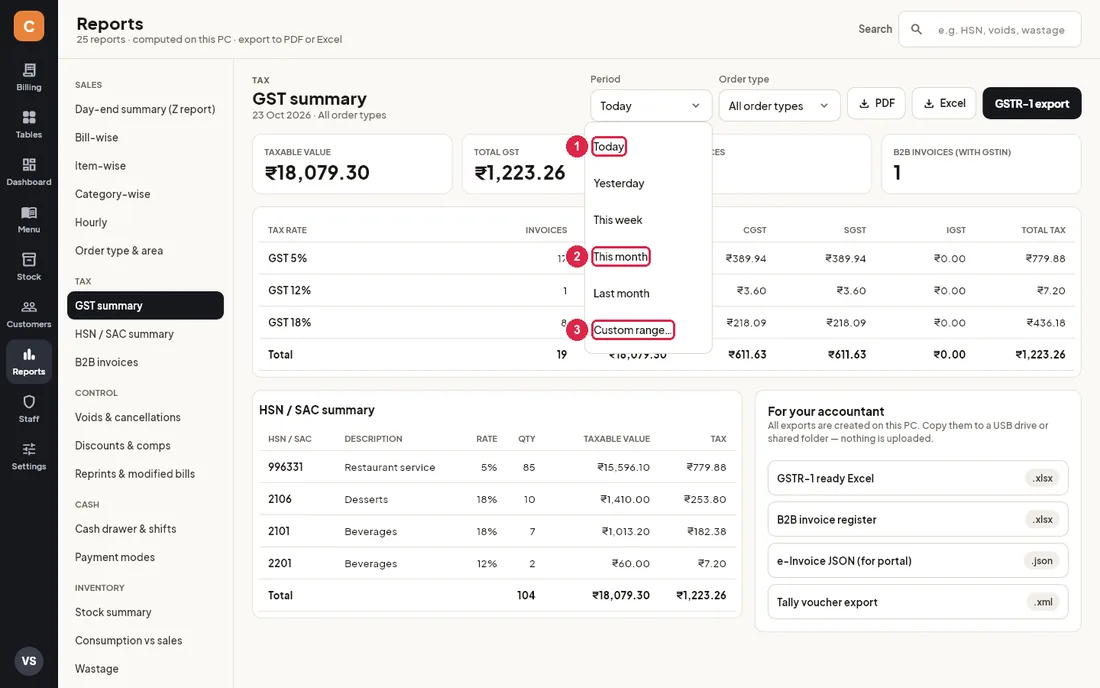
- Today, Yesterday, This week — quick choices for the current business day, the day before, and Monday to today.
- This month, Last month — use Last month for the monthly GST filing and the accountant's files.
- Custom range… — opens a calendar: click the first day and the last day (or click the pencil to type both dates) and click OK. The Period box then shows the range, for example 1–23 Oct 2026.
Every report
| Group | Report | What it shows | Use it when |
|---|---|---|---|
| Sales | Day-end summary (Z report) | Bills and covers, item sales, discounts and comps, charges, GST, net sales, total collected, each payment mode, voided bills and each shift's opening and expected cash. | Closing the day, or checking a past day's totals. It is the same summary that prints when you close the day. |
| Sales | Bill-wise | Every bill number in the period with time, order type, table or token, customer, status (Settled, Unpaid, Voided), discount, GST and total. | Finding one bill, or checking that bill numbers run without gaps. |
| Sales | Item-wise | Each item with its category, quantity, sales before GST, GST and its share of sales. | Deciding what to promote, re-price or take off the menu. |
| Sales | Category-wise | The same by menu category. | Seeing whether starters, mains, bar or desserts are pulling their weight. |
| Sales | Hourly | Bills, covers, sales and average bill for each hour, and the peak hour. | Planning staff and kitchen prep around the busy hours. |
| Sales | Order type & area | Sales split by order type, and by dining area (Indoor, Outdoor, Rooftop…). | Comparing dine-in with delivery, or one floor with another. |
| Tax | GST summary | Taxable value and CGST/SGST/IGST by rate, the HSN/SAC summary, and the accountant's exports. | Monthly GST filing. |
| Tax | HSN / SAC summary | Quantity, taxable value and tax for each HSN/SAC code and rate. | Filling the HSN section of GSTR-1. |
| Tax | B2B invoices | Bills raised to customers with a GSTIN: bill number, date, customer, GSTIN, taxable value, GST and total. | Checking business customers' invoices before filing. |
| Control | Voids & cancellations | Voided and cancelled bills (who, reason, amount) and items cancelled after the KOT was sent. | Reviewing voids every day. Many voids by one person are worth a conversation. |
| Control | Discounts & comps | Every discounted bill with reason or coupon, rate, who billed it and the amount, and every complimentary bill. | Checking that discounts and free meals were genuine. |
| Control | Reprints & modified bills | Bills that were printed more than once, and a list of bill changes: reprints, KOT reprints, splits, merges, table moves, coupons, discounts and voids, with who did them. | Spotting a reprinted bill that may have been used twice. |
| Cash | Cash drawer & shifts | Each shift with who opened it, opening cash, expected cash, counted cash and short/excess, plus every cash in/out entry. | Finding where a cash difference came from. |
| Cash | Payment modes | Number of payments and amount for each mode, with its share. | Matching card and UPI totals with your bank statement. |
| Inventory | Stock summary | Every raw material with store, stock on hand, minimum, cost per unit, value and Low/OK. | Knowing what you hold and what to reorder. |
| Inventory | Consumption vs sales | For each material: used by sales (from recipes), wastage, stock-count adjustments, total used, cost and the variance. | Finding leakage. A high variance means stock went somewhere other than into sold dishes. |
| Inventory | Wastage | Each wastage entry with time, material, quantity, reason, who entered it and its value. | Keeping spoilage under control. |
| Inventory | Food cost % | For each item sold: quantity, sales, recipe cost and food cost as a percentage of sales. Items without a recipe say "No recipe". | Pricing the menu. Add recipes to more items for a truer figure. |
| Inventory | Purchase register | Goods received against purchase orders: PO, date, supplier, supplier invoice number, taxable value, GST and total. | Giving your accountant the purchase side (input GST). |
| Customers & staff | Top customers | Your best customers by spend, with visits, average bill and last visit. Phone numbers are partly hidden. | Choosing whom to thank or invite. |
| Customers & staff | Loyalty ledger | Every loyalty points entry: earned, redeemed, and reversed when a bill was voided. | Answering a customer's question about their points. |
| Customers & staff | Sales by staff | Bills, sales, discounts given and average bill by cashier (who billed) and by captain (who took the order). | Recognising your best performers, or checking discounts by person. |
| Customers & staff | Kitchen prep time | For each kitchen station: KOTs ready, average and slowest prep time, and how many went over the red time limit set for the kitchen display. | Finding slow stations at peak hours. |
| Customers & staff | Delivery person-wise | Delivery orders, delivery charges and bill value for each rider. | Settling up with riders at the end of the day. |
| Customers & staff | Aggregator orders | Orders, sales and bill value for each aggregator (Swiggy, Zomato…). | Matching the aggregator's payout statement. |
Day-end summary (Z report)
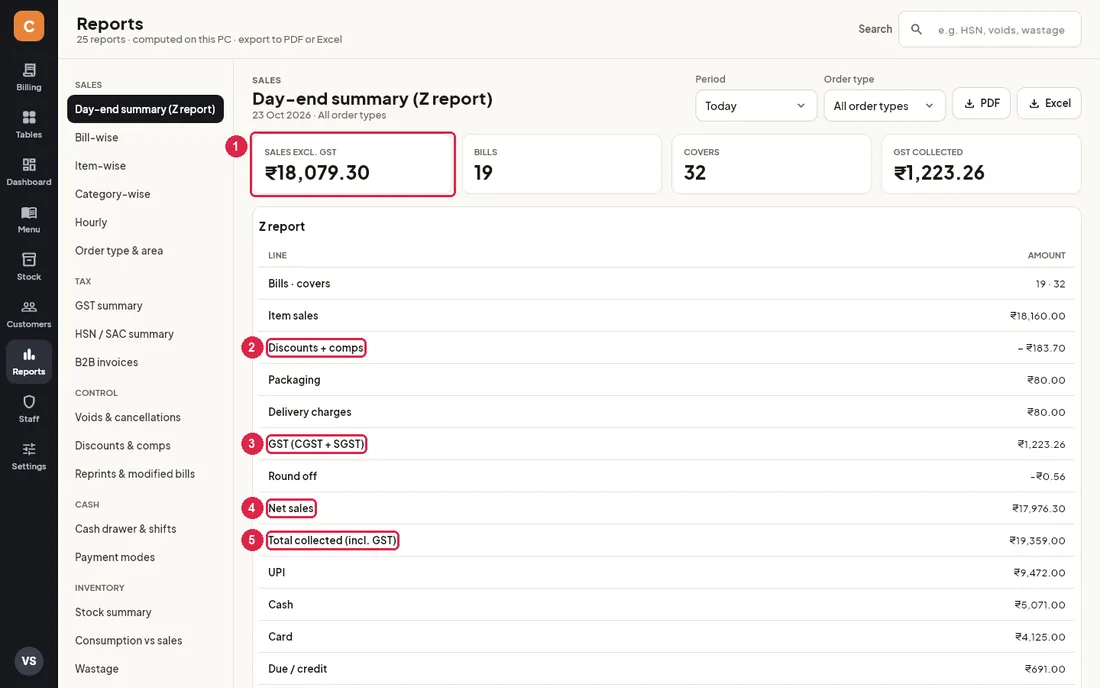
- Sales excl. GST — settled sales after discounts and before GST, with bills, covers and GST collected next to it.
- Discounts + comps — bill discounts plus complimentary bills, taken off item sales.
- GST (CGST + SGST) — tax collected on settled bills.
- Net sales — item sales minus discounts and comps.
- Total collected (incl. GST) — the money actually taken. Each payment mode, the voided bills and each shift's cash follow below it.
Item-wise
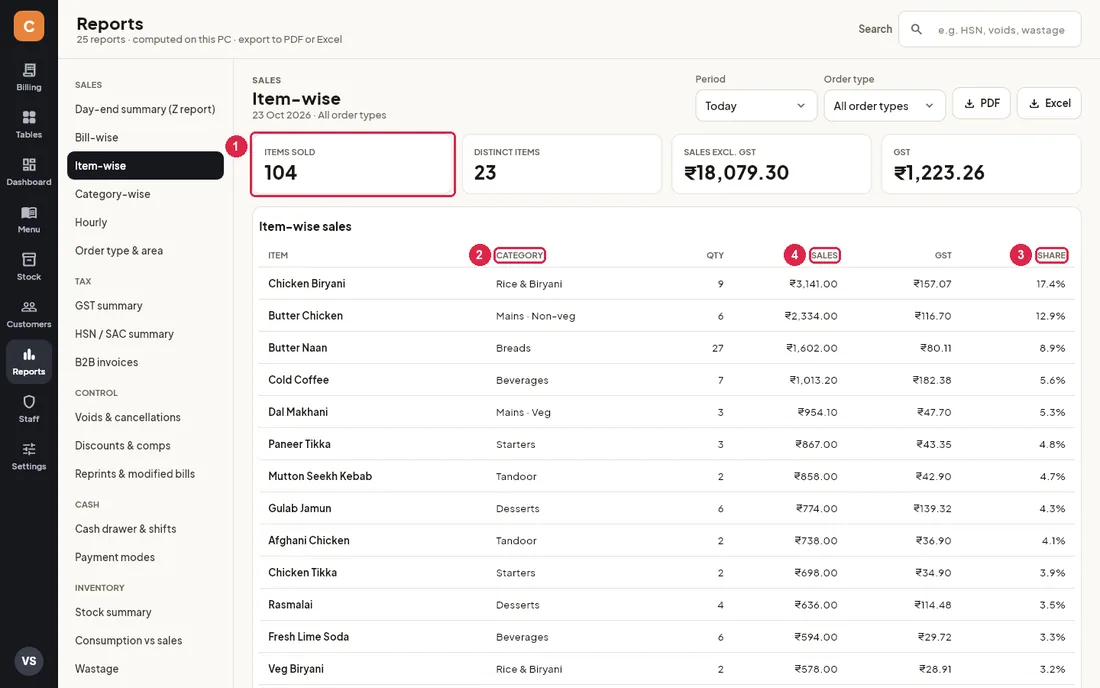
- Items sold — total quantity, how many different items sold, sales before GST and GST.
- Category — the menu category each item belongs to.
- Share — the item's part of total sales. The list is sorted with the biggest earners first, and the last line is the total.
- Group label — shows which group of the report list this report is in (here Sales).
Voids & cancellations
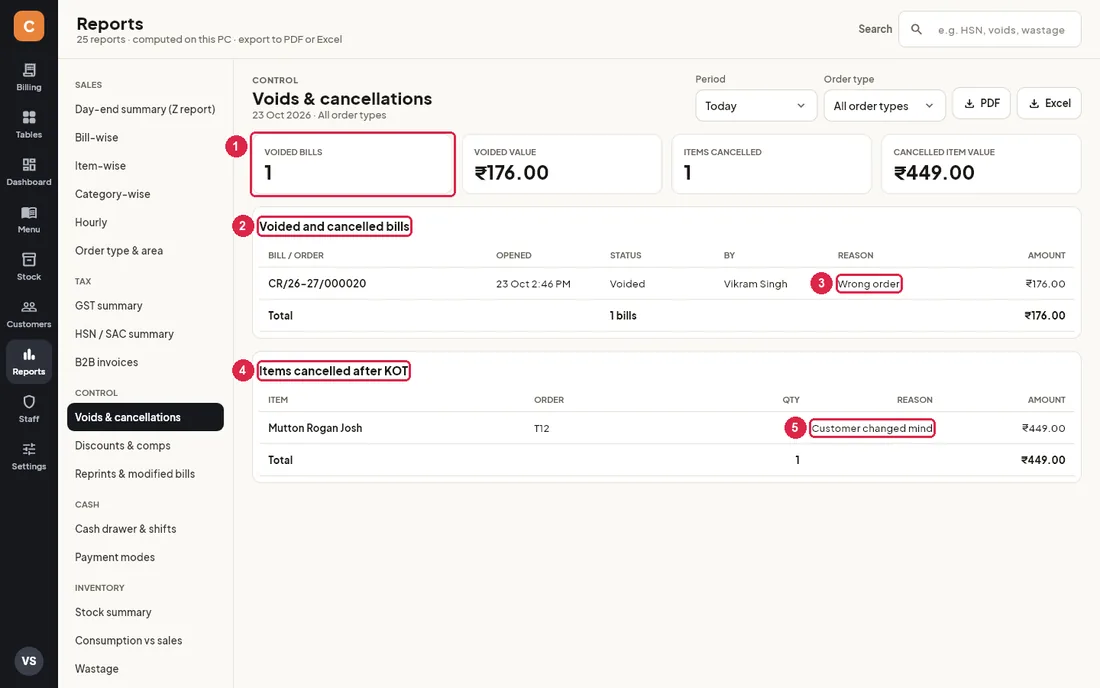
- Summary cards — number and value of voided bills, and number and value of items cancelled after the KOT.
- Voided and cancelled bills — each bill or order, when it was opened, its status, who voided it and the amount.
- Reason — the reason typed when the bill was voided.
- Items cancelled after KOT — items taken off an order after the kitchen got the ticket (a cancel KOT is printed for the kitchen).
- Reason — the reason given for the cancelled item.
Cash drawer & shifts
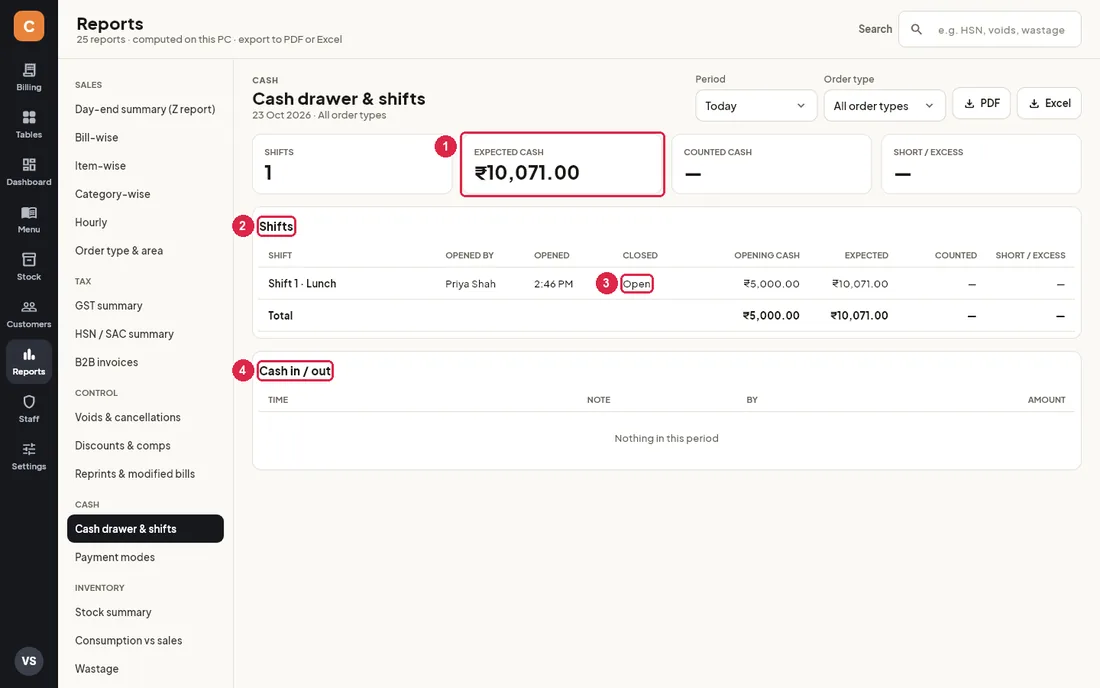
- Expected cash — opening cash plus cash payments plus cash in, minus cash out. Counted cash and short/excess show "—" until a shift is closed and counted.
- Shifts — each shift with who opened it, when it opened and closed, opening cash, expected, counted and short/excess.
- Open — the shift is still running. Close it from Staff › Shifts & cash or on the Day-end close screen.
- Cash in / out — every cash paid in or taken out of the drawer during the period, with the note and who did it.
Stock summary and food cost
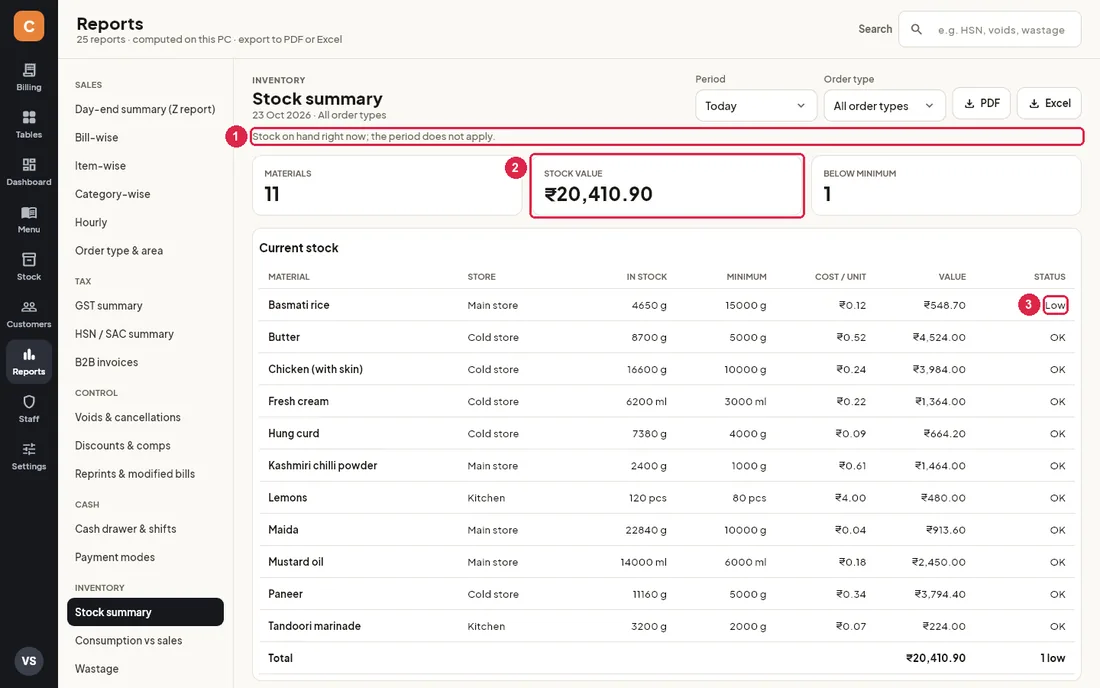
- Stock on hand right now — this report ignores the period: it always shows the stock at this moment.
- Stock value — stock on hand times the last purchase price of each material.
- Low — the material is below its minimum level. Raise a purchase order from Stock.
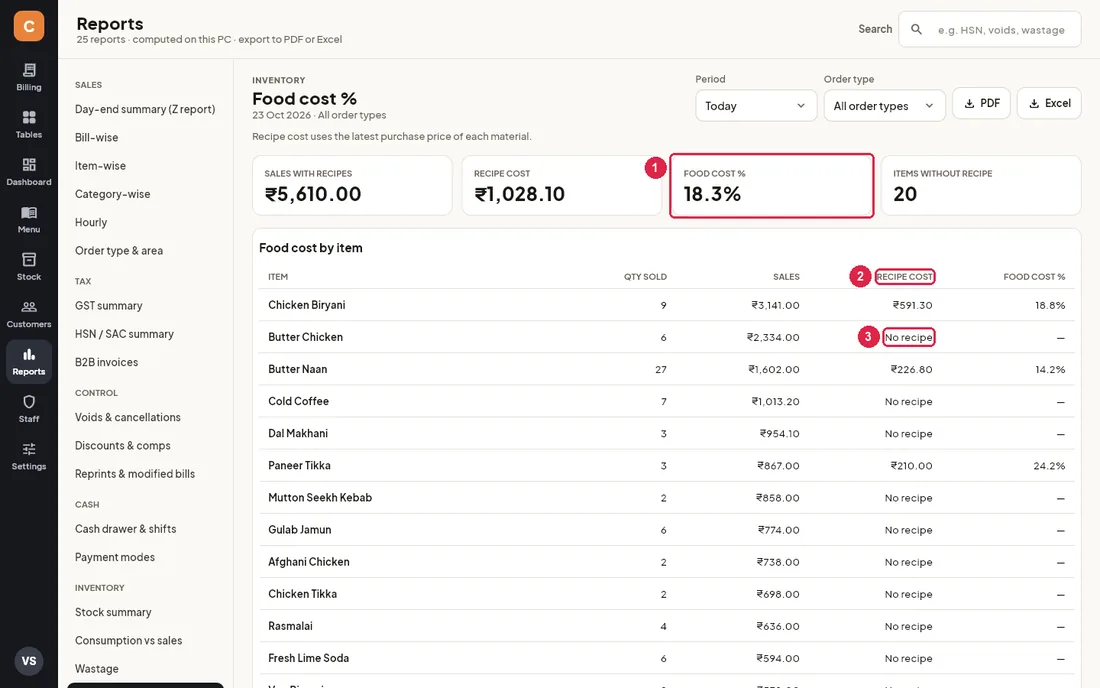
- Food cost % — recipe cost divided by sales, counting only items that have a recipe.
- Recipe cost — the cost of the ingredients for the quantity sold, at the latest purchase prices.
- No recipe — this item has no recipe yet, so it is left out of the food cost. Add recipes in Stock › Recipes.
Save any report as PDF or Excel
- Open the report from the list on the left.
- Set the Period and, if needed, the Order type.
- Click PDF for a printable copy, or Excel for a spreadsheet.
- Read the message at the top of the window for the file name. The file is in
Documents\CravinPOS\exports, named after the report with the date and time it was made.
Hand over the month's GST to your accountant
- Open GST summary under Tax.
- Set Period to Last month (or use Custom range… for any other filing period). Leave Order type on All order types.
- Check the summary: the taxable value and total GST should match what you expect, and the number of B2B invoices should match your business customers.
- In For your accountant, click each file you need:
- GSTR-1 ready Excel (.xlsx) — sheets b2b, b2cs, hsn and docs (first and last bill number and how many were cancelled), laid out like the GST offline tool. The dark GSTR-1 export button at the top makes the same file.
- B2B invoice register (.xlsx) — every bill to a customer with a GSTIN.
- e-Invoice JSON (for portal) (.json) — one e-invoice per B2B bill, for upload to the invoice registration portal.
- Tally voucher export (.xml) — one sales voucher per settled bill, to import into Tally.
- After each click, note the file name in the message at the top. All files are saved in
Documents\CravinPOS\exportson this PC. - Copy the files to a USB drive or shared folder and give them to your accountant.
UAE outlets (VAT)
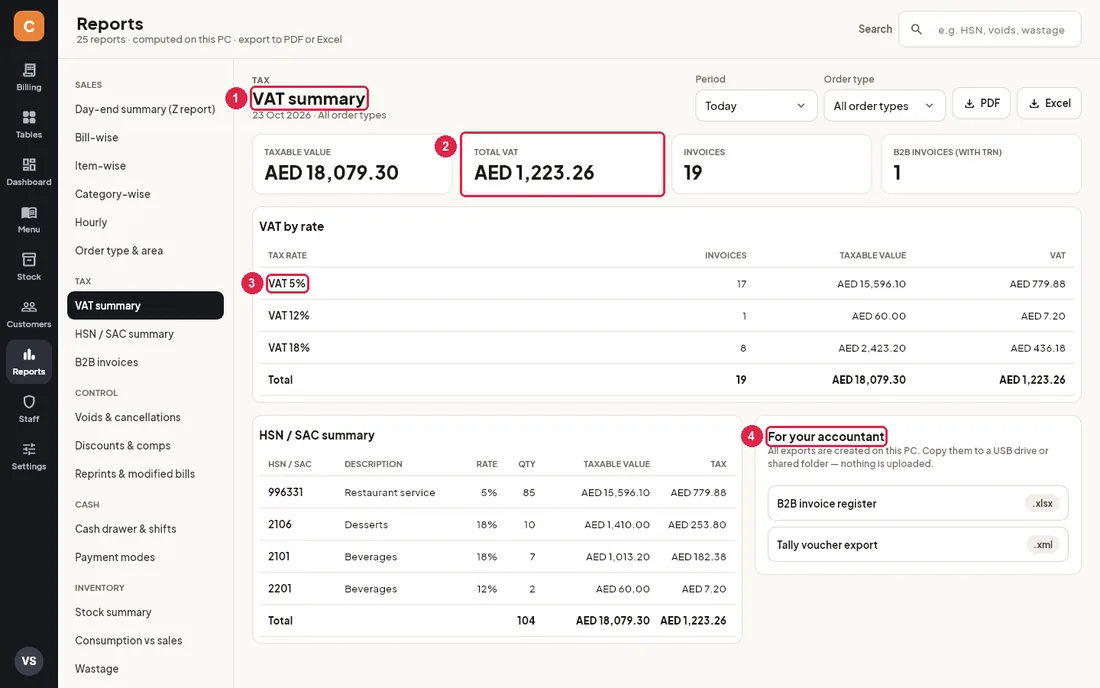
- VAT summary — in the UAE, every "GST" in report names and columns reads "VAT".
- Total VAT — amounts are in AED. B2B invoices are counted by the customer's TRN.
- VAT by rate — taxable value and VAT for each rate, with no CGST/SGST split.
- For your accountant — only the B2B invoice register and Tally voucher export are offered. GSTR-1 and e-Invoice JSON are India-only and are hidden, as is the GSTR-1 export button.
10Menu
The Menu screen is where you add dishes, set prices and taxes, and decide what can be ordered when. Changes are saved on this PC straight away and show up in Billing at once. Owners and managers can edit the menu; cashiers and kitchen staff can open it only to switch items in or out of stock.
The item list
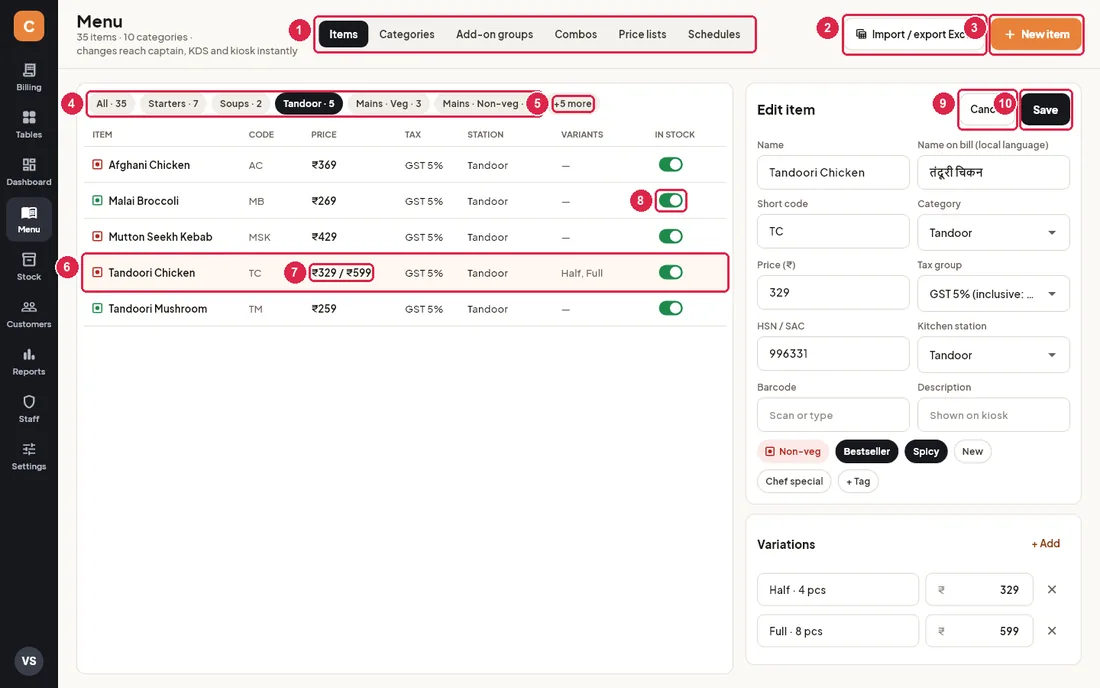
- Tabs — Items, Categories, Add-on groups, Combos, Price lists and Schedules. Each tab is explained below.
- Import / export Excel — save the whole menu to an Excel file, or load a menu from one (see Excel import and export). On narrow screens the button just says Excel.
- New item — opens an empty Edit item panel. On the other tabs this button changes to New category, New add-on group and so on.
- Category chips — show one category at a time, with the number of items in each. All shows every item.
- +5 more — opens a list of the categories that do not fit on screen.
- Item row — the veg / non-veg dot, name, short code, price, tax, kitchen station and variations. Tap a row to edit it; the selected row is highlighted.
- Price — items with variations show the lowest and highest price, e.g. ₹329 / ₹599 for Half and Full.
- In stock — switch an item off when the kitchen runs out. It shows as Out of stock in Billing and cannot be added to orders until you switch it back on. Cashiers and kitchen staff may use this switch too.
- Cancel — closes the Edit item panel without saving your changes.
- Save — saves everything in the panel. Every price change is written to the audit log with the old and new price.
Edit item panel — main details
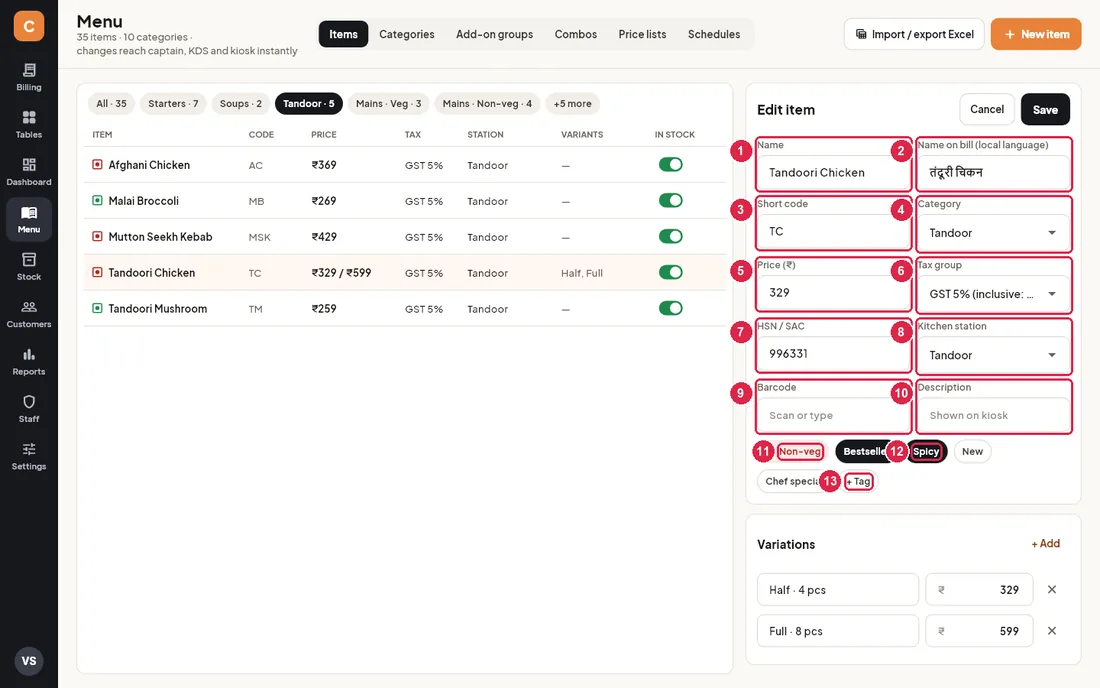
- Name — the dish name as staff see it and as it prints on bills and KOTs.
- Name on bill (local language) — the name in Hindi, Arabic or another language, printed on bills when the second language is switched on in Settings › Bill format.
- Short code — a few letters (e.g.
TC) cashiers can type in the Billing search. Two items cannot share the same code; you get a message if you try. - Category — which category chip the item appears under in Billing.
- Price (₹) — the base price. If the item has variations, each variation has its own price and this is used only where no variation is picked.
- Tax group — GST 0%, 5%, 12%, 18% or 28% (VAT 0% or 5% in the UAE), and whether the price includes the tax (inclusive: yes) or tax is added on top (inclusive: no).
- HSN / SAC — the tax code printed in the bill’s HSN summary. Restaurant service is 996331; packaged goods have their own codes.
- Kitchen station — where the KOT for this item prints and which kitchen display shows it (e.g. Kitchen, Tandoor, Bar). The list comes from Settings › Printers.
- Barcode — scan or type a barcode so the item can be added by scanning it at the counter.
- Description — a short line shown on the self-order kiosk.
- Veg / Non-veg / Egg — tap the coloured chip to switch between the three. The dot appears next to the item everywhere.
- Tags — tap a tag such as Bestseller, Spicy, New or Chef special to switch it on (dark) or off. Bestsellers get a badge in Billing.
- + Tag — add your own tag, e.g. “Jain”.
Edit item panel — variations, add-ons, area prices and availability
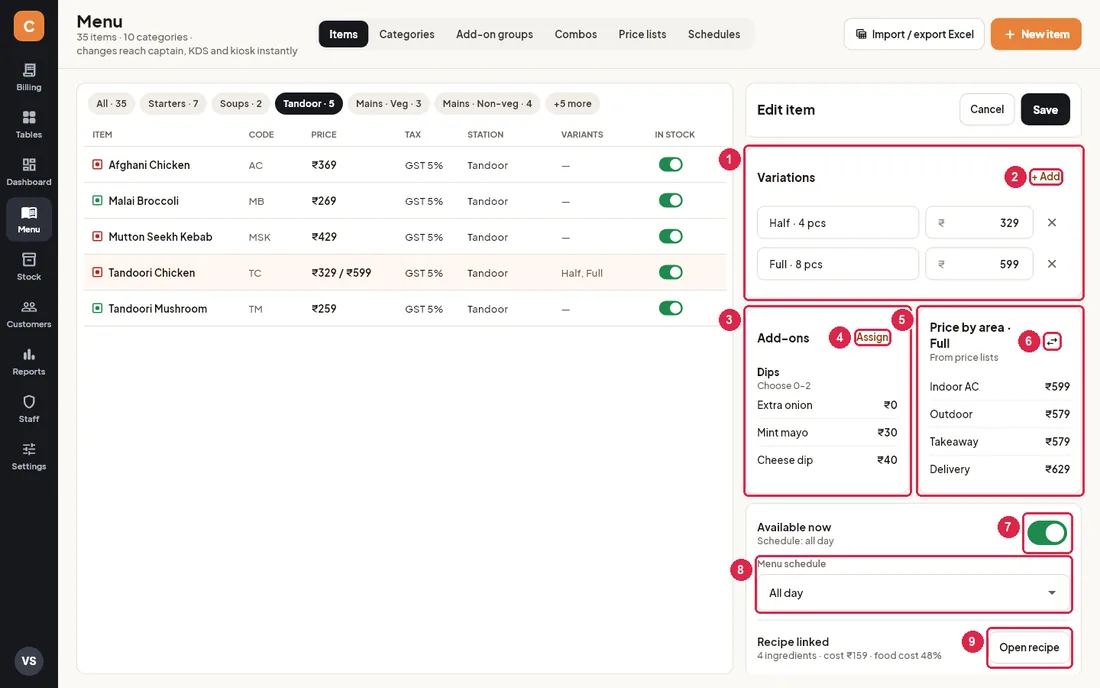
- Variations — sizes or portions with their own price, e.g. “Half · 4 pcs” ₹329 and “Full · 8 pcs” ₹599. When an item has variations, Billing asks which one to add. Use the ✕ to remove one.
- + Add — adds a new variation row; type its name and price.
- Add-ons — the add-on groups this item offers (e.g. Dips, choose 0–2) with their extras and prices.
- Assign — tick which add-on groups this item uses. Groups themselves are made in the Add-on groups tab.
- Price by area — the price this item has in each price list (Indoor AC, Outdoor, Takeaway, Delivery…). Prices in grey are the normal base price; tap a row to type a different price for that list, or clear it to go back to the base price. Each change is saved immediately and logged. A new item must be saved once before you can set area prices.
- Switch variation — for items with variations, choose which variation’s area prices you are looking at (here, Full).
- Available now — switch off to take the item off sale (same as the In stock switch in the list). The line underneath shows its schedule.
- Menu schedule — choose All day or a schedule such as Breakfast. Outside its hours the item shows as Not now in Billing and cannot be ordered.
- Open recipe — shows how many ingredients are linked, the cost of one portion and the food cost %, and jumps to this item in Stock › Recipes. Reads Add recipe when nothing is linked yet.
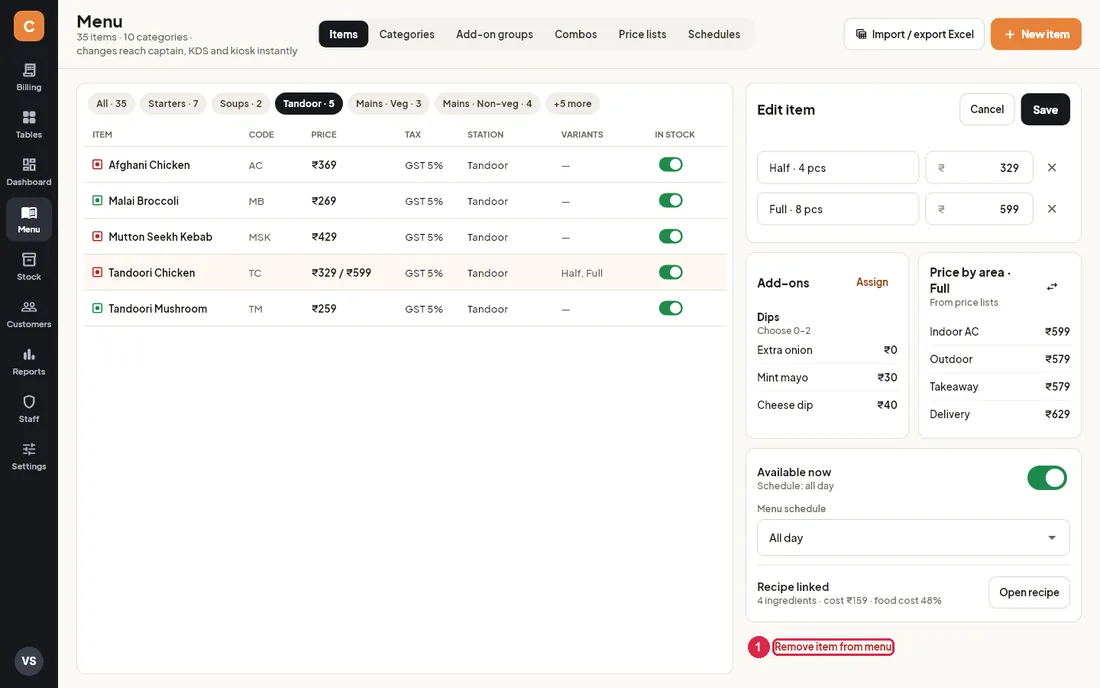
- Remove item from menu — takes the item off Billing, captain and kiosk after you confirm. Past bills keep it, and it is logged.
Categories
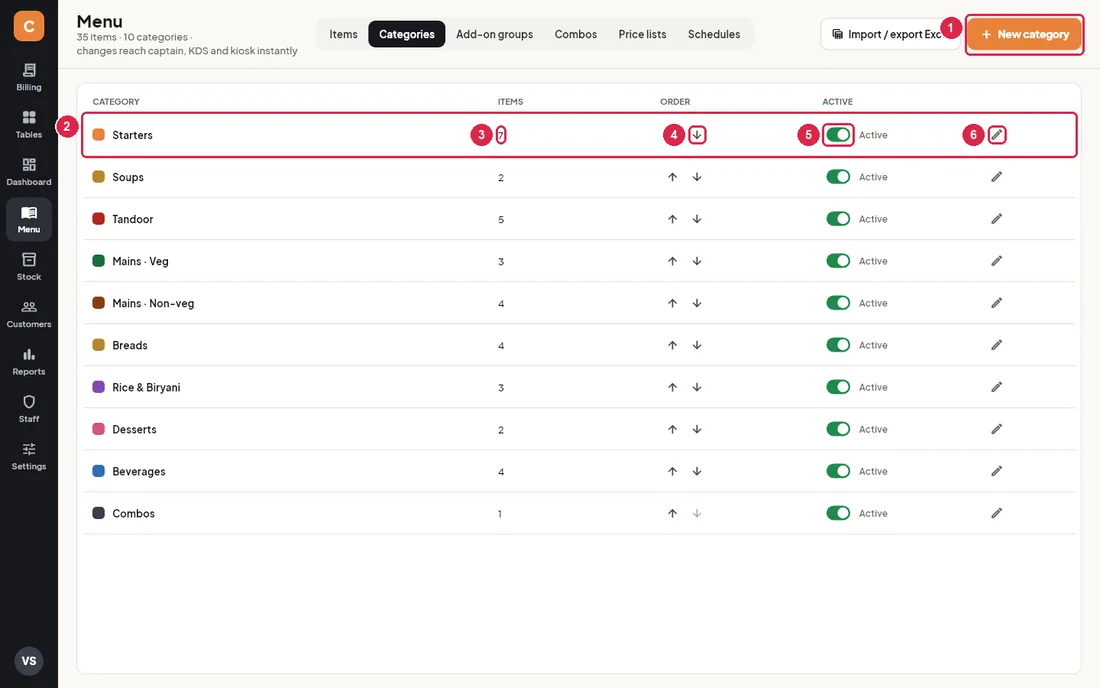
- New category — add a category with a name and colour.
- Category row — the colour swatch and name as shown on the Billing category bar.
- Items — how many items are in the category.
- Order arrows — move a category up or down; Billing shows categories in this order.
- Active — switch off to hide a whole category from Billing (e.g. a seasonal menu) without deleting anything. It shows Hidden.
- Edit — rename, change the colour or delete the category.
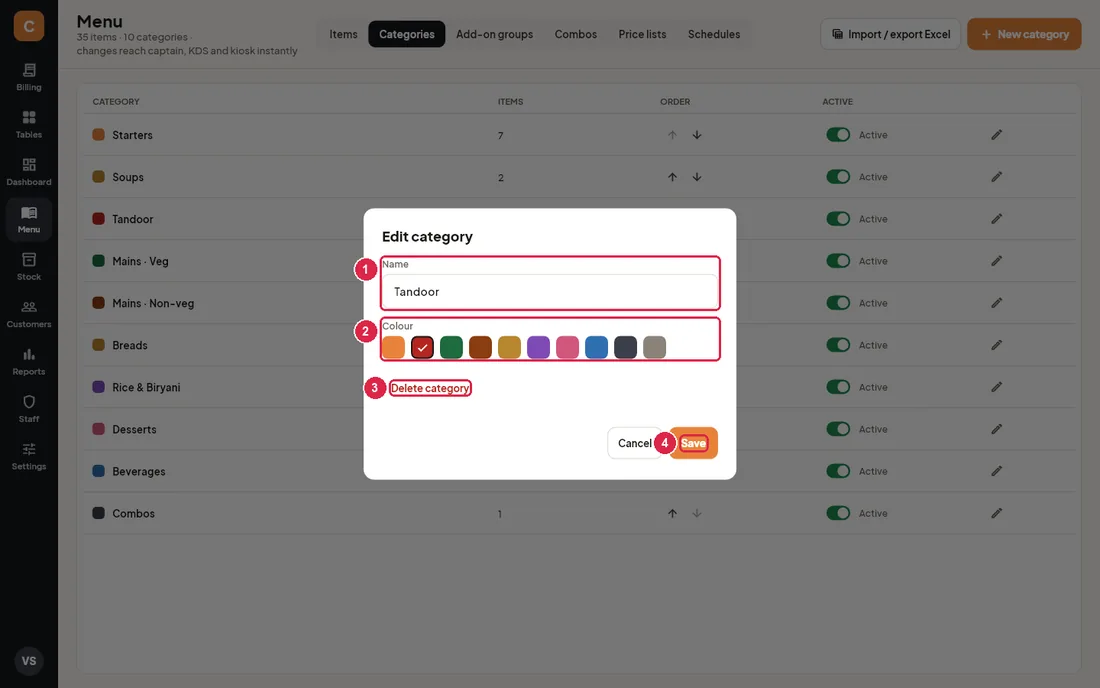
- Name — the category name.
- Colour — tap a colour; it is used for the category chip in Billing.
- Delete category — only works when no items belong to it. Move its items to another category first, or simply hide it.
- Save — saves the name and colour.
Add-on groups
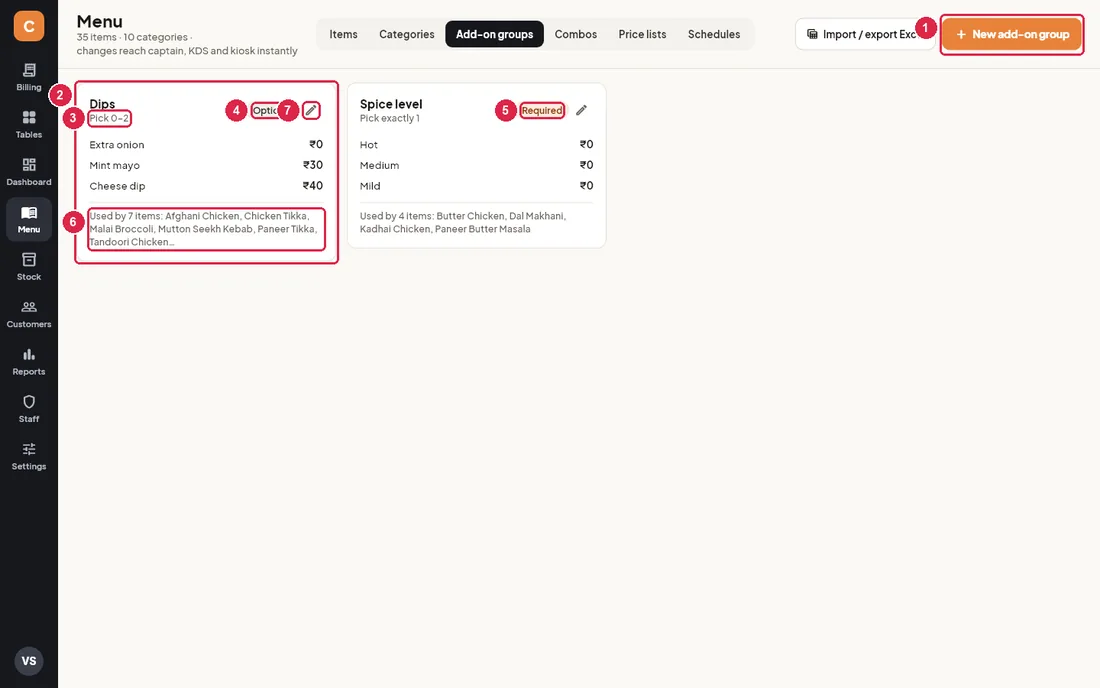
- New add-on group — create a group such as Dips, Spice level or Extra toppings.
- Group card — the group name and its add-ons with prices (₹0 for free choices).
- Pick rule — how many add-ons a guest may choose, e.g. “Pick 0–2” or “Pick exactly 1”.
- Optional — the guest may skip this group.
- Required — the cashier must pick at least one (the minimum is 1 or more), e.g. spice level.
- Used by — which items offer this group.
- Edit — change the group, its add-ons and the items that use it.
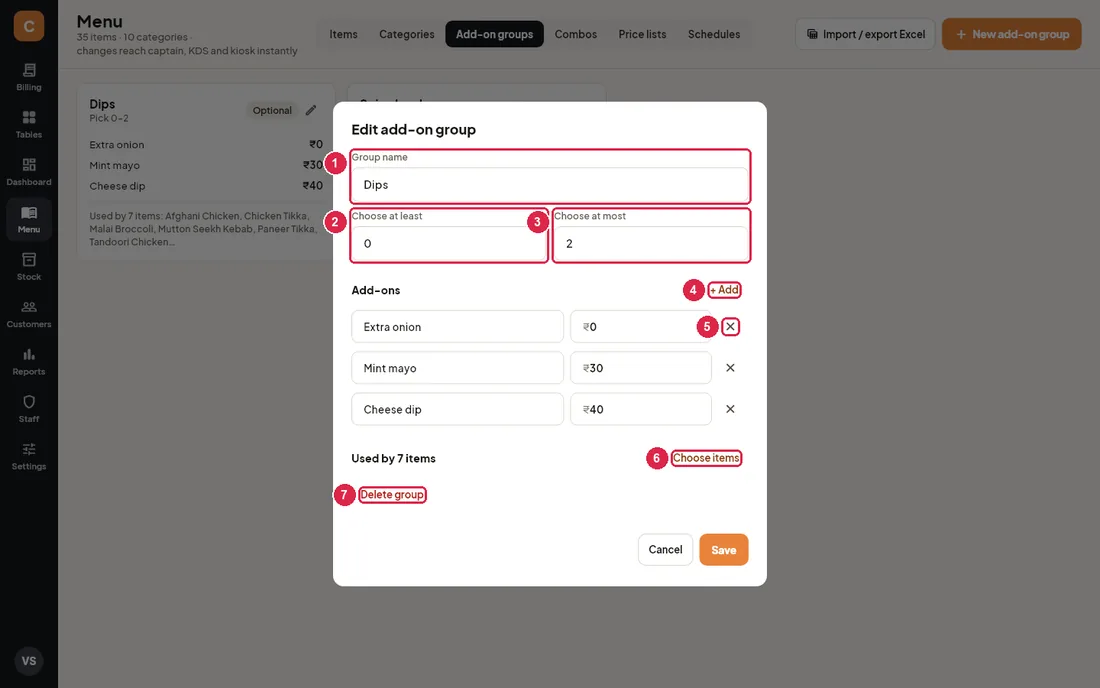
- Group name — what the cashier sees when adding the item.
- Choose at least — 0 makes the group optional; 1 or more makes it required.
- Choose at most — the largest number of add-ons allowed. It cannot be lower than the minimum.
- + Add — add another add-on with its name and price.
- ✕ — remove an add-on. Old bills still show it.
- Choose items — search and tick the items that offer this group.
- Delete group — removes the group and takes it off every item.
Combos
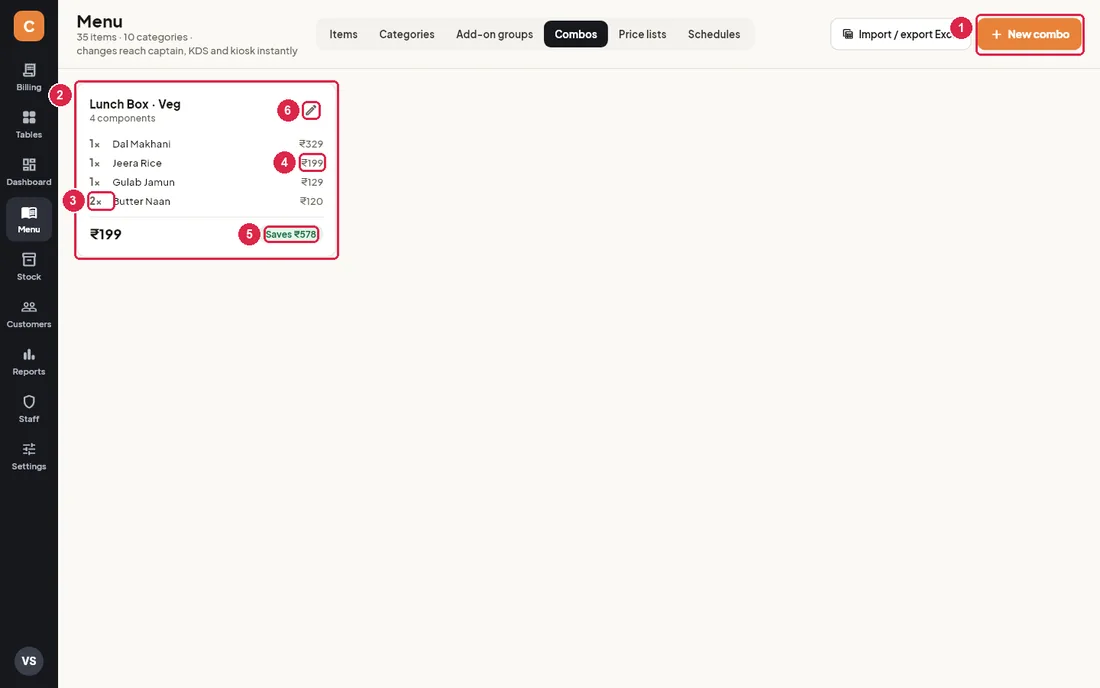
- New combo — make a set meal or thali that sells at one price.
- Combo card — the combo name and how many items it contains.
- Components — each item and how many of it (e.g. 2× Butter Naan) with its normal price.
- Combo price — what the guest pays for the whole combo.
- Saves — how much cheaper the combo is than ordering the items separately.
- Edit — change the combo.
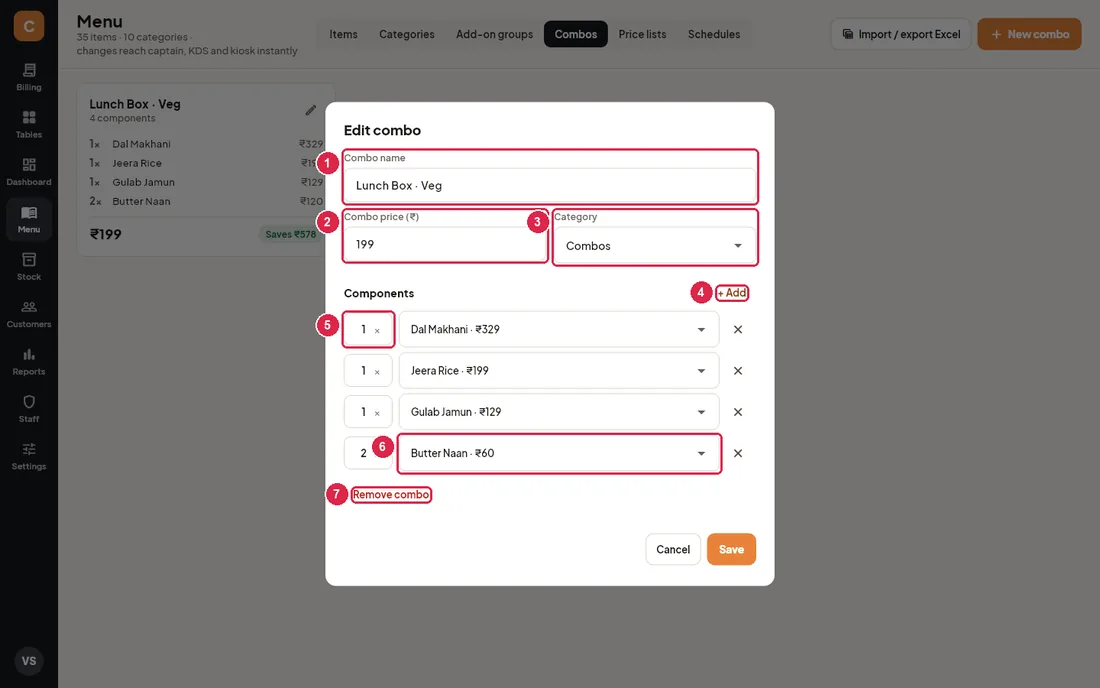
- Combo name — as it appears in Billing and on the bill.
- Combo price (₹) — the selling price.
- Category — where the combo appears in Billing.
- + Add — add a component row.
- Quantity — how many of that item are in the combo.
- Item — pick the component item.
- Remove combo — takes the combo off the menu.
Price lists
A price list holds different prices for some items in one area or for one order type, for example higher prices in the AC section or on delivery apps. Items with no special price in a list simply use their base price.
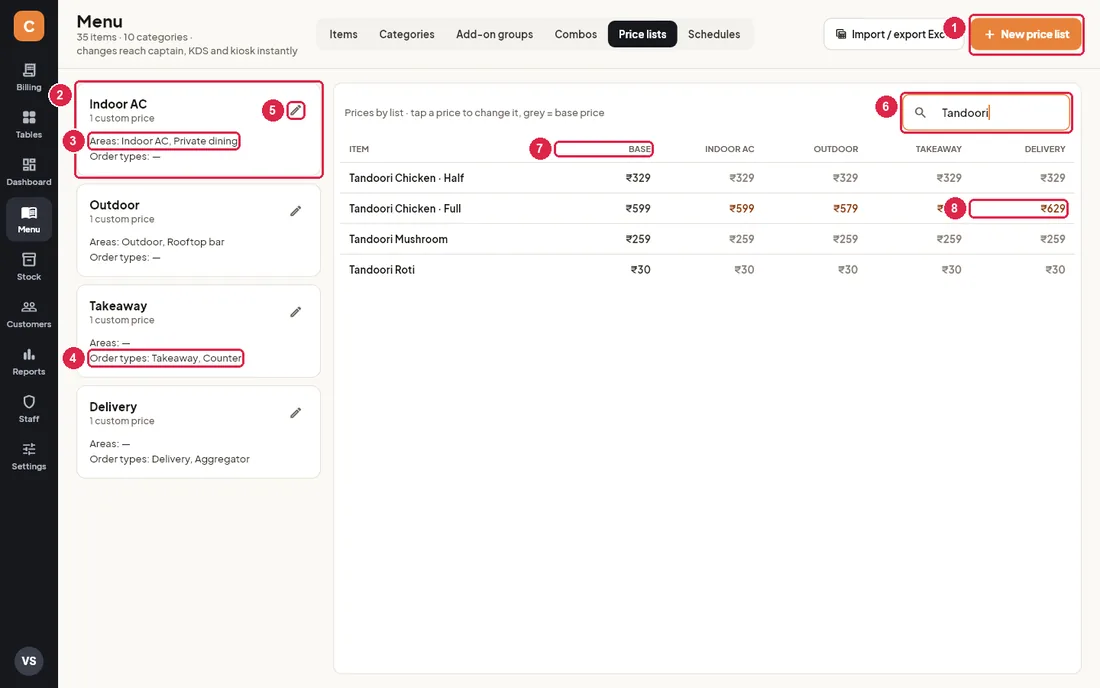
- New price list — create a list, name it and choose where it applies.
- List card — the list name and how many items have a special price in it.
- Areas — the dine-in areas (from Tables) that use this list. A table in that area charges these prices.
- Order types — Takeaway, Delivery, Counter or Aggregator orders that use this list.
- Edit — rename the list, change its areas and order types, or delete it.
- Find item — narrow the price grid to matching items.
- Base — the normal price of each item or variation.
- Special price — prices in orange are special prices for that list; grey prices are just the base price. Tap any price to change it, or clear it to go back to the base price.
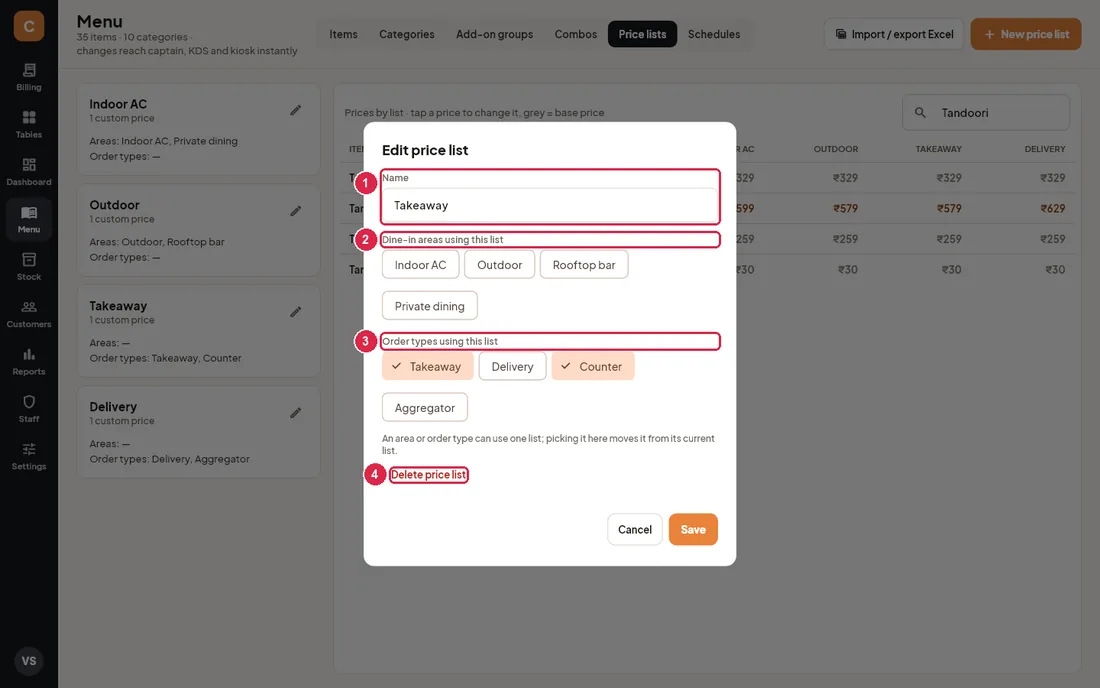
- Name — the list name.
- Dine-in areas using this list — tap areas to tick them. Each area can use only one list, so ticking it here moves it from its old list.
- Order types using this list — tick Takeaway, Delivery, Counter or Aggregator. Again, one list per order type.
- Delete price list — its areas and order types go back to base prices.
Schedules
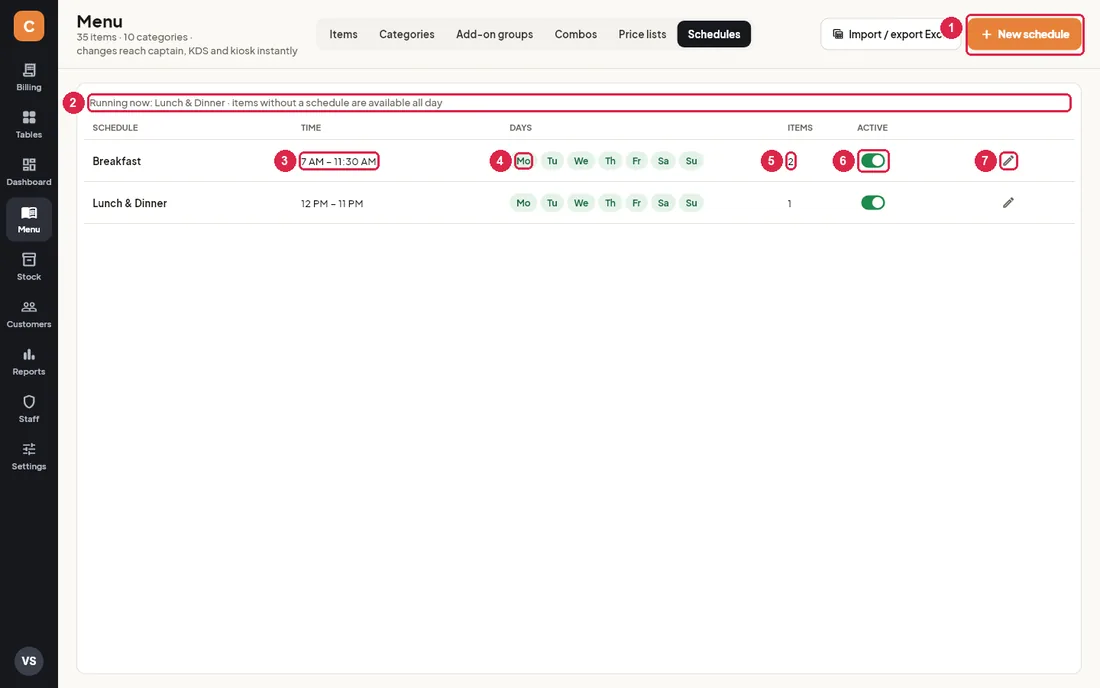
- New schedule — add a time window such as Breakfast or Happy hour.
- Running now — which schedule is on right now. Items without a schedule are available all day.
- Time — when the schedule starts and ends.
- Days — green days are the days it runs.
- Items — how many items use this schedule (set in each item’s Menu schedule).
- Active — switch off to pause a schedule; its items then become available all day.
- Edit — change the times and days, or delete the schedule.
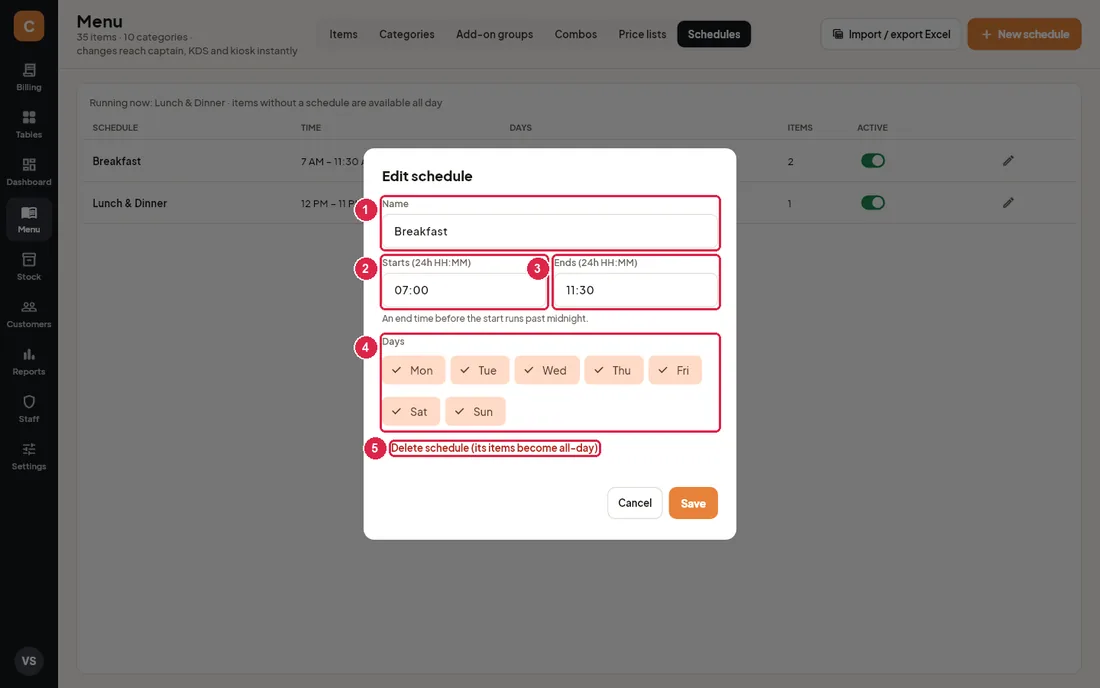
- Name — e.g. Breakfast.
- Starts — 24-hour time like
07:00. - Ends — e.g.
11:30. An end time earlier than the start (like 23:00 to 01:30) runs past midnight. - Days — tap days on or off.
- Delete schedule — its items become available all day.
Excel import and export
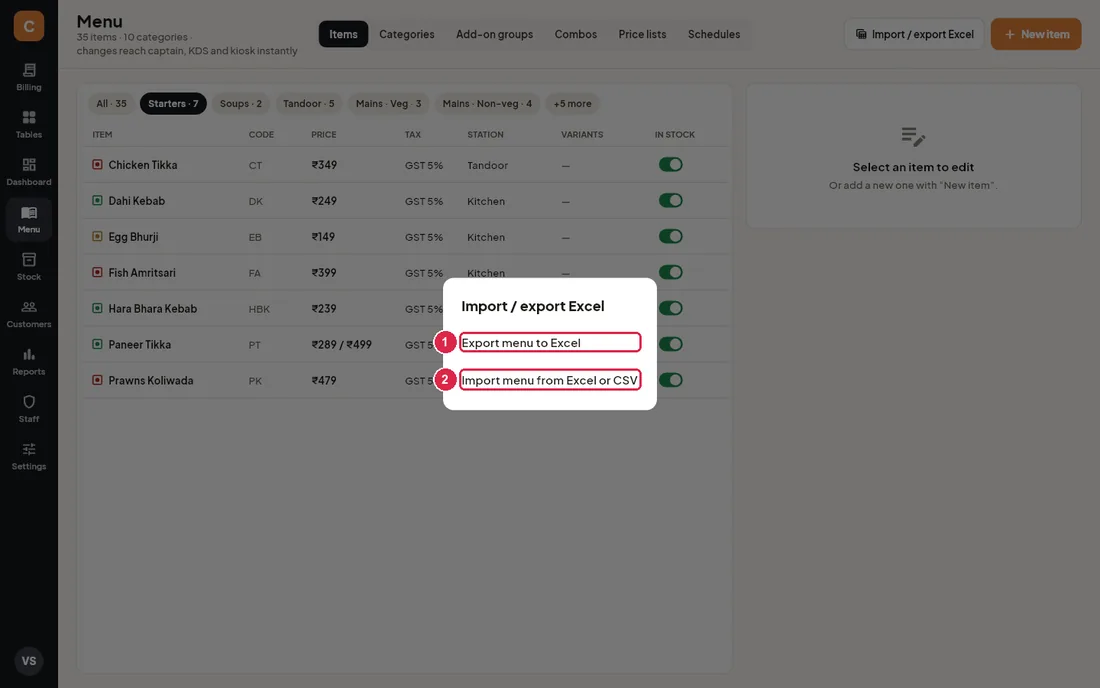
- Export menu to Excel — saves all menu items to an Excel file in
Documents\CravinPOS\exportsand shows the file’s location. - Import menu from Excel or CSV — type or paste the full path of the file (e.g.
C:\Users\you\Documents\menu.xlsx). Owners and managers only.
The first row of the sheet must have these column names (only Name and Price are required):
| Column | What to put in it |
|---|---|
| Name | Item name. An item with the same name is updated; a new name adds a new item. |
| Category | Category name. A new category is created if it does not exist yet. |
| Code | Short code. |
| Price | Base price in rupees, e.g. 329 or 329.50. |
| GST % | 0, 5, 12, 18 or 28 (default 5). |
| Inclusive | Yes if the price includes tax, otherwise No. |
| Veg | Veg, Non-veg or Egg. |
| Station | Kitchen station, e.g. Kitchen, Tandoor, Bar. |
| HSN | HSN / SAC code (default 996331). |
| Barcode | Barcode number, if any. |
| Hindi name | Name on bill in the local language. |
Add an item with Half and Full portions
- On the Items tab tap New item.
- Type the Name, the Name on bill if you print a second language, and a Short code.
- Pick the Category, Tax group and Kitchen station. Tap the veg chip until it shows the right type.
- Under Variations tap + Add twice and enter “Half” ₹329 and “Full” ₹599. You can leave Price empty; the first variation’s price is used as the base.
- Tap Save. The item appears in Billing straight away and Billing asks “Half or Full?” when it is tapped.
Mark an item out of stock
- Open Menu, find the item (use the category chips).
- Switch In stock off. Billing shows the item as Out of stock and it cannot be ordered.
- Switch it back on when it is available again. Both changes are logged with your name.
Change prices
- Tap the item, change Price or a variation’s price, and tap Save.
- For many items at once, use Export menu to Excel, change the Price column, and import the file back.
- Every price change is written to the audit log (Staff › Audit log) with the old and new price.
Set up add-ons (e.g. dips)
- Open Add-on groups and tap New add-on group.
- Name it “Dips”, set Choose at least 0 and Choose at most 2.
- Tap + Add for each dip and enter its price (0 for free).
- Tap Choose items, tick the dishes that offer dips, tap Done, then Save.
Create a combo
- Open Combos and tap New combo.
- Enter the Combo name and Combo price, and pick the Category.
- Tap + Add for each component, set how many and pick the item.
- Tap Save. The card shows how much the guest saves.
Charge different prices in an area or for takeaway
- Open Price lists and tap New price list (or edit an existing one).
- Tick the dine-in areas (e.g. Rooftop bar) and/or order types (e.g. Takeaway) that should use it, then Save.
- In the price grid, search for the item and tap the price under the list’s column. Type the new price and tap OK.
- Billing now charges that price for tables in those areas and for those order types. Grey prices are the base price.
Breakfast and lunch menus
- Open Schedules, tap New schedule, name it “Breakfast”, set 07:00 to 11:30, tick the days and Save. Add “Lunch” (12:00 to 16:00) the same way.
- Open each breakfast item on the Items tab, set Menu schedule to Breakfast and tap Save.
- Outside those hours Billing shows the item as Not now. The Schedules tab shows which menu is running now.
11Stock & purchasing
The Stock screen tracks your raw materials, recipes, purchase orders, suppliers, wastage, stock counts and transfers between stores. Owners, managers and storekeepers can use it.
Stock overview
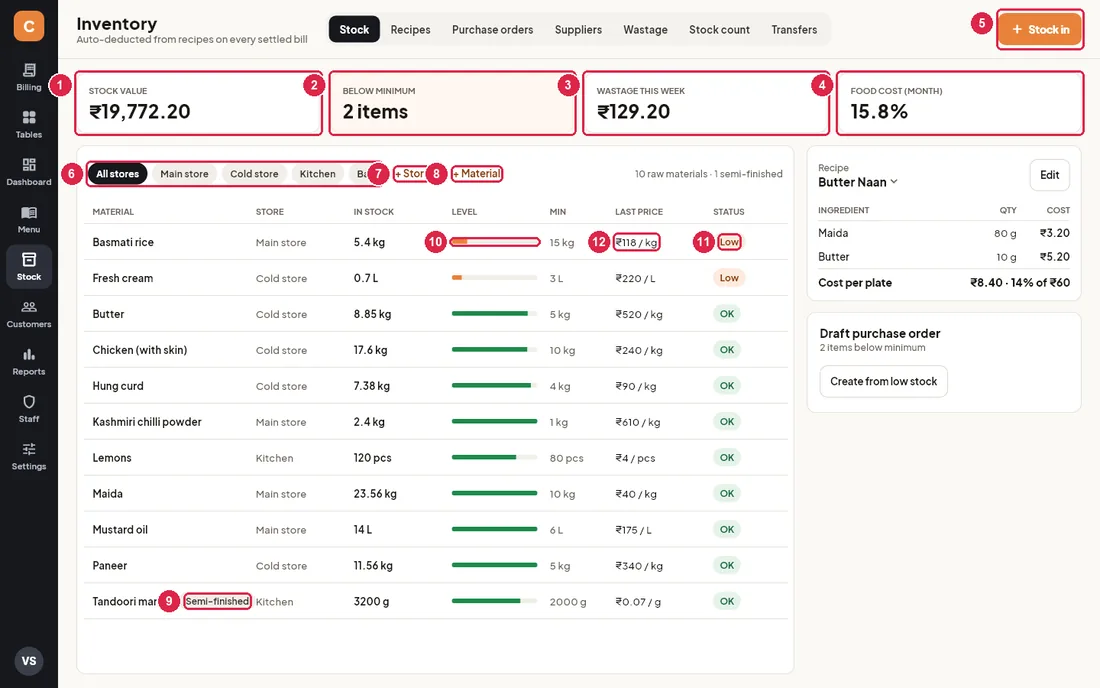
- Stock value — what everything in stock is worth at the latest purchase prices.
- Below minimum — how many materials are under their minimum level. Highlighted when anything is low.
- Wastage this week — the value of wastage recorded since Monday.
- Food cost (month) — the cost of the ingredients used by this month’s settled bills, as a share of net sales. 25–35% is typical for restaurants.
- Stock in — add goods received without a purchase order (e.g. bought from the market).
- Store chips — show all stores together or one store (Main store, Cold store, Kitchen, Bar). With a store selected, quantities are for that store only.
- + Store — add a store or storage area.
- + Material — add a raw material or a semi-finished item.
- Semi-finished — made in your kitchen from other materials (e.g. a marinade). See semi-finished items.
- Level — the bar is full at twice the minimum. Orange means below minimum.
- Status — Low when below minimum, Out when nothing is left, otherwise OK. Low items are listed first.
- Last price — the latest purchase price per purchase unit, e.g. ₹118 / kg.
Tap any material row to open it in the material editor.
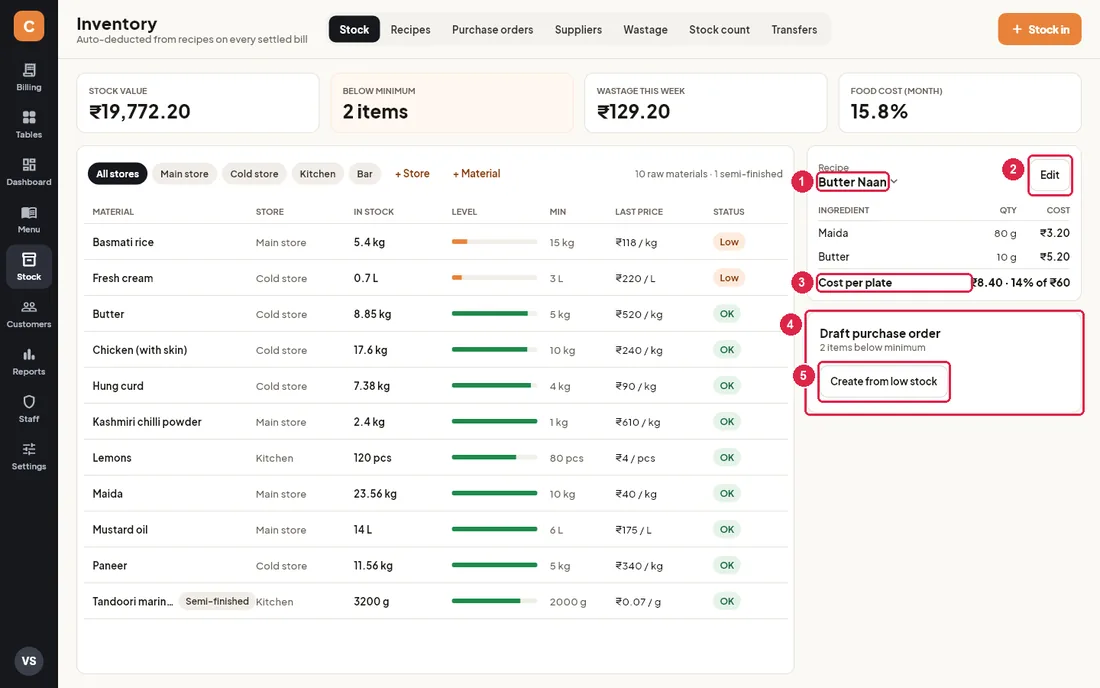
- Recipe — tap the item name to show the recipe of another dish, with each ingredient’s quantity and cost.
- Edit — opens that recipe in the Recipes tab.
- Cost per plate — the cost of one portion, and what percentage of the menu price that is.
- Draft purchase order — the latest purchase order not yet sent to the supplier, with its lines, total including GST, Print / PDF and Mark as ordered. When there is no draft, it says how many items are below minimum.
- Create from low stock — drafts purchase orders for everything below minimum (see Purchase orders).
Material editor
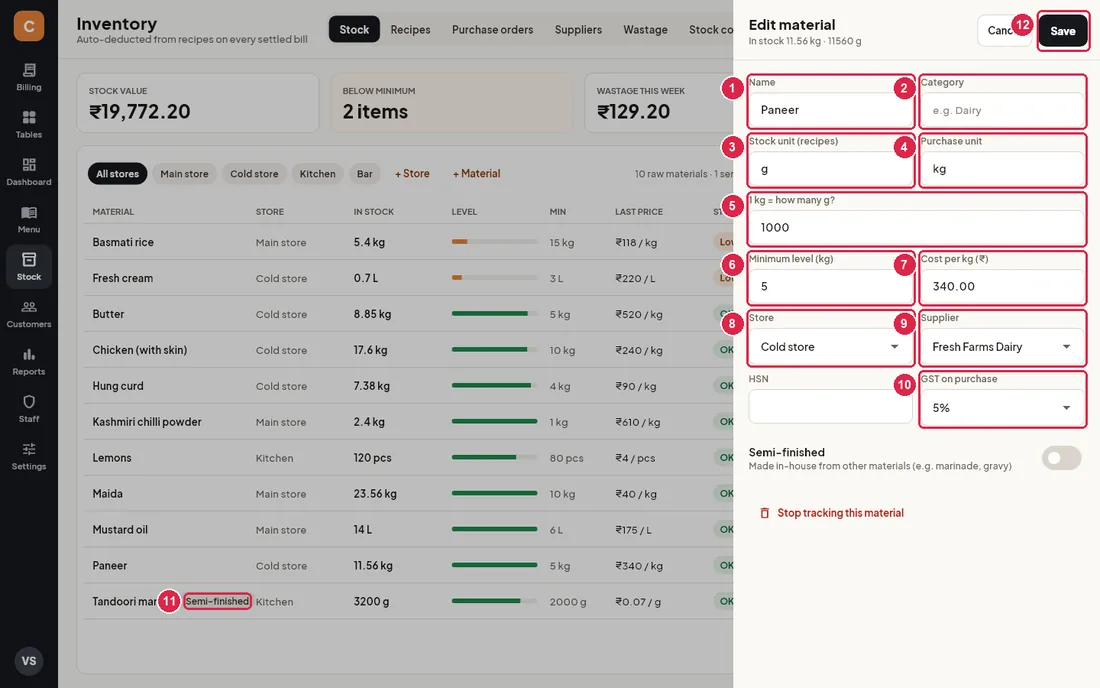
- Name — the material name.
- Category — optional grouping such as Dairy or Vegetables.
- Stock unit (recipes) — the small unit used in recipes: g, ml or pcs.
- Purchase unit — the unit you buy in: kg, L, box. Leave empty if you buy in the same unit.
- Conversion — how many stock units make one purchase unit (1 kg = 1000 g). Shown only when the two units differ. Stock and prices are shown in the purchase unit.
- Minimum level — when stock falls below this, the material shows Low and is picked up by Create from low stock.
- Cost per kg — the price you pay, excluding tax. It is updated automatically when you receive goods.
- Store — where the material is normally kept. Sales and wastage come out of this store.
- Supplier — who you buy it from. Needed for automatic purchase orders.
- GST on purchase — the tax rate on the supplier’s bill, used for purchase order totals. (HSN next to it is optional.)
- Semi-finished — switch on for things you make yourself from other materials.
- Save — saves the material. Cancel closes without saving.
Semi-finished items and Produce
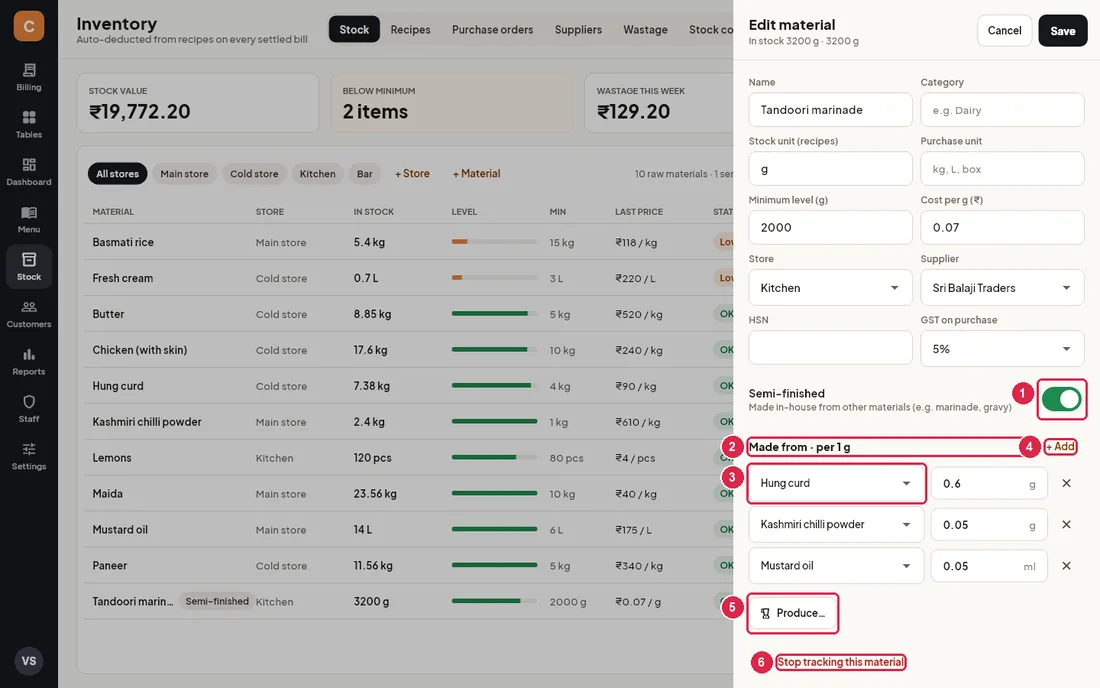
- Semi-finished — switched on for this material.
- Made from · per 1 g — how much of each raw material goes into one unit of the semi-finished item.
- Material — pick each ingredient and type its quantity.
- + Add — add another ingredient.
- Produce… — record a batch you have made. Type how much you made: the raw materials are taken out of stock and the semi-finished item is added.
- Stop tracking this material — hides it from stock lists (after you confirm). Update any recipes that use it.
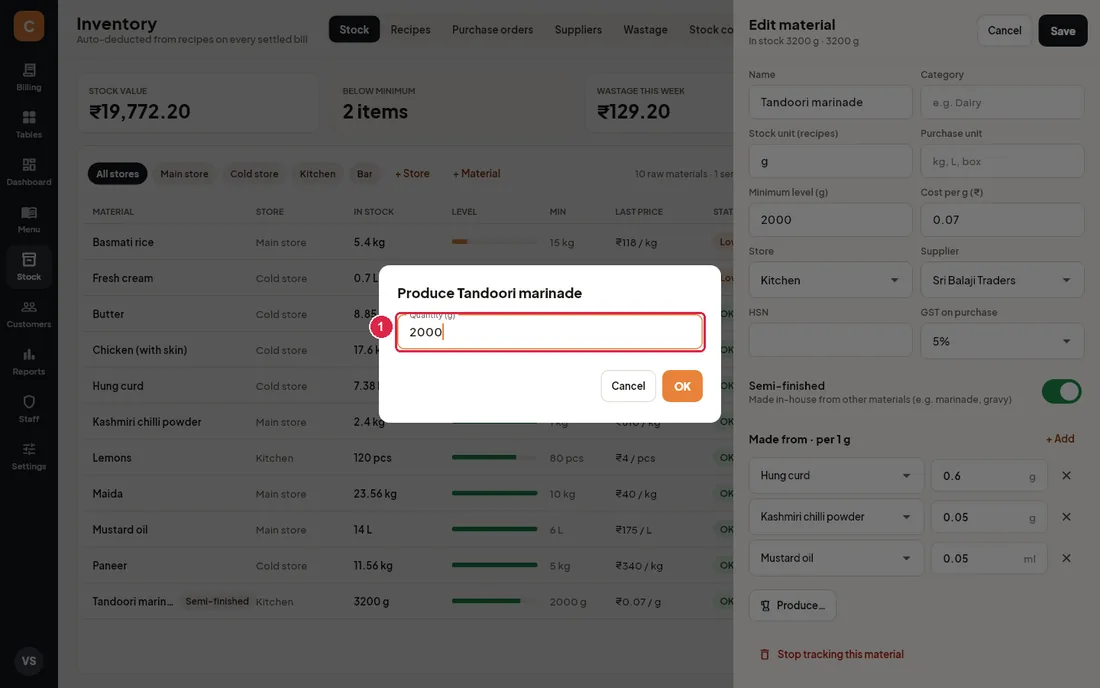
- Quantity — how much you made, in the item’s unit. Tap OK to update stock.
Stock in
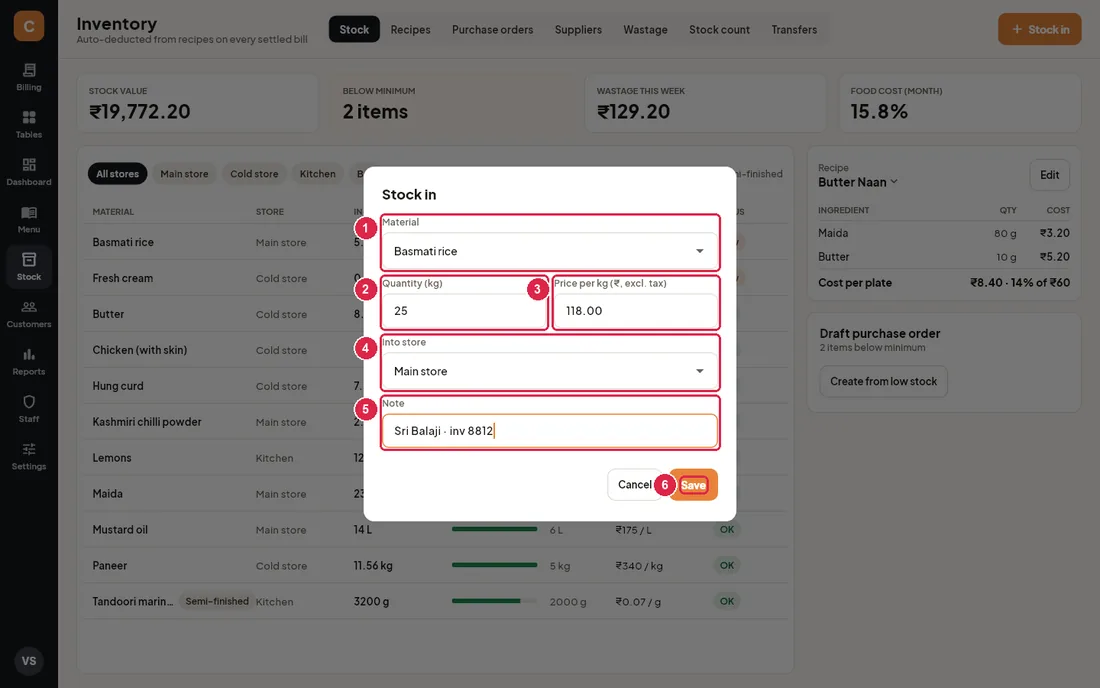
- Material — what arrived. The last price and the usual store are filled in for you.
- Quantity — in the purchase unit (kg here).
- Price per kg — excluding tax. It becomes the material’s new cost.
- Into store — which store the goods go into.
- Note — supplier name or invoice number, for your records.
- Save — adds the stock.
Recipes and food cost
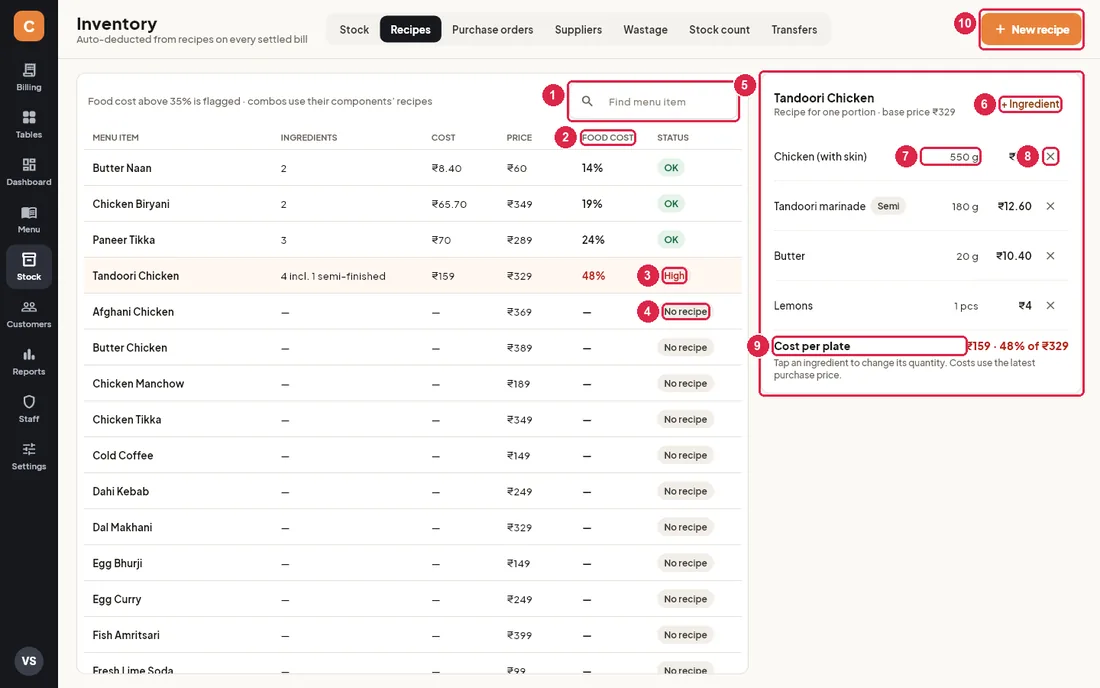
- Find menu item — search the list.
- Food cost — the recipe cost as a percentage of the item’s price. Above 35% it is shown in red.
- High — food cost above 35%: check the recipe quantities or the price.
- No recipe — the item does not change stock when sold. Tap it to add one.
- Recipe card — the ingredients for one portion of the selected item and its base price.
- + Ingredient — pick a material and type the quantity per portion in its stock unit (g, ml, pcs).
- Quantity — tap an ingredient row to change its quantity.
- ✕ — remove the ingredient.
- Cost per plate — the total and the food cost %; red when above 35%.
- New recipe — lists the menu items that have no recipe yet.
Purchase orders
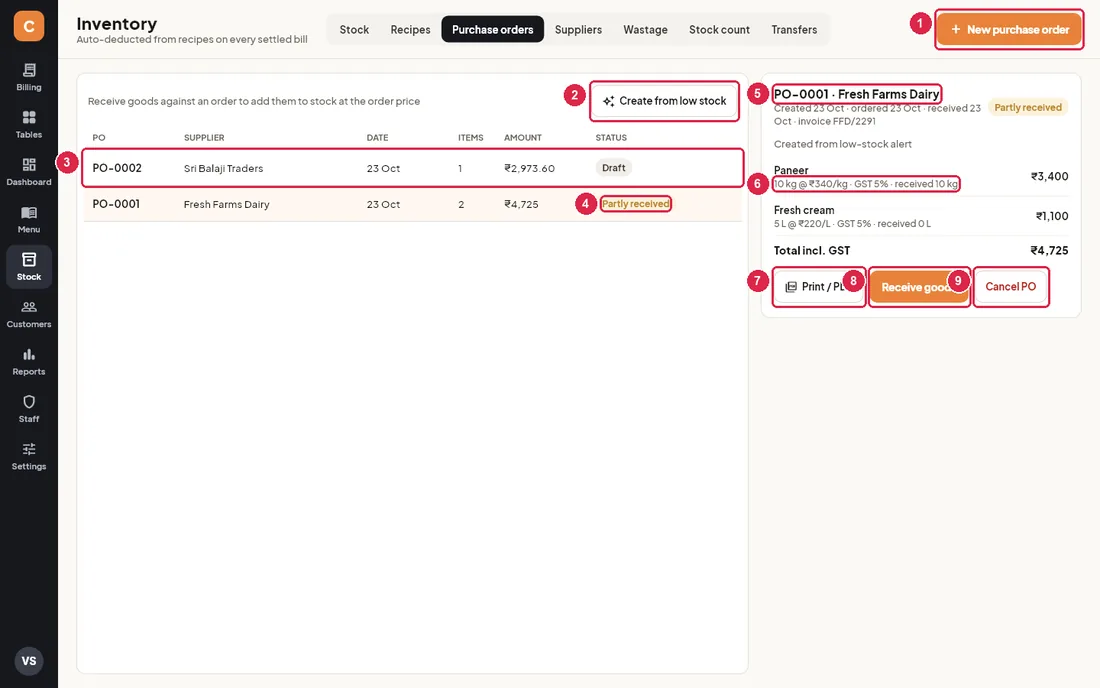
- New purchase order — pick a supplier, then add lines (material, quantity, price per unit, GST).
- Create from low stock — makes one draft order per supplier for every material below minimum, enough to bring it up to twice the minimum (rounded up to whole kg / L). Materials already on an open order, or without a supplier, are skipped and you are told.
- Order row — number, supplier, date, number of lines, total including tax and status. Tap to open it on the right.
- Status — Draft, Ordered, Partly received, Received or Cancelled.
- Order details — supplier, dates and the supplier’s invoice number.
- Line — quantity ordered, price, GST and how much has been received so far.
- Print / PDF — saves the order as a PDF in
Documents\CravinPOS\exportsto print or send to the supplier. - Receive goods — record what arrived (see below).
- Cancel PO — cancels the rest of the order after you confirm. Goods already received stay in stock.
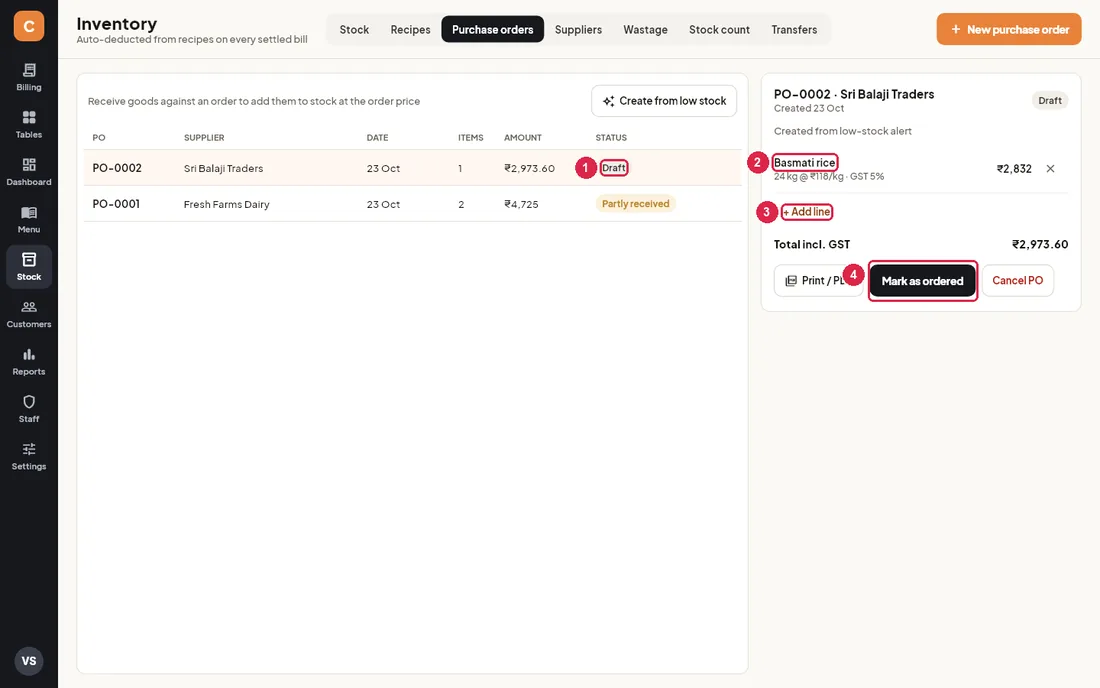
- Draft — not yet sent; you can still change it.
- Line — tap a line to change its material, quantity, price or GST; the ✕ removes it.
- + Add line — add another material.
- Mark as ordered — once you have sent the order to the supplier. After this the lines are fixed.
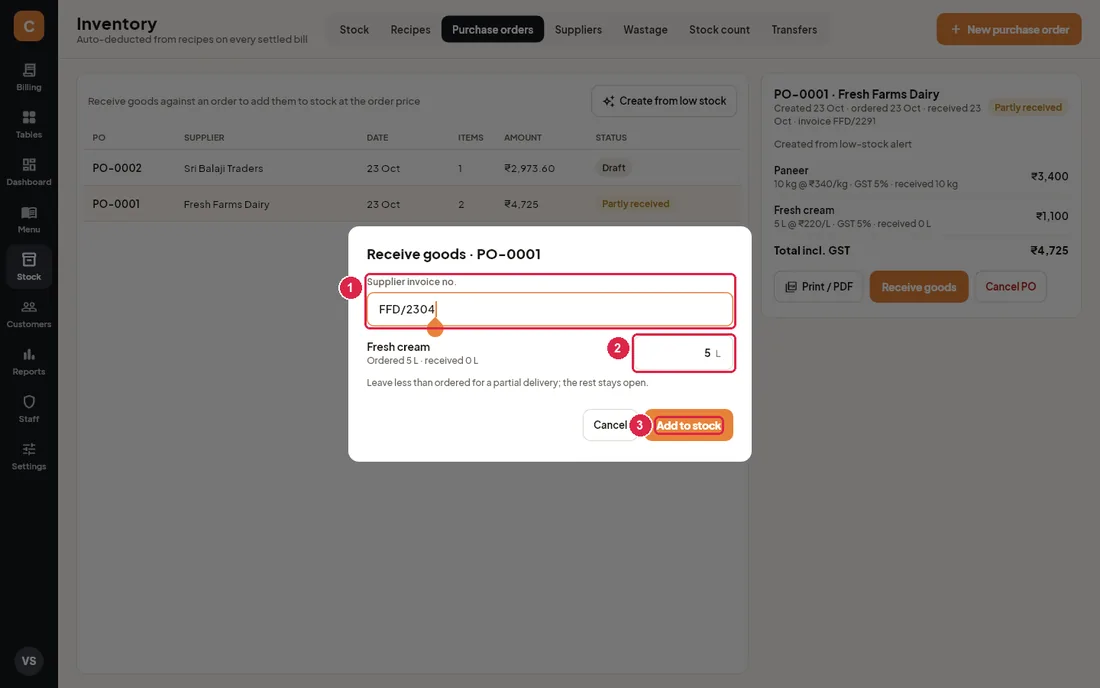
- Supplier invoice no. — the number on the supplier’s bill.
- Received quantity — filled with what is still due. Type less for a part delivery; the rest stays open and the order shows Partly received.
- Add to stock — adds the goods to stock at the order price and updates each material’s cost. When everything has arrived the order becomes Received.
Suppliers and payments
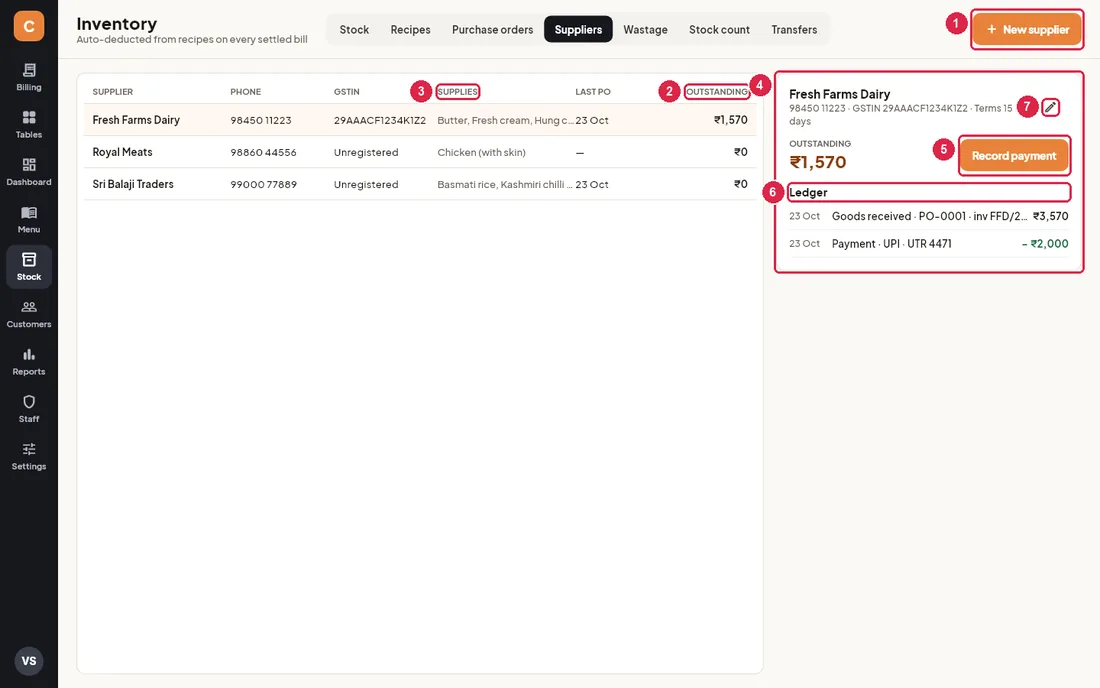
- New supplier — name, phone, GSTIN (15 characters, or empty if unregistered), address and payment terms.
- Outstanding — what you owe each supplier: goods received (with tax) minus payments.
- Supplies — the materials linked to this supplier.
- Supplier card — contact details, terms and the amount outstanding.
- Record payment — enter the amount (the outstanding amount is suggested), choose Cash, Bank transfer, UPI or Cheque, and add a reference such as the UTR number. It is logged.
- Ledger — goods received (with invoice numbers) and payments, newest first.
- Edit — change the supplier’s details or remove the supplier.
Wastage
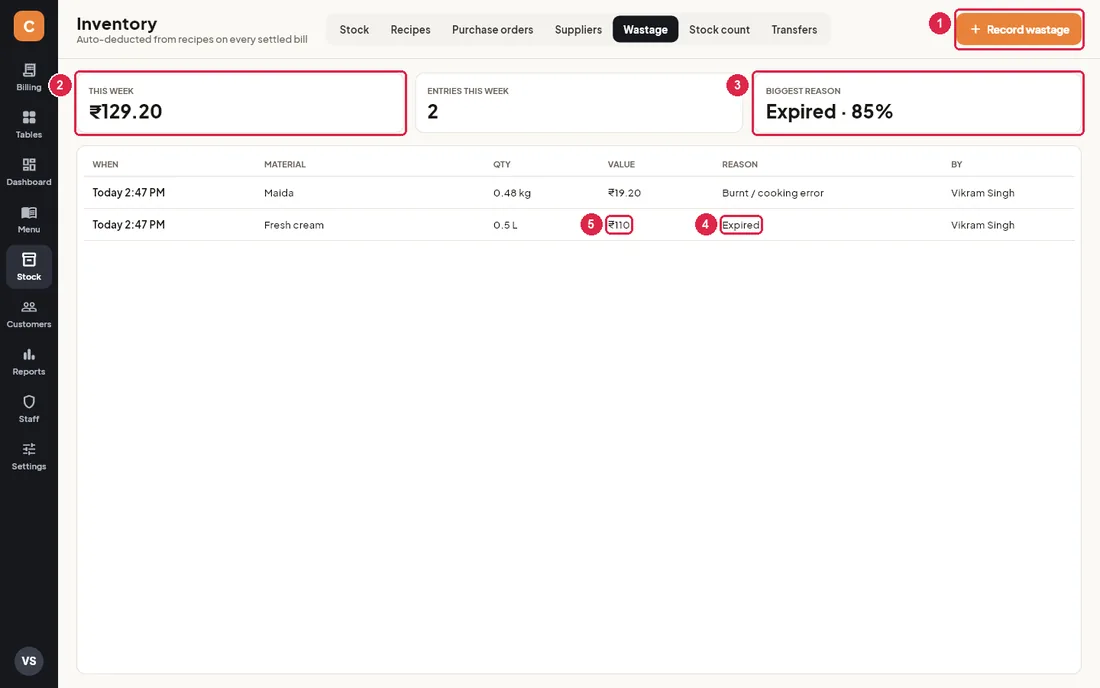
- Record wastage — record spoiled, expired or burnt stock.
- This week — value of wastage since Monday, with the number of entries next to it.
- Biggest reason — the reason behind most of the week’s wastage value.
- Reason — the reason chosen for each entry, with who recorded it.
- Value — the cost of what was thrown away.
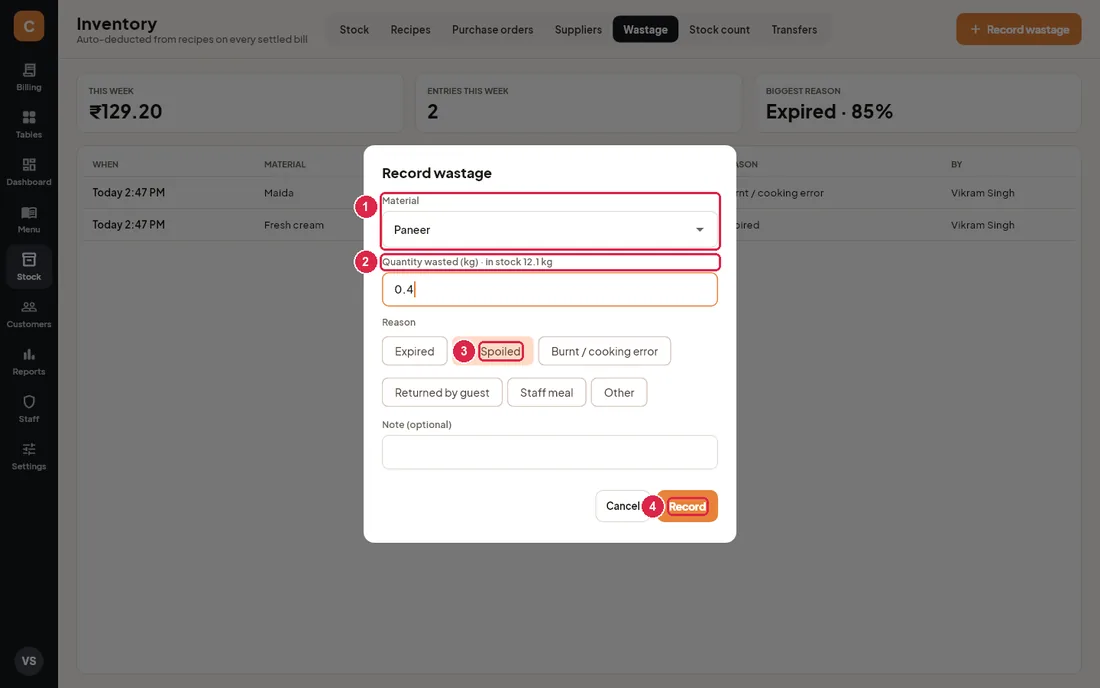
- Material — what was wasted.
- Quantity wasted — in the purchase unit; how much is in stock is shown for reference.
- Reason — Expired, Spoiled, Burnt / cooking error, Returned by guest, Staff meal or Other. Add a note if needed.
- Record — takes it out of stock and adds it to the wastage list.
Stock count
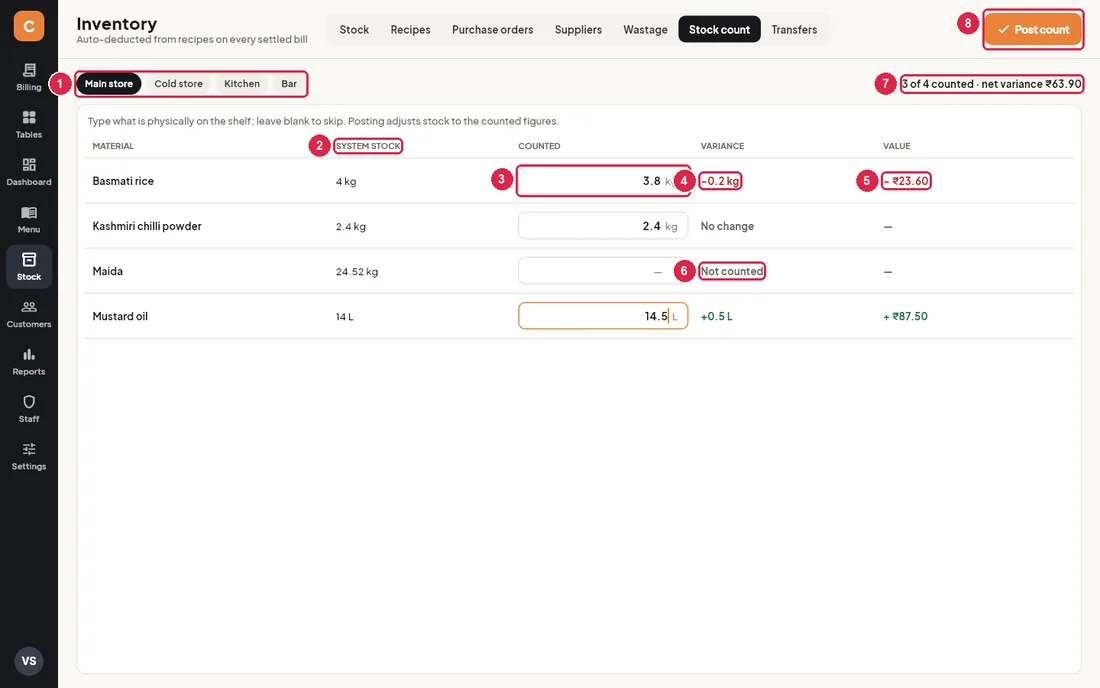
- Store — count one store at a time.
- System stock — what the app thinks is on the shelf.
- Counted — type what is actually there. Leave blank to skip a material.
- Variance — the difference; red when you have less than expected, green when more, “No change” when equal.
- Value — what the difference is worth.
- Not counted — skipped materials are not changed.
- Summary — how many were counted and the total value of the differences.
- Post count — after you confirm, stock is set to the counted figures and the adjustments are logged.
Transfers between stores
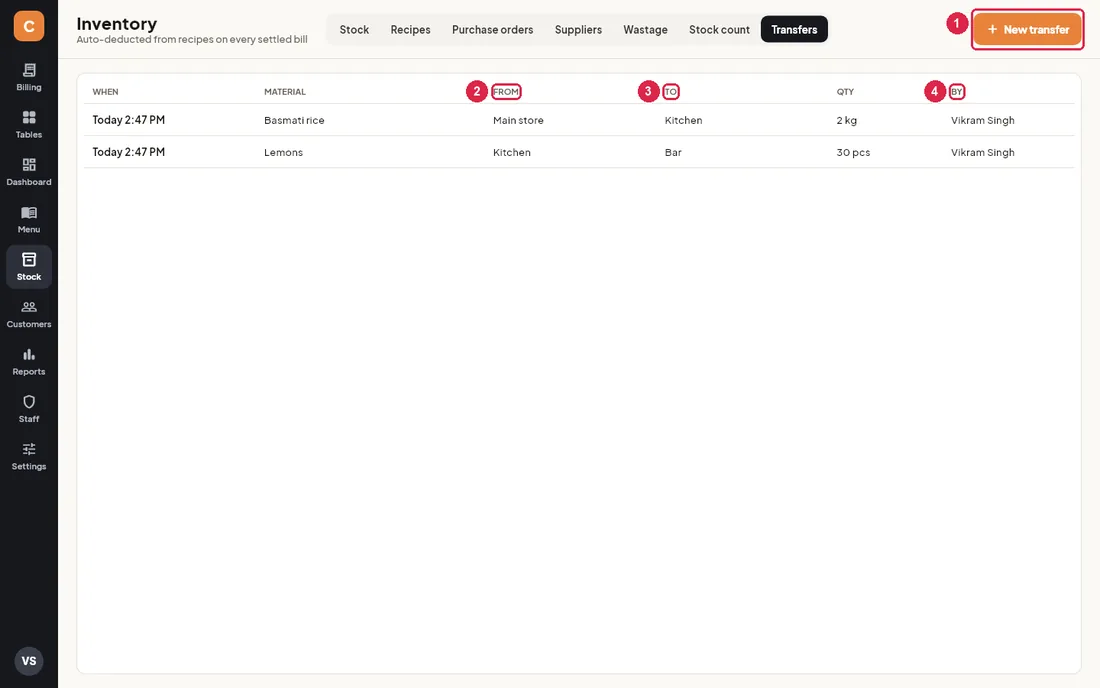
- New transfer — move stock from one store to another.
- From — the store the goods left.
- To — the store they went to.
- By — who made the transfer.
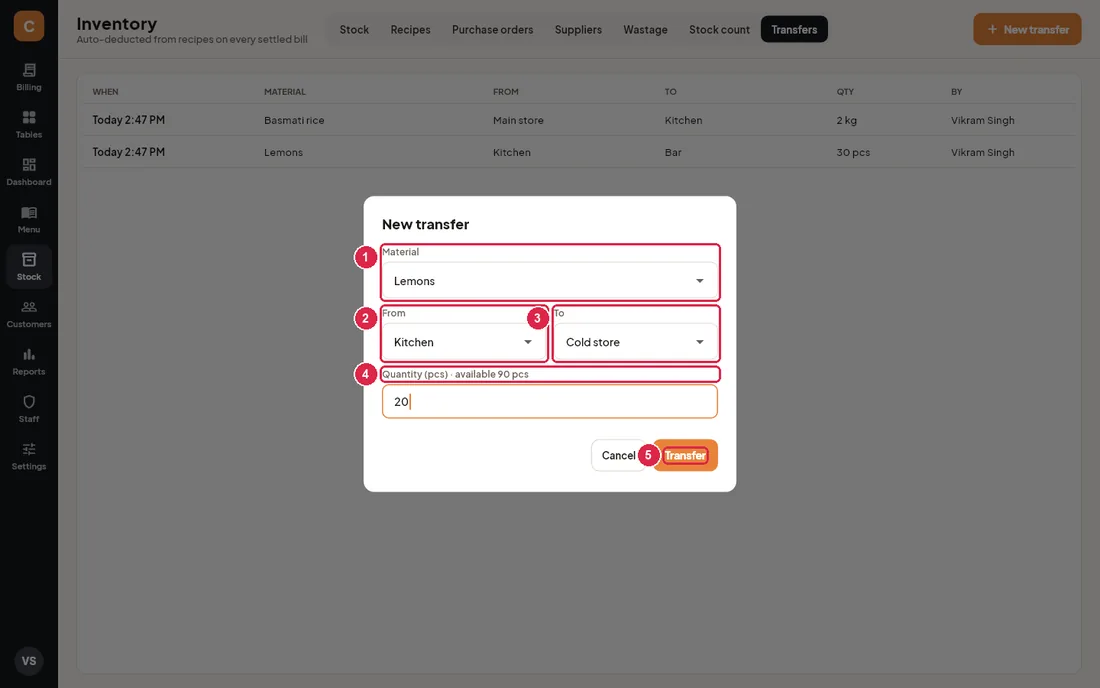
- Material — what you are moving. The From store is set to its usual store.
- From — the store it leaves.
- To — the store it goes to; must be different.
- Quantity — how much; the amount available in the From store is shown. If you move more than is there, you are warned and can still go ahead (the store then shows negative stock).
- Transfer — moves the stock.
Weekly purchasing
- Open Stock. Check Below minimum and the Low rows.
- Go to Purchase orders and tap Create from low stock. One draft per supplier is made.
- Open each draft, adjust quantities or add lines, then tap Print / PDF and send it to the supplier.
- Tap Mark as ordered.
- When the goods arrive, open the order, tap Receive goods, type the supplier’s invoice number and what actually came, and tap Add to stock. Short deliveries stay open as Partly received.
- When you pay the supplier, open Suppliers, pick them and tap Record payment.
Month-end stock count
- Close for the night (or count before opening) so nothing is being sold.
- Open Stock count and pick the first store.
- Walk the shelves and type each Counted quantity in kg / L / pcs.
- Check the Variance column. Big differences usually mean a recipe quantity is wrong or wastage was not recorded.
- Tap Post count and confirm. Repeat for each store.
- Look at Food cost (month) on the Stock tab and the Reports › Inventory reports.
12Customers & loyalty
Every phone number you enter at billing becomes a customer record on this PC, with visits, spend, loyalty points, credit balance and feedback. Cashiers, managers and owners can open Customers from the left rail. A few actions need a manager or the owner, as noted below.
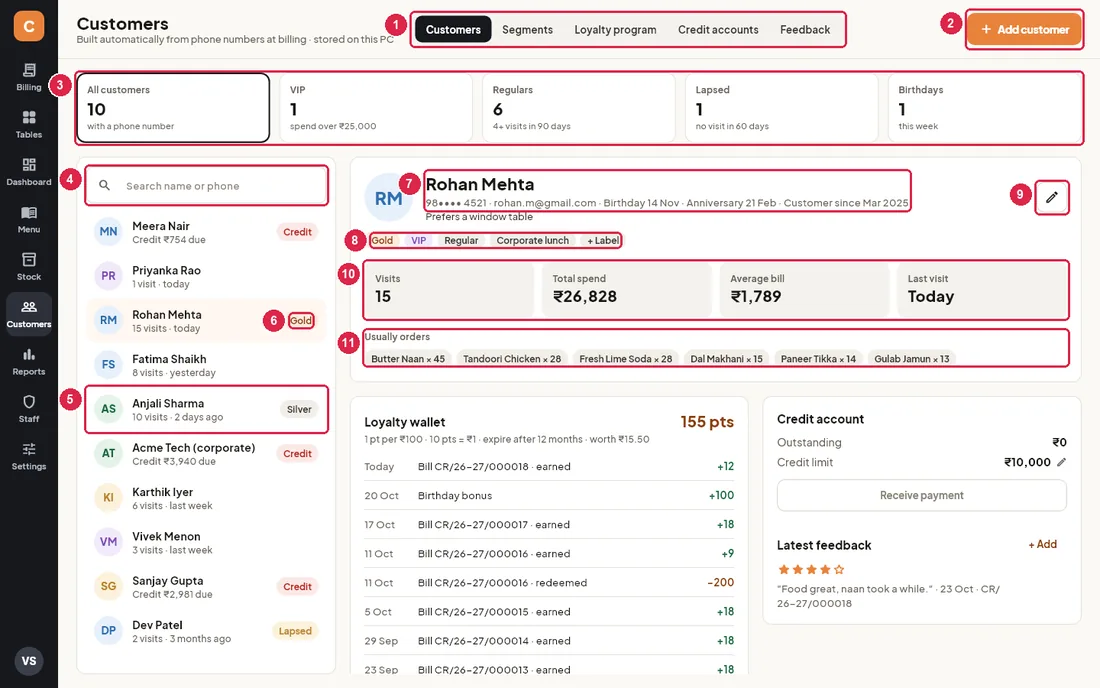
- Tabs: Customers (this list), Segments, Loyalty program, Credit accounts and Feedback. Each is explained below.
- Add customer: create a customer before their first bill, for example a corporate account or a phone booking.
- Segment cards: click a card to filter the list. All customers = everyone with a phone number; VIP = lifetime spend over the VIP amount (₹25,000 by default); Regulars = 4 or more visits in the last 90 days; Lapsed = no visit in 60 days; Birthdays = birthday in the next 7 days. The selected card has a dark border.
- Search name or phone: type part of a name or any digits of the phone number. Search works inside the selected segment.
- Customer row: name, number of visits and when they last came ("today", "2 days ago", "last week"). Customers with an unpaid credit balance show Credit ₹… due instead. Click a row to open the profile on the right.
- Status pill: one pill per row, in this order of priority: Credit (money owed), Gold / Silver (tier by lifetime spend), VIP, Lapsed.
- Profile header: name, phone (only the first 2 and last 4 digits are shown), email, birthday, anniversary, the month they first came, and any notes.
- Labels: automatic pills (tier, VIP, Regular, Lapsed, No marketing, GSTIN) plus your own labels. Click + Label to add one (for example "Corporate lunch"); click a label you added to remove it. Each label you add becomes a segment of its own.
- Edit (pencil): change the profile. See "Add or edit a customer" below.
- Stats: Visits (settled bills), Total spend, Average bill (rounded to the rupee) and Last visit. Cancelled and voided bills are not counted.
- Usually orders: the customer's six most-ordered dishes, with the total quantity across all their bills. Use it to suggest "the usual".
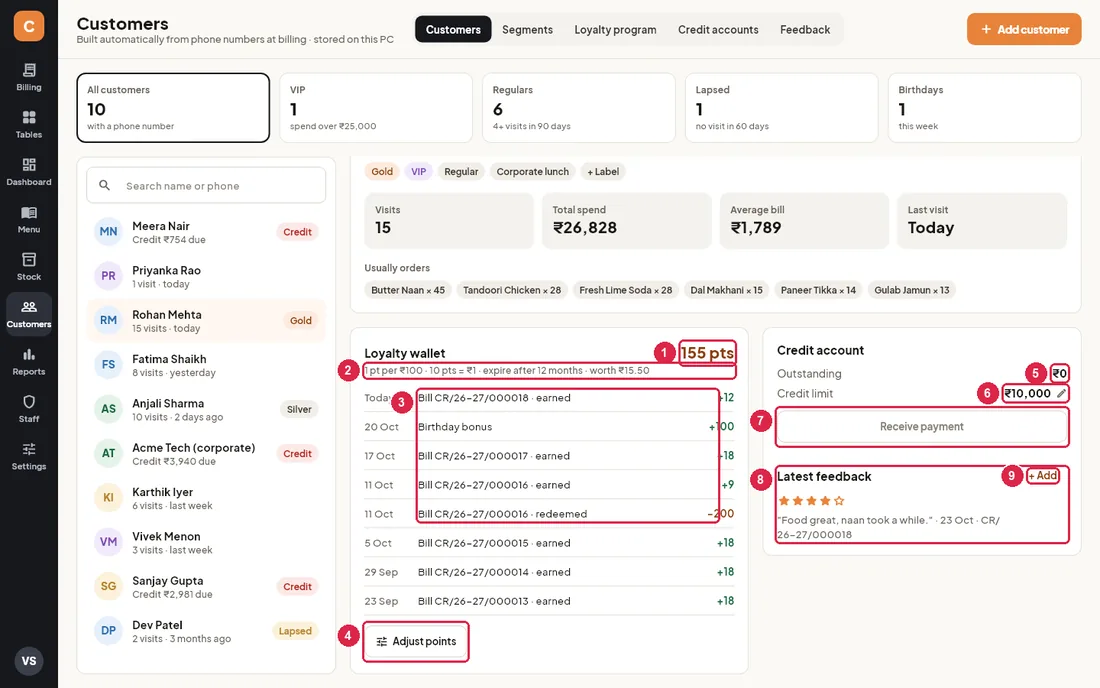
- Points balance: points the customer can spend now.
- Rule: how points are earned and what they are worth (for example "1 pt per ₹100 · 10 pts = ₹1 · expire after 12 months"), and what the current balance is worth. If the loyalty program is switched off, this line says so.
- Points history: the last 8 entries, newest first. Bills show earned (green, +) or redeemed (−); manual changes show the reason you typed, such as "Birthday bonus".
- Adjust points: add or remove points by hand. Needs a manager or the owner; a cashier is asked for a manager PIN. See "Adjust a customer's points" below.
- Outstanding: what the customer owes from bills settled as Due / credit, minus payments received. Red when above ₹0.
- Credit limit: click the amount (pencil) to change it. Needs a manager or the owner; the change is recorded in the audit log. "Not set" means no limit has been agreed.
- Receive payment: take money against the outstanding balance. Only active when something is owed.
- Latest feedback: stars (the average of food, service and ambience), the comment, the date and the bill it belongs to.
- + Add: record feedback the guest gives you in person or on a slip.
Add or edit a customer
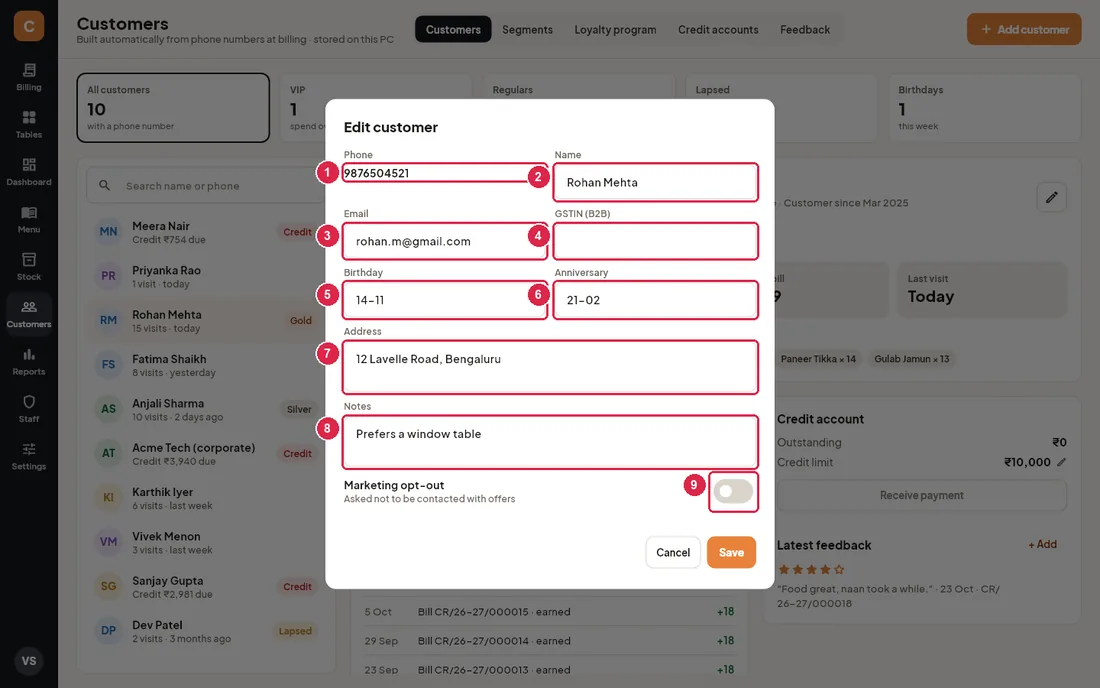
- Phone: required when adding, and each number can belong to only one customer. It cannot be changed afterwards (it is how the customer is found at billing).
- Name: as the customer wants it printed on the bill.
- Email: optional.
- GSTIN (B2B): for business customers. It is printed on their bills, so the bill becomes a proper B2B tax invoice. (In the UAE this field is TRN.)
- Birthday: type day and month as DD-MM, for example
14-11for 14 November. Year is not needed. It drives the Birthdays segment. - Anniversary: also DD-MM.
- Address: used for delivery orders.
- Notes: allergies, seating preference, anything staff should know. Shown under the name on the profile.
- Marketing opt-out: switch on when the customer asks not to receive offers. They then show a No marketing pill and appear in the Opted out segment.
- Click Add customer (or open a profile and click the pencil).
- Fill in the fields and click Save. If something is wrong, for example a phone number that already exists or a birthday like "32-01", a red message appears at the top and the dialog stays open so you can correct it.
Attach a customer at billing
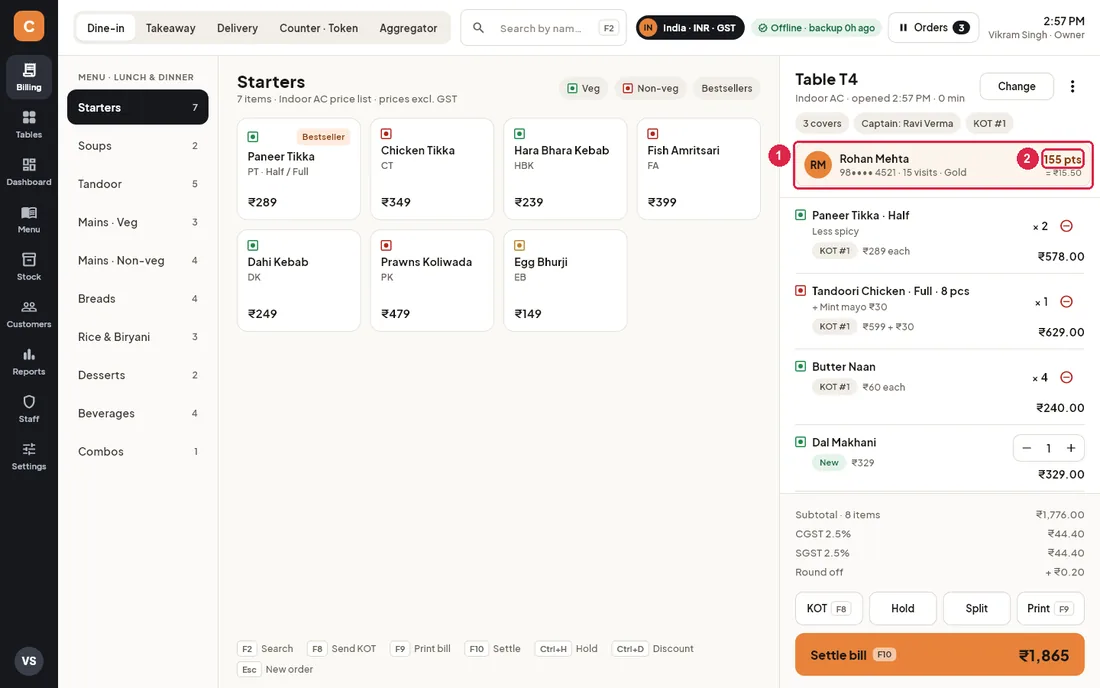
- Customer card: once attached, the order shows the customer's name, phone, visits and tier. Click it to change or remove the customer. Before anyone is attached, this is the Add customer (phone) · loyalty, credit, GST invoice button.
- Points: the customer's loyalty balance and what it is worth, so you can offer to redeem.
- On the billing screen, click Add customer (phone).
- Type the phone number. If the customer is known, their name, GSTIN, visits, spend, points and any amount due fill in automatically.
- For a new guest, type their name (and GSTIN for a business), then click Attach.
- To take the customer off the order, open the card again and click Remove.
Give credit and take a payment
- Attach the customer to the order, then on Settle choose Due / credit for all or part of the amount. The amount is added to the customer's Outstanding.
- When the customer pays, open their profile (or the Credit accounts tab) and click Receive payment (or Receive).
- The amount due is filled in. Change it for a part payment, then click OK. You cannot take more than is outstanding.
- Choose how they paid: Cash, UPI or Card. The outstanding drops straight away and the payment is recorded in the audit log.
Adjust a customer's points
- Open the customer and click Adjust points. A cashier sees a Manager PIN keypad; a manager or the owner types their PIN.
- Type the number of points:
100to add,-50to remove. - Pick or type a reason (Birthday bonus, Goodwill, Correction, Expired) and click OK.
The balance can never go below zero. Every adjustment is recorded in the audit log with the phone number, points and reason.
Segments
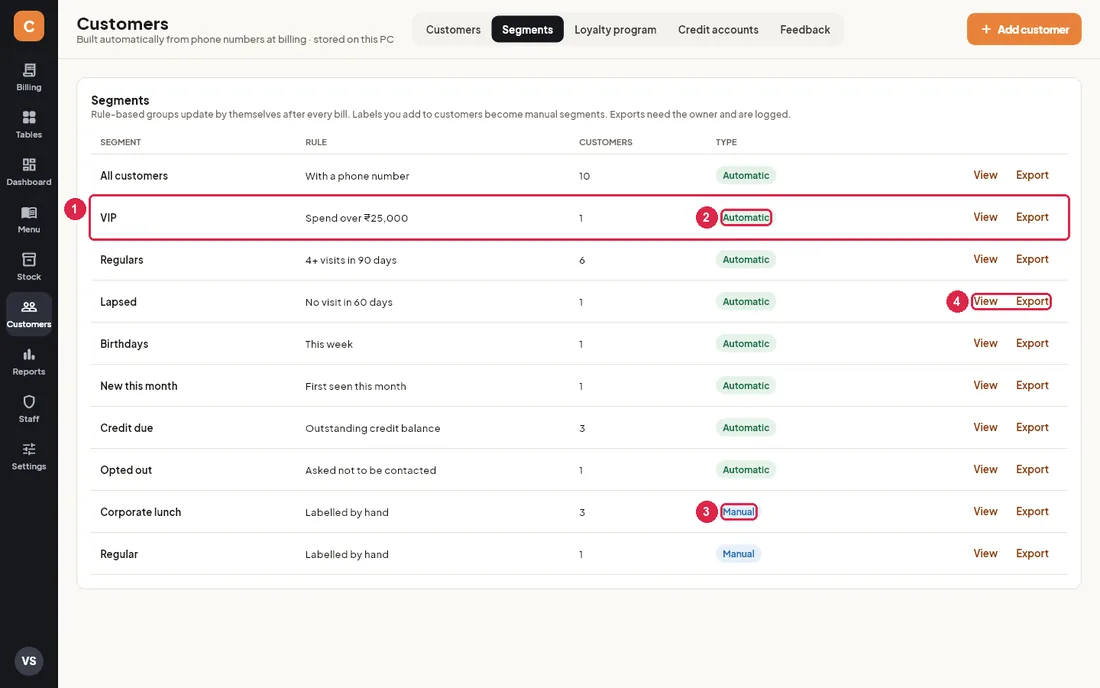
- Segment row: name, the rule that decides who belongs, and how many customers are in it right now. Counts update after every bill.
- Automatic: the segment follows a rule: All customers, VIP, Regulars, Lapsed, Birthdays, New this month, Credit due and Opted out.
- Manual: one segment for each label you have added to customers (for example "Corporate lunch").
- View opens the customer list filtered to that segment. Export saves the segment as a spreadsheet.
Export a segment for SMS or WhatsApp tools
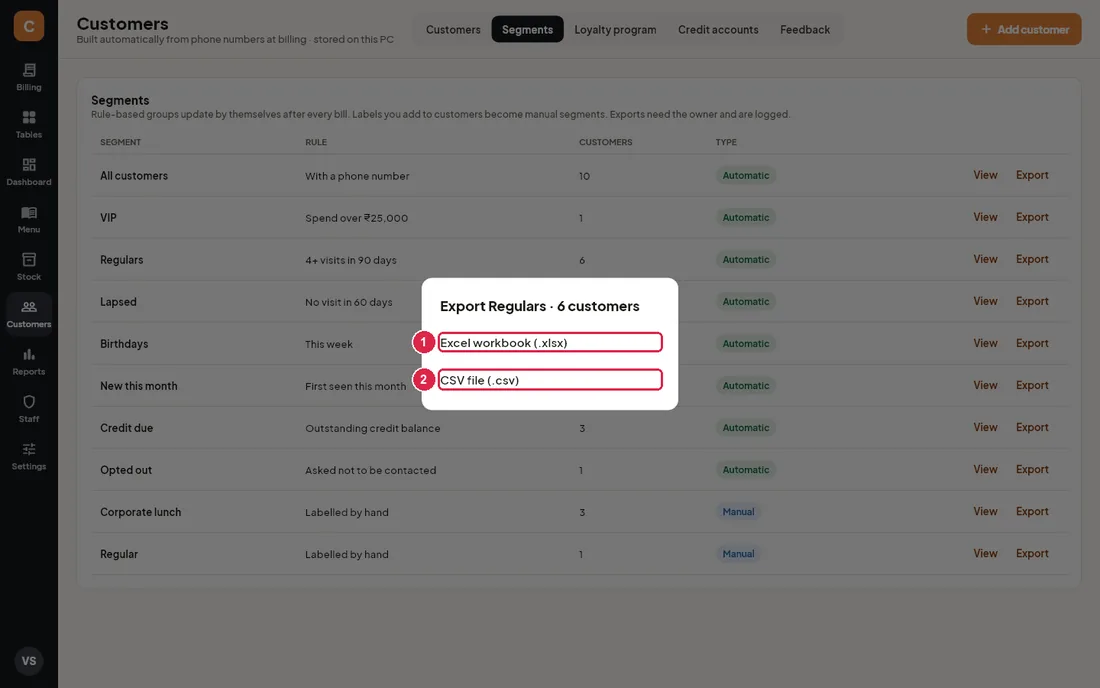
- Excel workbook (.xlsx): opens in Excel or Google Sheets.
- CSV file (.csv): the format most SMS and WhatsApp bulk-message tools ask for.
- On Segments, click Export on the segment you want (for example Birthdays or Lapsed).
- Only the owner may export customer data. Anyone else sees a Manager PIN keypad, and the owner must type their PIN. A manager's PIN is refused.
- Choose Excel or CSV. A message at the top shows where the file was saved: the
CravinPOS\exportsfolder in the PC's Documents. - The file has: name, full phone number, email, birthday, anniversary, visits, total spend, last visit, points, amount due, labels and an Opted out column.
Loyalty program
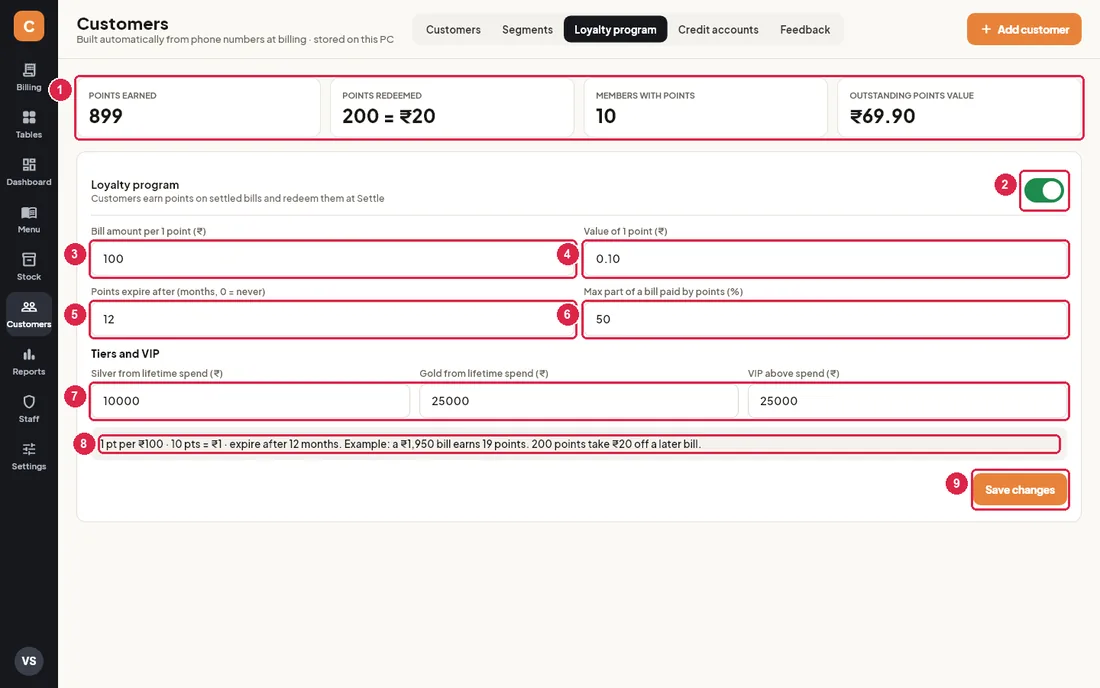
- Totals: Points earned on all bills so far, Points redeemed (and their rupee value), Members with points, and Outstanding points value (what all unspent points are worth).
- Loyalty program switch: turns earning on or off. Existing balances are kept.
- Bill amount per 1 point: how much a customer spends to earn one point (₹100 by default). Points are whole numbers, rounded down.
- Value of 1 point: what one point is worth when redeemed (₹0.10 by default, so 10 points = ₹1).
- Points expire after: number of months, shown to customers in the rule text. 0 means points never expire. This build does not remove expired points automatically; use Adjust points with the reason Expired if you want to.
- Max part of a bill paid by points (%): the most a customer can pay with points on one bill (50% by default).
- Tiers and VIP: lifetime spend for Silver and Gold, and the spend above which a customer is VIP.
- Example: a live sentence showing what the current rules mean in rupees.
- Save changes: needs the owner (the "Change taxes and settings" permission). Others are asked for the owner's PIN. The change is recorded in the audit log.
Worked example (default rules)
- Rohan's bill is ₹1,959. ₹1,959 ÷ ₹100 = 19.59, so he earns 19 points when the bill is settled.
- Next visit he has 200 points and a bill of ₹1,287. At Settle, tick Redeem: 200 points × ₹0.10 = ₹20 off, so he pays ₹1,267.
- He earns points on what he actually paid: ₹1,267 earns 12 points.
- The 50% cap: on a ₹300 bill at most ₹150 can be paid with points (1,500 points), even if he has more.
- If a settled bill is later voided, the points it earned or used are reversed automatically.
When Loyalty points is switched on in Settings › Bill format, the printed bill shows the points earned on it and the customer's new balance.
Credit accounts
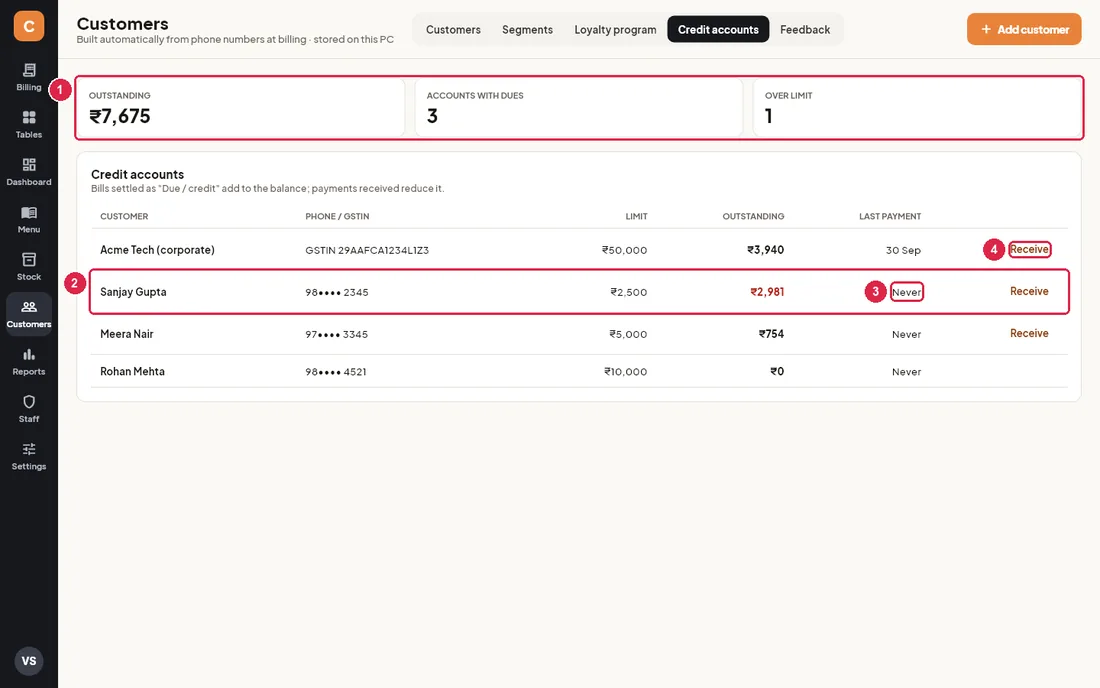
- Totals: total Outstanding across all customers, how many Accounts with dues, and how many are Over limit.
- Account row: customer, masked phone (or GSTIN for businesses), Limit, Outstanding (red when over the limit). Click a row to open the customer's profile. Customers appear here when they owe money or have a credit limit set.
- Last payment: date of the last payment received against credit; Never if they have not paid yet.
- Receive: take a payment, exactly as in "Give credit and take a payment" above.
Feedback
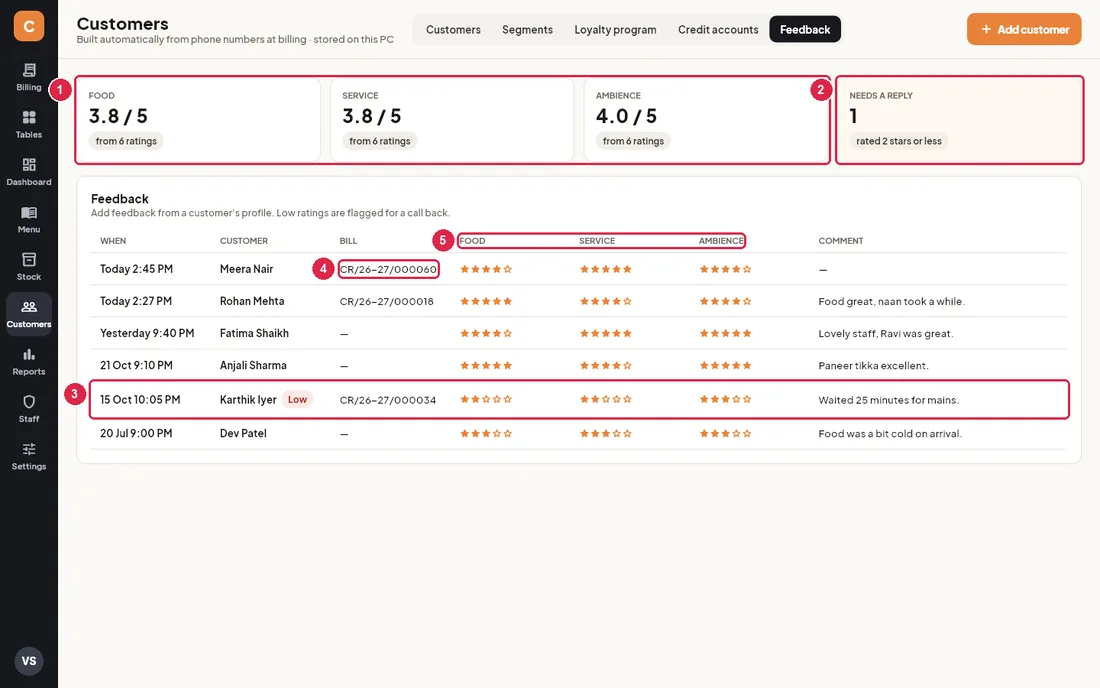
- Averages: average Food, Service and Ambience rating out of 5, with how many ratings they are based on.
- Needs a reply: how many feedback entries have any rating of 2 stars or less. The card turns orange when there are some.
- Low: these entries are marked with a red Low pill. Call the guest back and make it right. Click the row to open their profile.
- Bill: the bill the feedback is about, when one was picked.
- Ratings: stars for food, service and ambience, then the guest's comment.
Record feedback
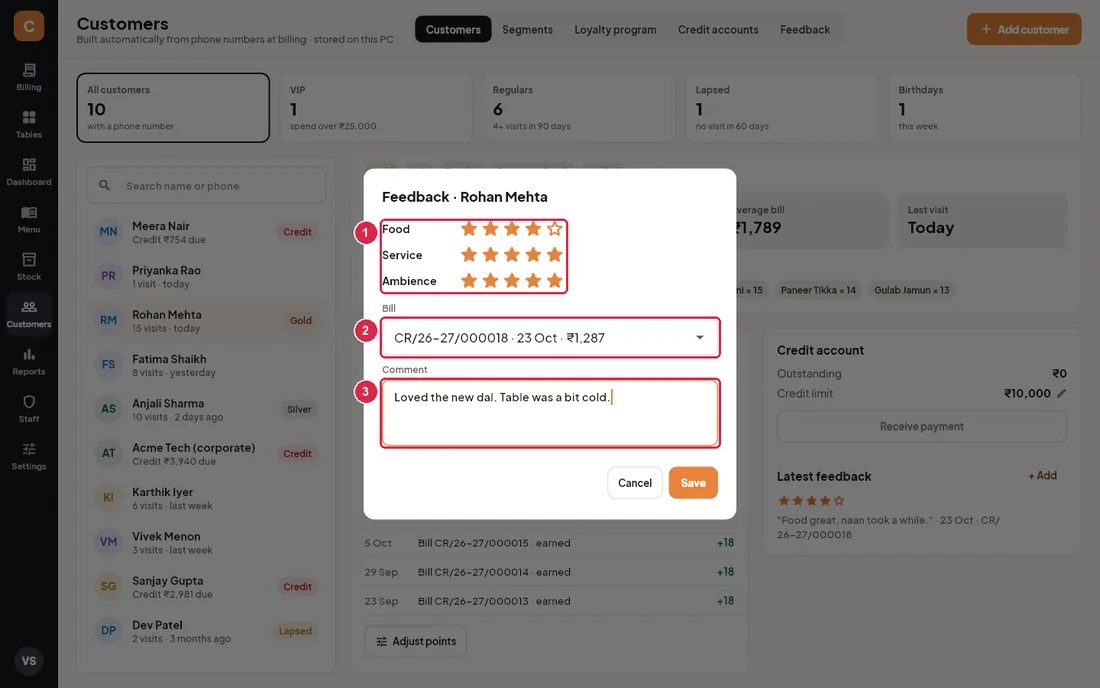
- Ratings: click a star to set Food, Service and Ambience from 1 to 5.
- Bill: the bill the feedback is about. The customer's latest bill is picked for you; choose Not linked to a bill if it is general feedback.
- Comment: the guest's words.
- To record feedback, open the customer's profile and click + Add next to Latest feedback.
- Click the stars for Food, Service and Ambience (all start at 5).
- Pick the Bill (their latest bill is chosen for you) or Not linked to a bill, type the comment and click Save.
13Staff, shifts & audit
Each staff member logs in with their own PIN. Their role decides what they may do, and every sensitive action is written to a log nobody can edit. Managers and owners can open Staff from the left rail to see the team, the role permissions, attendance, the cash drawer and the audit log. Only the owner can add or change staff.
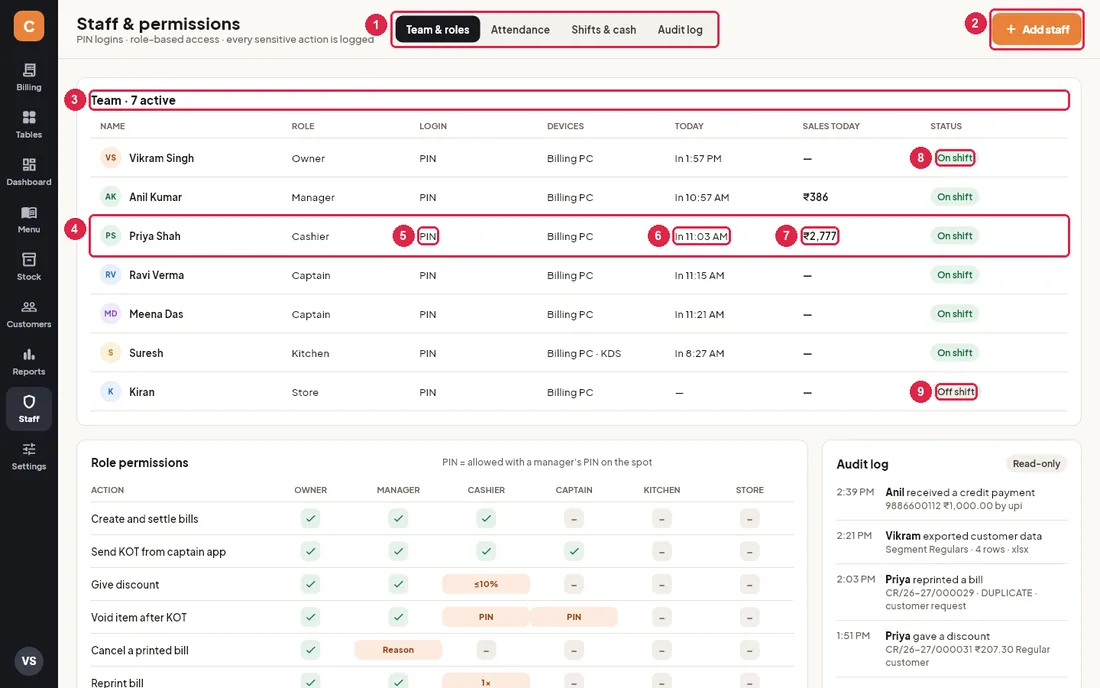
- Tabs: Team & roles, Attendance, Shifts & cash and Audit log.
- Add staff: create a login for a new team member. Owner only; a manager is asked for the owner's PIN.
- Team · N active: how many staff can currently log in. Disabled staff are listed at the bottom.
- Staff row: name and role. Click a row to edit that person (owner only).
- Login: everyone logs in with a 4–6 digit PIN. Devices shows where they work: the billing PC, and the kitchen display for kitchen staff.
- Today: In 10:57 AM means they clocked in at that time and are still in; Out … means they have left for the day; — means not in today.
- Sales today: total of the settled bills this person printed in the current business day.
- On shift: clocked in now.
- Off shift: not clocked in. A red Disabled pill means the login is switched off.
Roles and the permission matrix
There are six roles: Owner, Manager, Cashier, Captain (waiter taking orders), Kitchen and Store (storekeeper). Scroll down on Team & roles to see what each role may do.
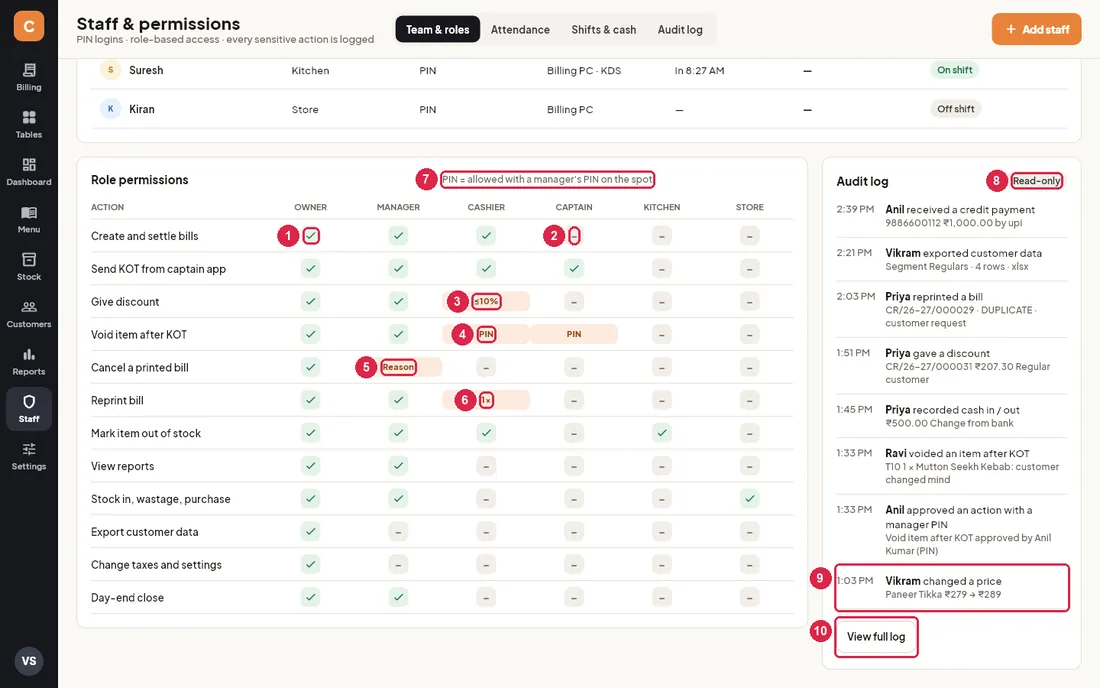
- ✓: allowed.
- –: not allowed. The person can still ask someone who is allowed to type their PIN (see "Manager PIN override" below).
- ≤10%: cashiers can give discounts up to 10% of the bill on their own (the limit is set in Settings › Charges & discounts). A bigger discount needs a manager PIN.
- PIN: allowed only with a manager's PIN typed on the spot. Cashiers and captains can void an item already sent to the kitchen this way.
- Reason: managers can cancel a printed bill, but must type a reason, which is recorded in the audit log.
- 1×: cashiers can reprint a bill once; further reprints need a manager.
- The legend: "PIN = allowed with a manager's PIN on the spot".
- Audit log · Read-only: the most recent sensitive actions. Nobody, not even the owner, can change or delete these entries.
- Audit entry: time, who did it, what they did, and the details (bill number, amount, reason, who approved).
- View full log: opens the Audit log tab with filters.
| Action | Owner | Manager | Cashier | Captain | Kitchen | Store |
|---|---|---|---|---|---|---|
| Create and settle bills | ✓ | ✓ | ✓ | – | – | – |
| Send KOT from captain app | ✓ | ✓ | ✓ | ✓ | – | – |
| Give discount | ✓ | ✓ | ≤10% | – | – | – |
| Void item after KOT | ✓ | ✓ | PIN | PIN | – | – |
| Cancel a printed bill | ✓ | Reason | – | – | – | – |
| Reprint bill | ✓ | ✓ | 1× | – | – | – |
| Mark item out of stock | ✓ | ✓ | ✓ | – | ✓ | – |
| View reports | ✓ | ✓ | – | – | – | – |
| Stock in, wastage, purchase | ✓ | ✓ | – | – | – | ✓ |
| Export customer data | ✓ | – | – | – | – | – |
| Change taxes and settings | ✓ | – | – | – | – | – |
| Day-end close | ✓ | ✓ | – | – | – | – |
Besides the rows above: managers can also edit the menu and tables, look after customers and reservations, adjust loyalty points, set credit limits, and see this Staff screen. Cashiers can look after customers (including taking credit payments) and reservations. Only the owner can add or change staff and PINs.
Manager PIN override
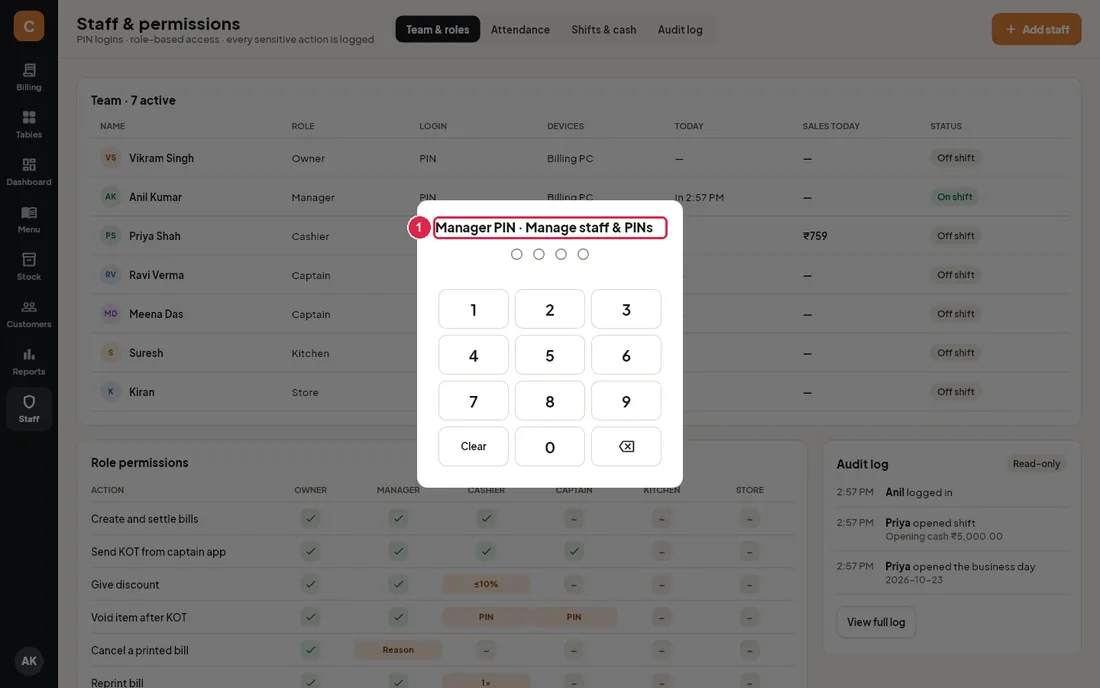
- Manager PIN · …: the title names the action that needs approval. Someone who is allowed to do it types their PIN on the keypad (or the number keys). The action then goes ahead once.
- If the PIN belongs to someone who is not allowed either, you see "… is not allowed to do this" and nothing happens.
- Each approval is logged as approved an action with a manager PIN, with the approver's name. The approver does not need to log in, and the person working stays logged in.
Add or edit staff
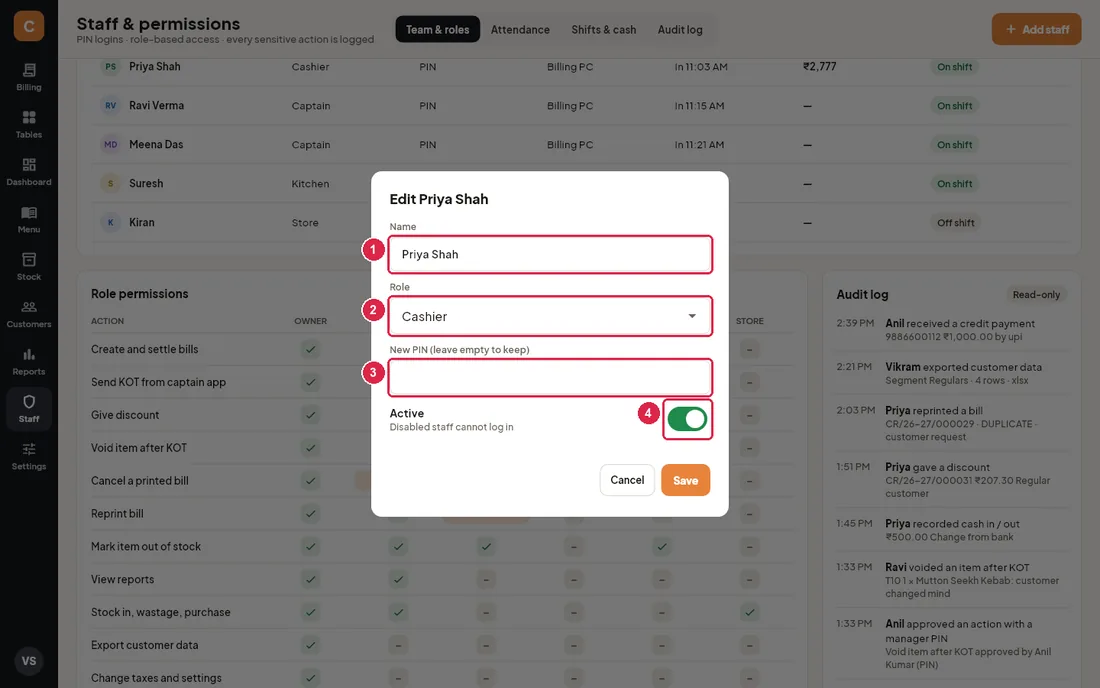
- Name: shown on bills ("Cashier: …"), KOTs and in the audit log.
- Role: Owner, Manager, Cashier, Captain, Kitchen or Store. The change applies at their next login.
- PIN: 4 to 6 digits. Required for a new person; when editing, leave it empty to keep the old PIN. Every PIN must be different from everyone else's, including disabled staff.
- Active: switch off when someone leaves. They can no longer log in, they are clocked out at once, and their past bills and log entries stay.
Onboard a new cashier
- Log in as the owner, open Staff and click Add staff.
- Type the name, leave Role on Cashier and choose a PIN they will remember (4–6 digits, not a birthday or 1234). Click Save. If the PIN is already taken, the message says so; pick another.
- Hand over privately: they log in on the PIN screen by tapping their name and typing the PIN. Logging in also clocks them in.
- Walk them through the matrix above: discounts over 10%, voids after KOT and second reprints need a manager's PIN.
- Show them how to clock out at the end of the day: click their initials at the bottom of the left rail, then Clock out.
Attendance
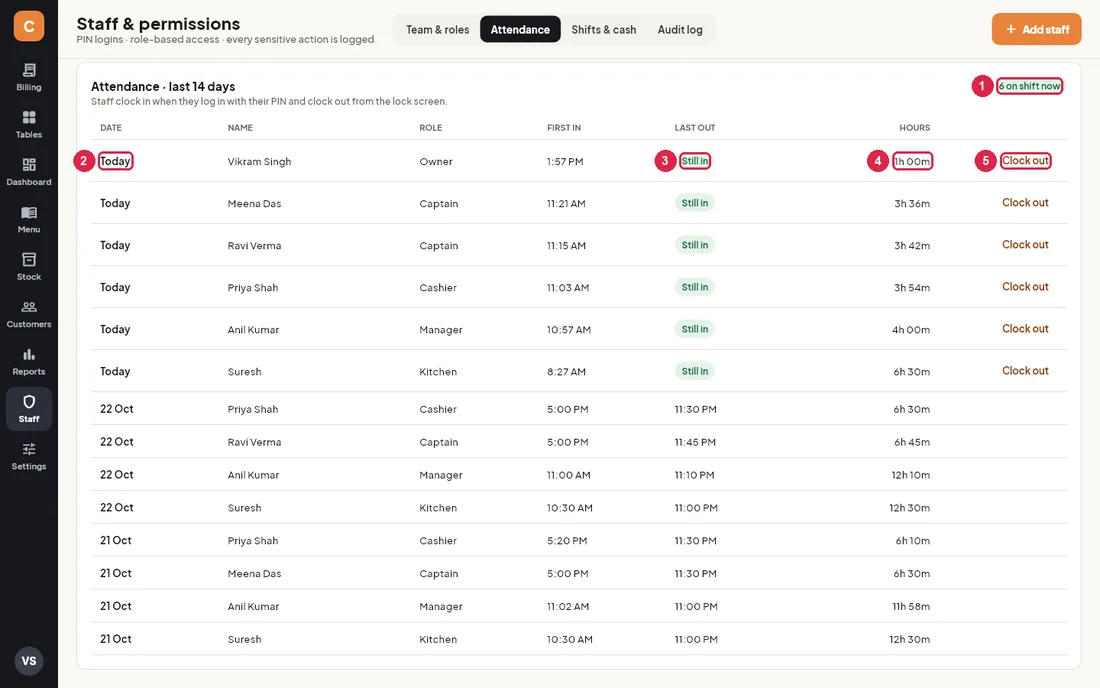
- On shift now: how many people are clocked in.
- Date: one row per person per day, for the last 14 days, newest first.
- Last out: when they last clocked out that day, or Still in. First in is when they first logged in that day.
- Hours: total time clocked in that day (for someone still in, up to now).
- Clock out: end someone's attendance when they forgot to clock out. Needs a manager or the owner; it is logged with your name.
- Staff are clocked in automatically the first time they log in with their PIN.
- To clock out, click your initials at the bottom of the left rail and choose Clock out. Lock / switch user only locks the screen; you stay clocked in.
Shifts & cash
A shift is one cash-drawer session on this PC: it starts with counted opening cash and ends with a count. Bills can only be taken while a shift is open; when none is open, a yellow bar says "No shift is open — open one to start billing."
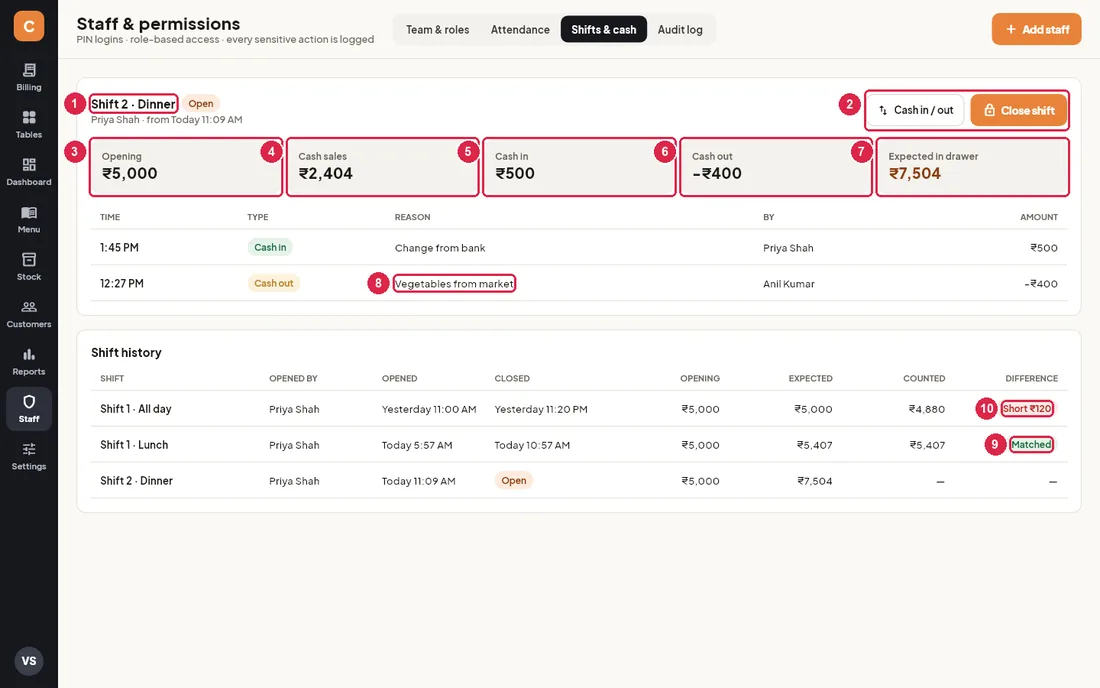
- Current shift: its name (for example "Shift 2 · Dinner"), who opened it and when.
- Cash in / out and Close shift: see the steps below. Both need a manager or the owner.
- Opening: cash counted into the drawer when the shift opened.
- Cash sales: cash taken on bills in this shift, plus cash received against customer credit.
- Cash in: money added to the drawer (change from the bank, owner top-up).
- Cash out: money taken out (market purchases, petty expenses, bank deposit).
- Expected in drawer = Opening + Cash sales + Cash in − Cash out. This is what should be in the drawer now. Card, UPI and credit are not counted here.
- Cash movements: each cash in / out with time, reason, who did it and amount.
- Matched: in Shift history, a closed shift whose count equalled the expected amount.
- Short ₹… (red) means less cash was counted than expected; Excess ₹… (amber) means more.
Open a shift
- Count the cash in the drawer.
- Click Open shift (on this tab, or on the yellow bar), type the amount and click OK. The shift is named automatically, such as "Shift 1 · Lunch". Opening a shift also opens the business day if needed.
Record cash in or out
- Click Cash in / out.
- Choose Cash in (added to drawer) or Cash out (taken from drawer).
- Type the amount, then pick or type the reason (for example Vegetables, Supplier payment, Change from bank). It appears in the list and in the audit log.
Close a shift (count the drawer)
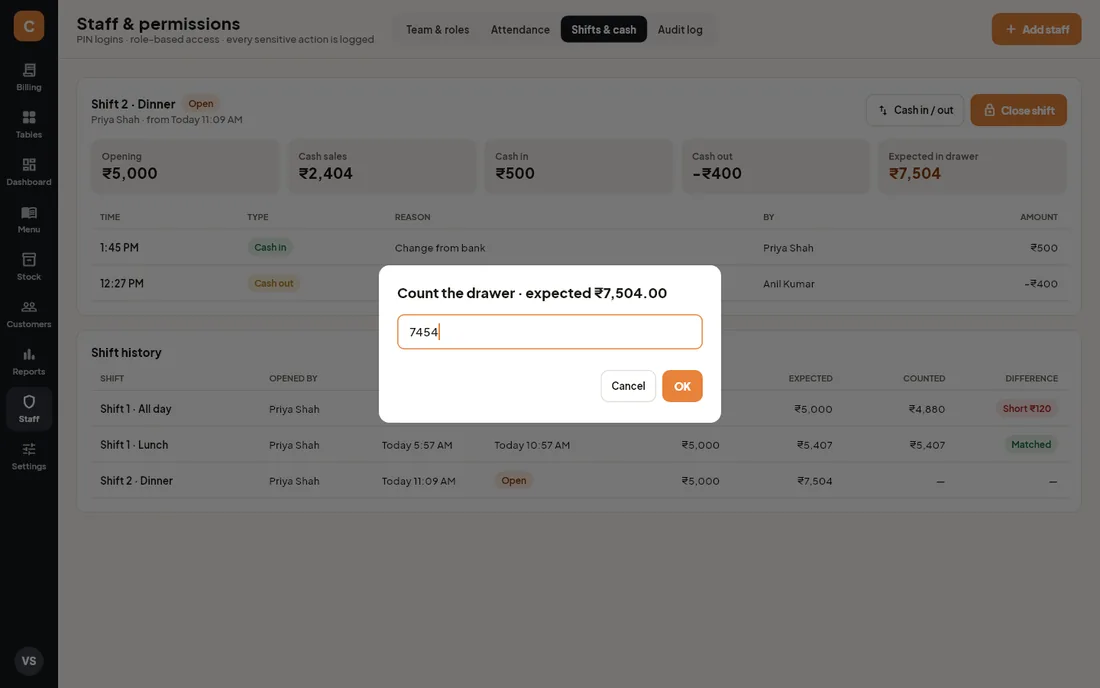
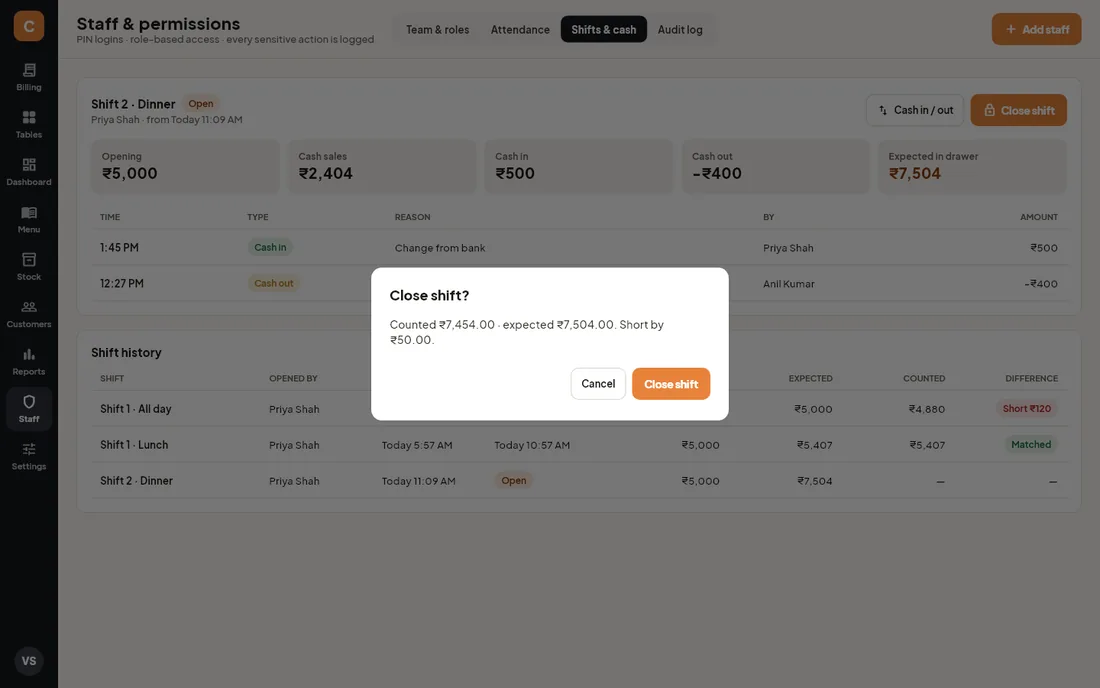
- Click Close shift. The title shows the expected amount, for example "Count the drawer · expected ₹7,504.00".
- Count every note and coin and type the total. Click OK.
- The confirmation shows counted, expected and the result: "Cash matches.", "Short by ₹50.00." or "Excess of ₹…". If it is short or over, recount before you confirm.
- Click Close shift. The result goes into Shift history and the audit log. No more bills can be taken until a new shift is opened.
Hand over a shift
- The outgoing cashier settles or holds their open bills.
- A manager opens Staff › Shifts & cash, checks the cash movements and clicks Close shift.
- Outgoing cashier and manager count the drawer together and enter the total. Note any short or excess and the reason.
- Take out any cash going to the safe or bank, and leave the float for the next shift.
- The outgoing cashier clocks out (initials at the bottom left › Clock out).
- The incoming cashier logs in with their PIN (this clocks them in), counts the float and clicks Open shift with that amount.
Audit log
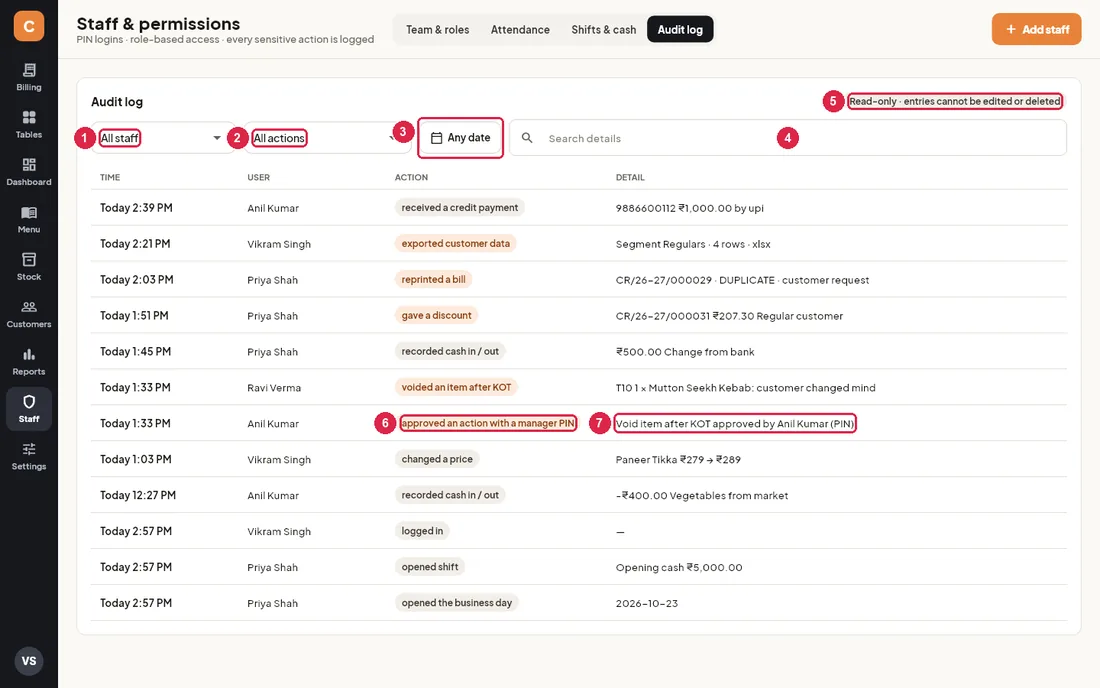
- Staff filter: show one person's actions, or System for automatic ones.
- Action filter: show one kind of action, such as "cancelled a printed bill" or "exported customer data".
- Date: pick a day from the calendar; click the × next to it to show all dates again.
- Search details: find a bill number, a table, an amount, an item or a name.
- Read-only: entries cannot be edited or deleted by anyone.
- Action: risky actions (voids, cancellations, reprints, discounts, complimentary bills, exports, PIN approvals, credit limits, point adjustments) are highlighted in orange.
- Detail: what exactly happened: bill number, amount, reason, and who approved it.
The tab shows the latest 500 matching entries; use the filters to look further back. Logged actions include logins and clock-outs, shift open and close with counts, cash in and out, discounts, coupons, voids and cancellations, reprints, table moves and merges, complimentary bills, price and menu changes, settings changes, staff changes, customer exports, credit payments, loyalty adjustments, backups and day open, close and reopen.
14Settings
Settings decide what prints on your bills, how tax and charges are worked out, where tickets print and where backups go. Only the owner can open Settings. Every change is saved on this PC straight away and written to the audit log (Staff › Audit log).
Outlet profile
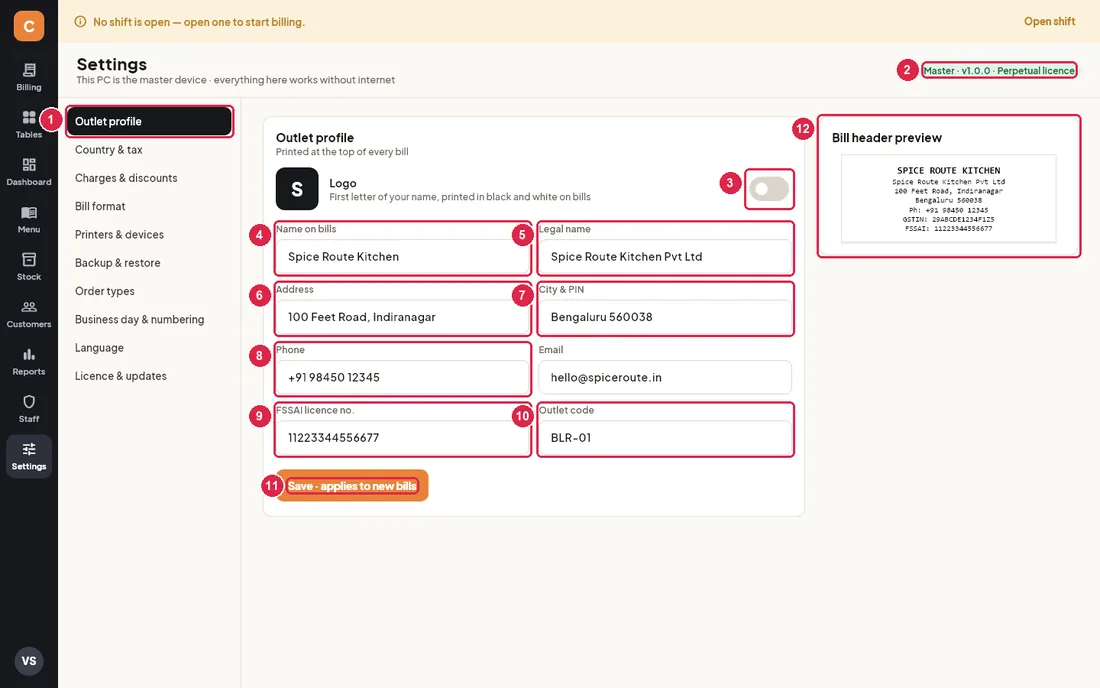
- Section list — the 10 parts of Settings. Click one to open it.
- Master · version · licence — this PC is the master (main) device; shows the installed version.
- Logo — when on, a black square with the first letter of your name prints at the top of bills.
- Name on bills — printed large in capitals at the top of every bill and shown on the login screen.
- Legal name — printed under the name.
- Address — printed on the bill.
- City & PIN (UAE: City / emirate) — printed on the bill and shown on the login screen.
- Phone — printed as “Ph:” (UAE “Tel:”). Email next to it is for your records and does not print.
- FSSAI licence no. — printed on Indian bills. In the UAE this box is Extra header line (for example your name in Arabic).
- Outlet code — a short code for your own records (for example BLR-01).
- Save · applies to new bills — confirms the changes. Bills already printed never change.
- Bill header preview — the top of the bill exactly as it will print.
Country & tax
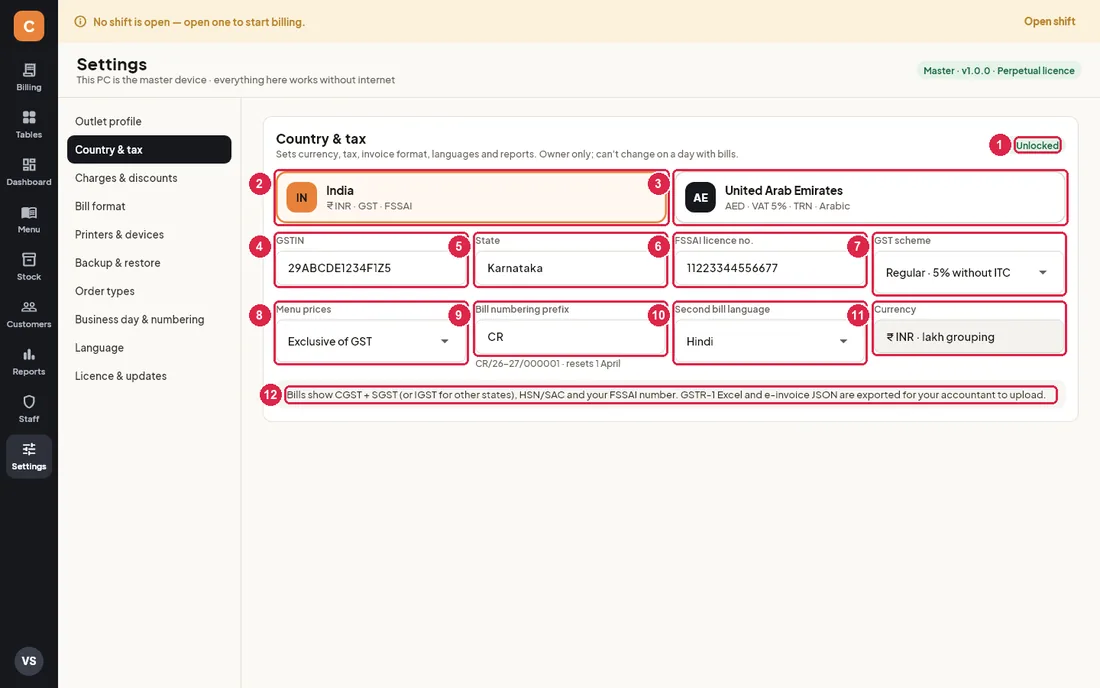
- Unlocked / Owner PIN required — only the owner can change this section. If someone else has opened Settings with the owner's PIN, press Enter owner PIN here again.
- India — ₹, GST, FSSAI.
- United Arab Emirates — AED, VAT 5%, TRN, Arabic. Switching asks you to confirm.
- GSTIN — 15 characters, printed on every bill.
- State — your state for GST.
- FSSAI licence no. — printed on bills (same box as in Outlet profile).
- GST scheme — Regular 5% without ITC, Regular 18% with ITC or Composition 5%, for your records. The tax on each item comes from its tax rate in Menu.
- Menu prices — Exclusive of GST (tax added on top) or Inclusive of GST. This is the default for items you add from now on.
- Bill numbering prefix — the letters at the start of bill numbers. The line below shows the next style, for example
CR/26-27/000001. Numbers restart every 1 April. - Second bill language — Hindi, Marathi, Tamil, Kannada, Telugu, Malayalam, Bengali, Gujarati or Arabic, or None. Used for item names and the second footer on bills.
- Currency — fixed by the country (₹ INR with lakh grouping).
- Explanation — what Indian bills show and which files are exported for your accountant.
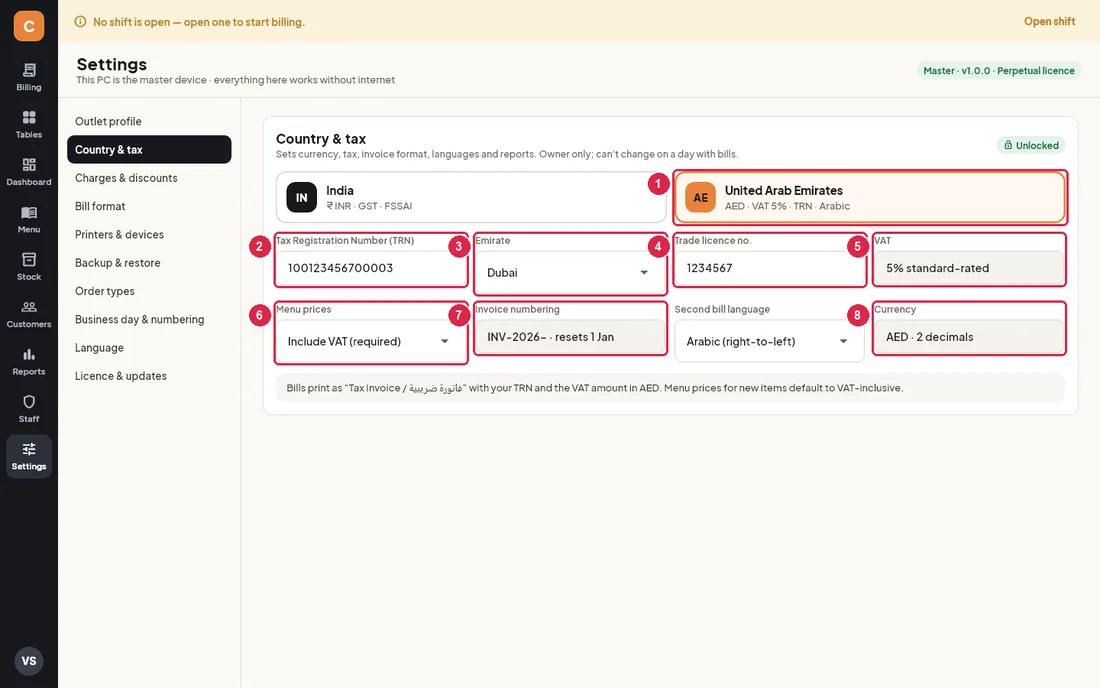
- United Arab Emirates — selected.
- Tax Registration Number (TRN) — 15 digits, printed on every tax invoice.
- Emirate — pick from the list.
- Trade licence no. — shown on the login screen.
- VAT — fixed at 5% standard-rated.
- Menu prices — Include VAT (required) is the legal choice for prices shown to guests.
- Invoice numbering — fixed:
INV-2026-000001, restarting every 1 January. - Currency — AED with 2 decimals.
What changes when you switch country
| India | United Arab Emirates | |
|---|---|---|
| Money | ₹12,34,567.89 (lakh grouping) | AED 1,234,567.89 |
| Tax on the bill | CGST + SGST per rate, HSN/SAC summary | VAT @5% with Arabic labels |
| Menu prices (new items) | Exclusive of GST | Include VAT |
| Bill title | TAX INVOICE | TAX INVOICE · فاتورة ضريبية |
| Bill number | PREFIX/26-27/000001, restarts 1 April | INV-2026-000001, restarts 1 January |
| Second language | Hindi | Arabic |
| Round off | On (nearest ₹1) | Off (keeps fils) |
| UPI QR on bills | Available | Not used |
Charges & discounts
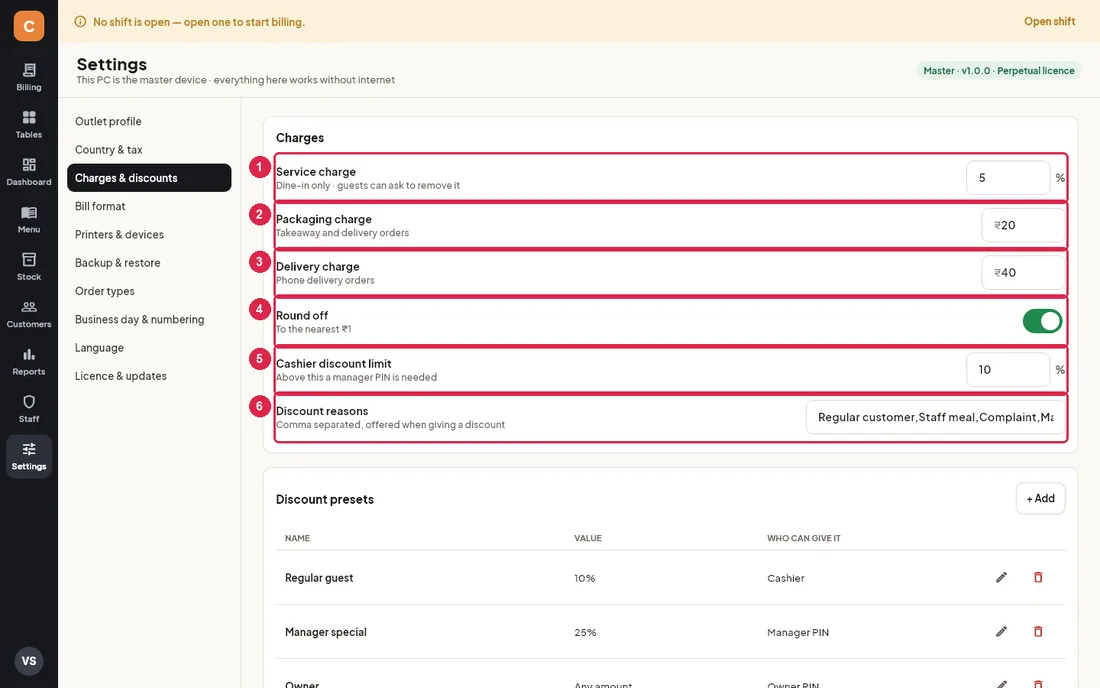
- Service charge — percentage added to dine-in bills only. Staff allowed to remove service charge can take it off a single bill when a guest asks. 0 = no service charge.
- Packaging charge — fixed amount added to every takeaway and delivery bill.
- Delivery charge — fixed amount added to phone delivery orders when the order is created.
- Round off — rounds the total to the nearest ₹1; the difference prints as “Round off”.
- Cashier discount limit — cashiers can give discounts up to this percentage on their own; above it a manager PIN is asked for.
- Discount reasons — the reasons offered when giving a discount, separated by commas.
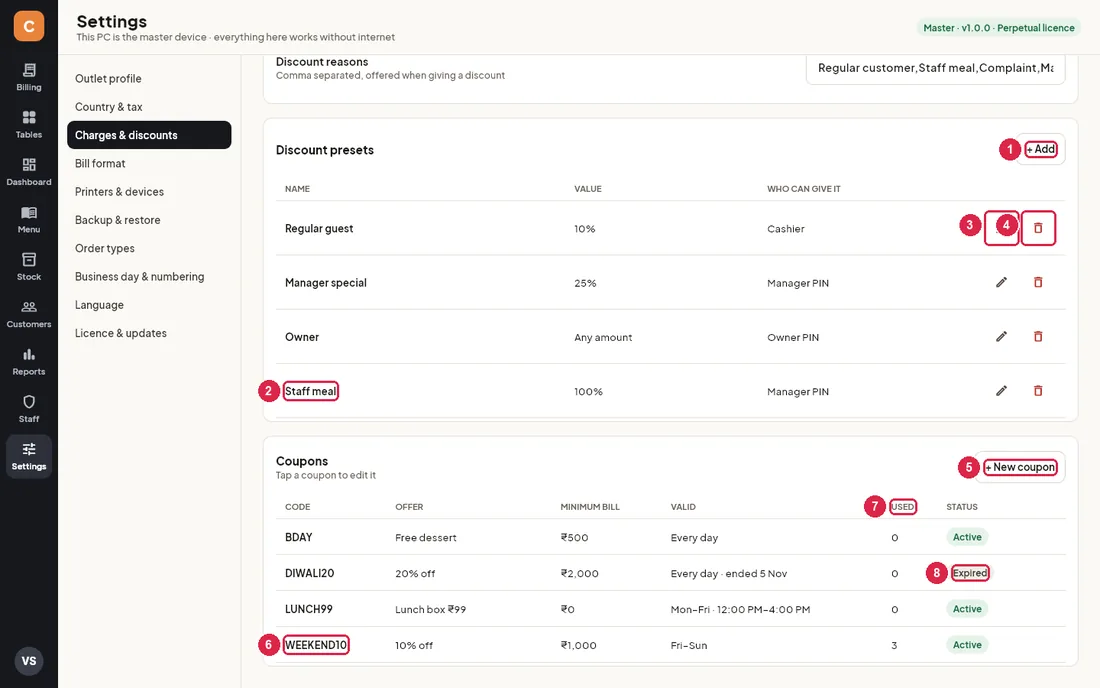
- + Add — new discount preset: a name, a percentage (1–100%) and who may give it.
- Preset — presets appear as one-tap buttons in the billing discount window.
- Edit — change name, percentage or who can give it.
- Delete — removes the preset after you confirm.
- + New coupon — creates a coupon code guests can use.
- Coupon — click any row to edit it.
- Used — how many orders used this coupon code.
- Status — Active, Off (switched off), Scheduled (starts later) or Expired (past its end date).
Who can give it: Cashier presets work for cashiers (up to the cashier discount limit), Manager PIN presets ask for a manager's PIN, Owner PIN presets ask for the owner's PIN. A preset of 100% for the owner shows as “Any amount”.
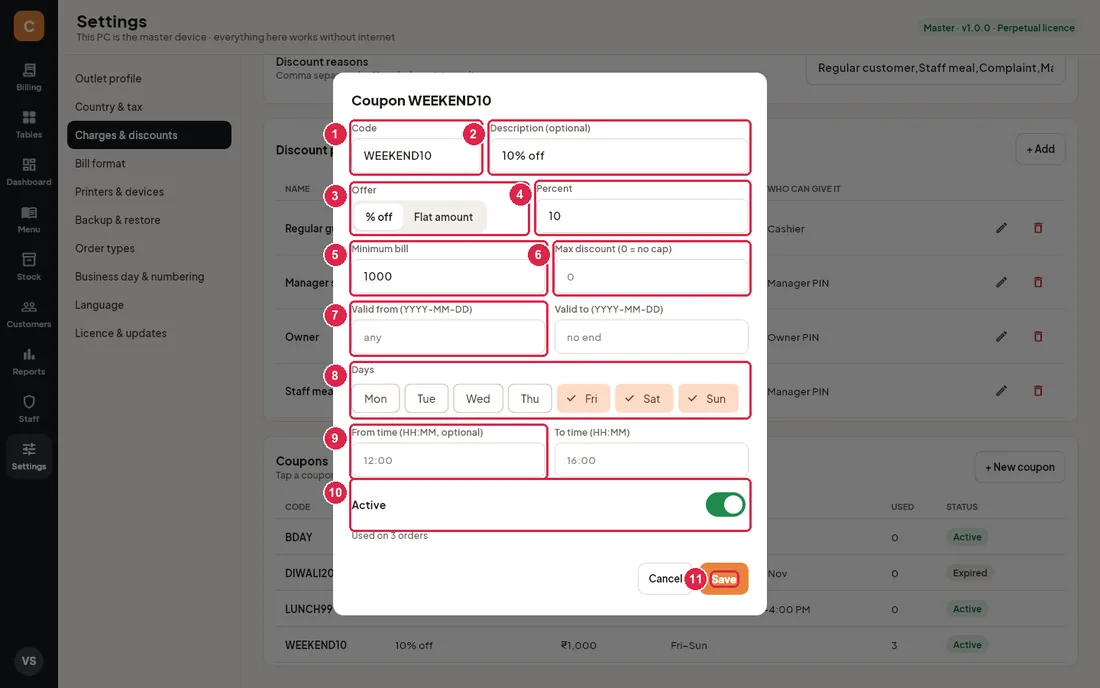
- Code — what the cashier types, 2–20 letters or digits (saved in capitals).
- Description — optional text shown in the coupon list (for example “Free dessert”).
- Offer — % off or Flat amount.
- Percent (or Amount) — the size of the discount.
- Minimum bill — the coupon is refused below this amount.
- Max discount — for % coupons, the most it can take off (0 = no cap).
- Valid from / Valid to — dates like 2026-12-31; leave empty for no limit.
- Days — the weekdays it works on.
- From time / To time — optional hours, for example 12:00 to 16:00 for a lunch offer. Give both or neither.
- Active — switch a coupon off without deleting it. The line below shows how often it was used.
- Save — saves the coupon. Delete appears only for coupons that were never used.
Bill format
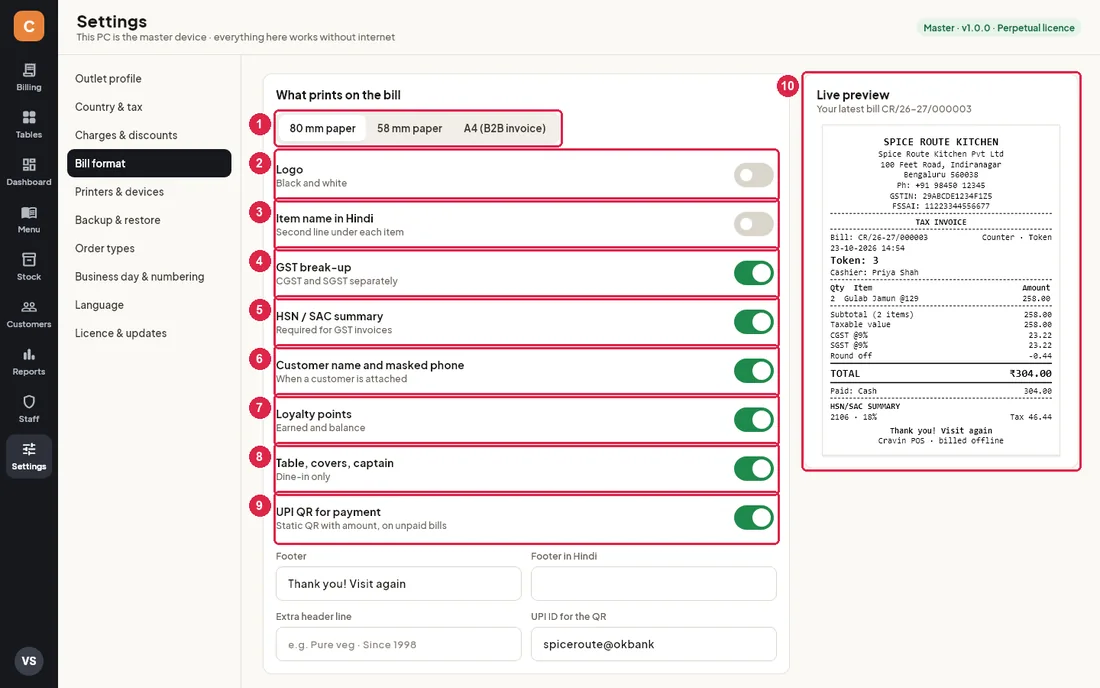
- Paper — 80 mm or 58 mm roll paper for bills, KOTs and receipts. A4 (B2B invoice) does not change the roll paper: A4 tax invoices for business customers are made as PDF from Reports › B2B invoices.
- Logo — black-and-white letter logo at the top.
- Item name in Hindi (or your second language) — prints each item's second-language name on a line under it. Needs a second language in Country & tax and the item's second-language name in Menu.
- GST break-up — on: CGST and SGST lines per tax rate; off: one “GST” line.
- HSN / SAC summary — a tax summary by HSN code at the bottom (required for GST invoices).
- Customer name and masked phone — when a customer is attached, prints “Cust: name · 98XXXX 4521”.
- Loyalty points — points earned on this bill and the customer's balance.
- Table, covers, captain — on dine-in bills.
- UPI QR for payment — a QR code with the bill amount on printed, unpaid bills. Needs the UPI ID below. India only.
- Live preview — your latest bill printed with the current settings (a sample bill when there are no bills yet).
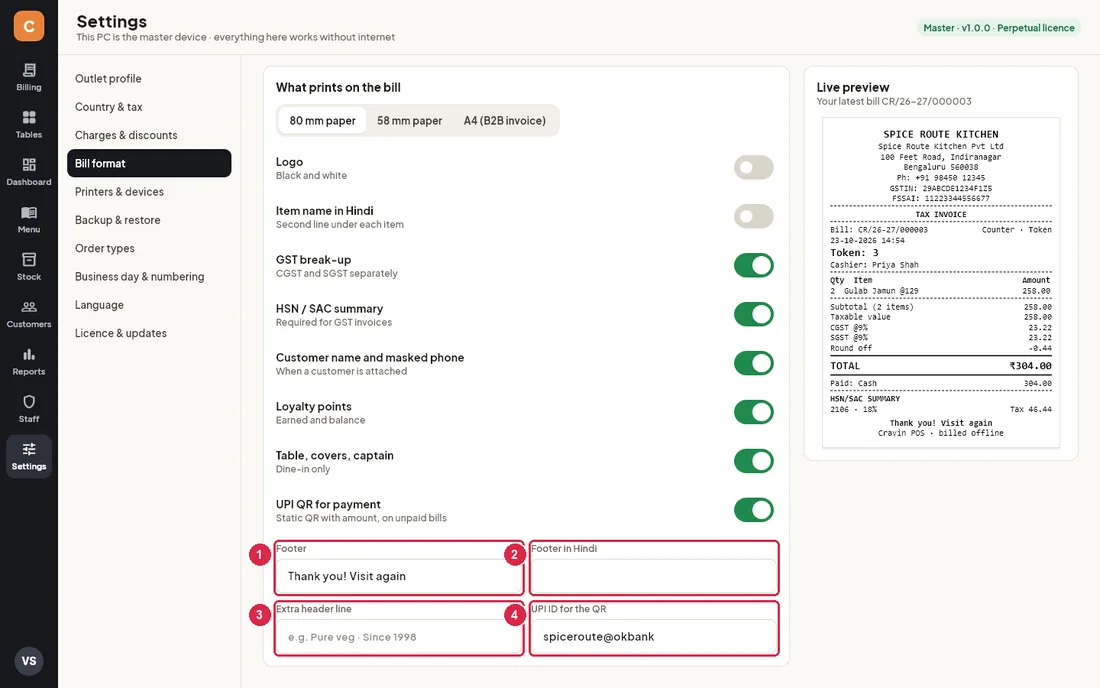
- Footer — printed in bold at the bottom, for example “Thank you! Visit again”.
- Footer in Hindi — a second footer line in your second language.
- Extra header line — one more line under your details at the top (for example “Pure veg · Since 1998”).
- UPI ID for the QR — your UPI ID (for example outlet@okbank). Without it no QR prints.
Printers & devices
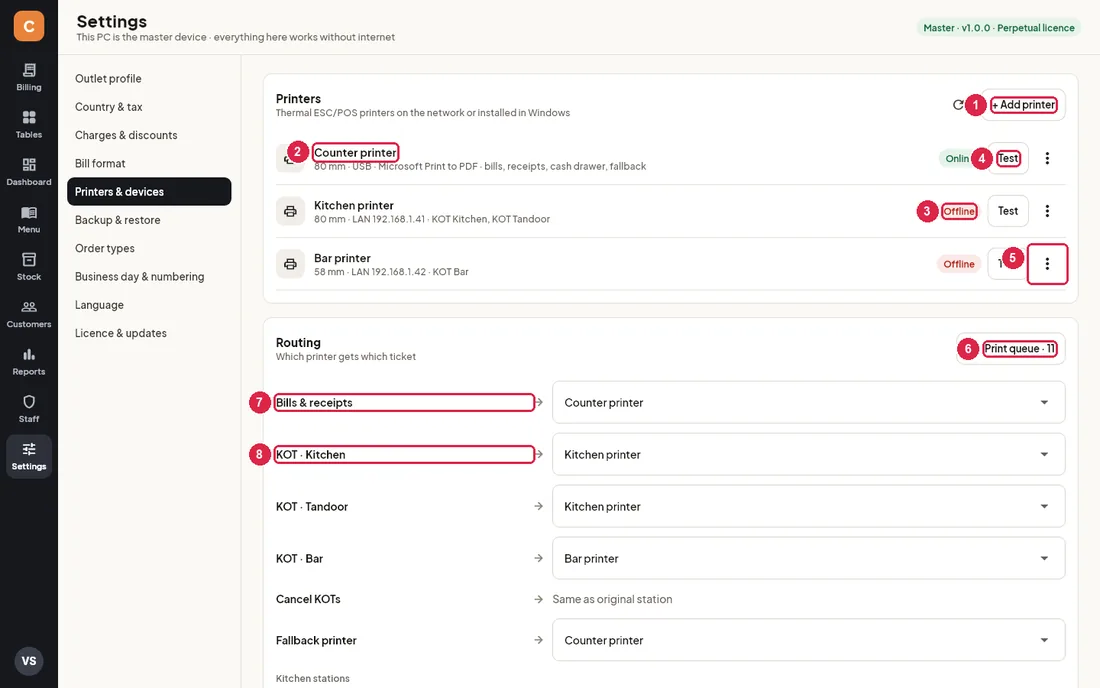
- + Add printer — add a network (LAN / Wi-Fi) or USB printer. The round arrow next to it checks every printer's status again.
- Printer — name, paper width, connection and what it prints (bills, KOT stations, fallback).
- Online / Offline — whether the printer answered a quick check. Offline printers keep their jobs in the queue.
- Test — prints a test slip with your restaurant name and the time. A message says whether it worked.
- ⋮ menu — Edit or Remove. Tickets for a removed printer go to the fallback printer.
- Print queue — every printed or waiting job; the number counts jobs not yet printed.
- Bills & receipts — the printer for bills (and the cash drawer).
- KOT · station — one line per kitchen station (Kitchen, Tandoor, Bar…). Each item sends its KOT to its station's printer.
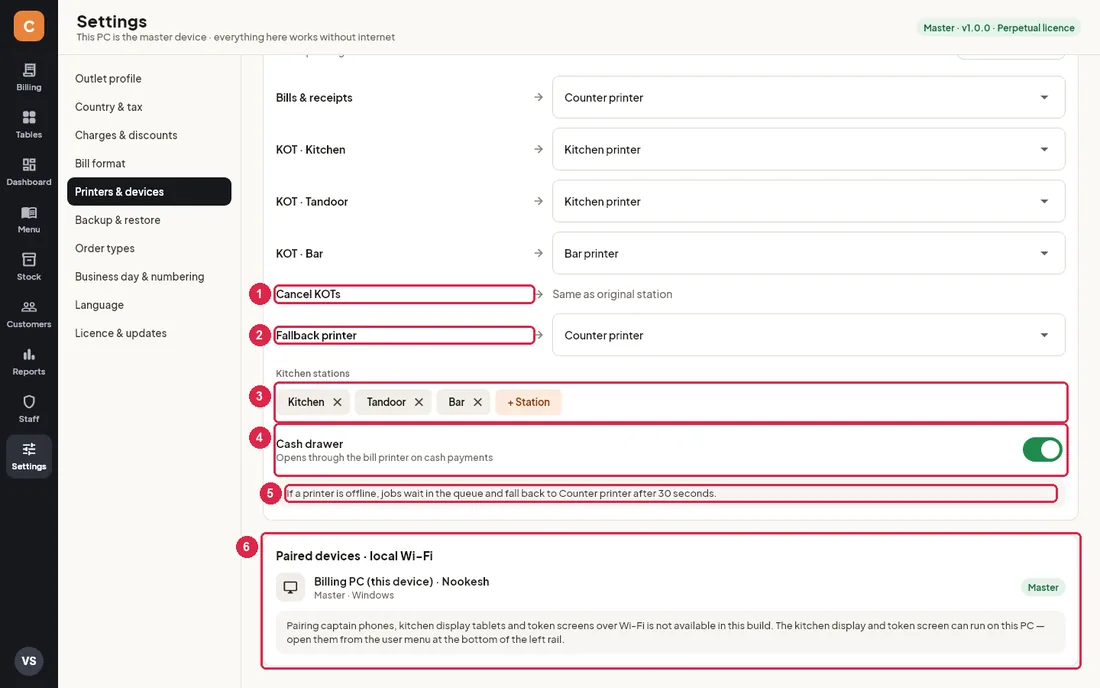
- Cancel KOTs — cancelled-item tickets always go to the same station as the original KOT.
- Fallback printer — used when a route has no printer, and to reprint a failed job automatically after 30 seconds (once).
- Kitchen stations — the stations items can be sent to. + Station adds one; ✕ removes one (you are warned if menu items still use it).
- Cash drawer — opens the drawer through the bill printer whenever a bill is settled with cash.
- Offline note — what happens when a printer is off.
- Paired devices — this PC is the master. Pairing captain phones, kitchen tablets and token screens over Wi-Fi is not available in this build. The kitchen display and token screen can run on this PC from the user menu.
Add a printer
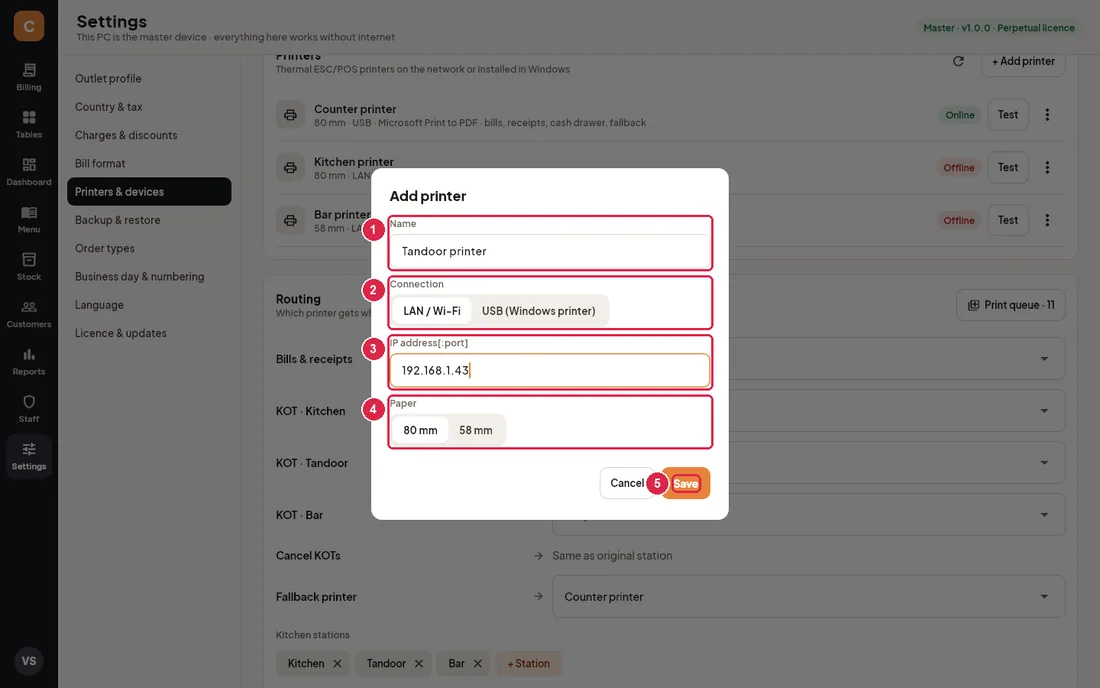
- Name — a name staff recognise, for example Kitchen printer.
- Connection — LAN / Wi-Fi for network printers, USB (Windows printer) for printers installed in Windows (USB or Bluetooth).
- IP address[:port] — for LAN printers, for example 192.168.1.41 (port 9100 is used if you leave it out). For USB you pick the printer from the list of Windows printers instead; install the printer's Windows driver first.
- Paper — 80 mm or 58 mm.
- Save — the first printer you add automatically becomes the bills printer and the fallback printer.
- Switch the printer on and connect it to the same network (or install it in Windows for USB).
- Click + Add printer, fill in the form and Save.
- Press Test. If it says the printer did not respond, check the cable, the IP address and that the printer is on.
- Set Bills & receipts and each KOT station to the right printer.
Print queue
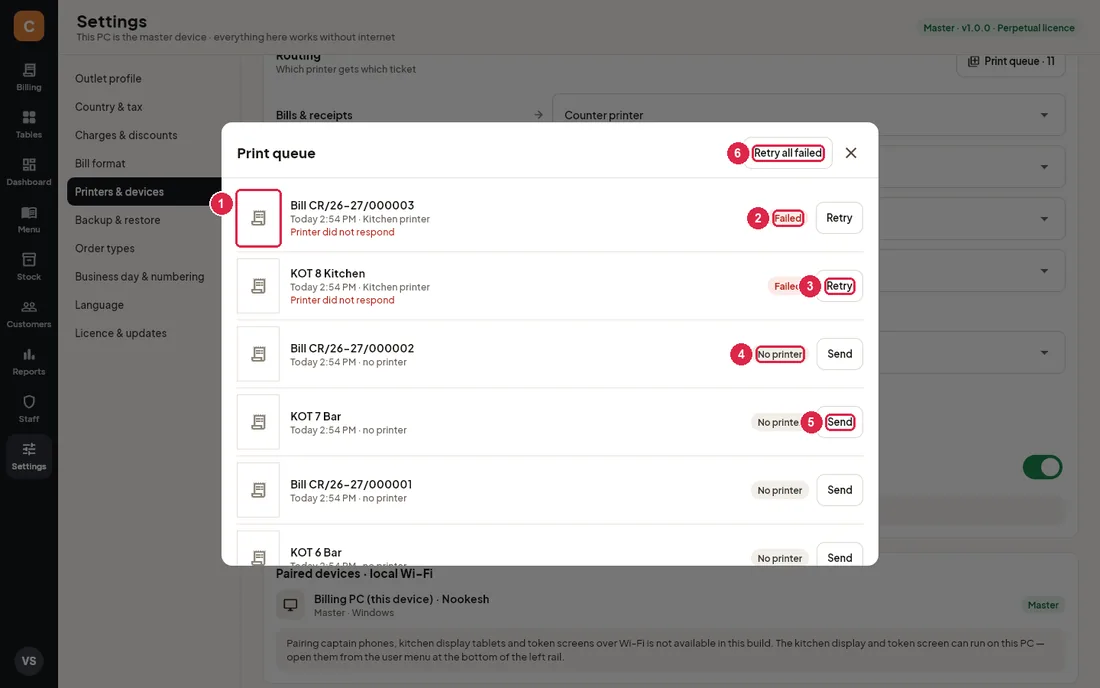
- Ticket picture — click it to see the ticket as it prints.
- Failed — the printer did not respond; the reason shows in red under the title.
- Retry — sends a failed job to its printer again.
- No printer — the job had no printer to go to (none set up for that route). Other states: Printed and Waiting.
- Send — pick a printer and print this job there (Print again on printed jobs).
- Retry all failed — retries every failed job. The ✕ closes the window.
Backup & restore
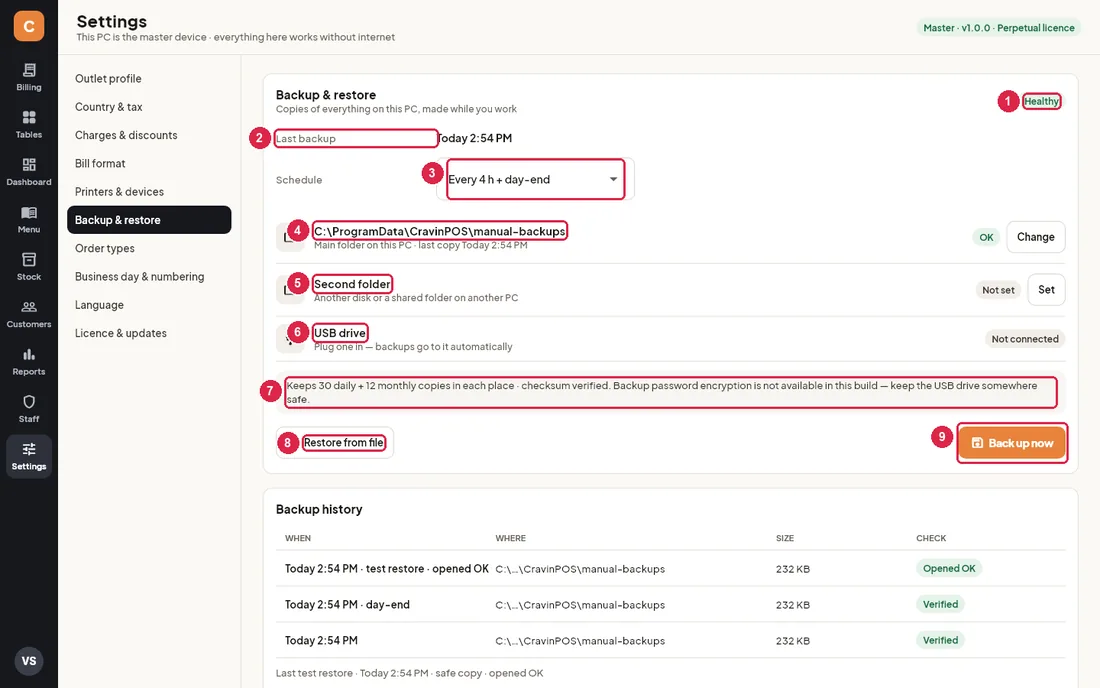
- Health — Healthy (backed up on schedule), Due (late, under 24 hours), Overdue (more than 24 hours) or No backup yet.
- Last backup — when the last good backup was made.
- Schedule — every 1, 2, 4, 6, 8, 12 or 24 hours while the app is open (plus day-end if switched on in Business day).
- Main folder — on this PC. Change picks another folder; leave it empty to use Documents\CravinPOS\backups.
- Second folder — another disk or a shared folder on another PC. Set to add it; the ⋮ menu changes it or stops using it. Shows Not found if the folder can't be reached.
- USB drive — every plugged-in USB drive gets a copy in its
CravinBackupsfolder. - Keeps 30 daily + 12 monthly copies in each place; each copy is checked with a checksum. Backup password encryption is not available in this build — keep the USB drive somewhere safe.
- Restore from file — replaces everything on this PC with a backup (see below).
- Back up now — makes a backup to every place immediately.
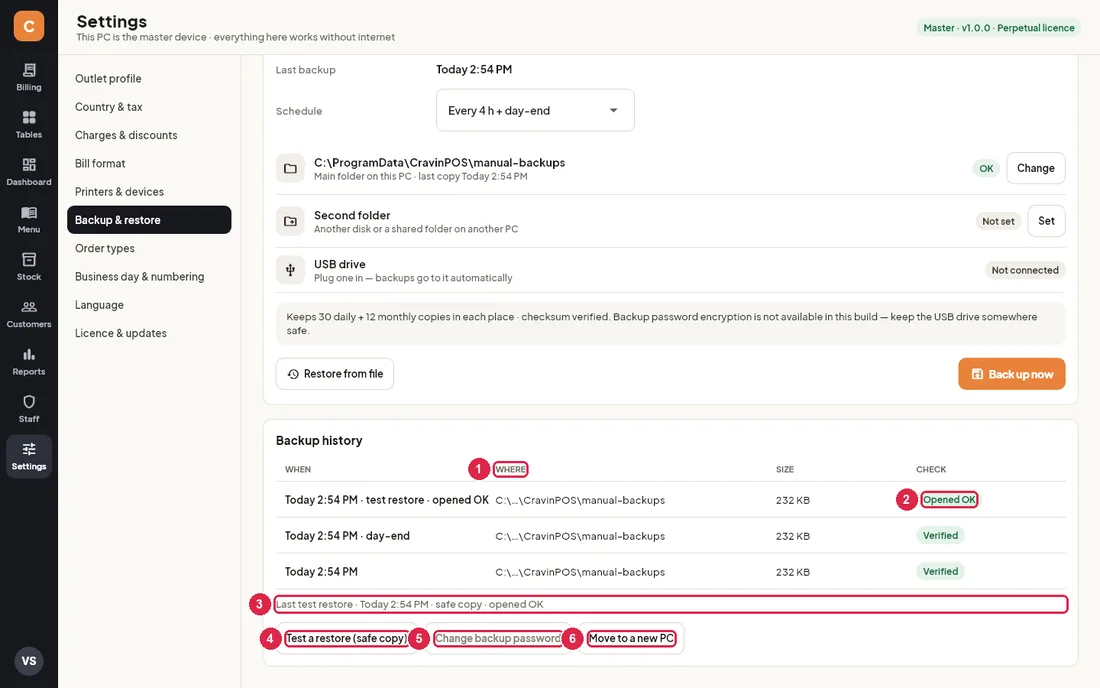
- Backup history — the last 12 backups: when, where, size.
- Check — Verified (saved with a checksum), Opened OK (a test restore) or Failed (hover to see why).
- Last test restore — when the newest backup was last test-opened.
- Test a restore (safe copy) — opens a copy of the newest backup to prove it works. Your live data is not touched.
- Change backup password — not available in this build.
- Move to a new PC — step-by-step instructions (also below).
Restore a backup
- Plug in the USB drive with the backup (if it is there).
- Click Restore from file. Pick a backup from the list (newest first) or Another file… and type its full path.
- The file is checked. Read the summary (number of bills, last bill) and press Restore.
- Your current data is backed up first, then replaced. Everyone is logged out; log in again with your PIN.
Move to a new PC
- On the old PC, plug in the USB drive and click Back up now.
- Install Cravin POS on the new PC.
- On the setup screen choose Restore from a backup, plug in the USB drive and pick the newest file in CravinBackups.
- Log in with your usual PIN and check the last bill number.
- Stop billing on the old PC so bill numbers never repeat.
Order types
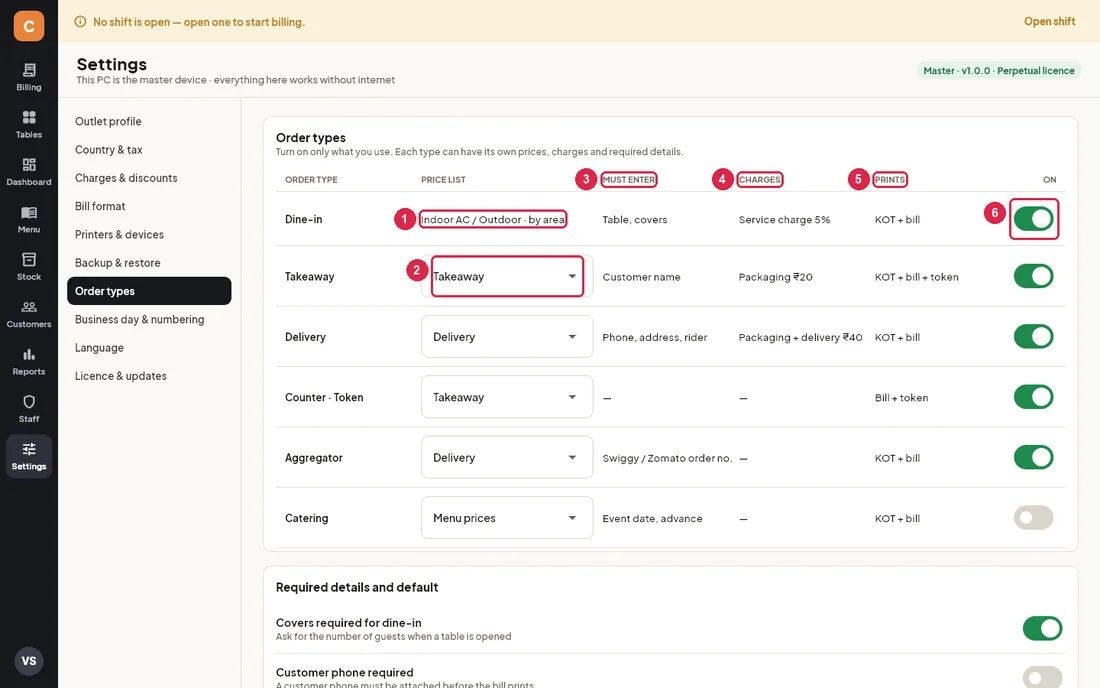
- Dine-in price list — dine-in uses the price list of each table's area (set in Tables).
- Price list — for every other type: Menu prices or one of your price lists from Menu › Price lists (for example higher delivery prices).
- Must enter — what staff are asked for with this order type.
- Charges — the automatic charges for this type, with your current amounts.
- Prints — what prints for this type.
- On — switch the type on or off. Only switched-on types appear as tabs in Billing. At least one must stay on.
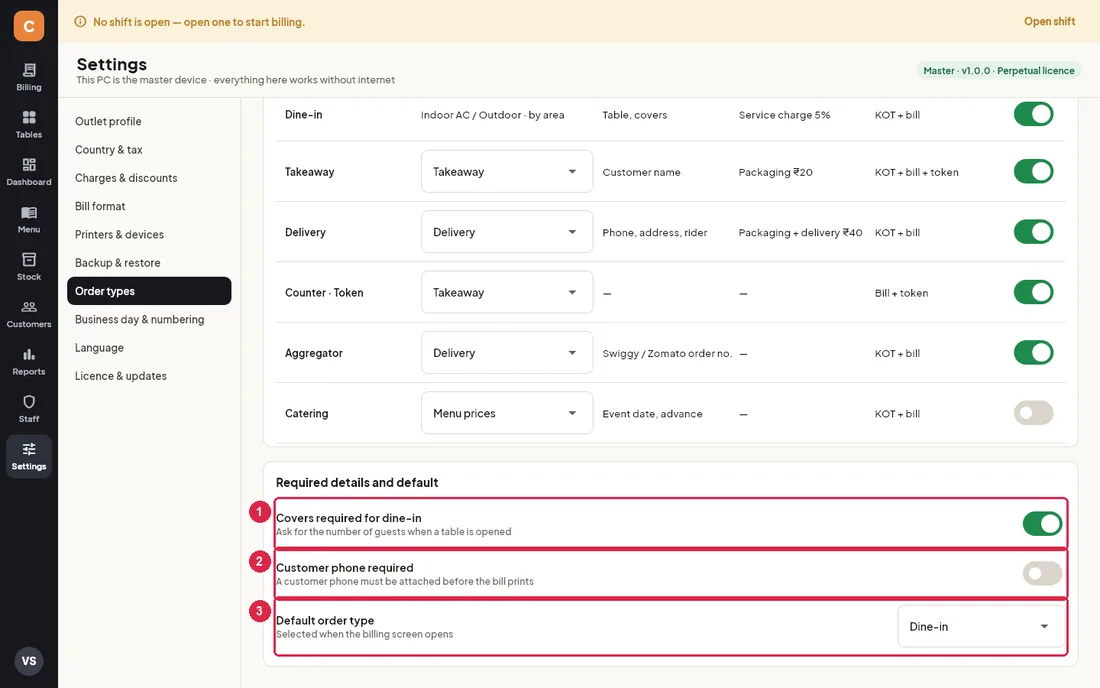
- Covers required for dine-in — asks for the number of guests when a table is opened.
- Customer phone required — a customer phone must be attached before any bill can be printed or settled. Use it if you collect every guest's number for loyalty or delivery.
- Default order type — the tab selected when Billing opens.
Business day & numbering
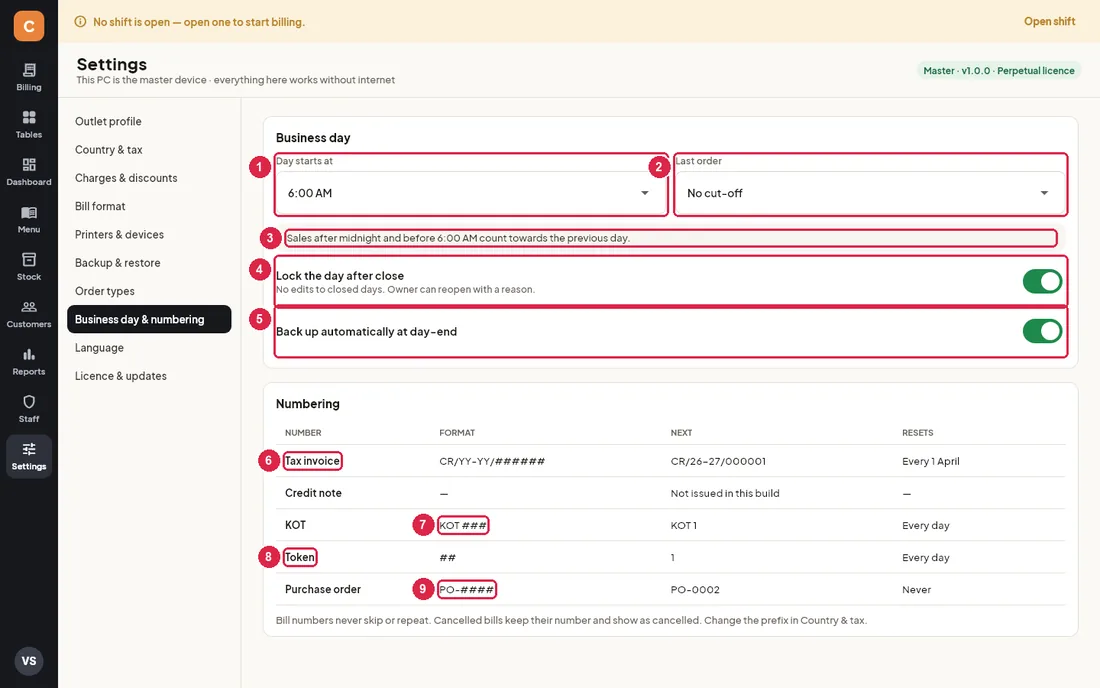
- Day starts at — sales before this time count towards the previous day (useful if you close after midnight).
- Last order — your last-order time, saved for reference; it is not enforced in this build.
- Explanation — what the day start means for late-night sales.
- Lock the day after close — no changes to closed days; the owner can reopen a day with a reason.
- Back up automatically at day-end — runs a backup when the day is closed.
- Tax invoice — format and the real next bill number. Bill numbers never skip or repeat.
- KOT — the next KOT number for today; restarts every day.
- Token — the next counter/takeaway token for today; restarts every day.
- Purchase order — the next PO number; never restarts.
Language
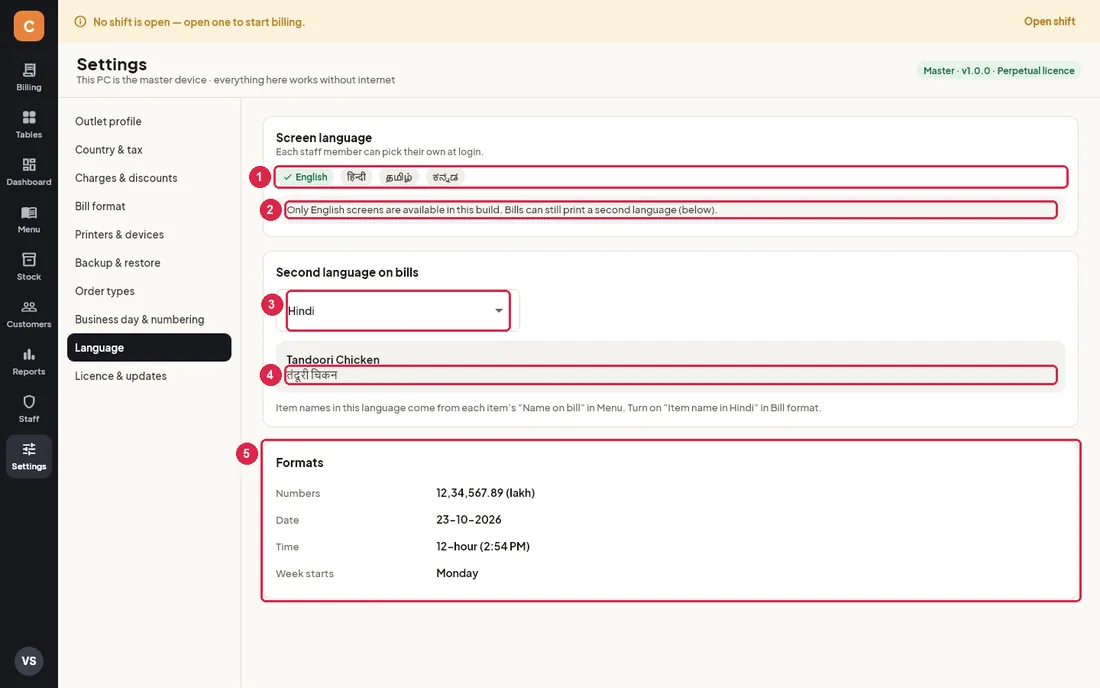
- Screen language — only English screens are available in this build; the other languages are shown but cannot be chosen yet.
- Note — bills can still print a second language.
- Second language on bills — the same choice as in Country & tax.
- Sample — how an item name looks in that language.
- Formats — how numbers, dates and times are shown (lakh grouping in India, dd/mm/yyyy in the UAE, 12-hour time, week starts Monday).
Licence & updates
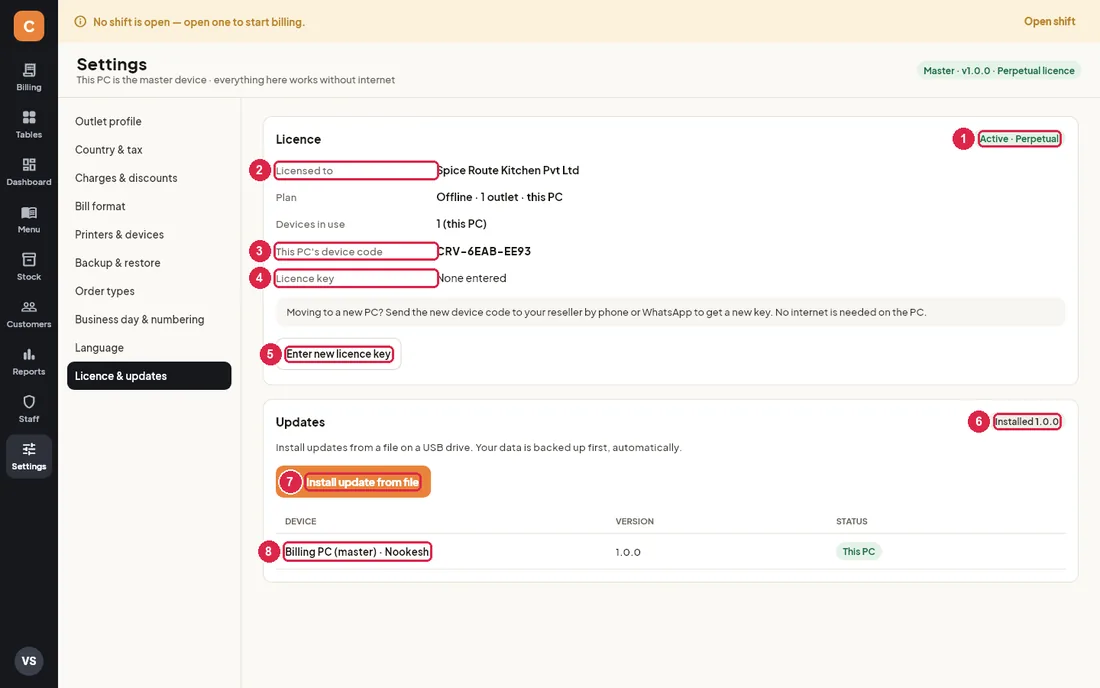
- Active · Perpetual — the licence never expires and needs no internet.
- Licensed to — your legal name (or the name on bills).
- This PC's device code — a code made from this PC's name. Give it to your reseller when you move to a new PC.
- Licence key — the last 4 characters of the key you entered.
- Enter new licence key — saves the key you type. Key checking is not active in this build.
- Installed — the version on this PC.
- Install update from file — first makes a backup, then tells you to close Cravin POS and run the new installer from your USB drive. Your data stays on this PC.
- Devices — this PC and its version.
Install an update
- Copy the new installer (CravinPOS-Setup-x.y.z.exe) to a USB drive and plug it in.
- Click Install update from file, then Back up now.
- When it says the backup is saved, close Cravin POS and run the installer.
- Open Cravin POS again and log in; check the version here.
Not available in this build
- Pairing captain phones, kitchen tablets and token screens over Wi-Fi (the kitchen and token displays run on this PC).
- Screen languages other than English.
- Backup password encryption.
- Licence key checking.
- Credit notes.
- A picture logo (the logo is the first letter of your name).
15Bills, KOTs & Z report
What every printout looks like and what each part means. All printouts are drawn as a picture before they are sent to the printer, so Hindi, Arabic and other scripts print correctly on any receipt printer.
Tax invoice (India, GST)
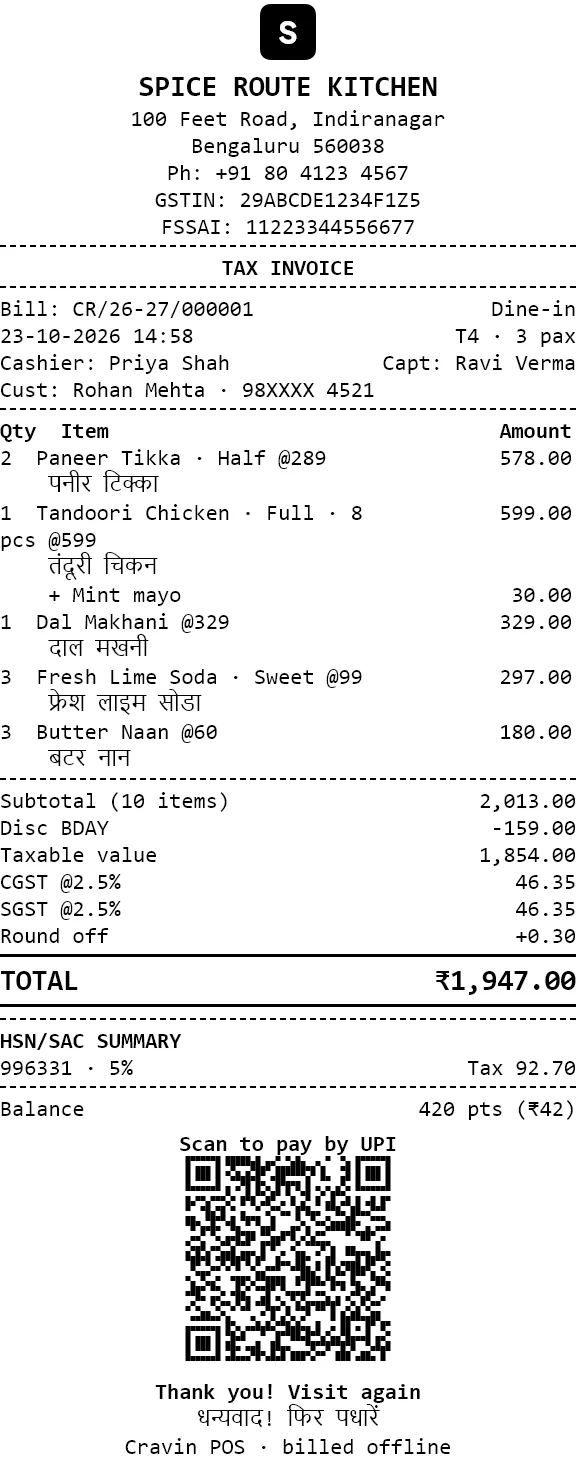
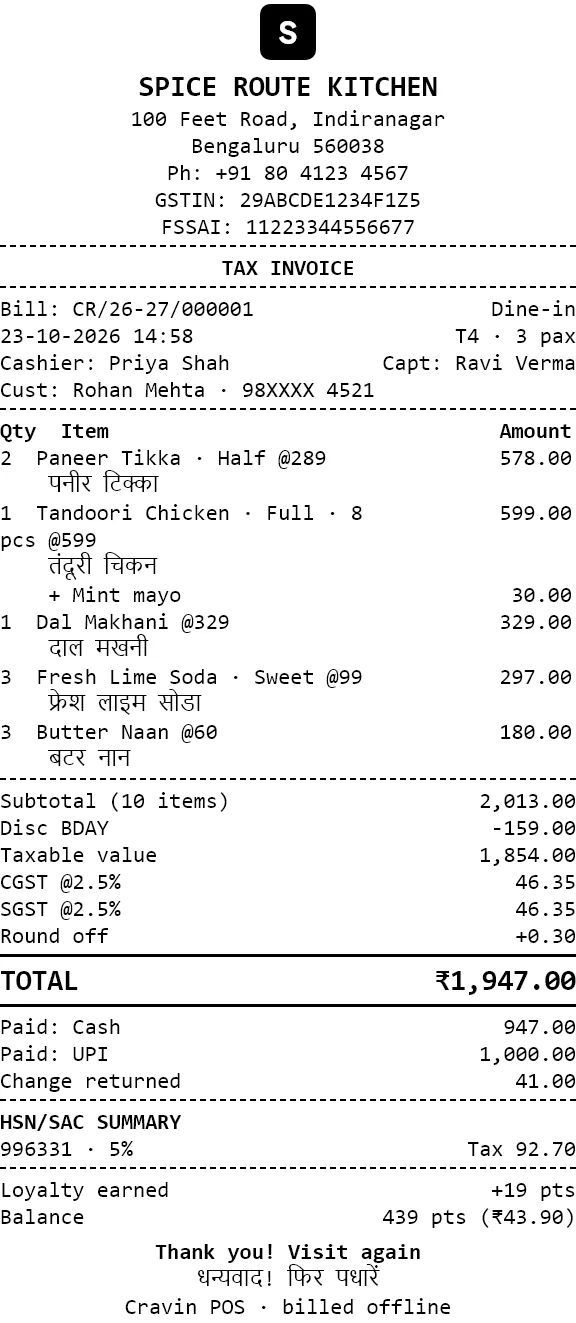
From top to bottom:
- Header. Logo badge (if switched on), outlet name, address, phone, GSTIN and FSSAI number, all from Settings › Outlet profile and Country & tax.
- TAX INVOICE, or DUPLICATE BILL on every reprint.
- Bill number, for example
CR/26-27/000001: your prefix, the financial year, then a number that never skips or repeats and starts again on 1 April. Voided bills keep their number. - Order details. Order type, date and time, table and number of guests (pax), cashier, captain and the customer with a masked phone number.
- Items. Quantity, name and rate, with the item's name in your second language under it if Item name in Hindi is on. Add-ons appear on their own line with their price.
- Totals. Subtotal, discount (with the coupon or reason), taxable value, CGST and SGST per rate, service, packaging and delivery charges, round-off, and the TOTAL.
- Payments. Each payment mode, and the change returned for cash.
- HSN/SAC summary required on GST invoices, then loyalty points earned and the new balance.
- UPI QR (only on unpaid bills, when a UPI ID is set): the guest scans it and the amount is filled in. Always confirm the money arrived on your phone before settling.
- Footer message in English and the second language.
Tax invoice (UAE, VAT)
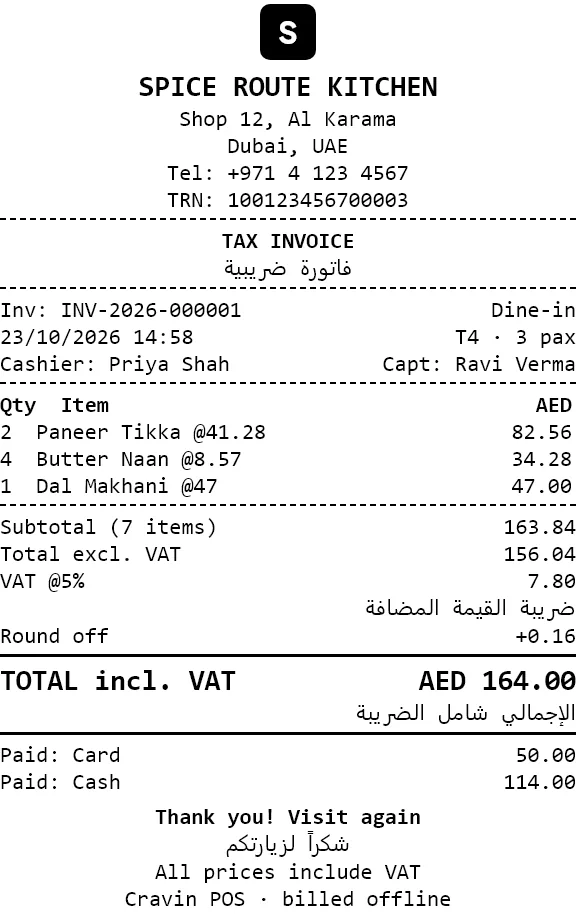
- Shows the TRN instead of GSTIN, the title also in Arabic (فاتورة ضريبية), and invoice numbers like
INV-2026-000001that restart each calendar year. - Item prices include VAT. The bill shows Total excl. VAT, one VAT @5% line and TOTAL incl. VAT, with Arabic labels.
Kitchen order ticket (KOT)
- KOT number and station. Numbers start again every business day. The station decides which printer gets the ticket (Settings › Printers & devices › Routing).
- Order (table, token or delivery number), covers and captain, in large type for the kitchen.
- Items in large type with the second-language name, add-ons, combo contents and notes (
>> Less spicy). - Pressing F8 again only sends items added since the last KOT. A reprint is marked ** DUPLICATE **.
Z report (day-end summary)
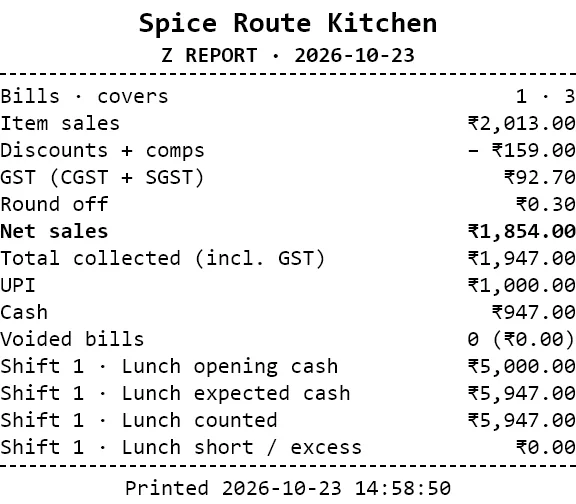
- Item sales before tax, Discounts + comps, tax collected and round-off.
- Net sales excluding tax, and Total collected including tax.
- Takings by payment mode and the number and value of voided bills.
- Each shift: opening cash, expected cash, counted cash, and the short or excess amount.
16Printers & hardware
Cravin POS works with standard thermal receipt printers (ESC/POS: Epson, TVS, Rugtek, Posiflex and most generic 58 mm and 80 mm models), a cash drawer plugged into the receipt printer, and USB barcode scanners. No special drivers or internet are needed.
Supported equipment
| Device | How it connects | Notes |
|---|---|---|
| Network thermal printer | Ethernet or Wi-Fi on your local network | Enter its IP address, for example 192.168.1.41. Port 9100 is used unless you add another, for example 192.168.1.41:9100. Give the printer a fixed IP in your router so it doesn't change. |
| USB or Bluetooth thermal printer | Installed in Windows first (it must appear in Windows Printers & scanners) | Choose USB (Windows printer) in the printer dialog and pick it from the list of Windows printers. The app sends receipts straight to it. |
| Cash drawer | RJ11 cable into the bill printer | Opens through the bill printer when a bill is settled with a cash payment, if the Cash drawer switch in Settings › Printers & devices is on. |
| Barcode scanner | USB (keyboard type) | On the Billing screen press F2 and scan; the scanner's Enter adds the item whose barcode or short code matches. |
| Second screen / TV | HDMI | The kitchen display and token display run in the app window. In this version they take over this PC's window, so a dedicated PC is best for a permanent kitchen or token screen. |
Add a printer
- Switch the printer on, load paper, and for a network printer make sure it is on the same network as this PC (print its self-test page to see its IP address).
- Go to Settings › Printers & devices and click + Add printer.
- Give it a name staff will recognise (for example Counter printer or Tandoor printer).
- Choose LAN / Wi-Fi and type the IP address, or choose USB (Windows printer) and pick it from the list.
- Choose the paper width: 80 mm or 58 mm.
- Save, then click Test. A short test slip prints and the printer shows Online. If it shows Offline, see Troubleshooting.
Send each ticket to the right printer
Every menu item belongs to a kitchen station (Kitchen, Tandoor, Bar…), set in the item's editor on the Menu screen. Under Routing in Settings › Printers & devices:
- Bills & receipts: the printer for bills, Z reports and test prints, usually the counter printer next to the cash drawer.
- KOT · <station>: one line per station. An order with items from two stations prints two KOTs, one at each printer.
- Fallback printer: if a printer doesn't answer, the job waits and, after 30 seconds, goes to this printer instead.
When a printer fails
A failed print is never thrown away. A red bar appears at the top of the screen, for example 1 print job(s) failed — check the printer, with a Retry button. Fix the printer (paper, power, cable or network) and click Retry. You can also open Print queue in Settings to see every job, its status and a picture of the ticket, and send one again or to another printer.
17Backup, restore & moving PC
All your data lives on this PC, so backups are your only protection against a dead hard disk, a virus or a stolen PC. Cravin POS backs up on its own, but it can only save copies to places you give it, so keep a USB stick plugged in.
When backups happen
- Automatically every 4 hours while the app is open (change it in Settings › Backup & restore).
- At day-end close, right after the Z report.
- Whenever you click Back up now, in Settings or in the red reminder bar.
Where copies go
- The backup folder, by default
Documents\CravinPOS\backups. - A second folder if you set one, ideally a different disk or a shared folder on another PC.
- A
CravinBackupsfolder on every USB stick plugged in at the time.
Each copy is a file like cravin_20261023_221500.db plus a matching .sha256 file used to check that the copy isn't damaged. The app keeps the last 30 daily and 12 monthly copies in each place and deletes older ones.
Check that a backup really works
- Open Settings › Backup & restore.
- Click Test a restore (safe copy). The newest backup is checked and opened as a separate copy. Your live data is not touched.
- The history shows the test with opened OK. Do this once a month.
Restore a backup on this PC
- Settle or cancel all running orders first.
- Open Settings › Backup & restore and click Restore from file.
- Pick a backup from the list (newest first) or type the path to one, for example on a USB stick.
- The app checks the file and shows how many bills it holds and the date of its last bill. Confirm.
- Your current data is backed up first, then replaced. You are logged out; log in again.
Move to a new PC
- On the old PC, close the day, then click Back up now with a USB stick plugged in.
- On the new PC, install Cravin POS and open it.
- On the first screen of the setup wizard choose Restore from a backup, plug in the USB stick, and enter the path of the newest file in
CravinBackups(the.sha256file must be next to it). - Log in with your usual PIN. Set up the printers again (Printers & hardware), because printer addresses can differ on the new PC.
Where the app keeps its files
| What | Location |
|---|---|
| Live data | %APPDATA%\com.justcravin\cravin_pos\cravin_pos.db |
| Log file for support | %APPDATA%\com.justcravin\cravin_pos\logs\app.log |
| Backups | Documents\CravinPOS\backups, your second folder, CravinBackups on USB sticks |
| Exports (reports, GST files, customer lists) | Documents\CravinPOS\exports |
18Shortcuts & permissions
The keys that make billing fast, and exactly what each role can do on its own.
Keyboard shortcuts
| Screen | Key | What it does |
|---|---|---|
| Anywhere | F1 | Open this manual at the section for the screen you are on (also in the menu under your initials: User manual) |
| Billing | F2 | Jump to the search box (type a name, short code or scan a barcode, then Enter to add it) |
| F8 | Send KOT for the items not yet sent to the kitchen | |
| F9 | Print the bill (reprint if already printed) | |
| F10 | Go to Settle for this order | |
| Ctrl+H | Hold the order, or bring a held order back (not for dine-in tables) | |
| Ctrl+D | Open the discount dialog | |
| Esc | Start a new order | |
| Settle | Alt+1 … Alt+6 | Choose Cash, Card, UPI, Wallet, Due / credit, Complimentary |
| 0–9 | Type the cash tendered | |
| Backspace | Delete the last digit | |
| Enter | Settle & print bill | |
| Esc | Back to Billing | |
| Login and PIN boxes | 0–9, Backspace, Enter | Type the PIN on the keyboard instead of the on-screen keypad |
| Kitchen / token display | Esc | Leave the display (kitchen staff are logged out) |
What each role can do
✓ = allowed. PIN = the app asks for the PIN of someone who is allowed (usually a manager) and logs who approved it. — = not available to that role.
| Action | Owner | Manager | Cashier | Captain | Kitchen | Store |
|---|---|---|---|---|---|---|
| Take orders and send KOTs | ✓ | ✓ | ✓ | ✓ | — | — |
| Settle bills and take payment | ✓ | ✓ | ✓ | PIN | — | — |
| Give a discount up to the cashier limit (10% by default) | ✓ | ✓ | ✓ | PIN | — | — |
| Give a larger discount, waive service charge, complimentary bill | ✓ | ✓ | PIN | PIN | — | — |
| Void an item already sent to the kitchen | ✓ | ✓ | PIN | PIN | — | — |
| Cancel an order or void a printed bill (with a reason) | ✓ | ✓ | PIN | PIN | — | — |
| Reprint a bill | ✓ | ✓ | Once, then PIN | PIN | — | — |
| Move or merge tables | ✓ | ✓ | ✓ | ✓ | — | — |
| Reservations and waitlist | ✓ | ✓ | ✓ | ✓ | — | — |
| Mark items out of stock | ✓ | ✓ | ✓ | PIN | ✓ | — |
| Edit the menu and prices | ✓ | ✓ | — | — | — | — |
| Stock in, wastage, purchase orders, stock counts | ✓ | ✓ | — | — | — | ✓ |
| Customers and credit accounts | ✓ | ✓ | ✓ | — | — | — |
| Export customer lists | ✓ | PIN | PIN | — | — | — |
| Dashboard and reports | ✓ | ✓ | — | — | — | — |
| Open a shift with the opening cash (at login) | ✓ | ✓ | ✓ | — | — | — |
| Close a shift, cash in and out, day-end close | ✓ | ✓ | PIN | — | — | — |
| Reopen a closed day | ✓ | — | — | — | — | — |
| Edit areas and tables | ✓ | ✓ | — | — | — | — |
| See staff and the audit log | ✓ | ✓ | — | — | — | — |
| Add or change staff and PINs | ✓ | PIN | — | — | — | — |
| Settings, taxes, printers, backup and restore | ✓ | — | — | — | — | — |
Words used in the app
| Word | Meaning |
|---|---|
| KOT | Kitchen order ticket: the slip (or kitchen display card) telling a station what to cook. |
| Station | A part of the kitchen with its own printer or display, for example Kitchen, Tandoor, Bar. |
| Covers / pax | Number of guests at a table. |
| Captain | The waiter responsible for a table. |
| Token | Number given to counter and takeaway orders, shown on the token screen. Starts again every business day. |
| Settle | Take payment and close a bill. |
| Void | Cancel something already sent or billed. Nothing is deleted: it stays in reports with who did it and why. |
| Shift | One cash-drawer session from opening cash to the closing count. |
| Business day | The trading day, starting at the configured time (6:00 AM by default) so late-night sales count to the right day. |
| Z report | The end-of-day summary printed when the day is closed. |
| Price list | Different prices for an area (for example Outdoor) or an order type (for example Delivery). |
| HSN / SAC | Tax classification code printed on GST invoices (996331 for restaurant service). |
19Troubleshooting
The messages you may see, what they mean and what to do.
Billing
| You see | Why | What to do |
|---|---|---|
| Open a shift first / an amber bar No shift is open | Orders need an open cash drawer session. | Click Open shift in the bar and enter the opening cash, or lock and log in again. |
| Business day … is closed | Day-end close has been done for today's business date. | New bills go to the next business day once it starts (6:00 AM by default). If the day was closed by mistake, the owner can reopen it from Day-end close with a reason. |
| Bill already printed. Void it to make changes. | A printed bill is final and its number is fixed. | Settle it as it is, or void it (manager) and make a new order. |
| … is out of stock, or an item card is greyed out | Someone marked it out of stock (kitchen display or Menu), or it is outside its menu schedule (Not now). | Switch it back on in Menu when it's available again, or check the item's schedule. |
| Minimum bill for … is …, Coupon … is not valid today | The coupon's rules don't match this bill. | Check the coupon in Settings › Charges & discounts. Coupons are checked again when the bill prints. |
| Attach a customer (phone) to bill on credit | Credit (due) needs to know who owes the money. | Tap the customer card on the bill and enter the phone number. |
| Payments … do not match bill … | The payments added don't total the bill amount. | Check Balance remaining on the Settle screen; it must be ₹0.00. |
Printing
| You see | Why | What to do |
|---|---|---|
| Red bar … print job(s) failed | A printer didn't respond: no paper, switched off, cable loose, or its network address changed. | Fix the printer and click Retry. Jobs are kept until they print. In Settings › Printers & devices click Test on that printer. |
| Printer shows Offline on a LAN printer | This PC can't reach the printer's IP address. | Print the printer's self-test page to see its current IP, update it in the printer settings, and give the printer a fixed IP in your router. |
| USB printer missing from the list | It isn't installed in Windows. | Install it in Windows Printers & scanners first (use the maker's driver or "Generic / Text Only"), then add it again. |
| Nothing prints and no error | No printer is set for that route. | In Routing, choose a printer for bills and for each kitchen station, and set a fallback printer. |
| A KOT went to the wrong kitchen | The item's kitchen station is wrong. | Edit the item in Menu and change Kitchen station. |
| Garbled characters or very wide print | The printer isn't an ESC/POS thermal printer, or the paper width is wrong. | Set the right paper width (80 or 58 mm) for that printer. |
Login and staff
| You see | Why | What to do |
|---|---|---|
| Wrong PIN | The PIN doesn't belong to the name you tapped. | Tap your own name first, then type your PIN. |
| A staff member forgot their PIN | PINs are stored scrambled and can't be read back. | The owner opens Staff, edits that person and sets a new PIN. |
| The owner forgot their PIN | Only an owner can change an owner's PIN. | Another owner can reset it, so keep two owner accounts (for example the owner and a trusted partner). Without another owner, restore a backup where the PIN is known, or contact your reseller. |
| Manager PIN box appears | The action is above your role's limit. | Ask a manager to type their PIN. The approval is saved in the audit log. |
Data and backups
| You see | Why | What to do |
|---|---|---|
| Red bar No successful backup in the last 24 hours | The backup folder or USB stick wasn't available, or the app wasn't open. | Plug in a USB stick and click Back up now. See Backup. |
| Checksum mismatch — backup is corrupt when restoring | The backup file was damaged (often a USB stick removed while copying). | Pick an older backup. Always eject USB sticks safely. |
| Day-end close says N things left | Open orders, held bills or an open shift block closing. | Use the button on each red item in the checklist to settle orders and close the shift. |
Getting help
When you contact support, send the log file %APPDATA%\com.justcravin\cravin_pos\logs\app.log and the version shown in Settings › Licence & updates. Never send a backup file unless asked, because it contains customer phone numbers and sales.